Tailor Shop
Add and manage clients
With Tailor Shop on, a profile becomes a client record with a phone number, an email address, a preferred channel, an address, a birthday and tags.
Available on
- iPhone
- iPhone Duo
- iPad
- Android
- Tailor Shop feature
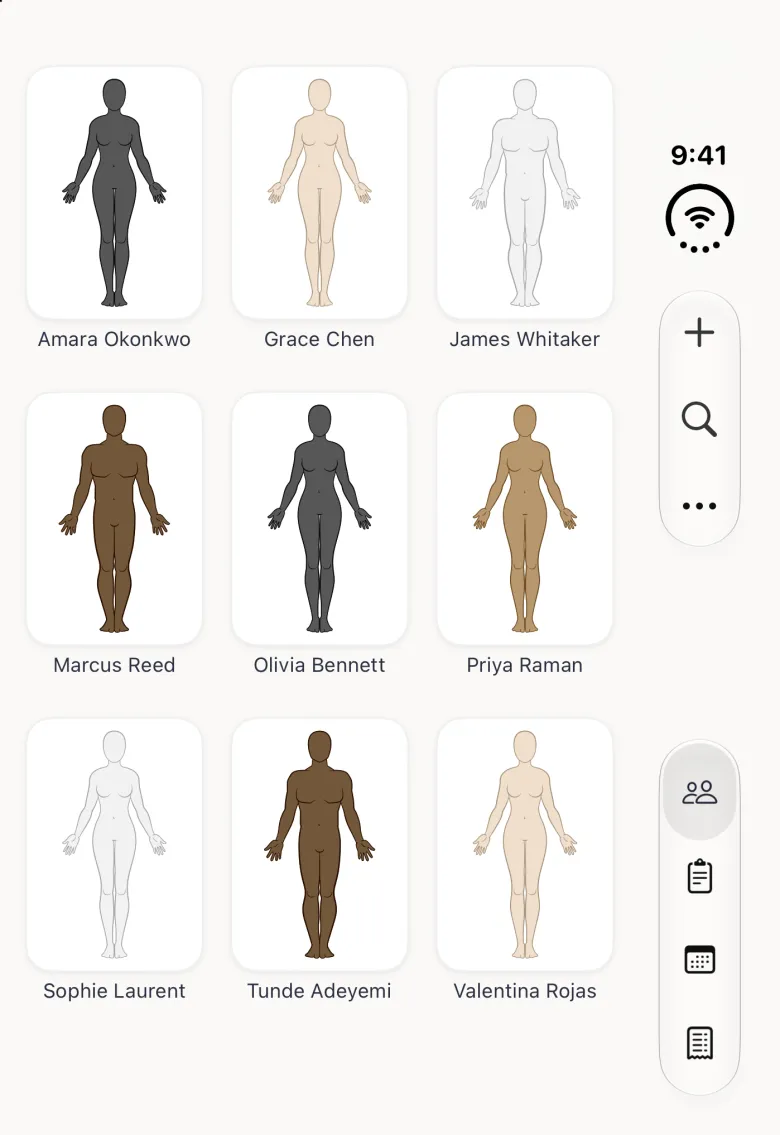
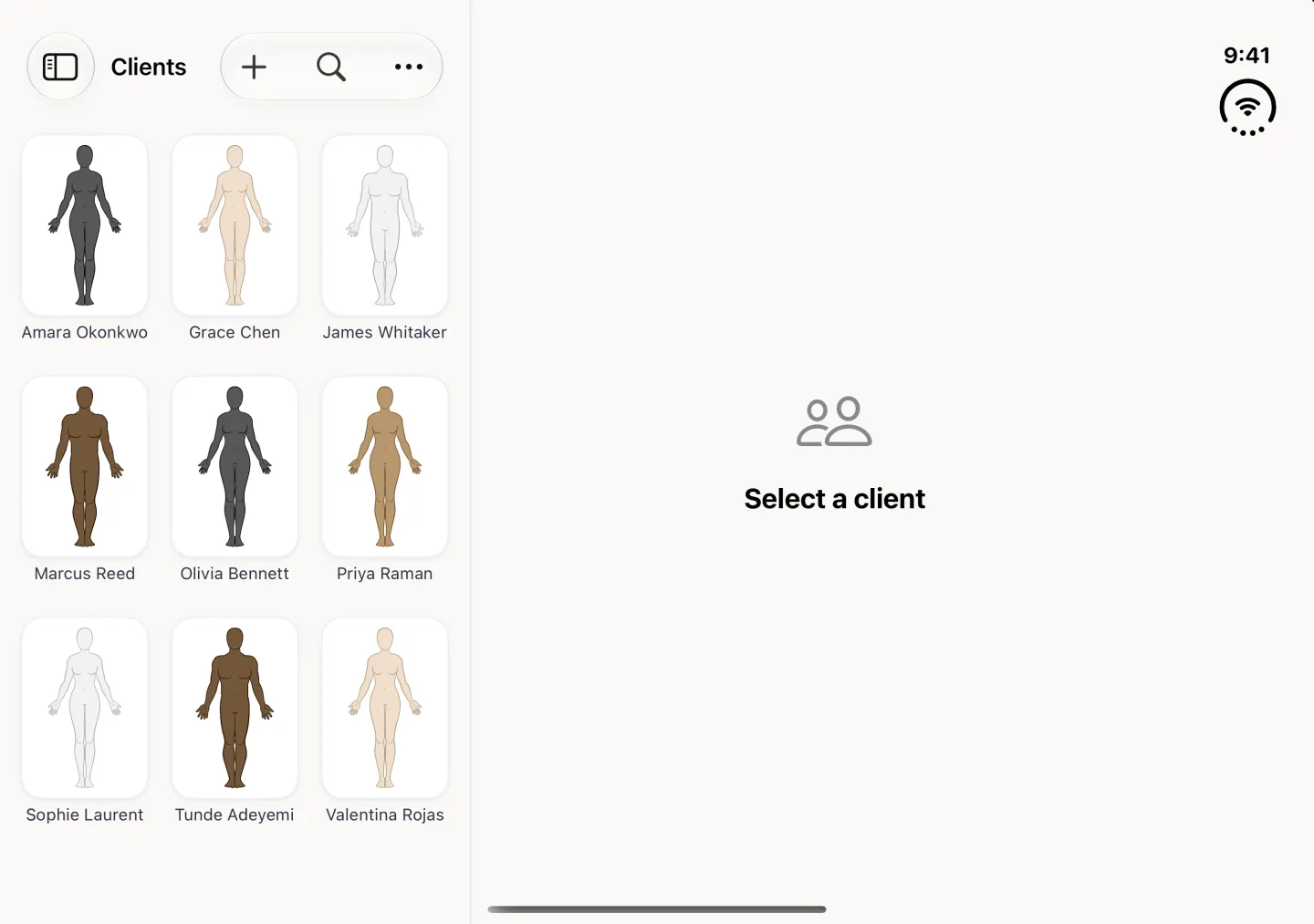
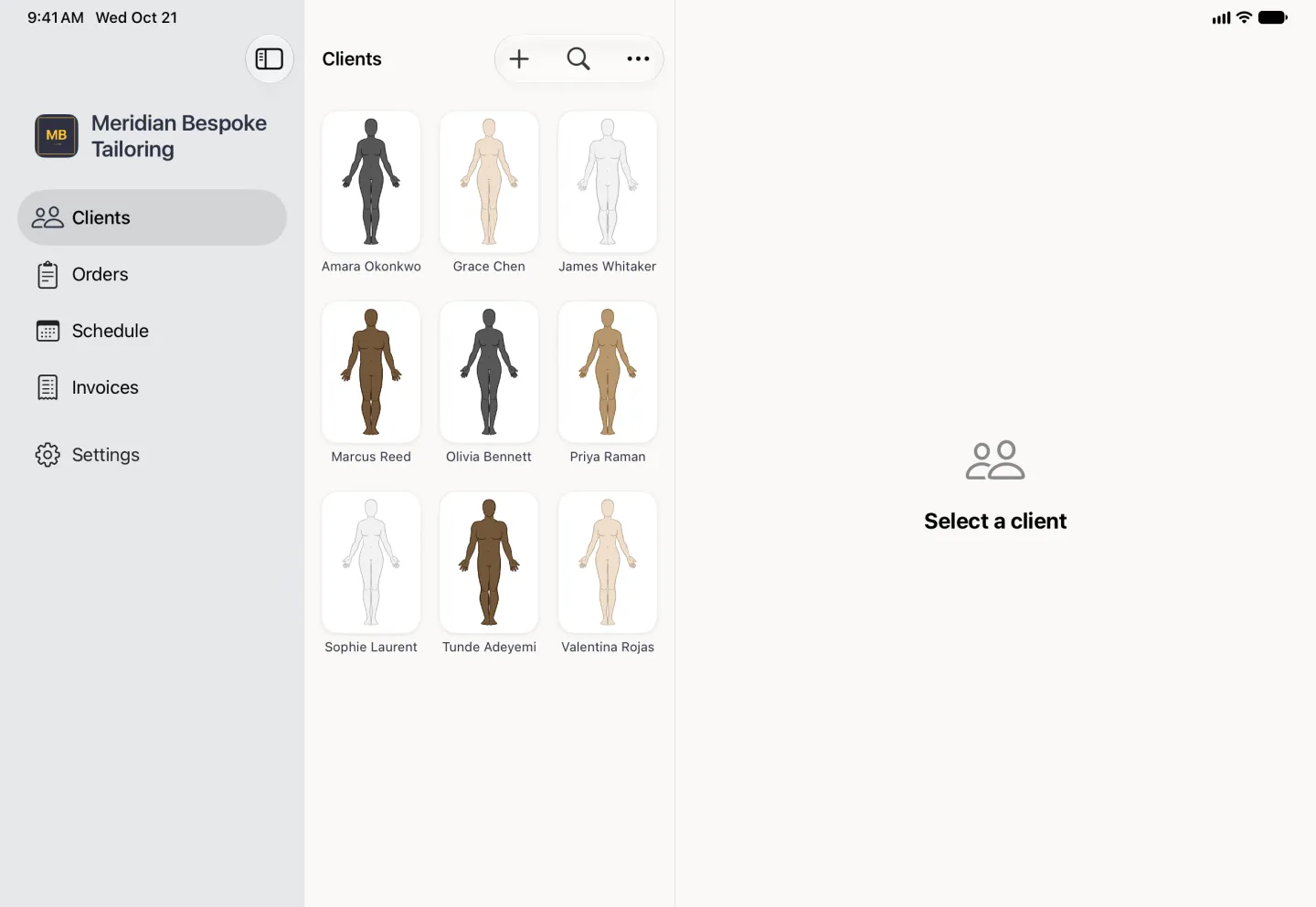
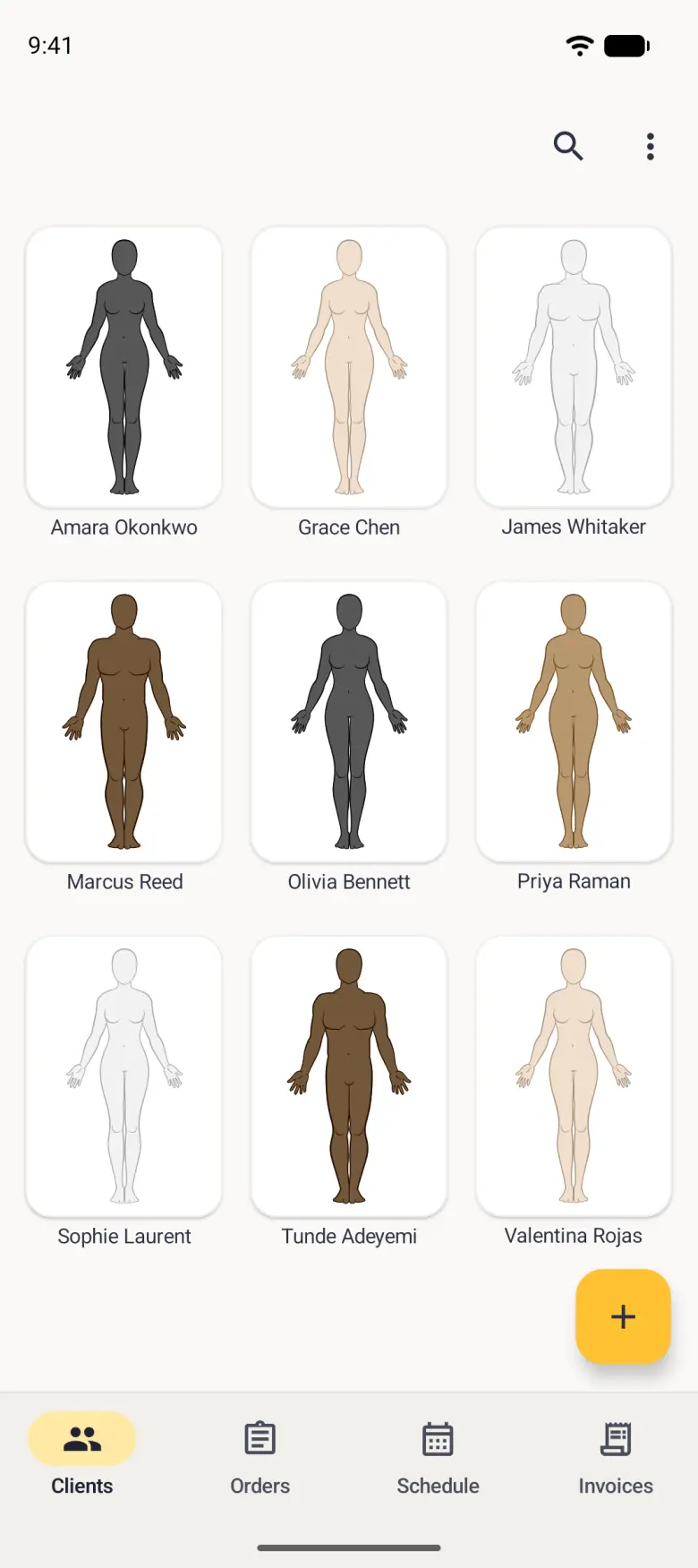
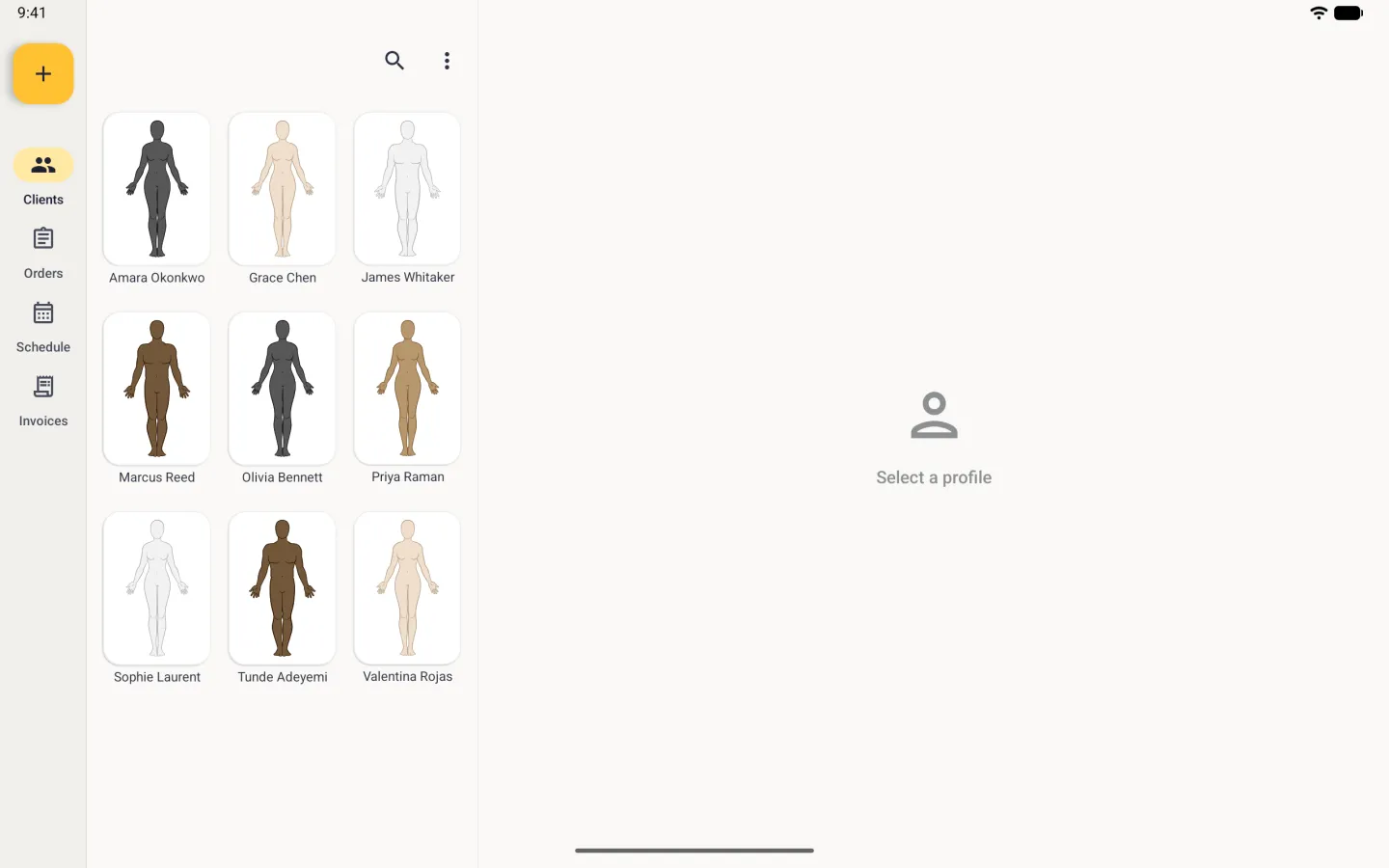
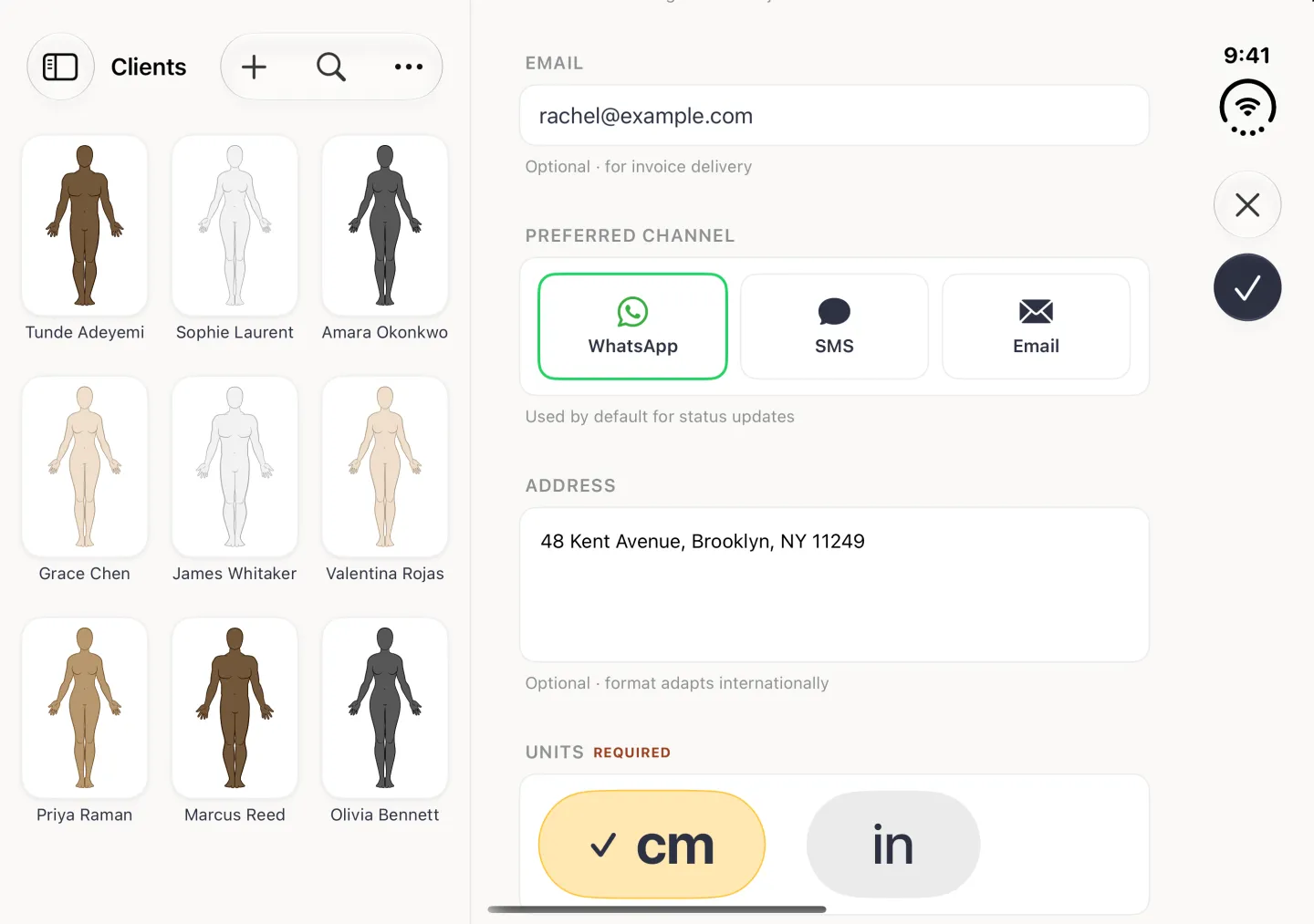
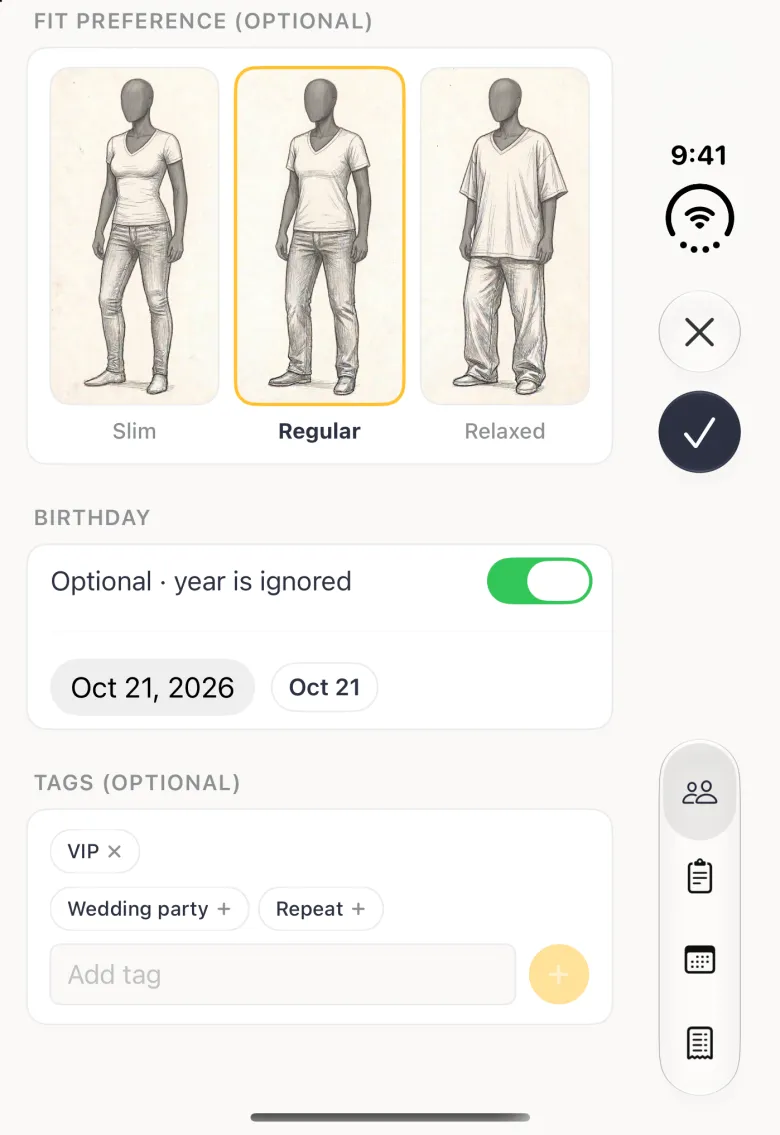
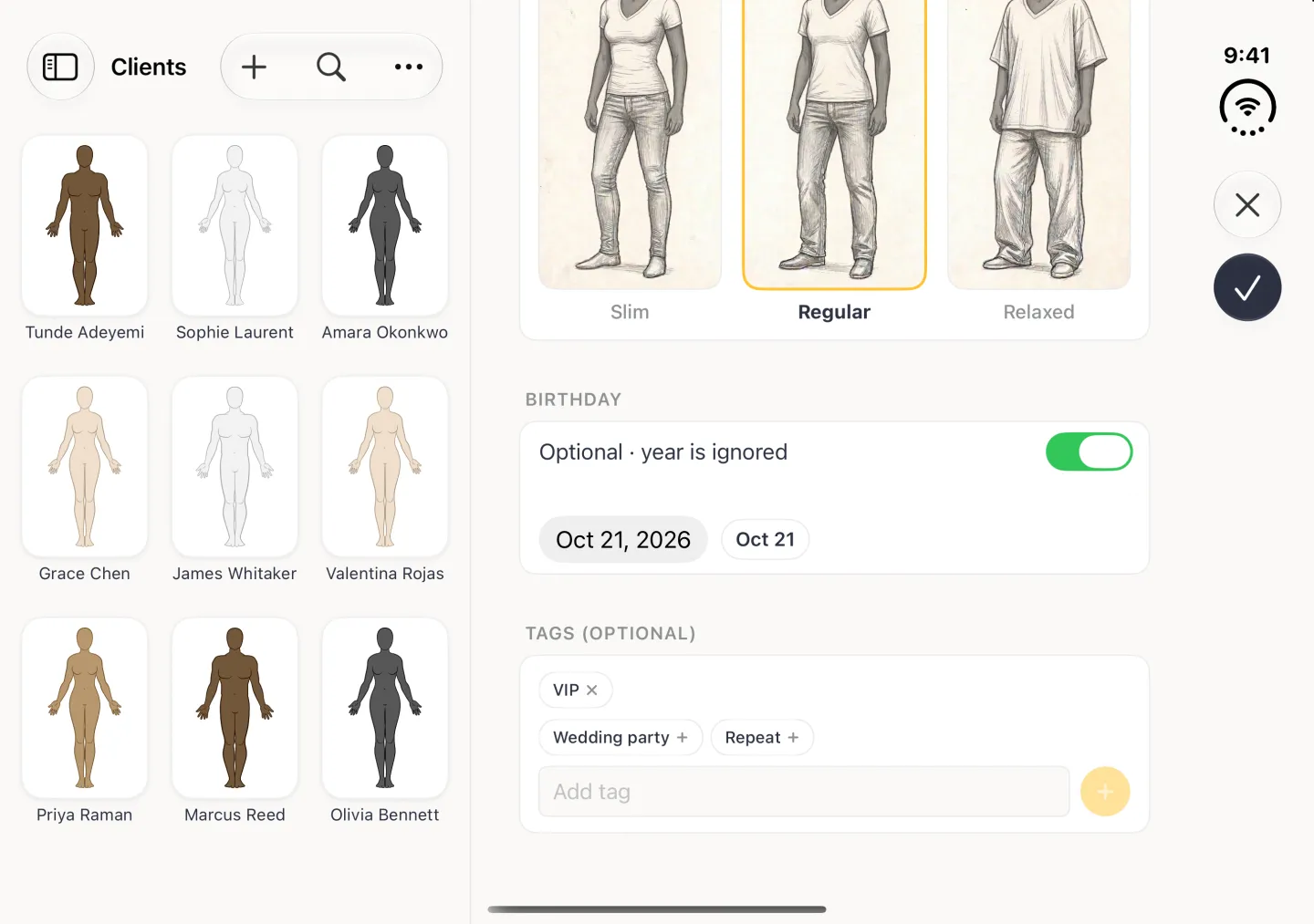
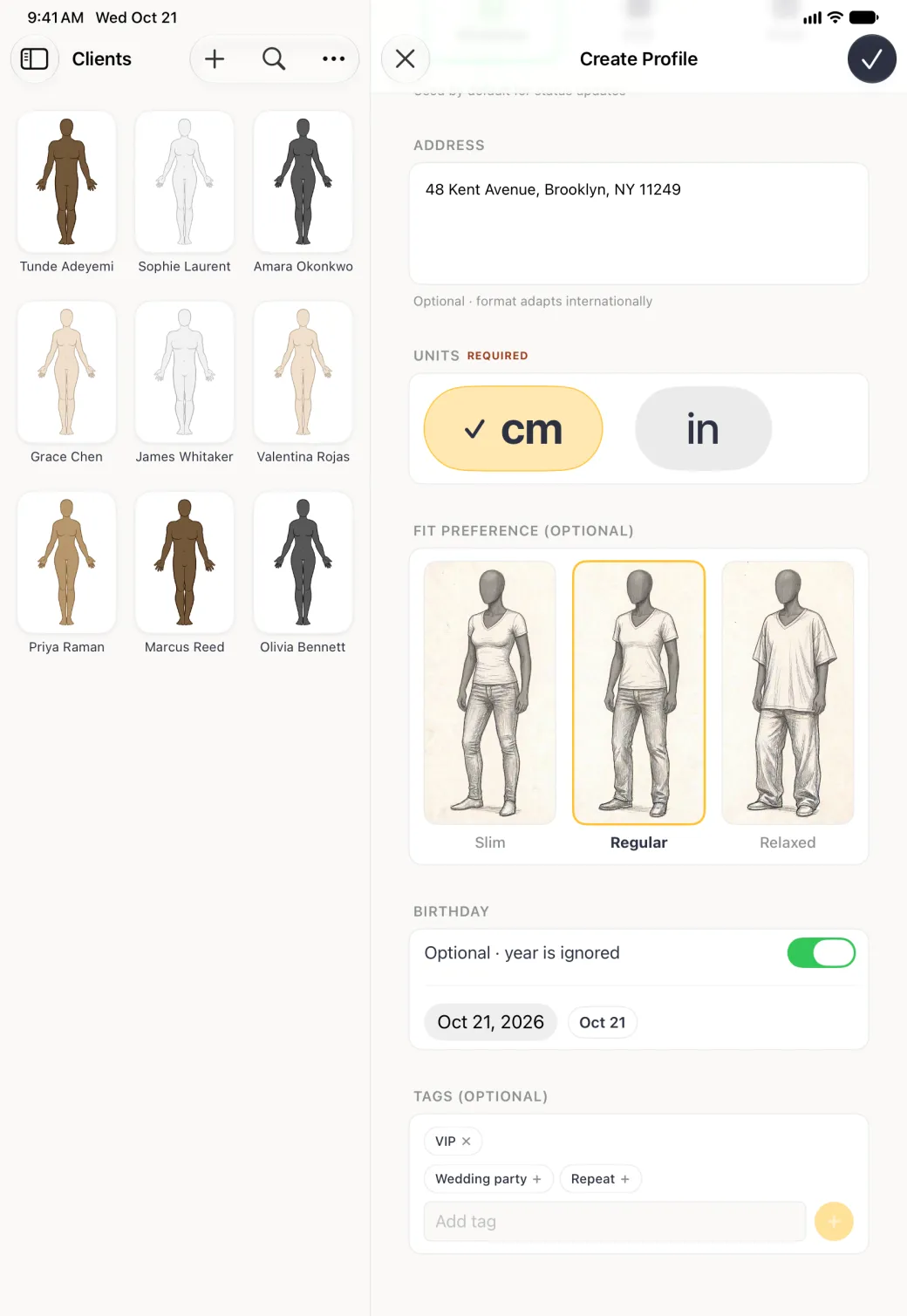
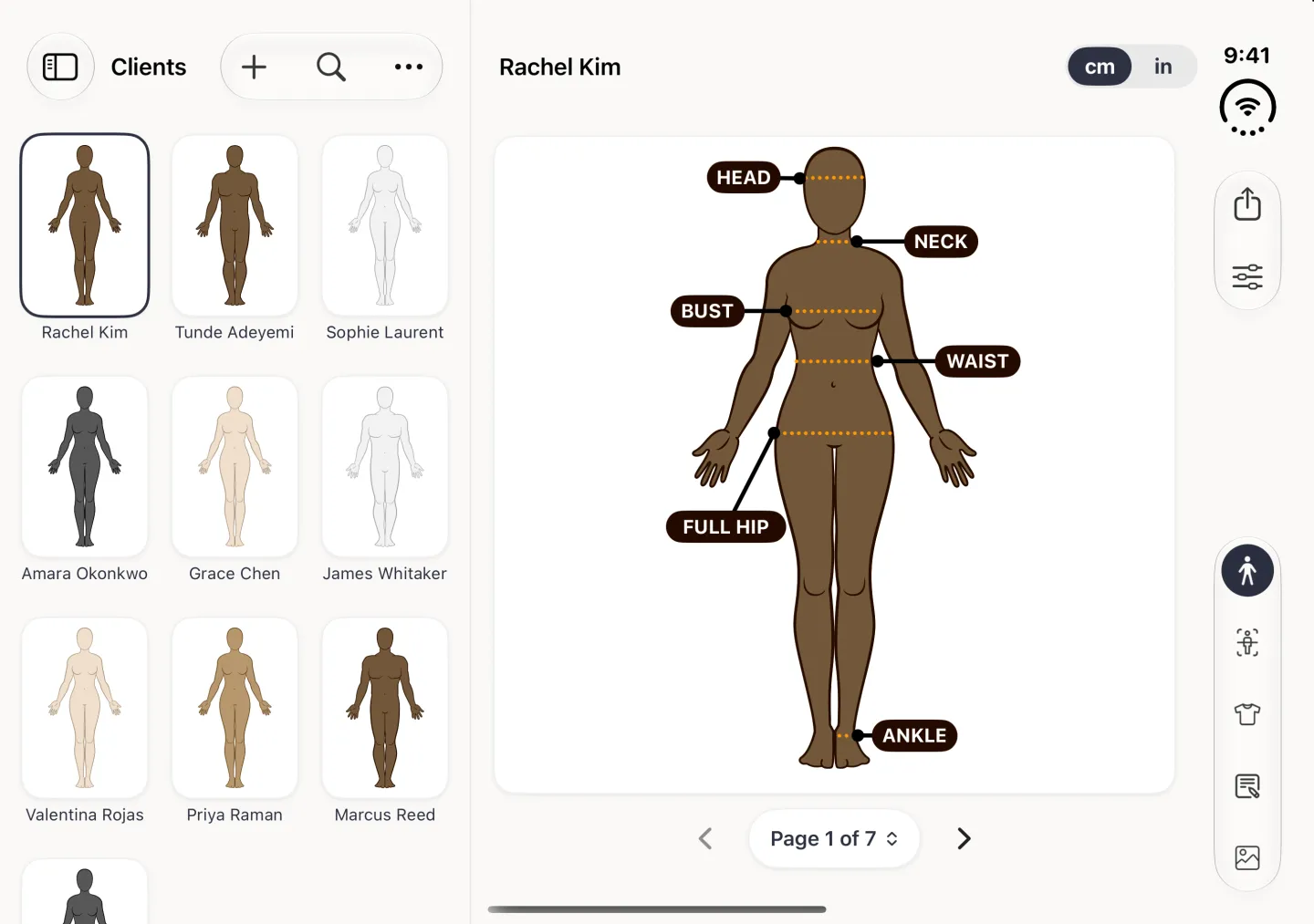
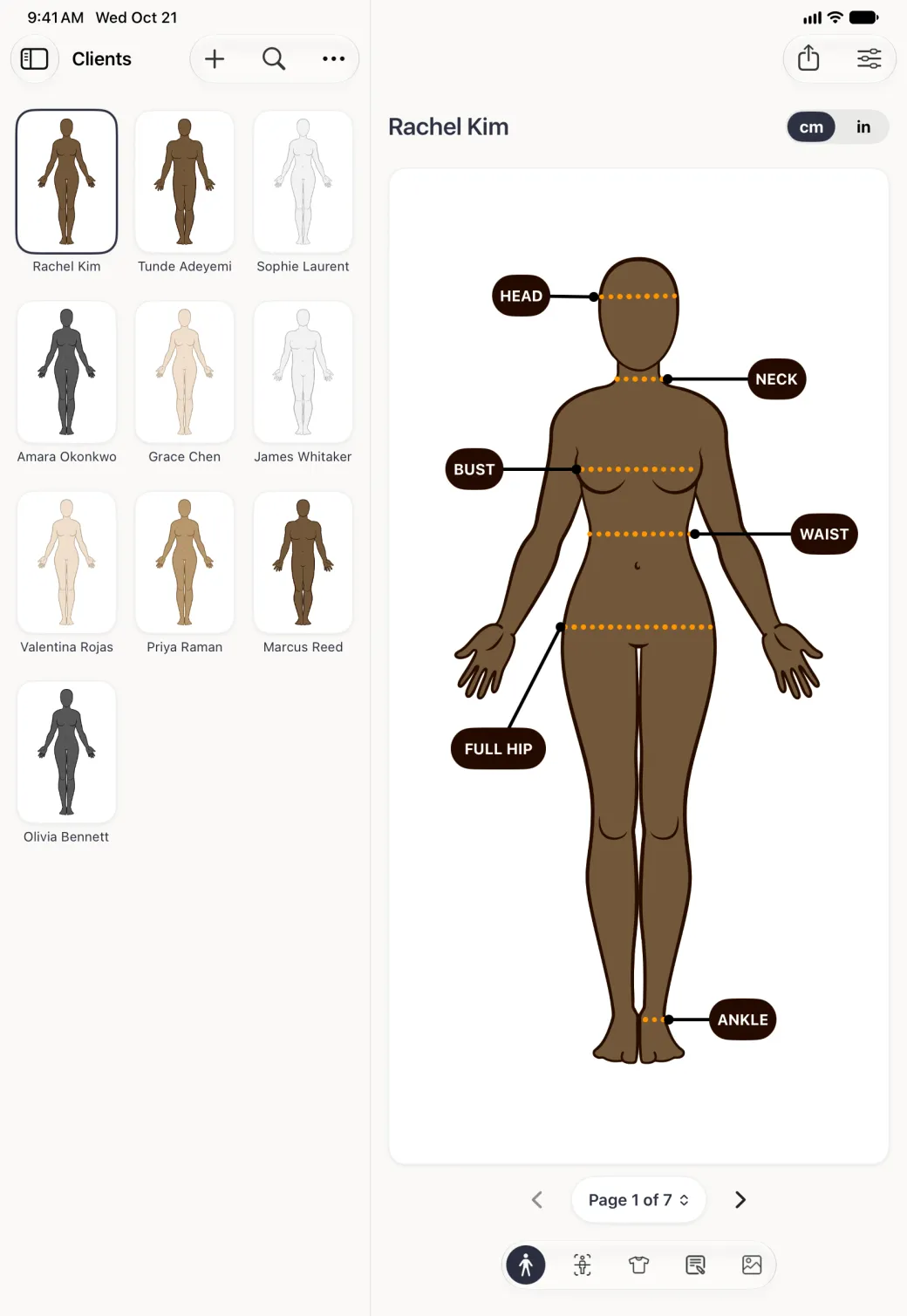
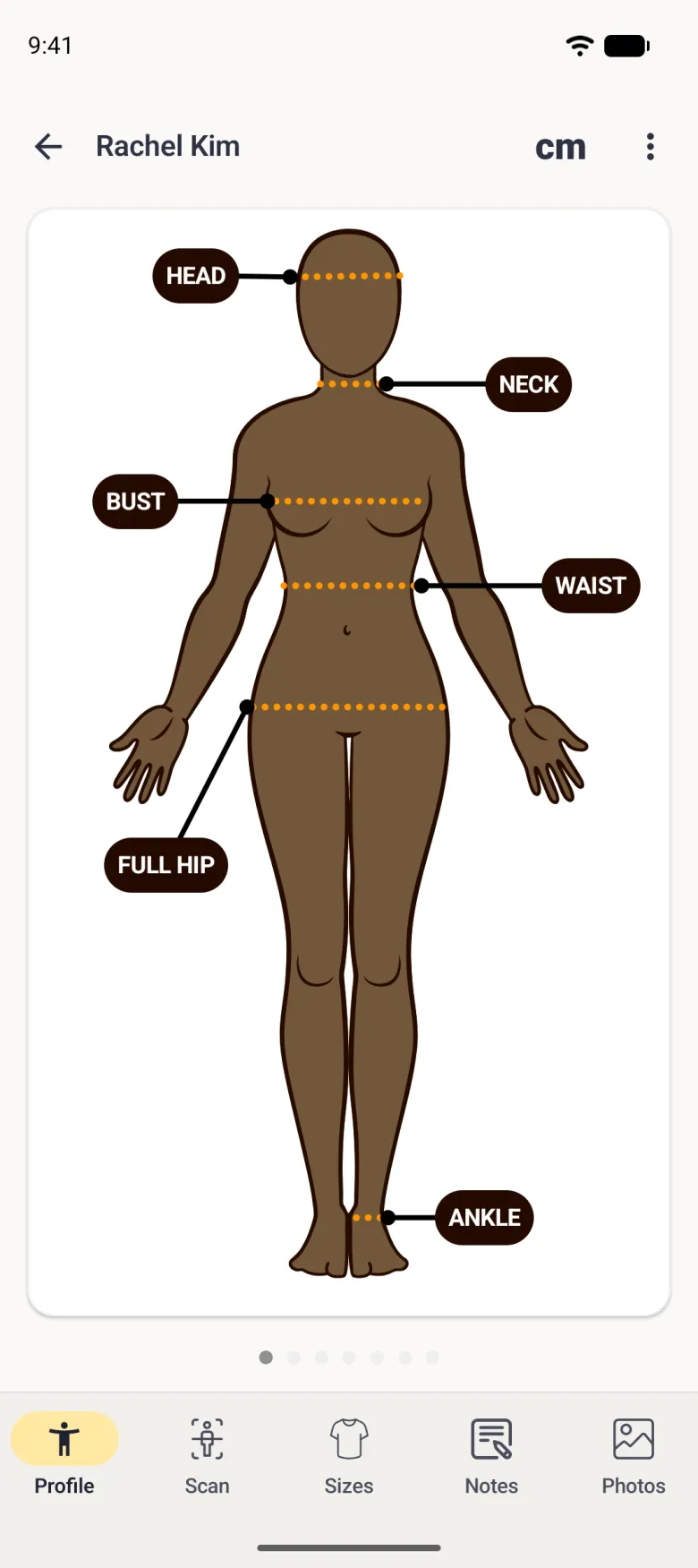
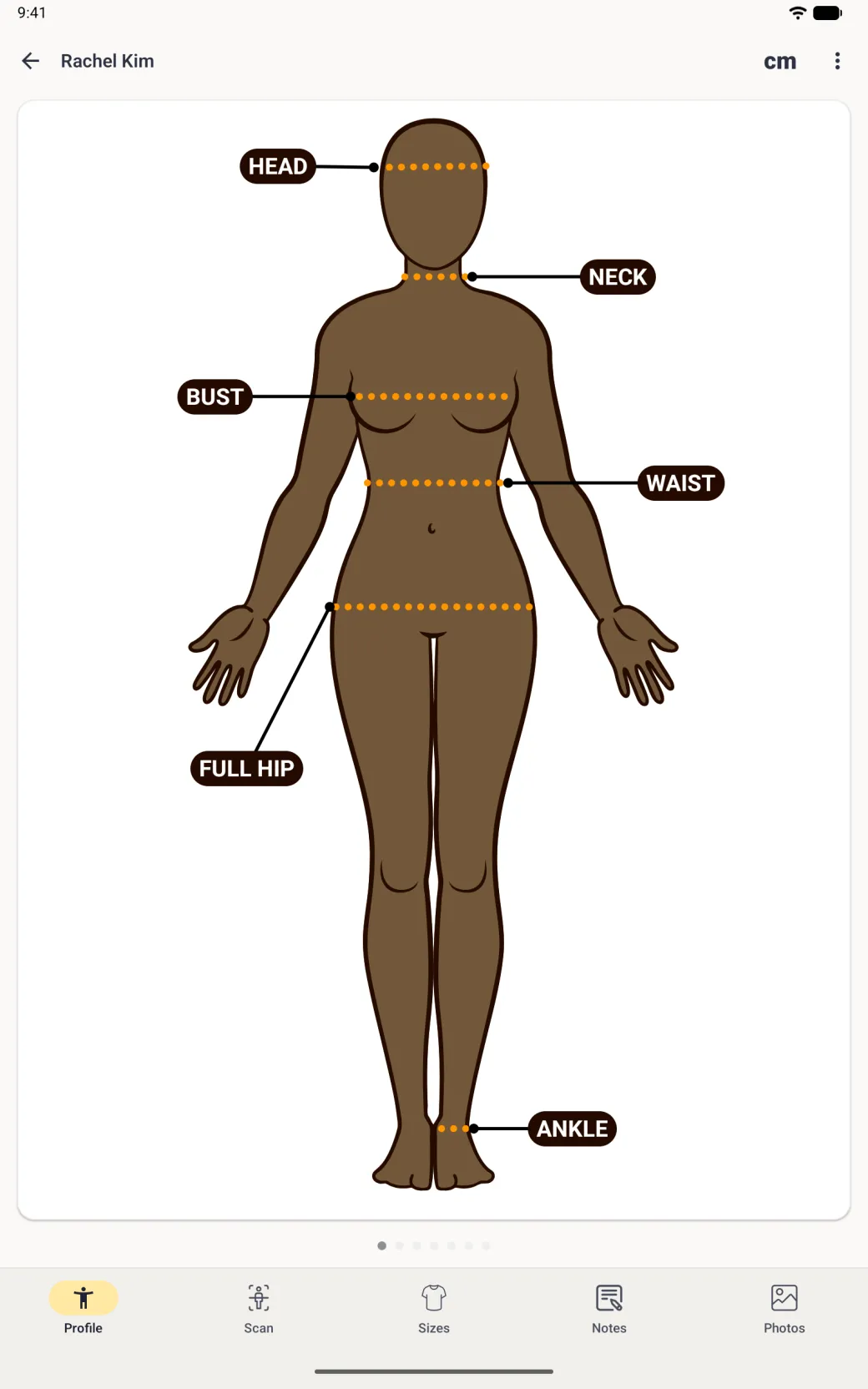
The Tailor Shop tools described here are on iPhone, iPad and Android. On iPad the tabs are a sidebar on the left. On Android the tabs are a bar along the bottom of a phone, and a rail down the left on a tablet. On iPhone Duo, opened, the list sits beside the page, the tabs sit behind the sidebar button at the top left and the bar buttons move to a strip on the right; closed, it works like an iPhone with the buttons and the four tabs in a strip on the right. With the subscription on, the home grid becomes the Clients tab of a four-tab bar, and the profile form grows the contact fields below.
How to add a client
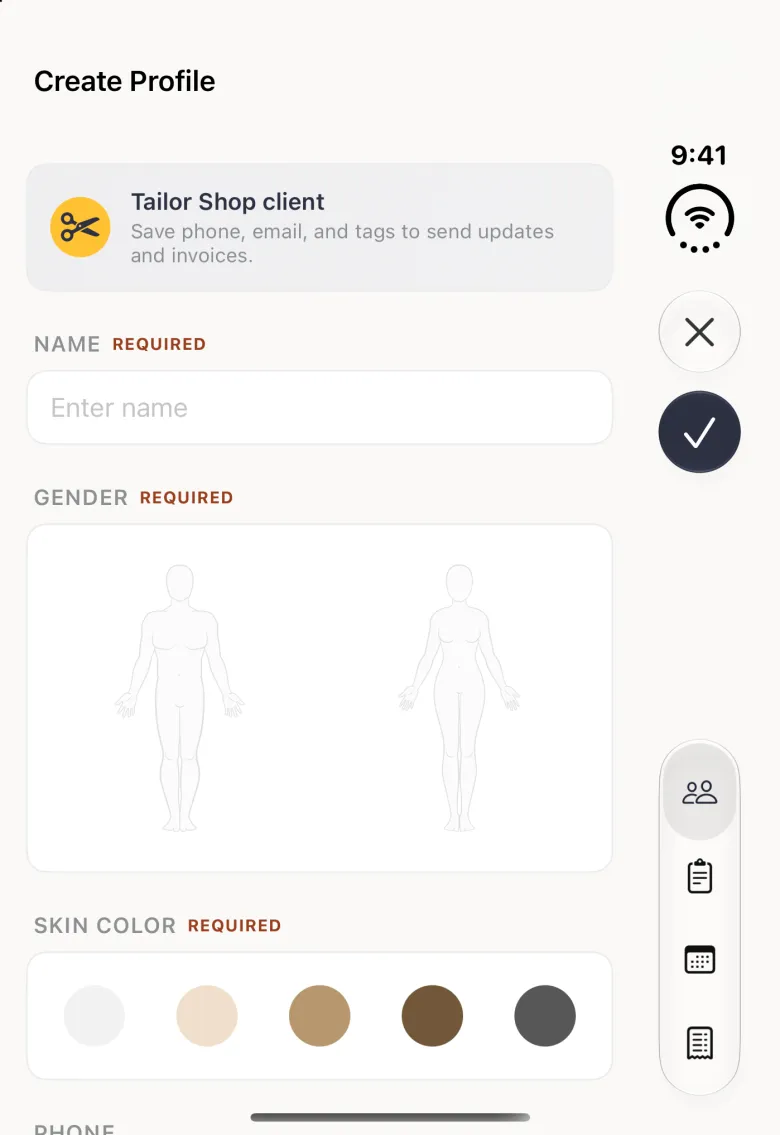
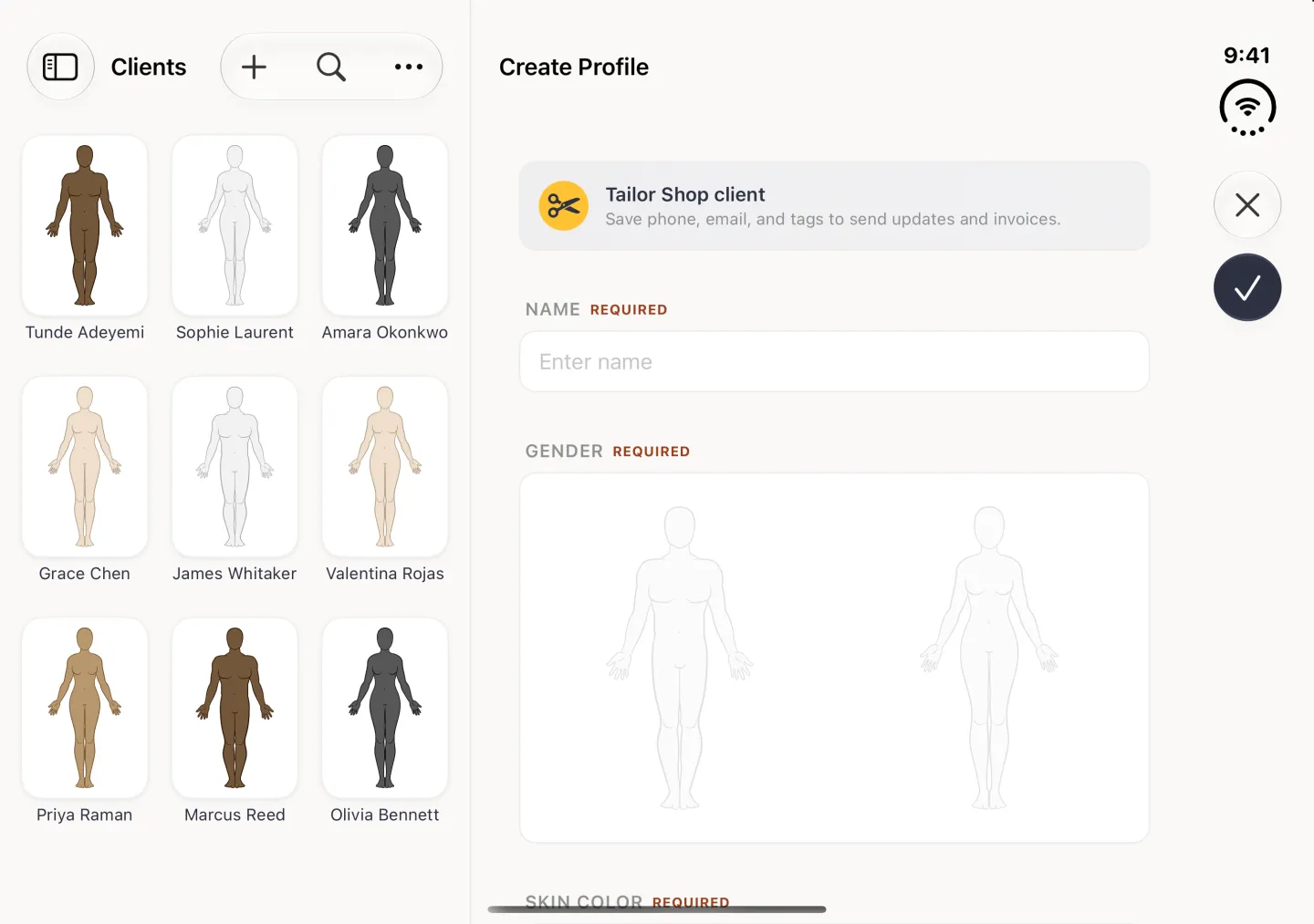
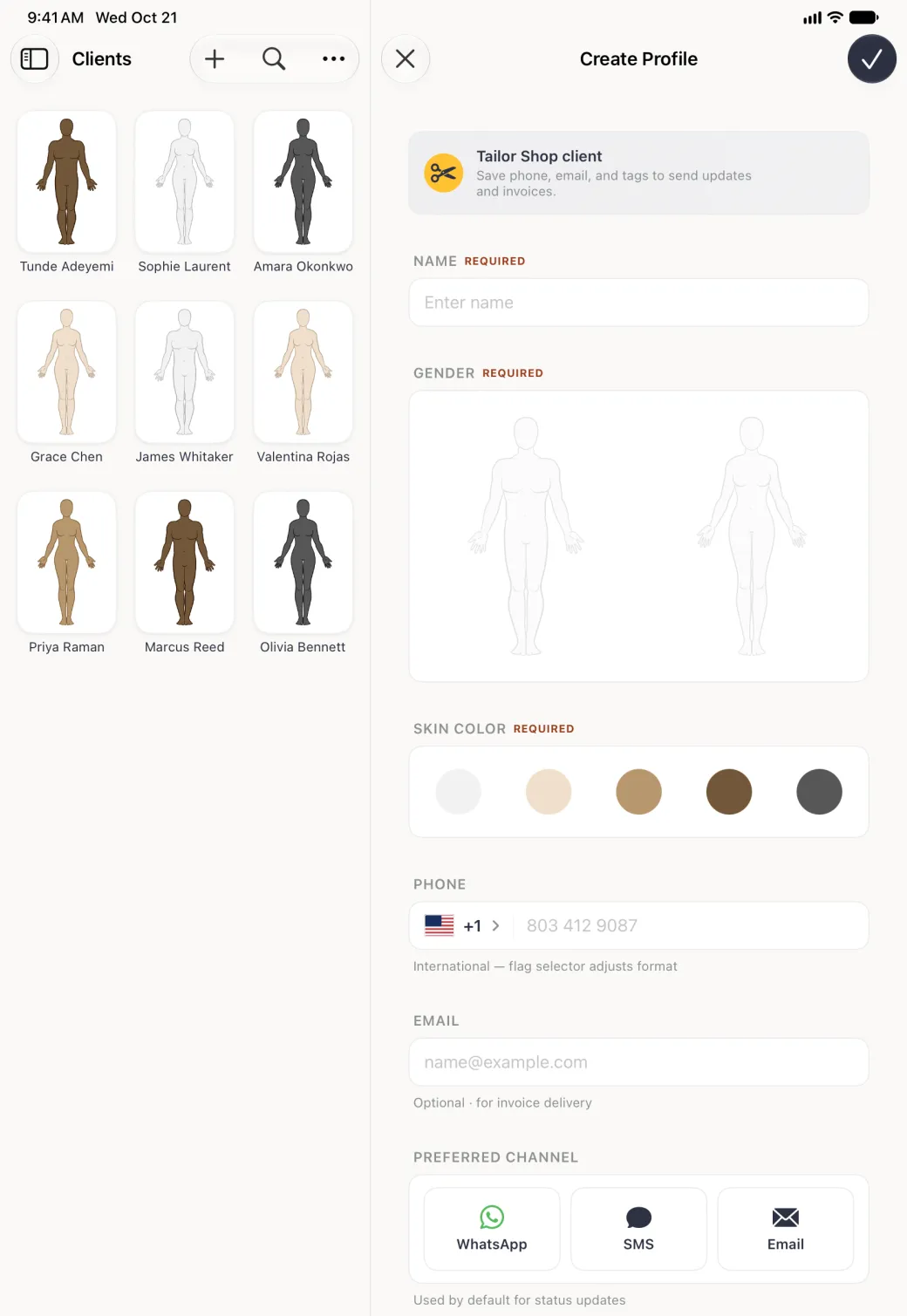
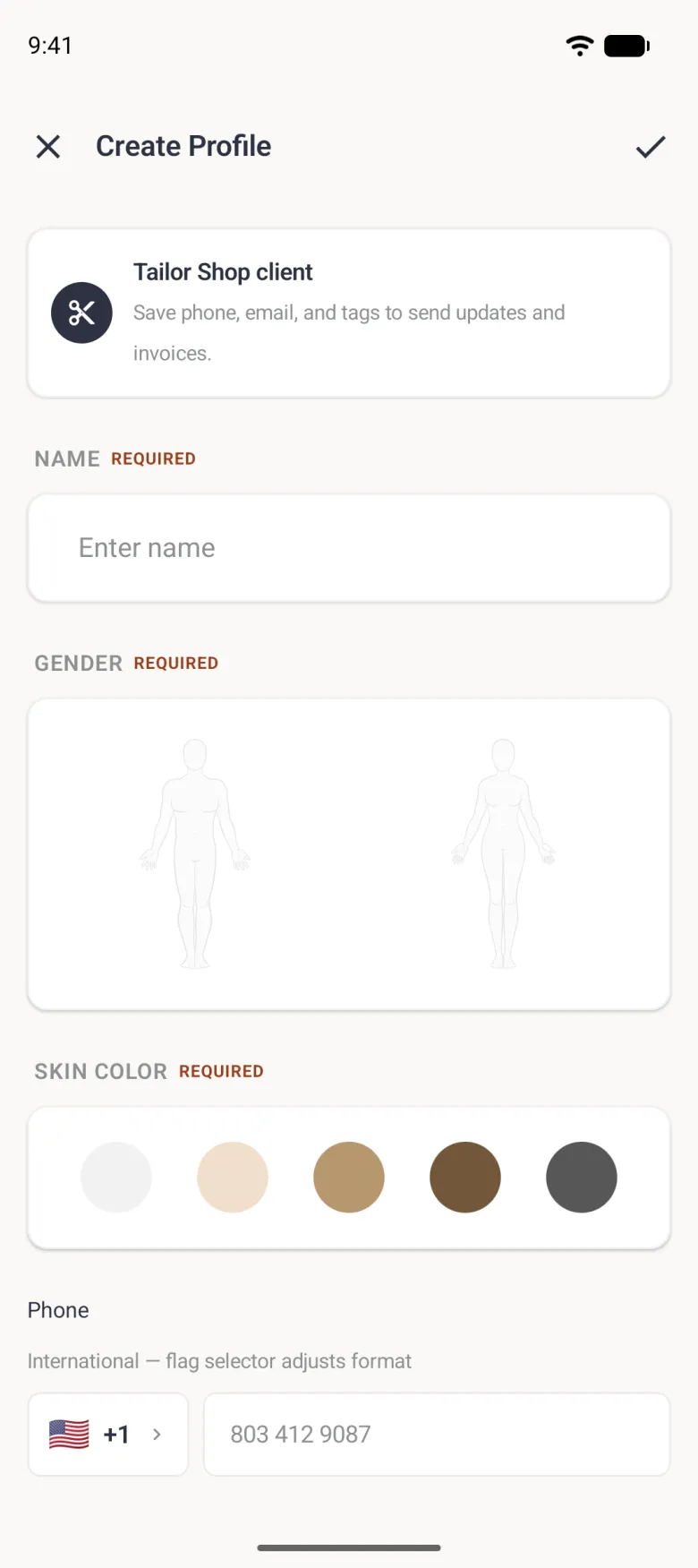
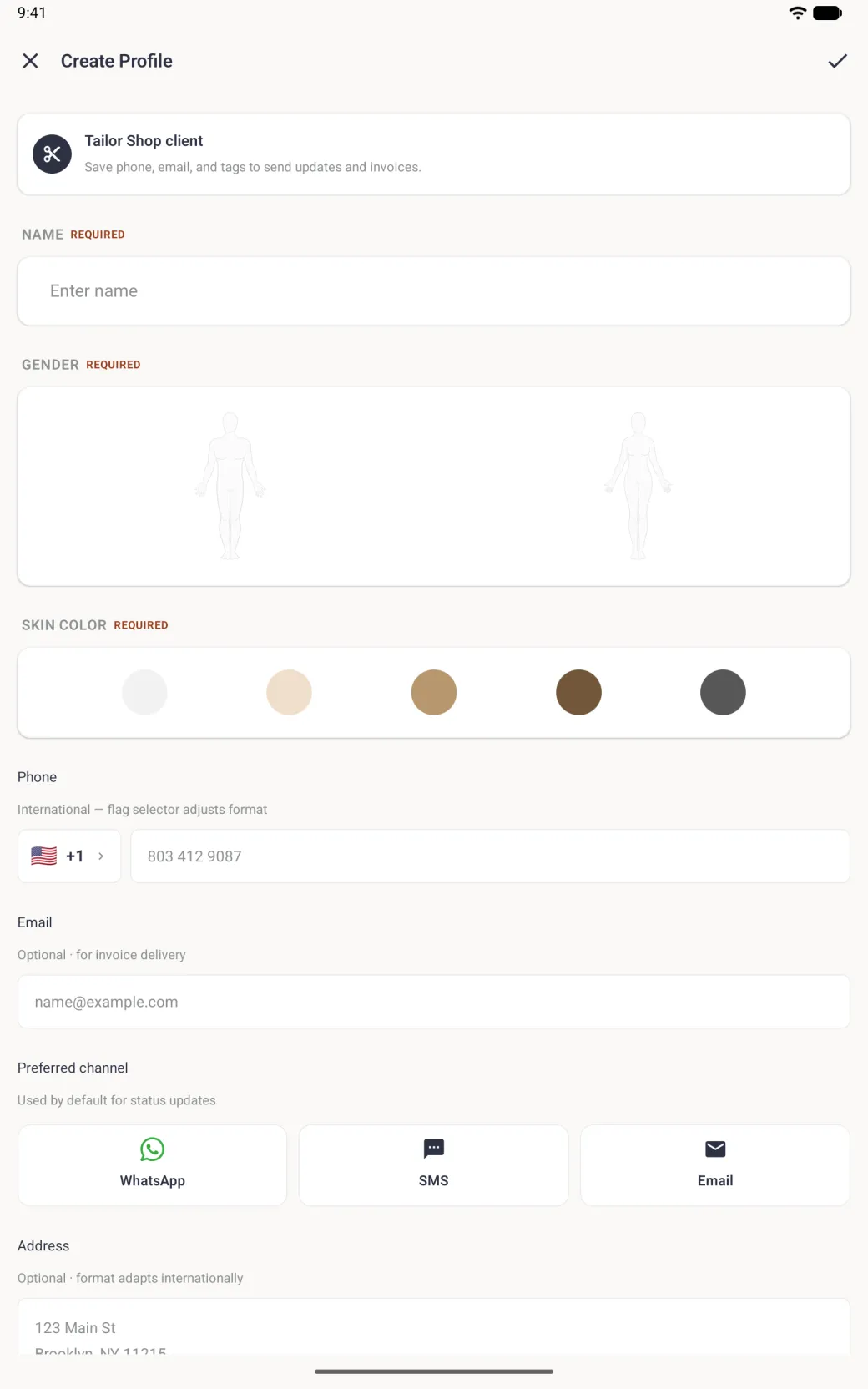
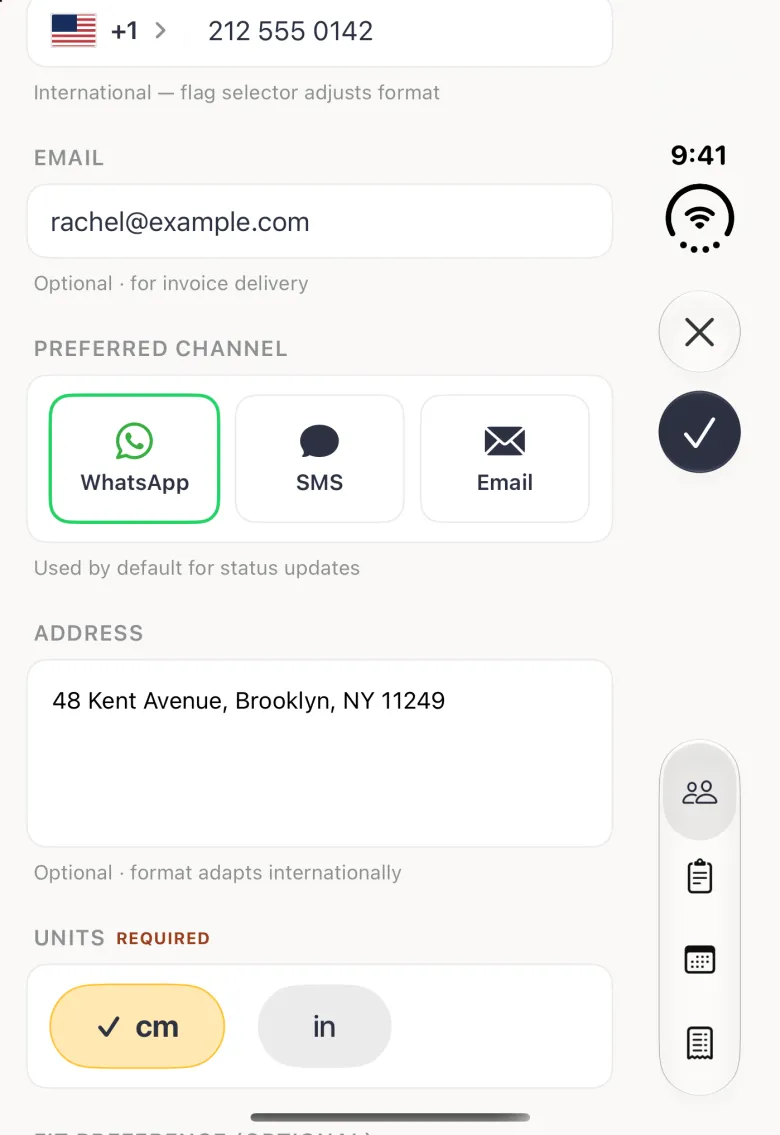
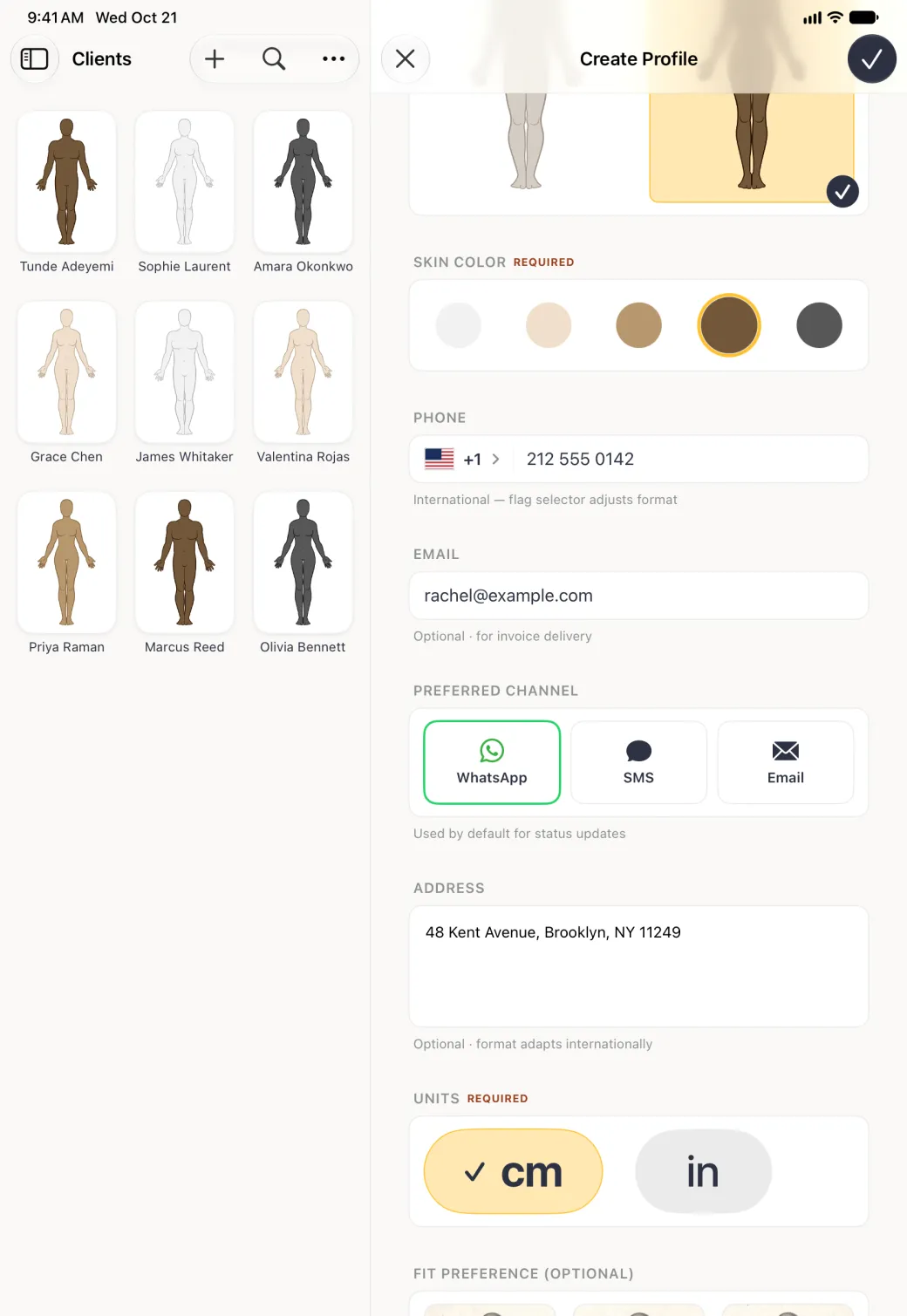
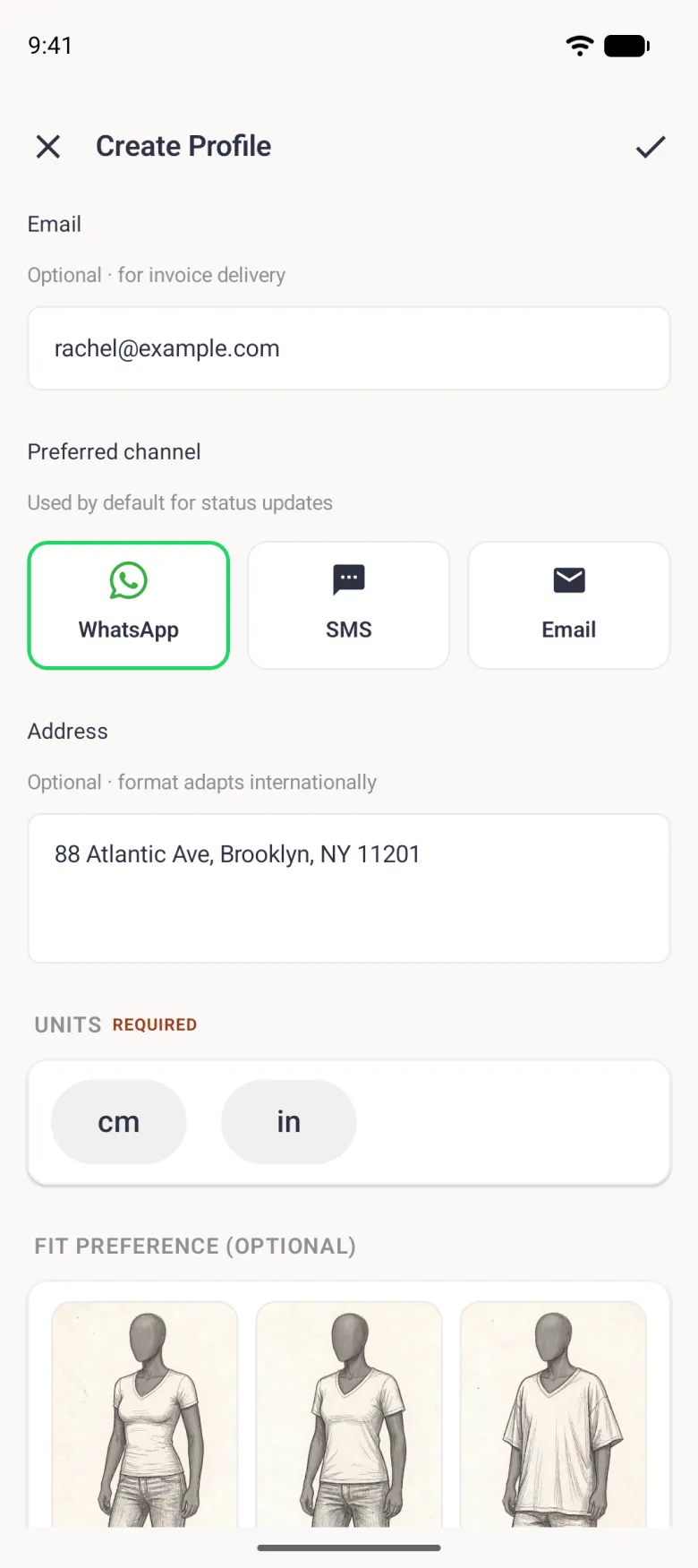
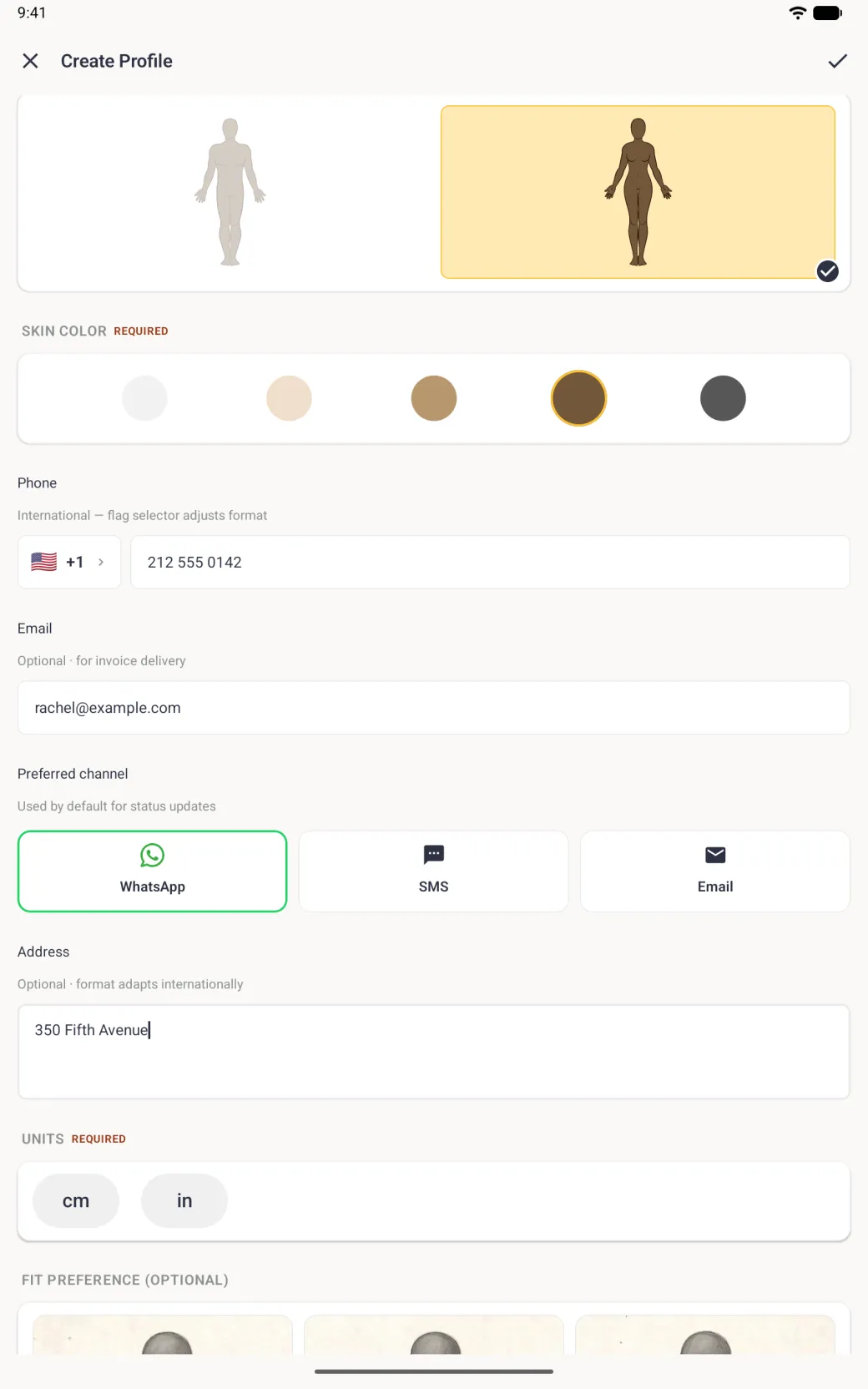
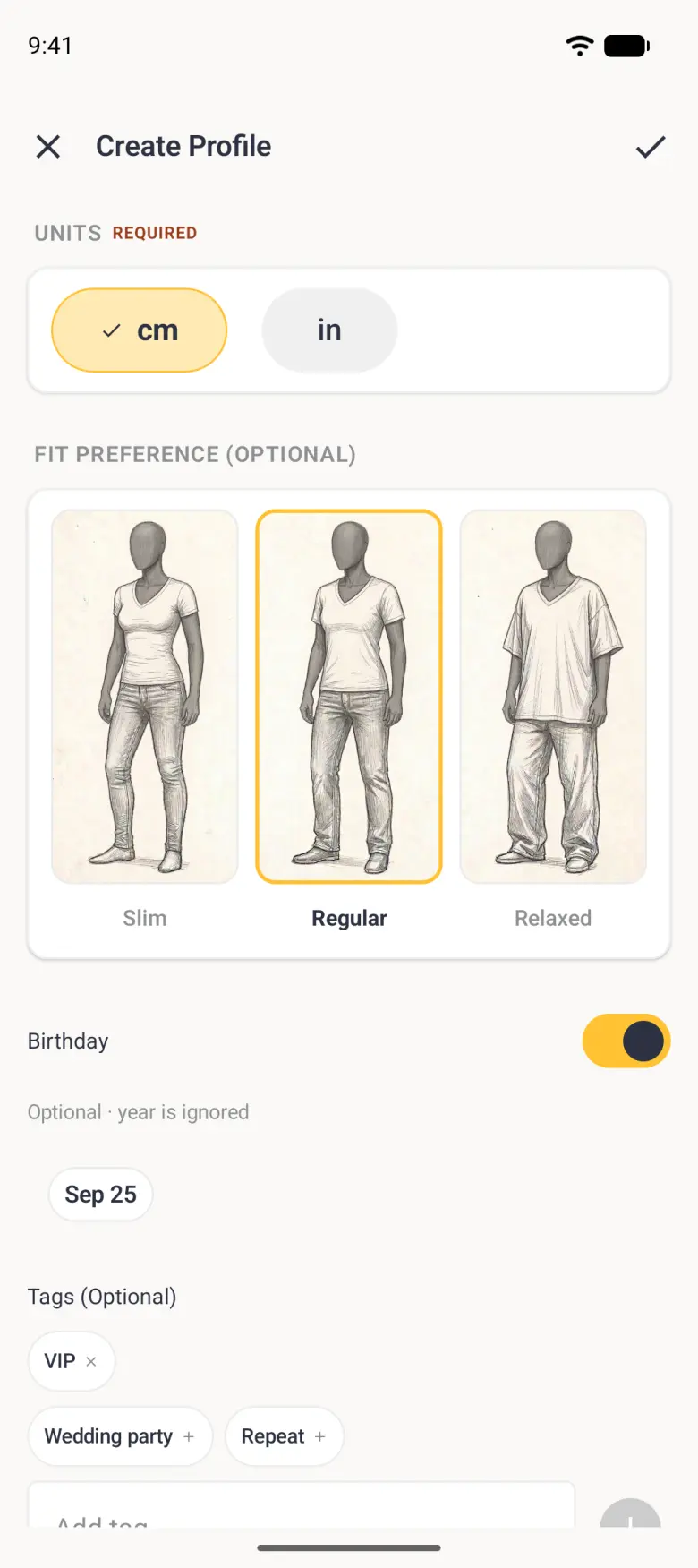
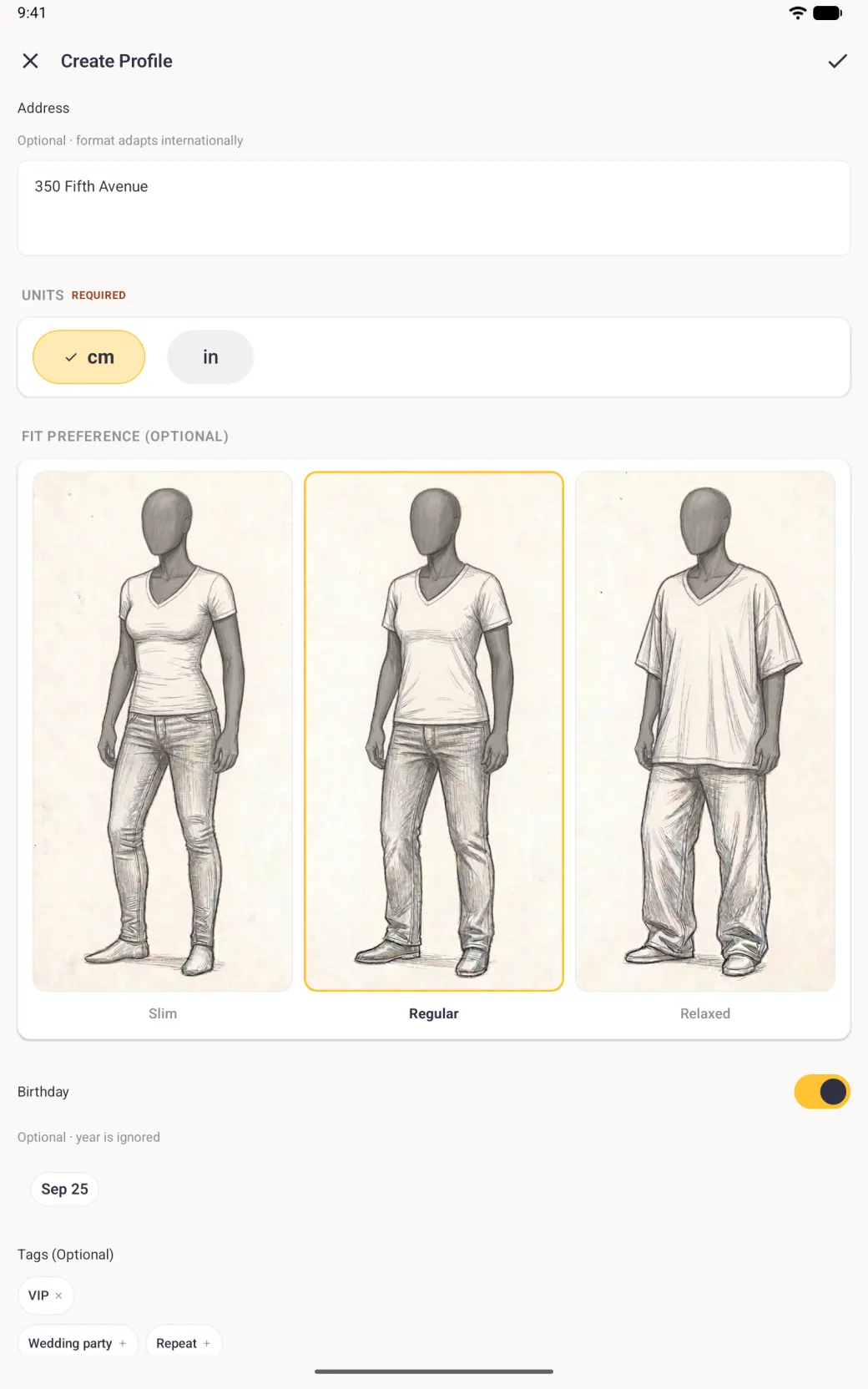
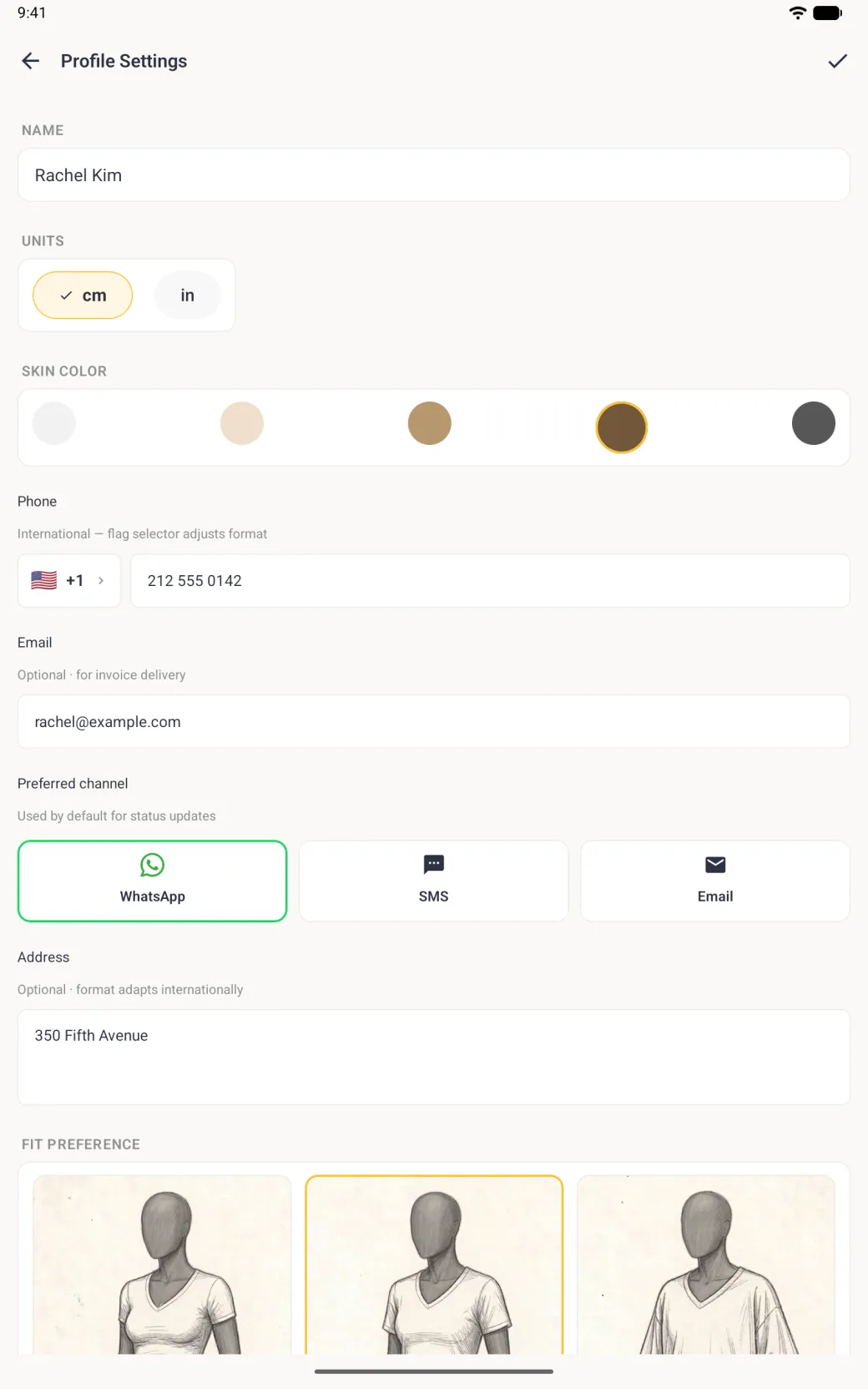
Tap the plus button at the top right of the Clients tab. On Android, tap the gold + button at the bottom right of the Clients tab instead; it sits at the top of the navigation rail on a tablet. The form opens with a Tailor Shop client banner across the top, then the same name, body type and skin tone you already use, followed by the contact fields. On iPhone and iPad each group of fields sits in its own white card under a small grey heading: Name, Gender and Skin color, then Phone, Email, Preferred channel, Address, Birthday and Tags. Name, body type, skin tone and units are required. Everything else is optional, though a phone number or an email address is what lets you message the client later.
- Type the client’s name, then choose the body type and skin tone. The chosen outline is highlighted in gold and takes the skin tone you picked.
- Enter the phone number, leaving the dialling code to the flag selector beside it, then the email address.
- Choose WhatsApp, SMS or Email under Preferred channel. Updates about this client’s orders open on that channel by default.
- Add the address if you deliver or fit at home, and set the units this client is measured in.
- Turn on Birthday if you want to record one. The year is ignored, so only the day and month are kept. On iPhone and iPad the switch is the standard green.
- Tap the tag chips that apply, or type your own. A tick turns a suggestion into an applied tag with a cross for removing it.
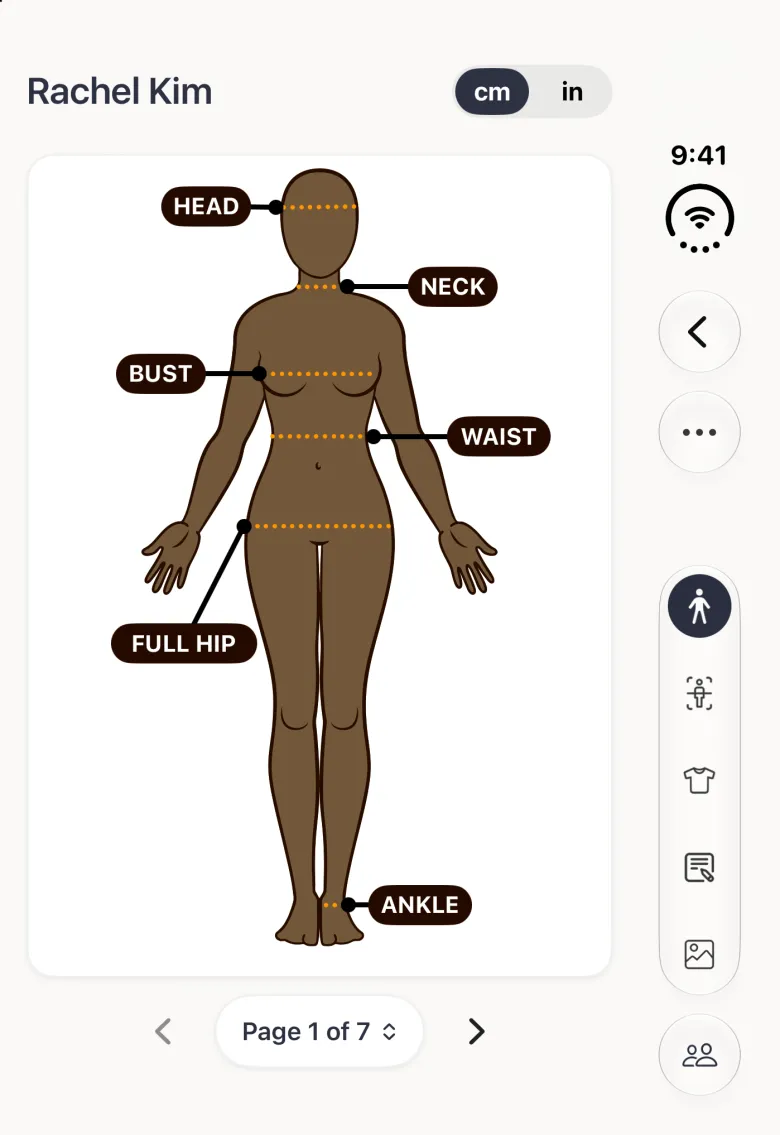
- Tap the checkmark at the top right. The client is saved and opens ready to measure. On iPhone the four-tab bar steps aside while a client is open and comes back when you tap Back.





How to change a client’s details
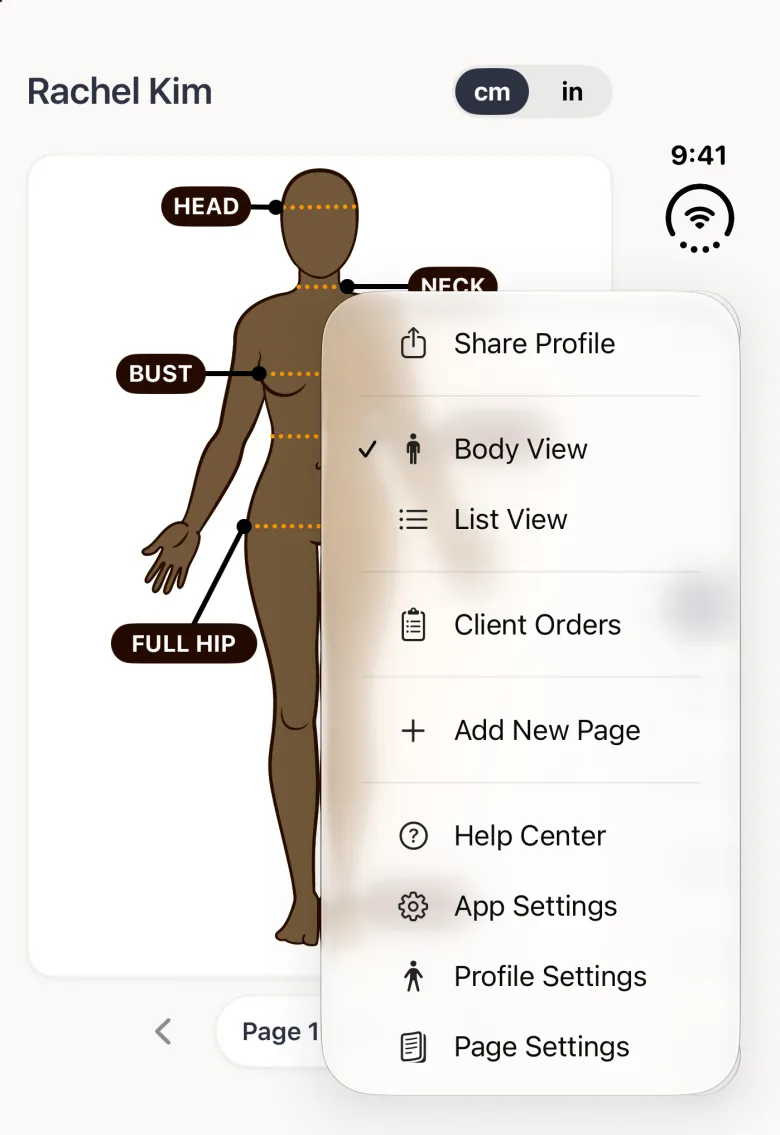
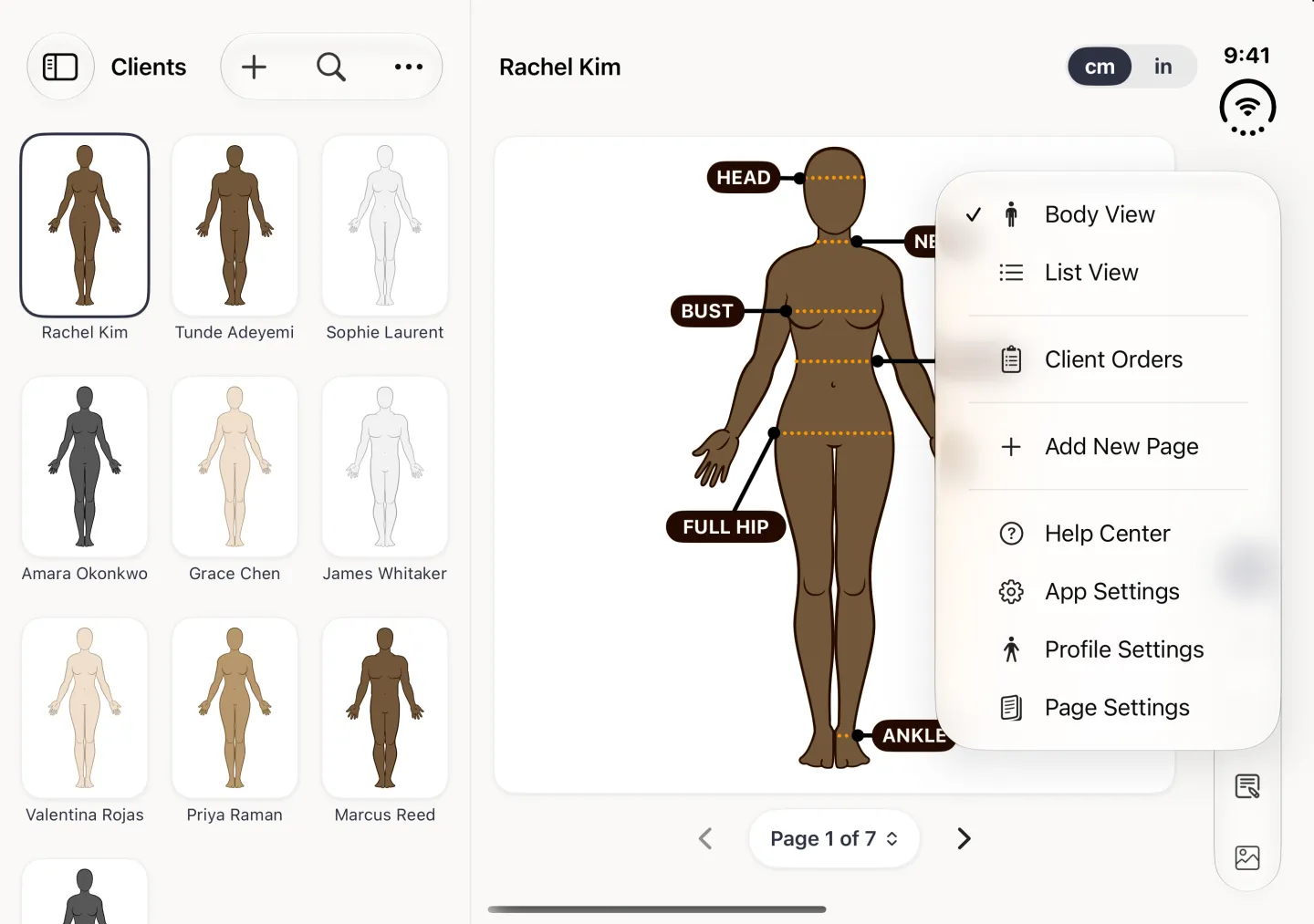
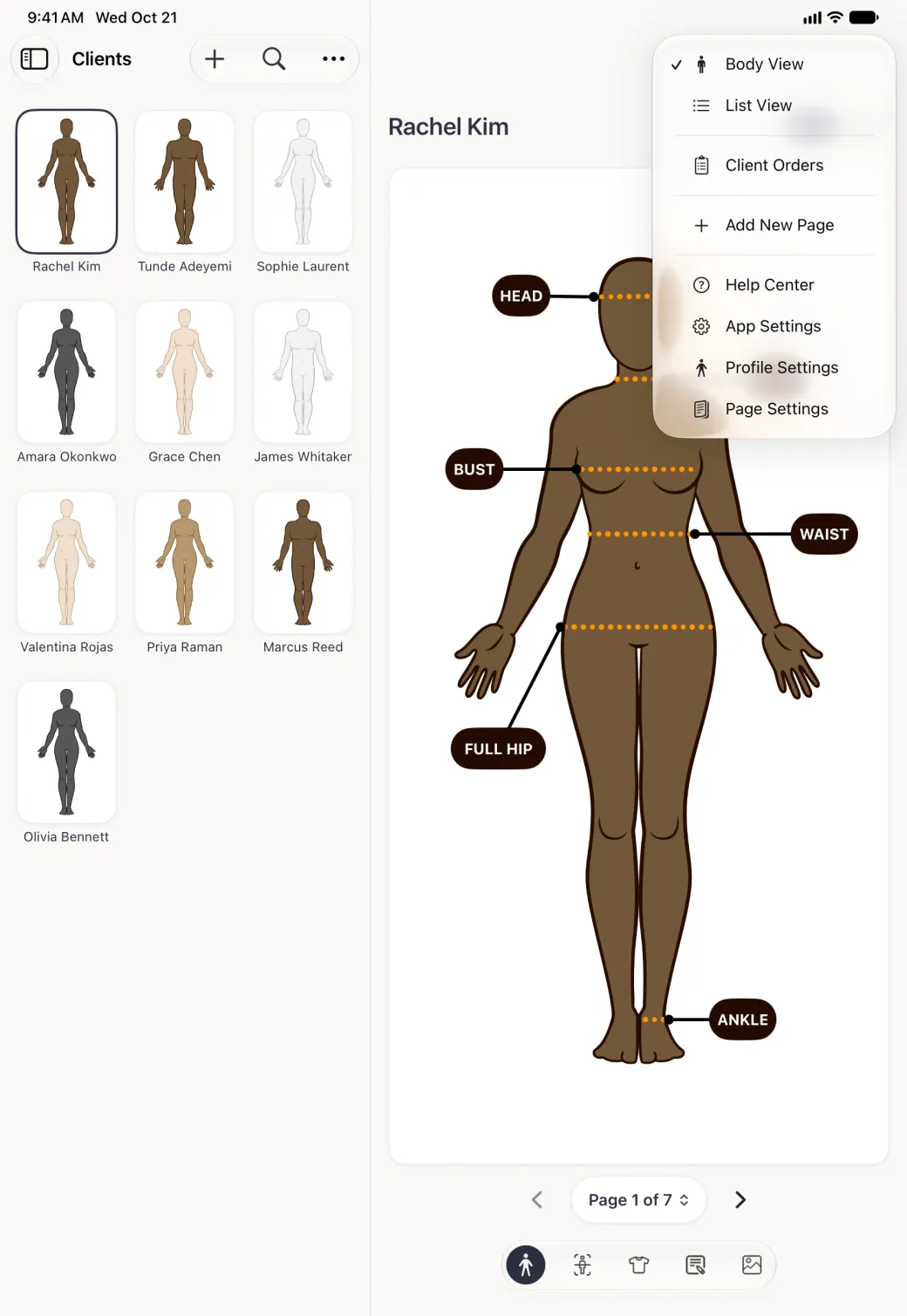
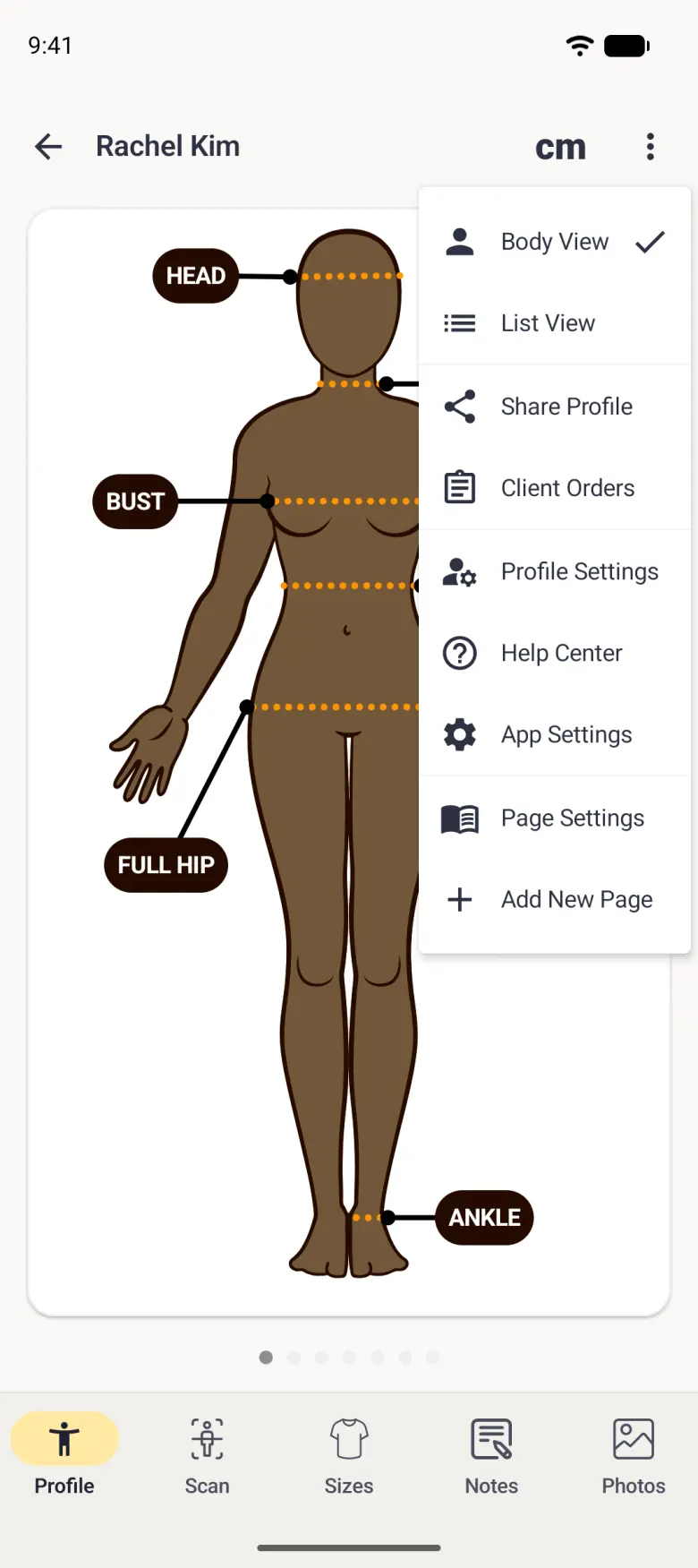
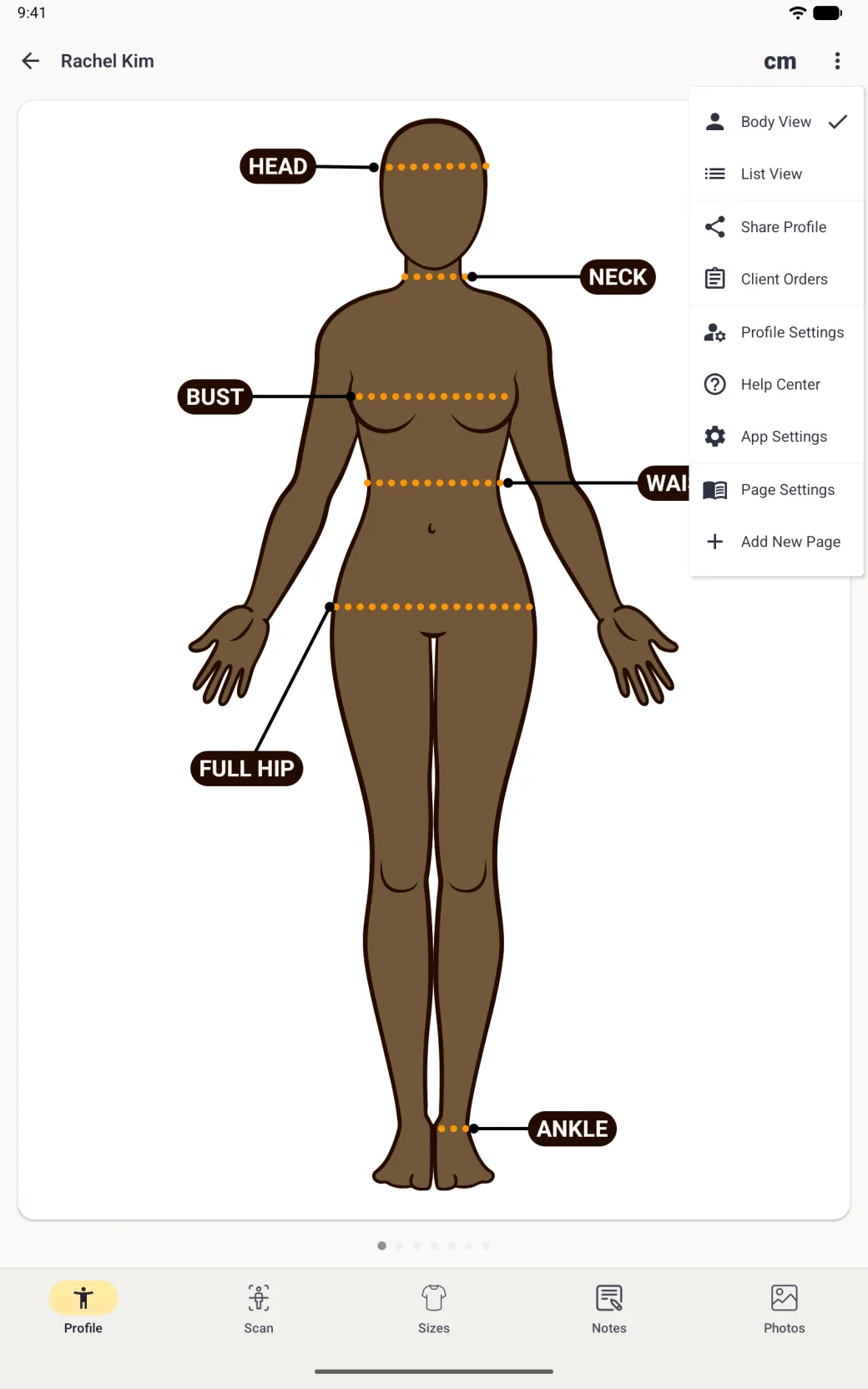
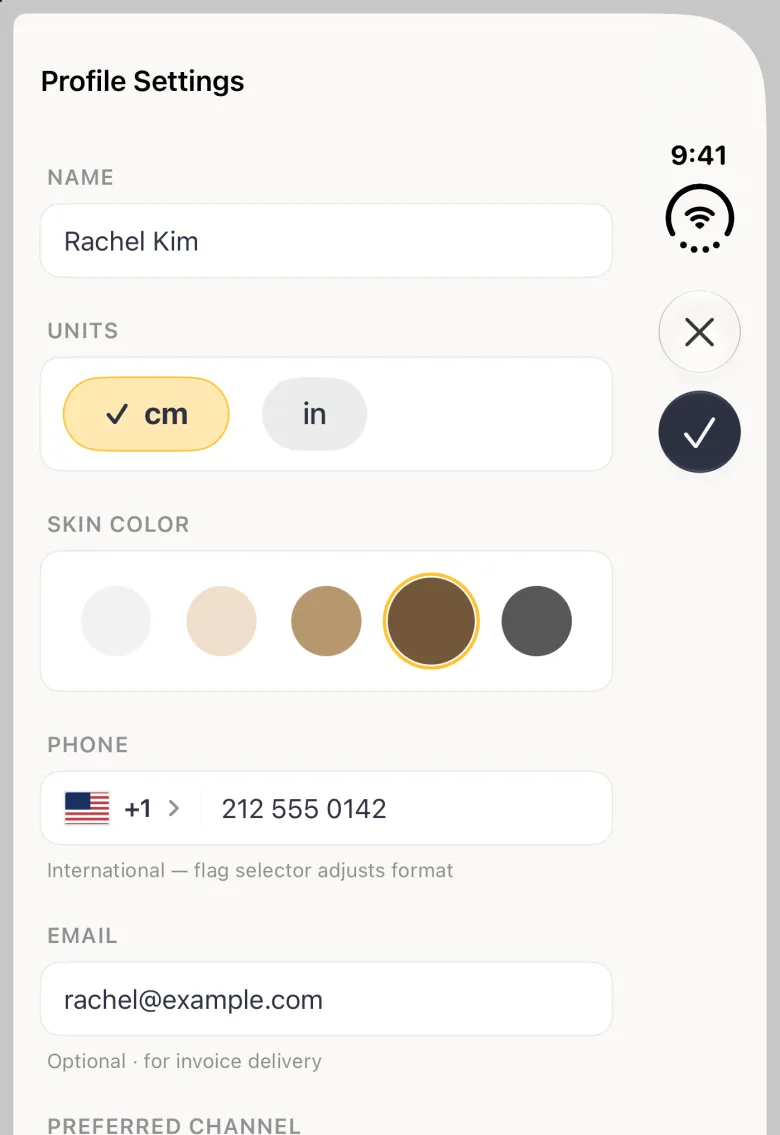
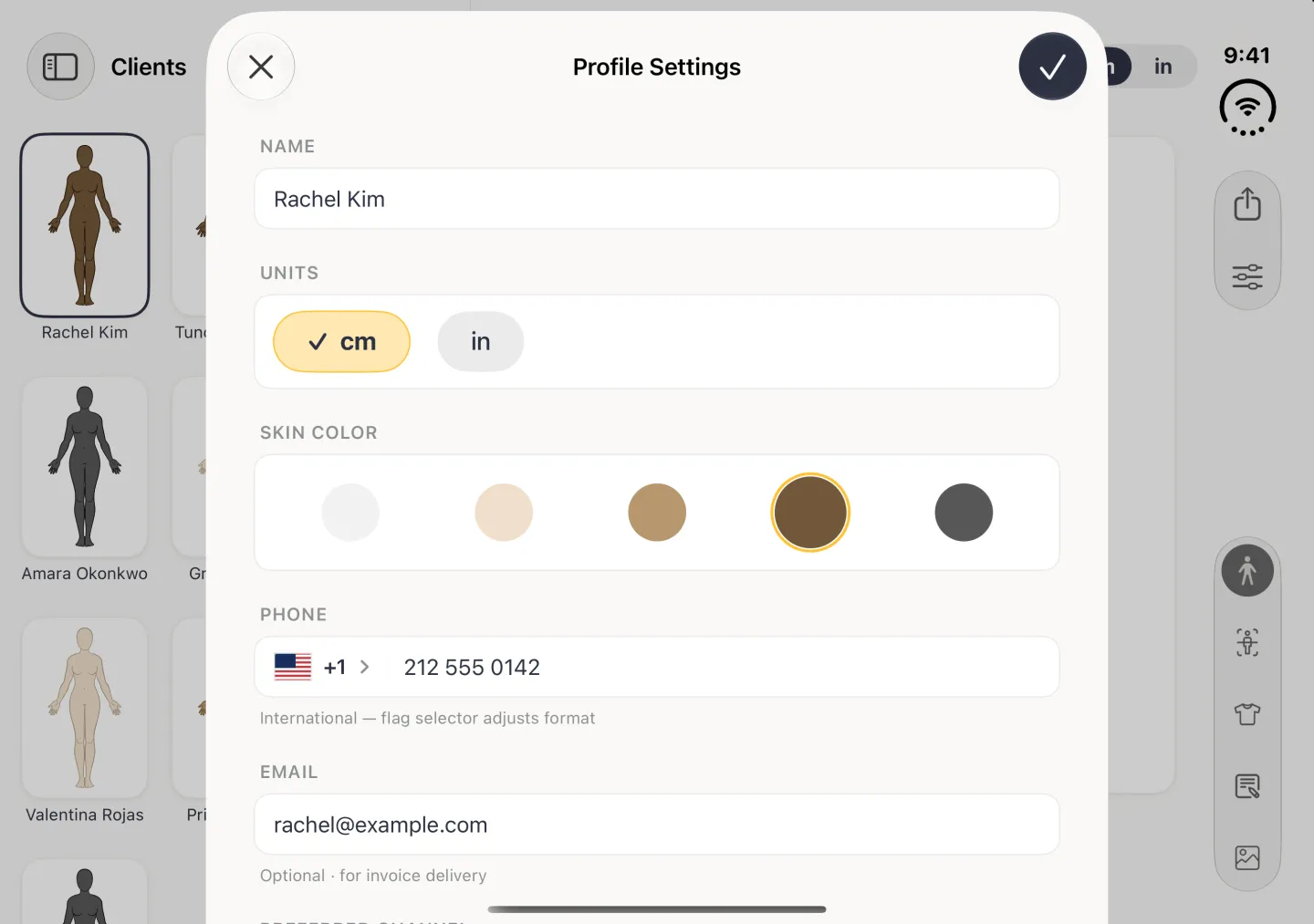
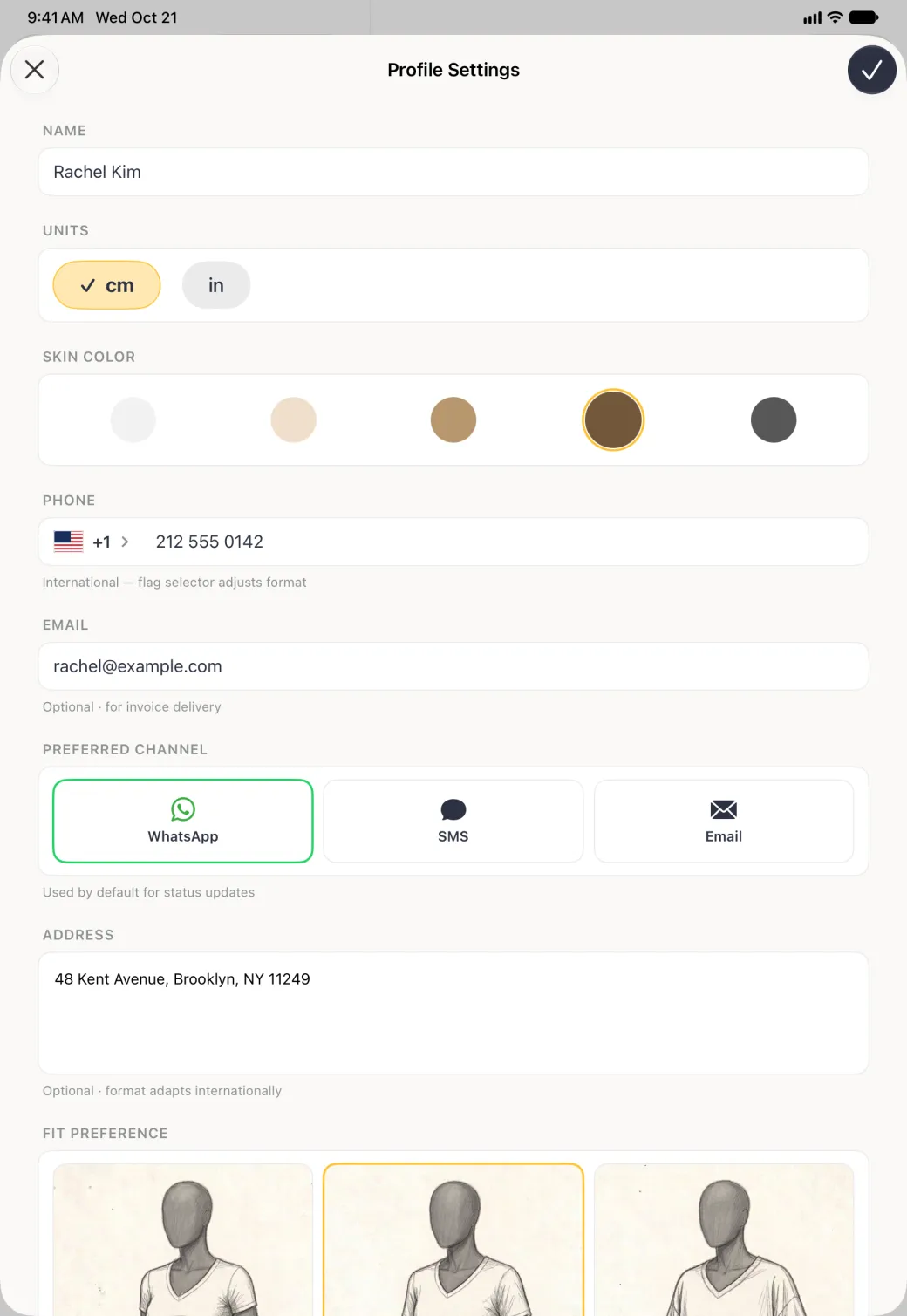
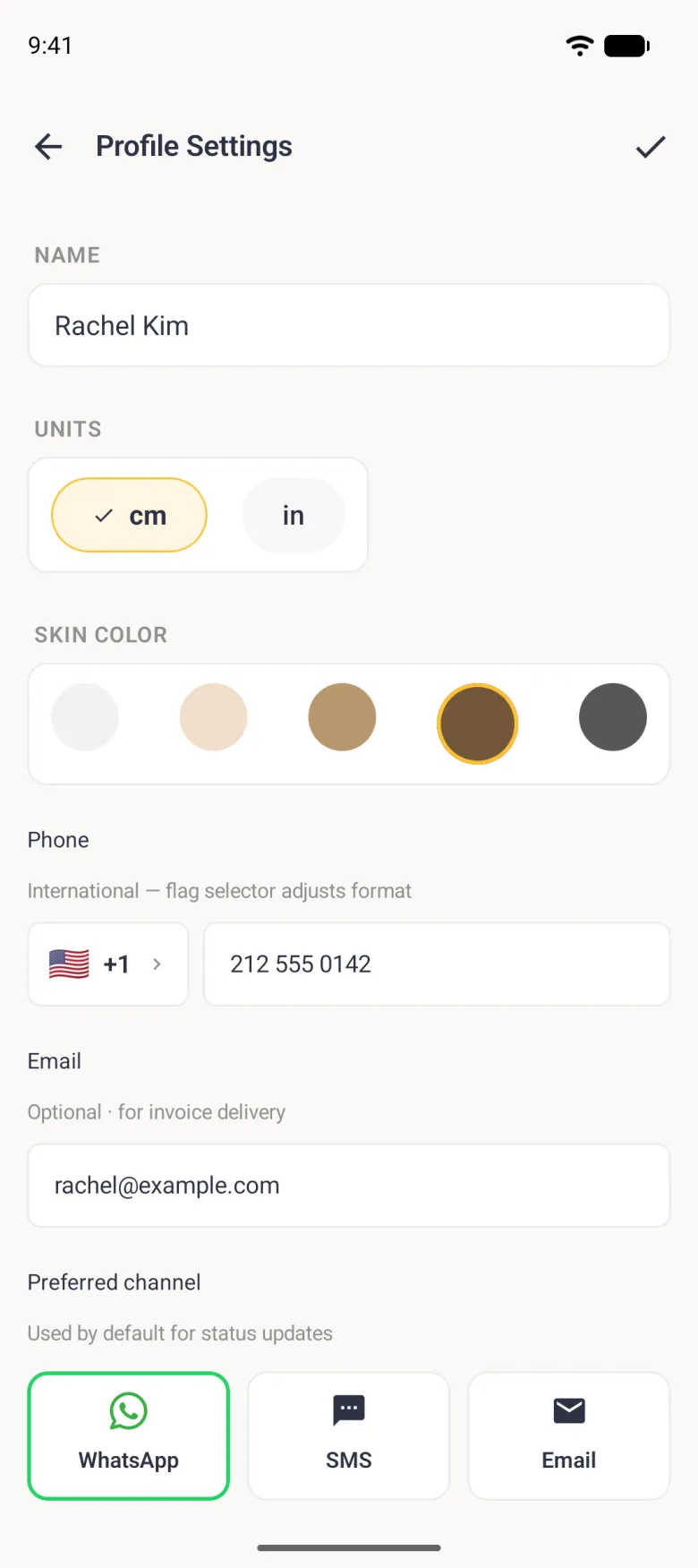
Open the client, then the options button (three sliders) at the top right, then Profile Settings. The same menu reaches this client’s orders, the body and list views, a new page and the app settings, and sharing is the separate share button beside it. On the closed iPhone Duo and on Android the menu is a three-dot button and Share Profile is one of its items. It also carries Help Center, which opens the guides on dressmeasurement.com inside the app. Nothing is fixed at the moment you create a client: Profile Settings holds the name, units, skin tone and fit preference, and below them the phone number with its country selector, the email address, the preferred channel, the address, the birthday and the tags.
Changes are written when you tap the checkmark at the top right.


What happens when you delete a client
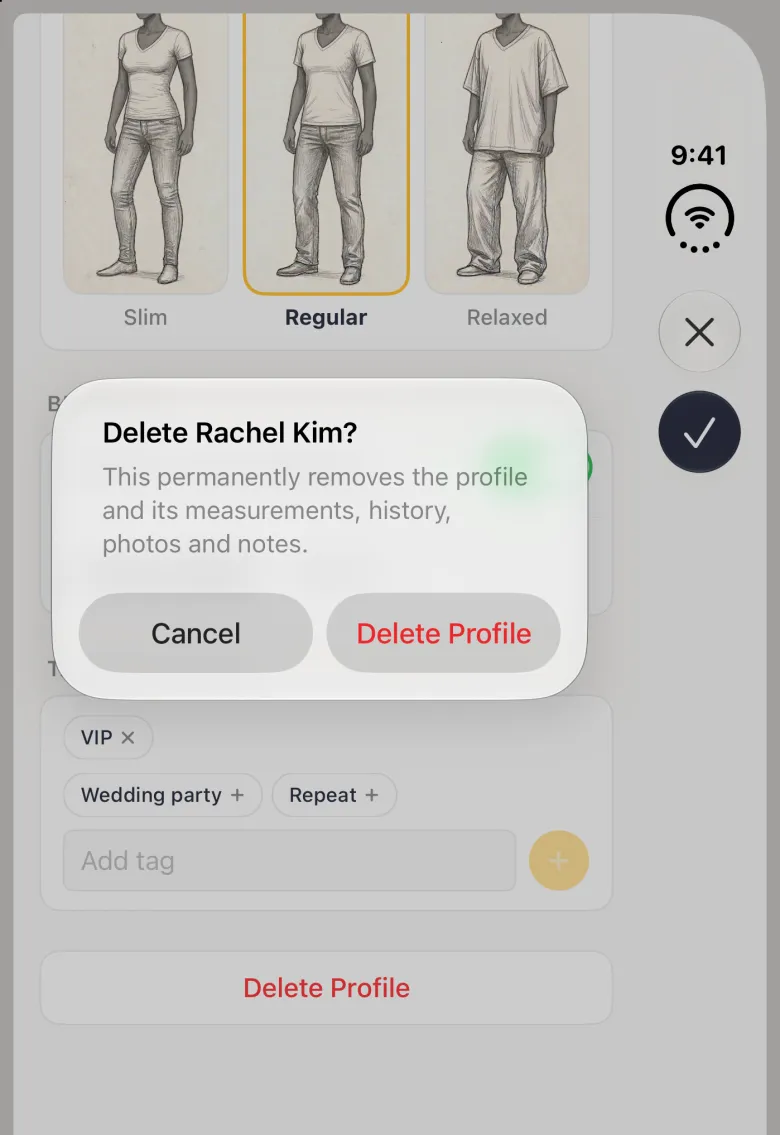
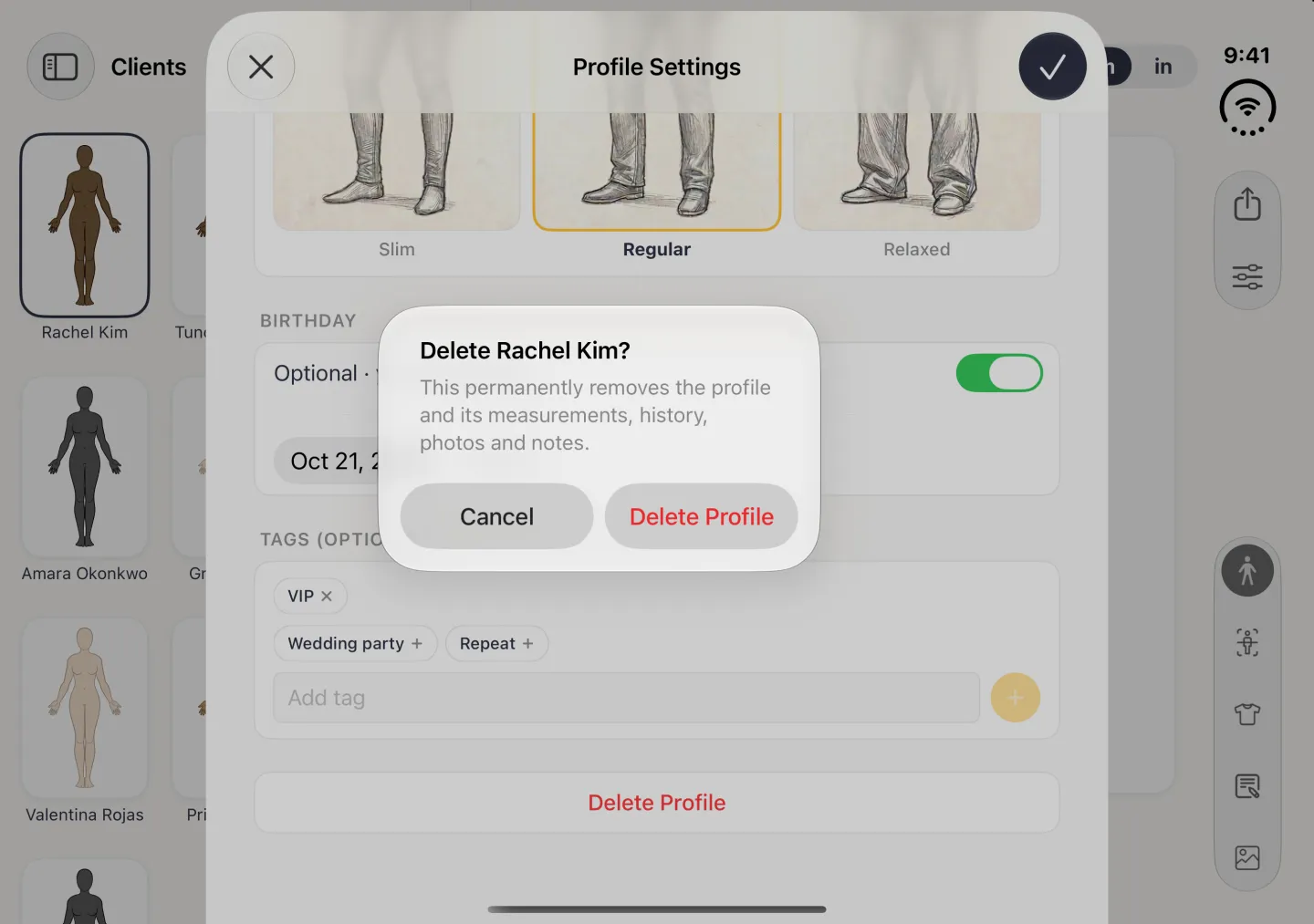
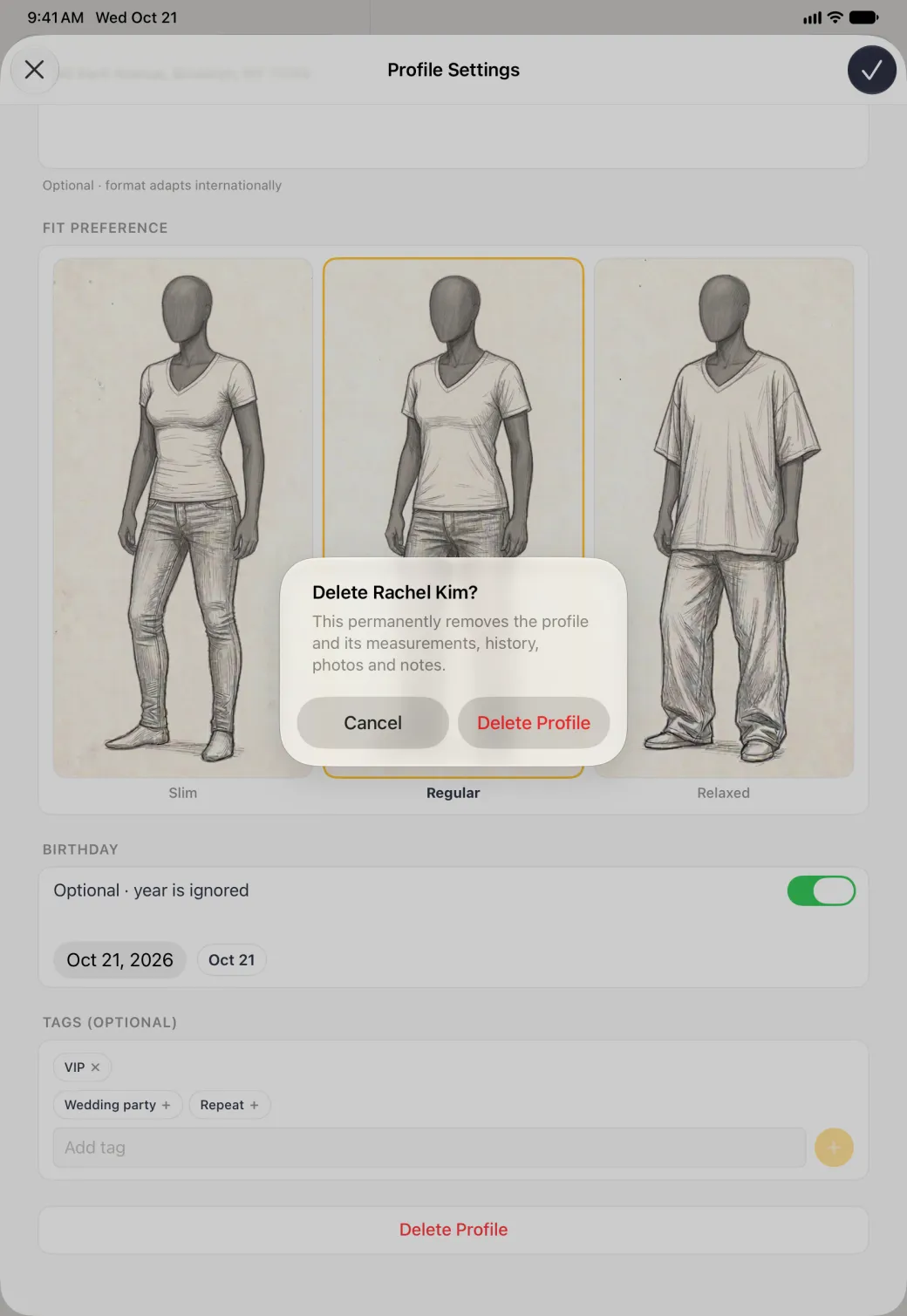
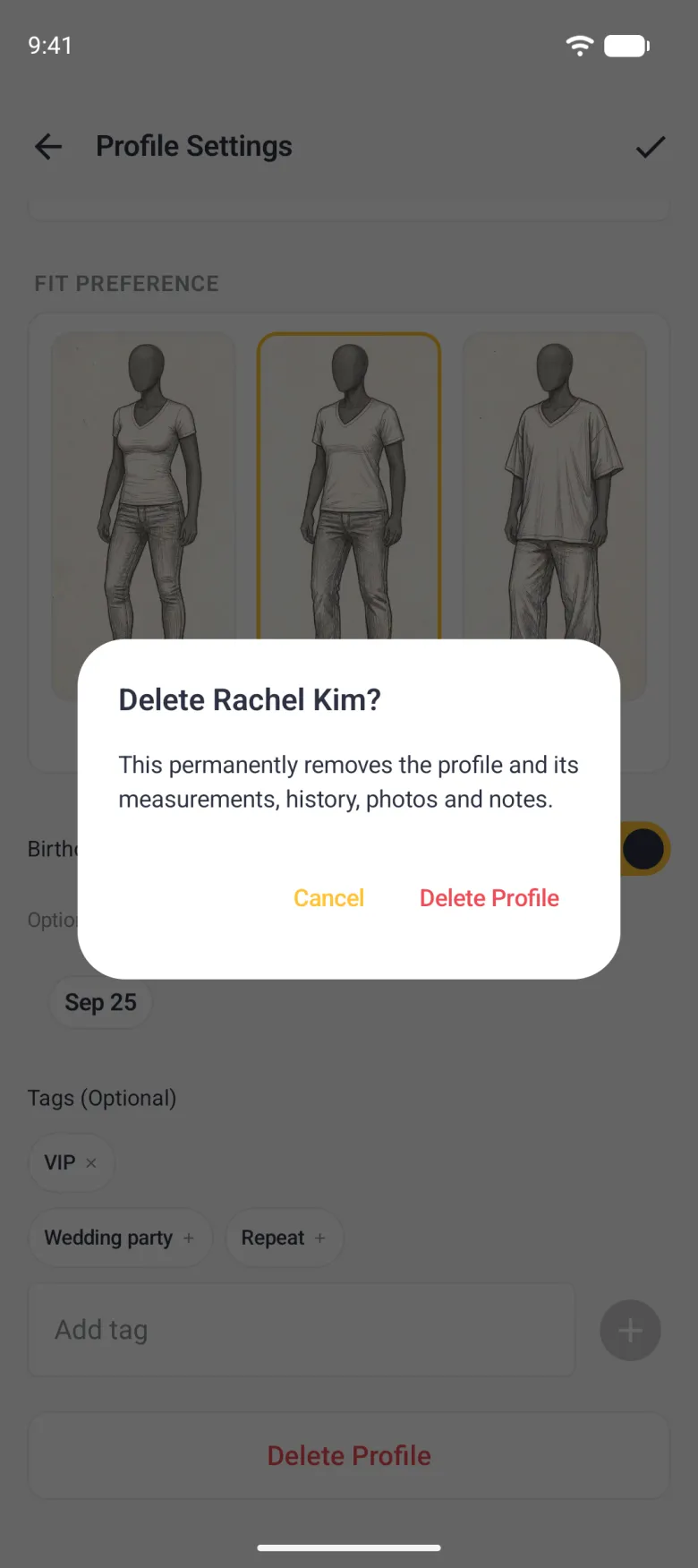
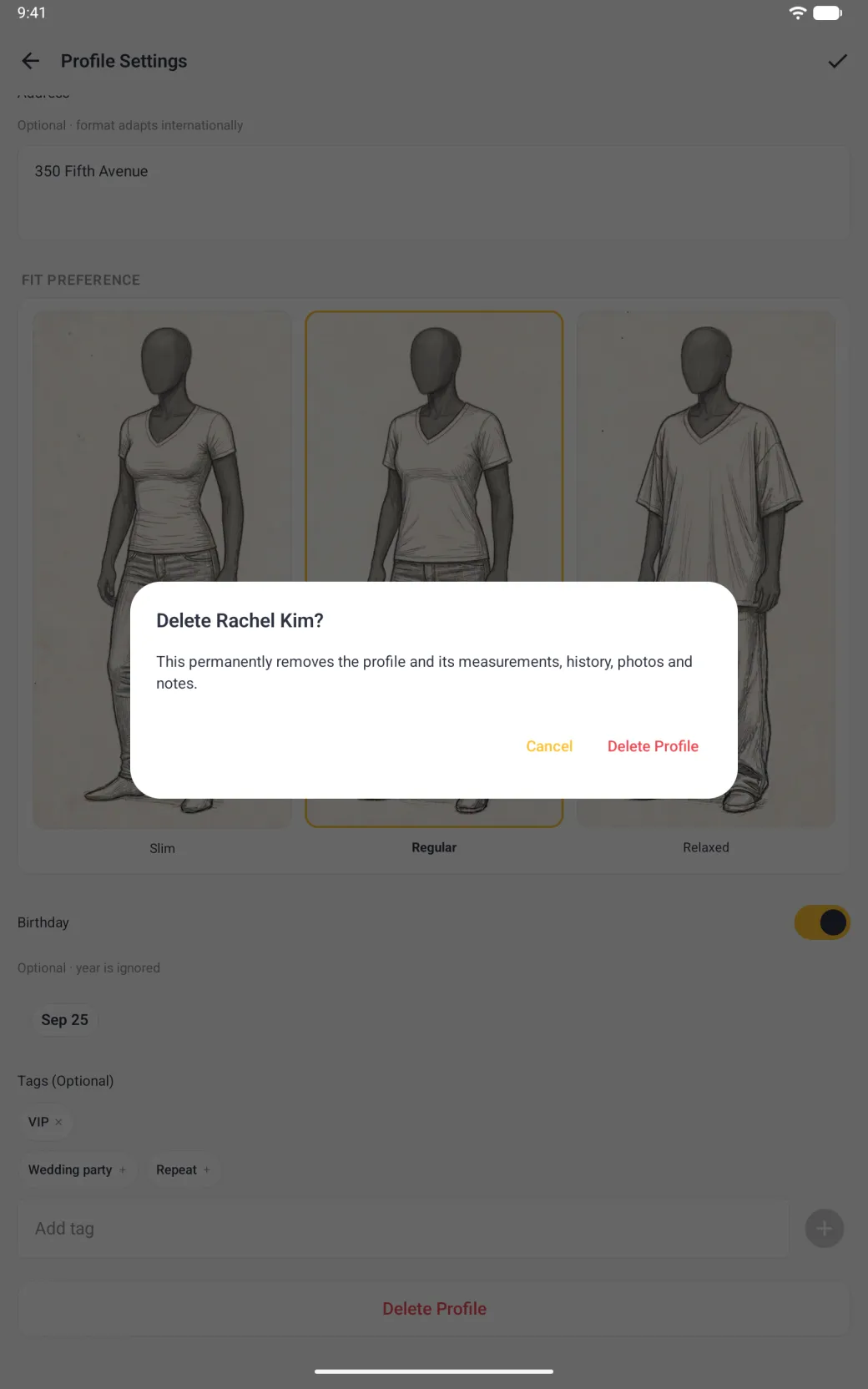
Deleting is permanent and it takes more than the name with it. Delete Profile sits at the foot of Profile Settings, and the confirmation names the client and spells out the cascade: the profile and its measurements, history, photos and notes are removed. Check the client has no open orders before you confirm, because their work will no longer have anyone to belong to.

How to find a client in a long list
The magnifier and the three-dot button at the top right of the Clients tab handle this. The magnifier searches the grid by name, which is the quickest route once you have more clients than fit a screen. The three-dot menu holds the sort order: Sort by Date, the default, which puts the client you changed most recently first, and Sort by Name, which runs the grid alphabetically. A tick marks whichever is active.