Measuring
Getting a size recommendation
The Sizes tab turns the measurements on a profile into a size for each brand, in the sizing region you choose, with a confidence level and the numbers behind it. Size recommendations are free on every plan.
Size recommendations are free on every plan, on iPhone, iPad and Android. They read the measurements already saved on a profile, so the more of them you have entered the better the answer. Bust and waist, or chest and waist, are enough to get started.
Where do I find my size?
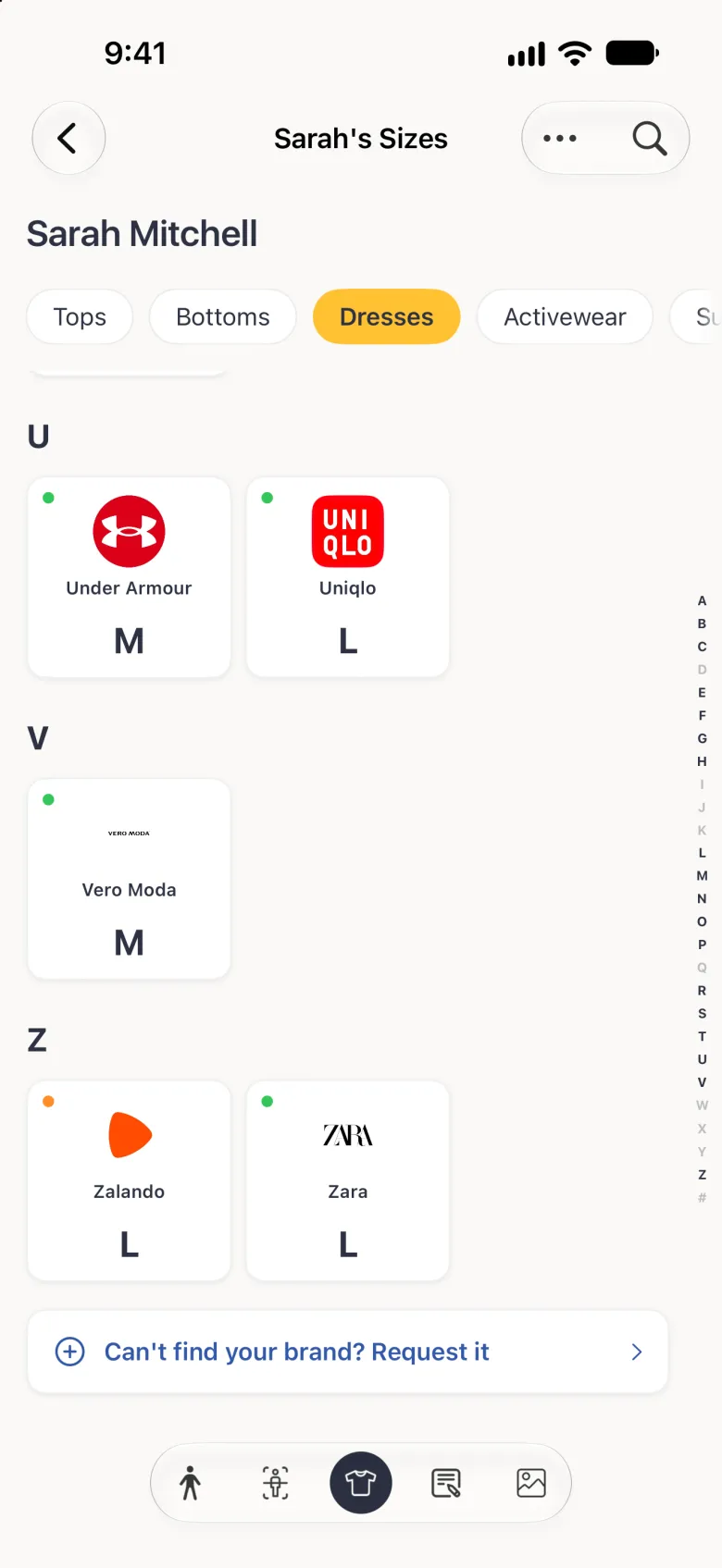
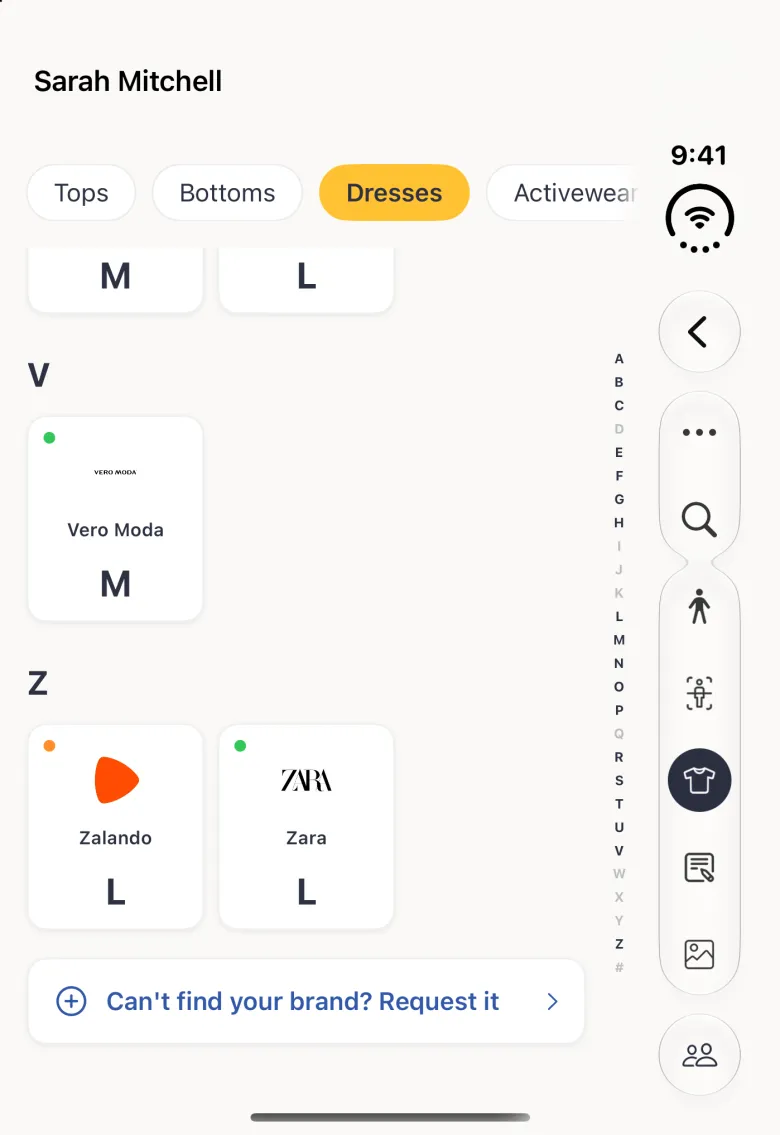
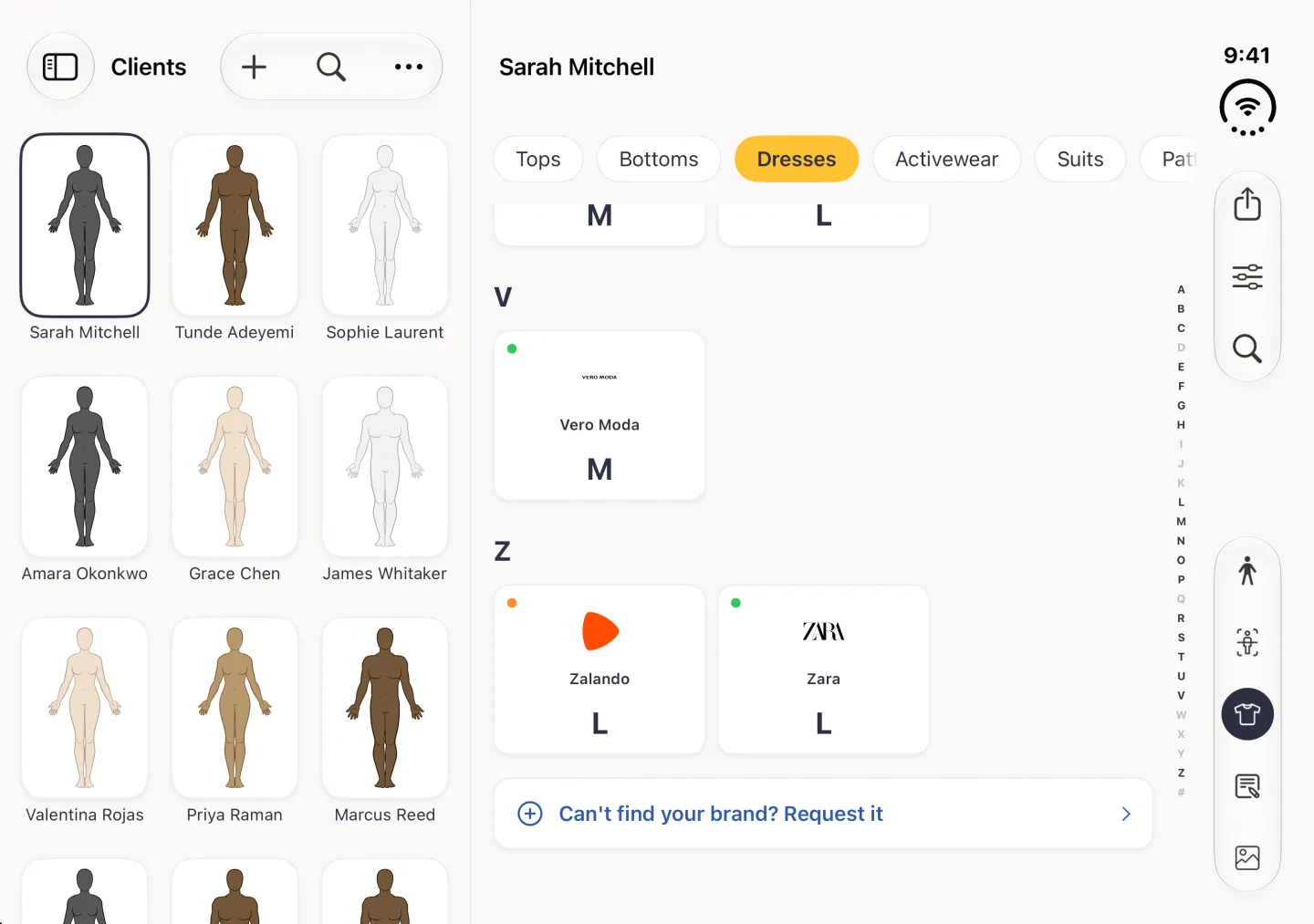
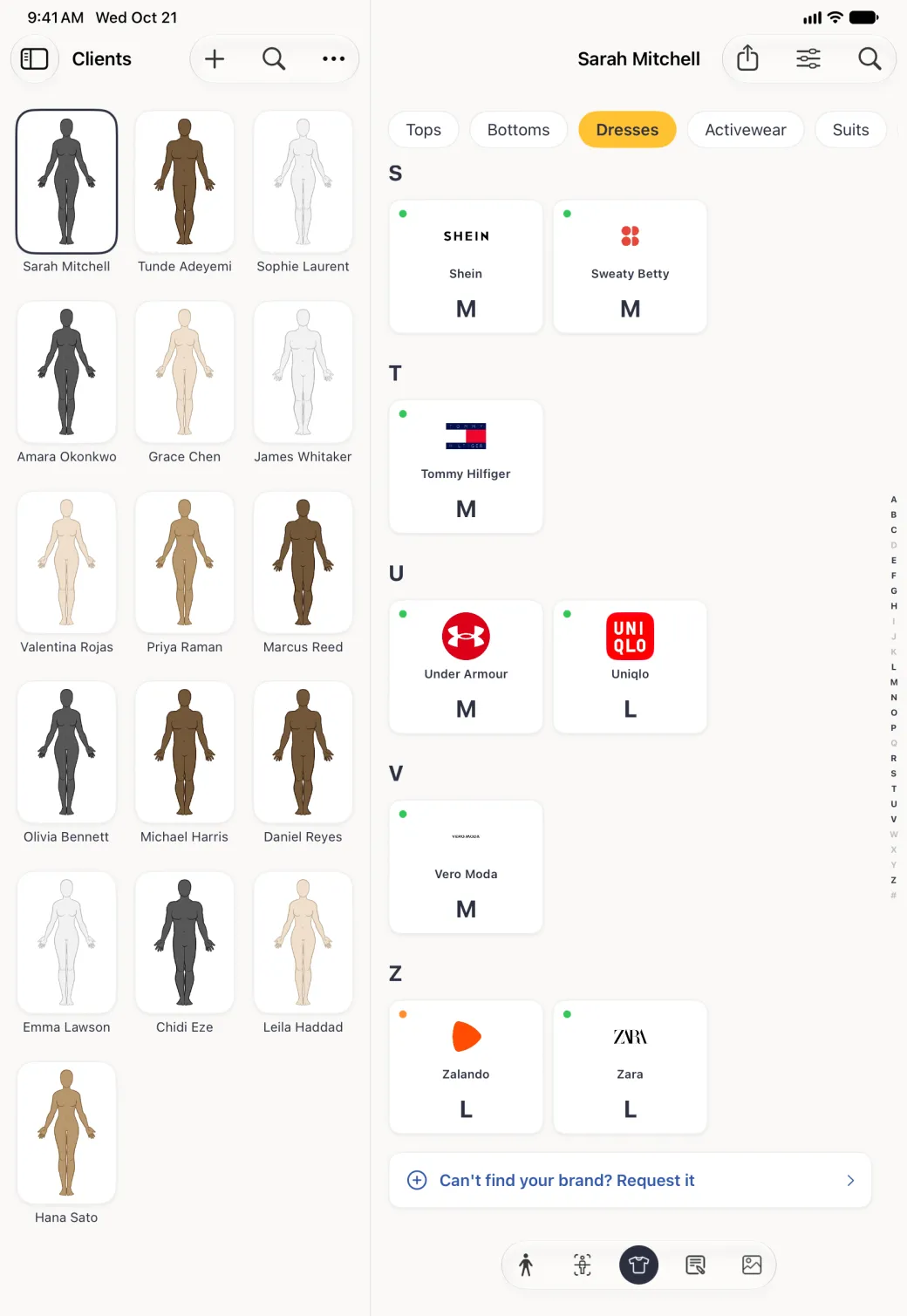
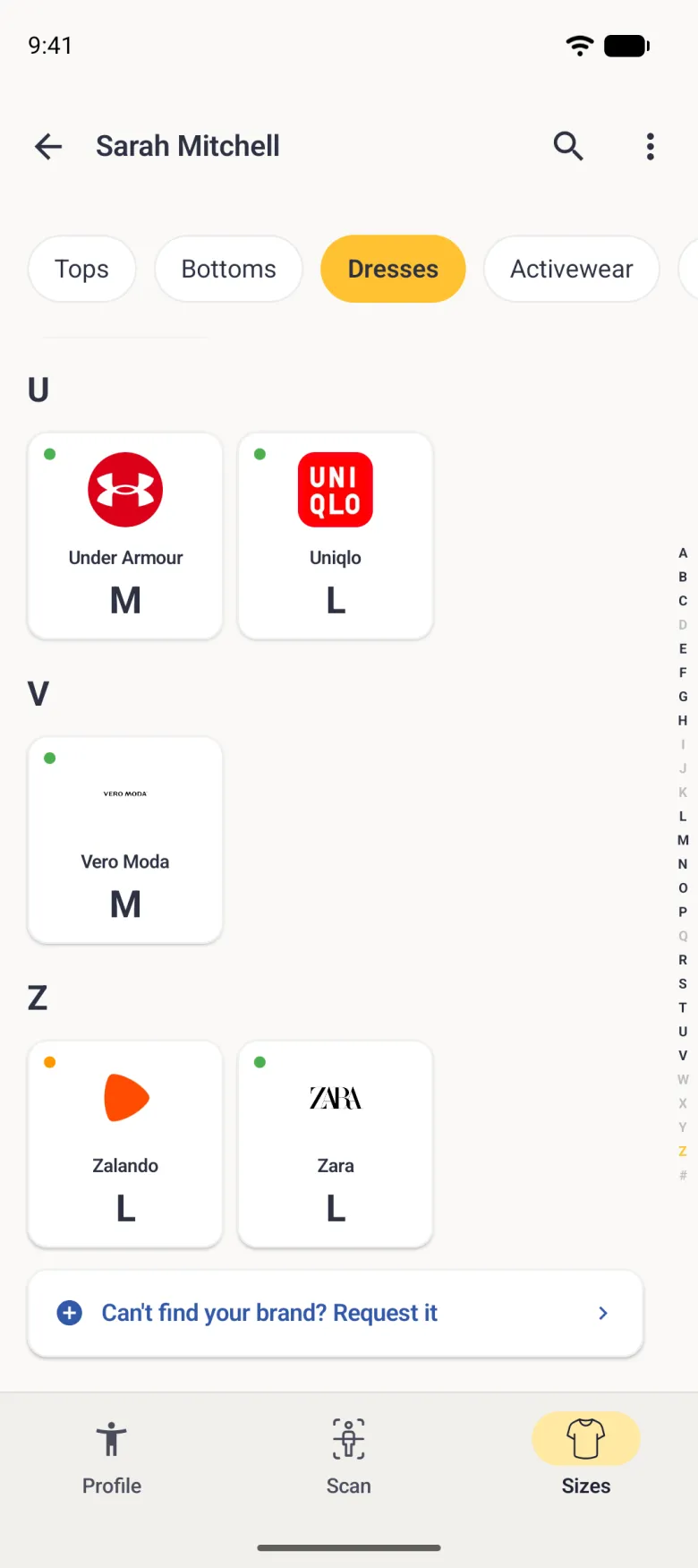
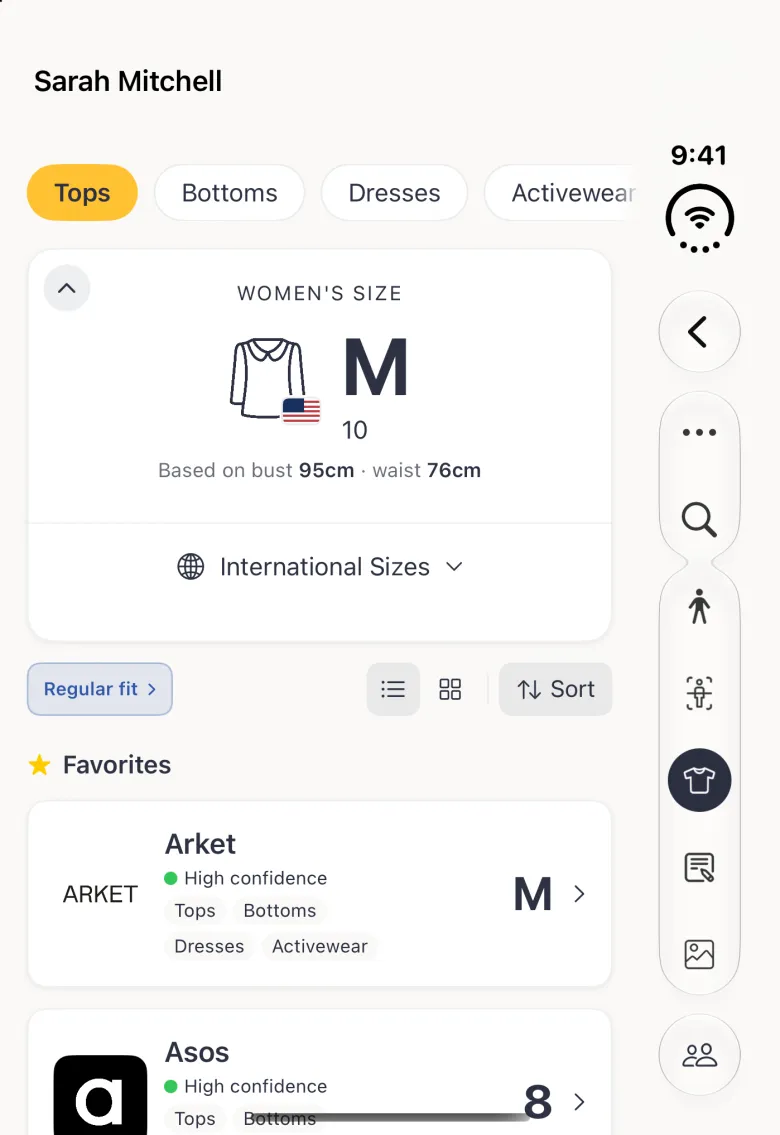
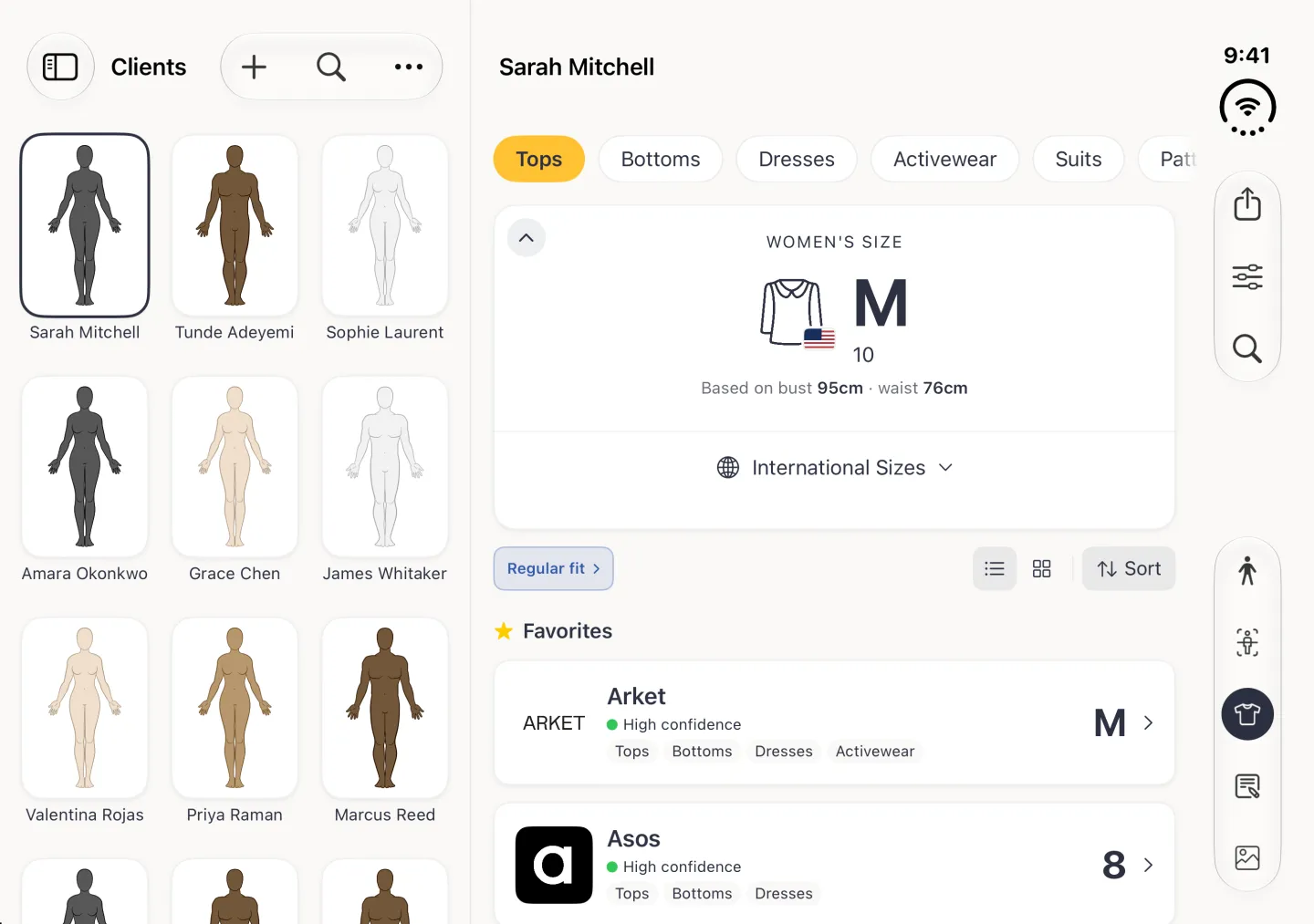
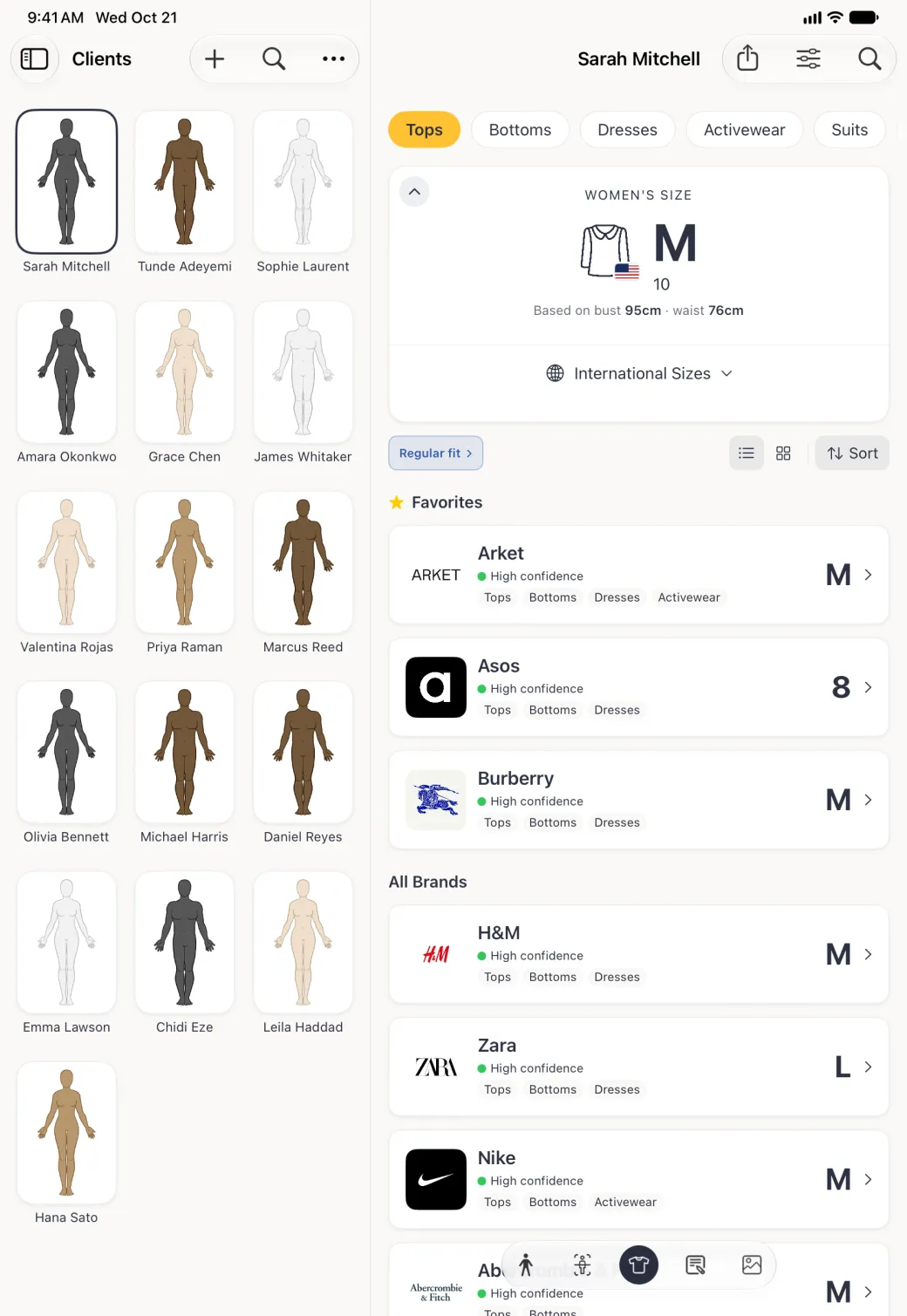
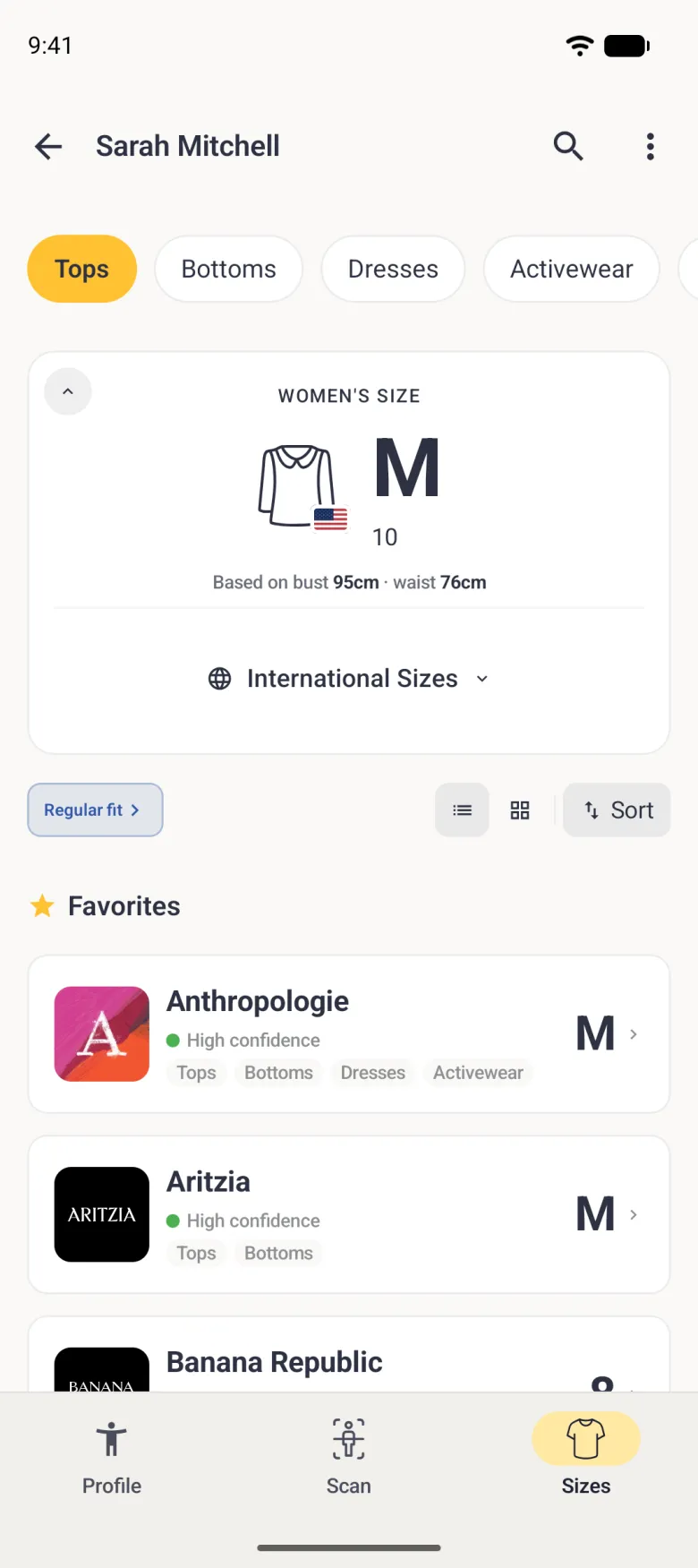
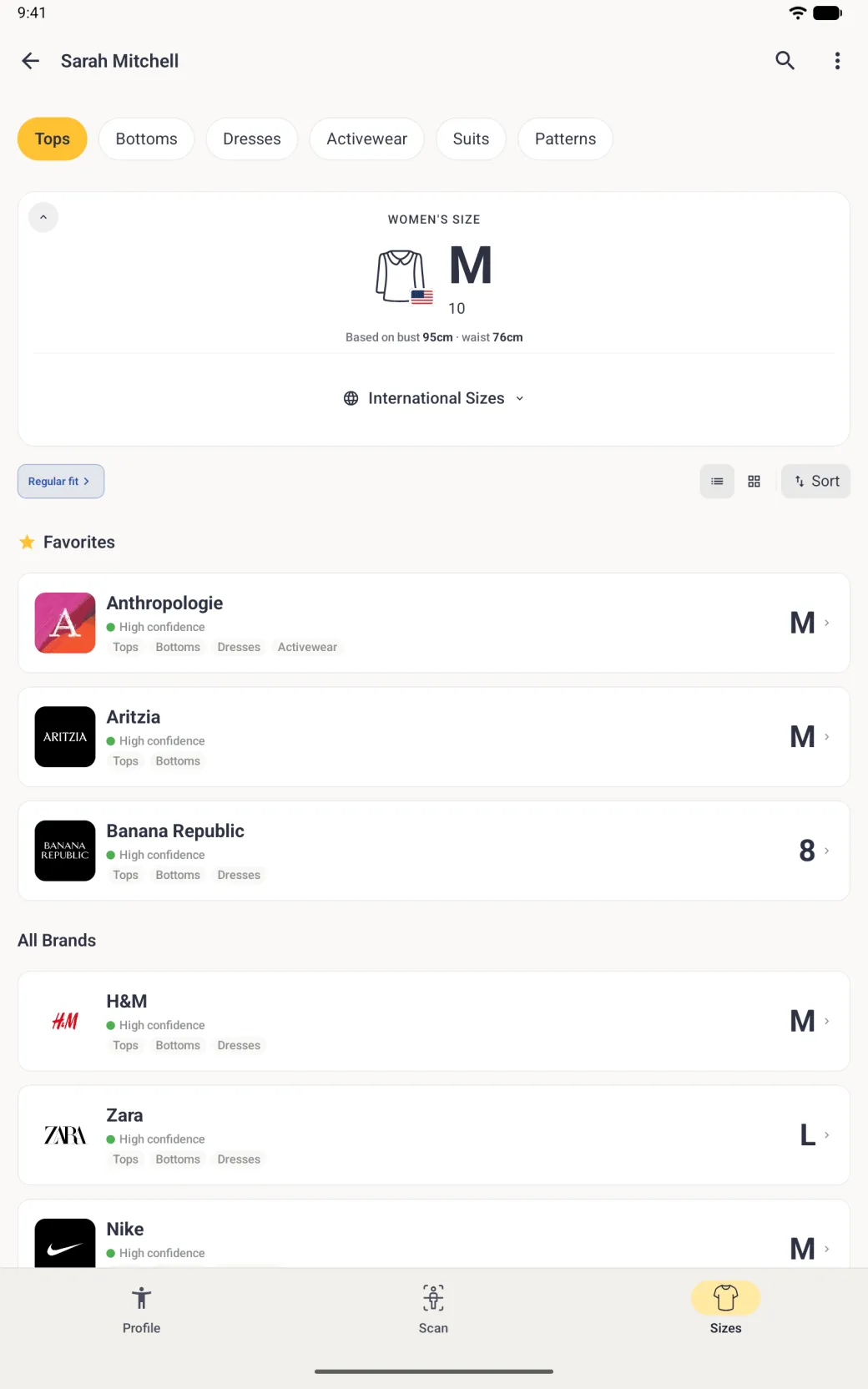
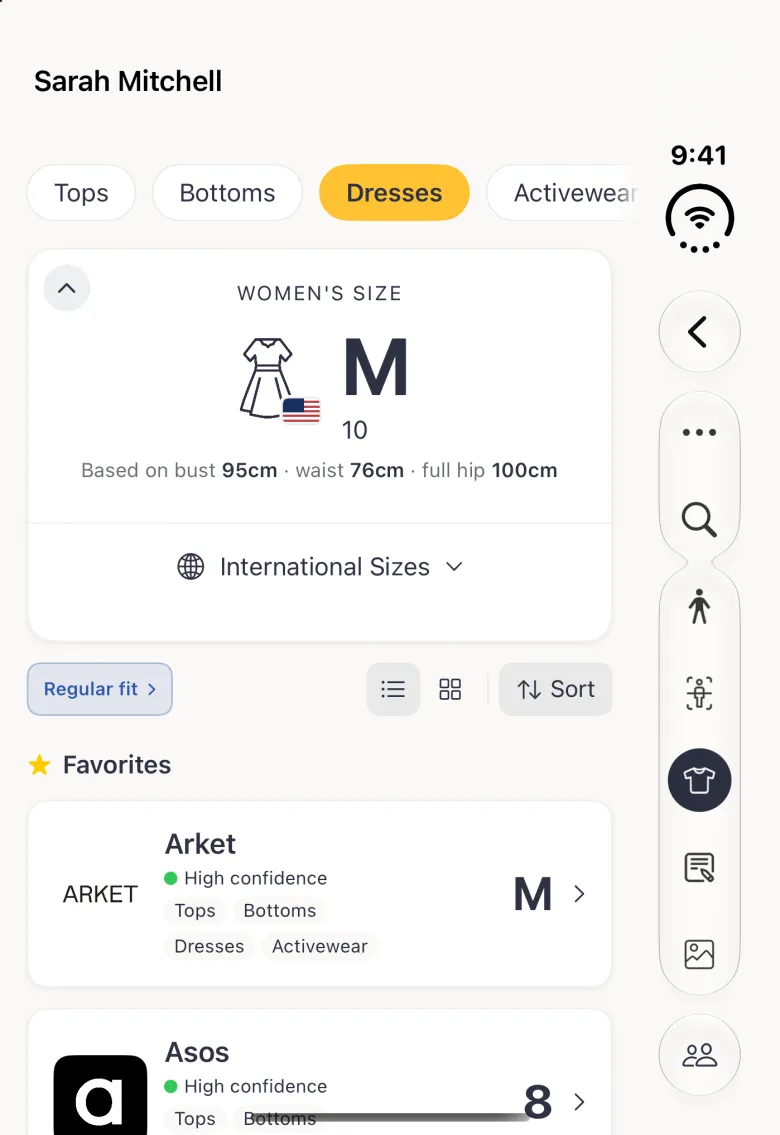
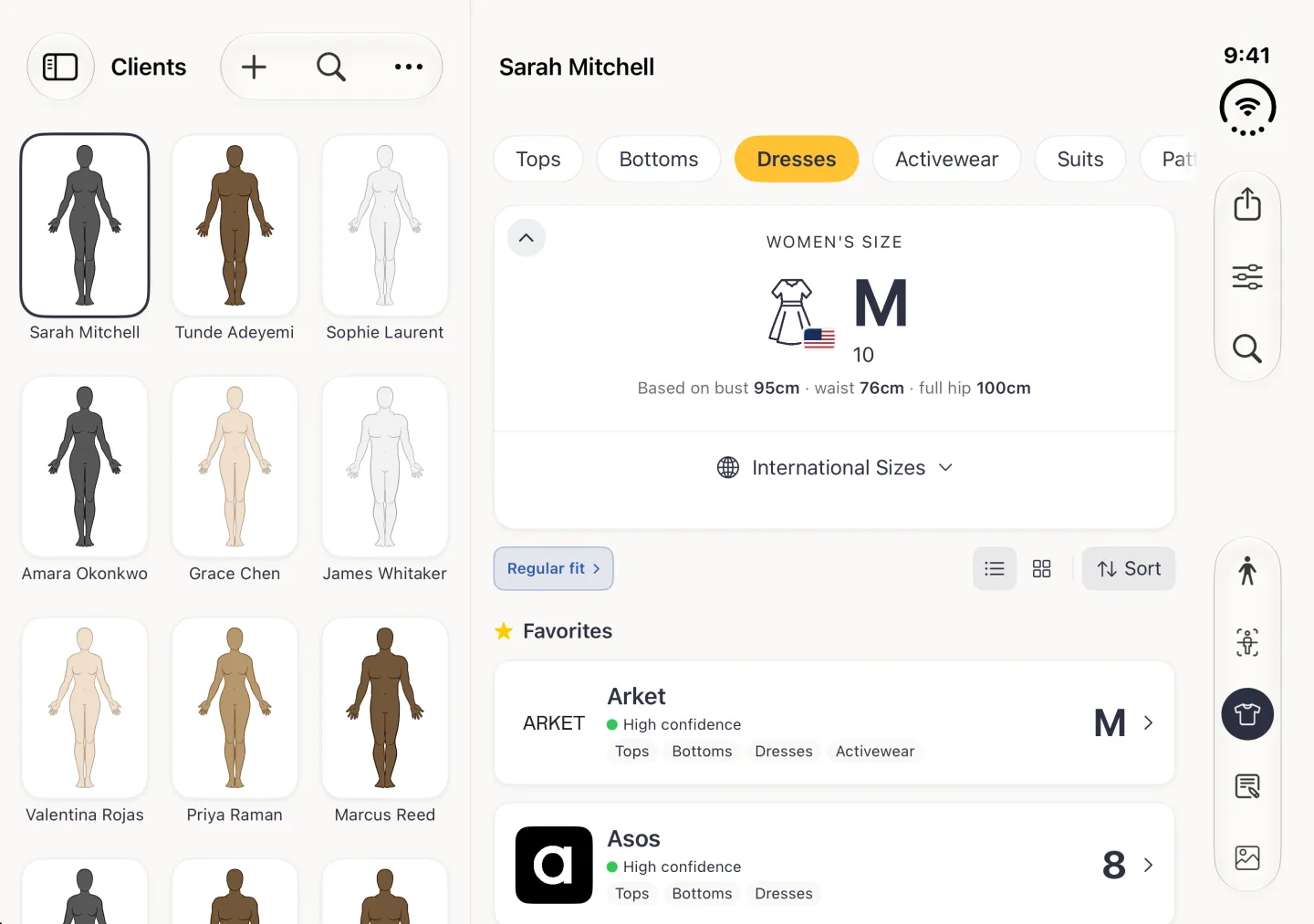
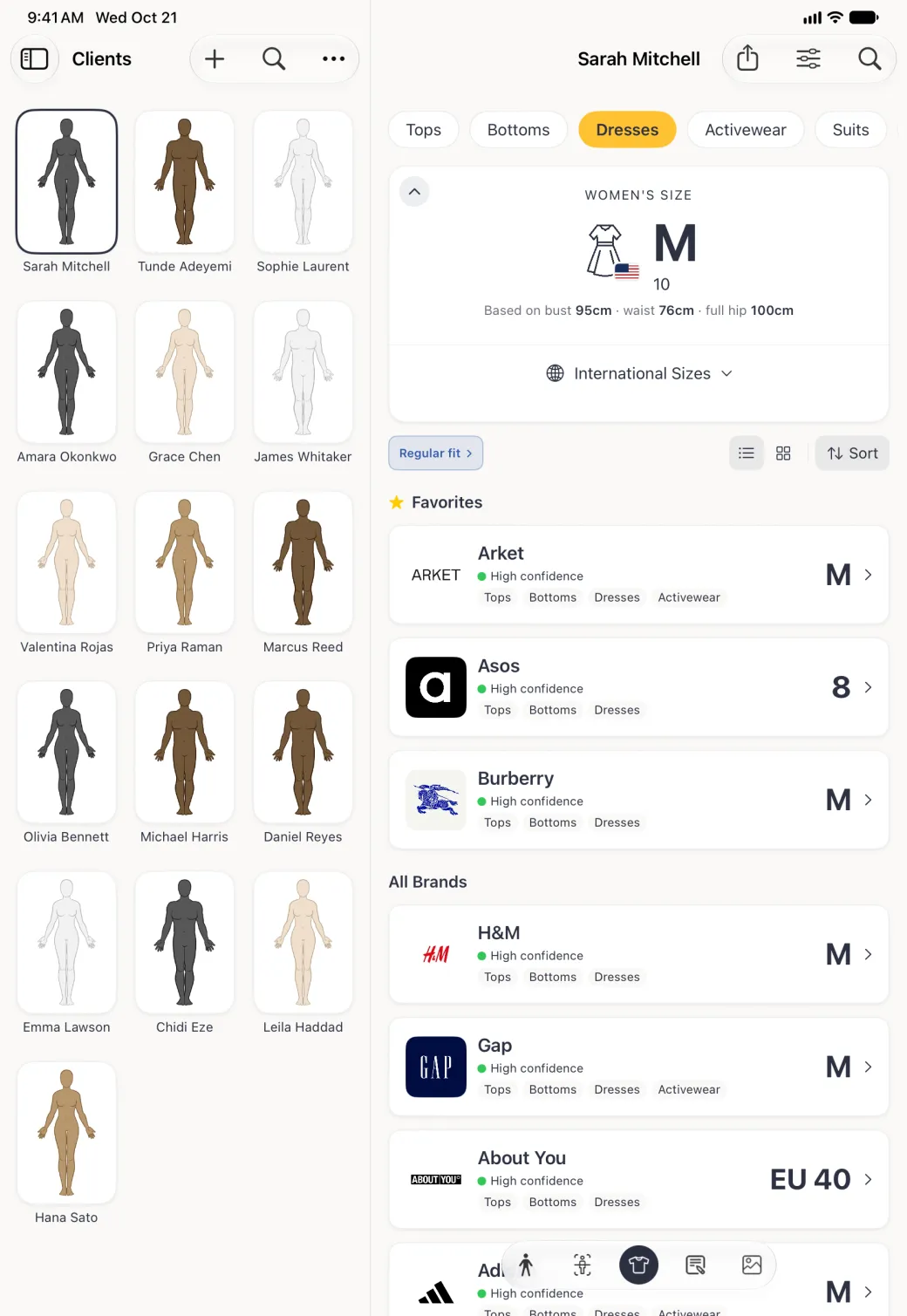
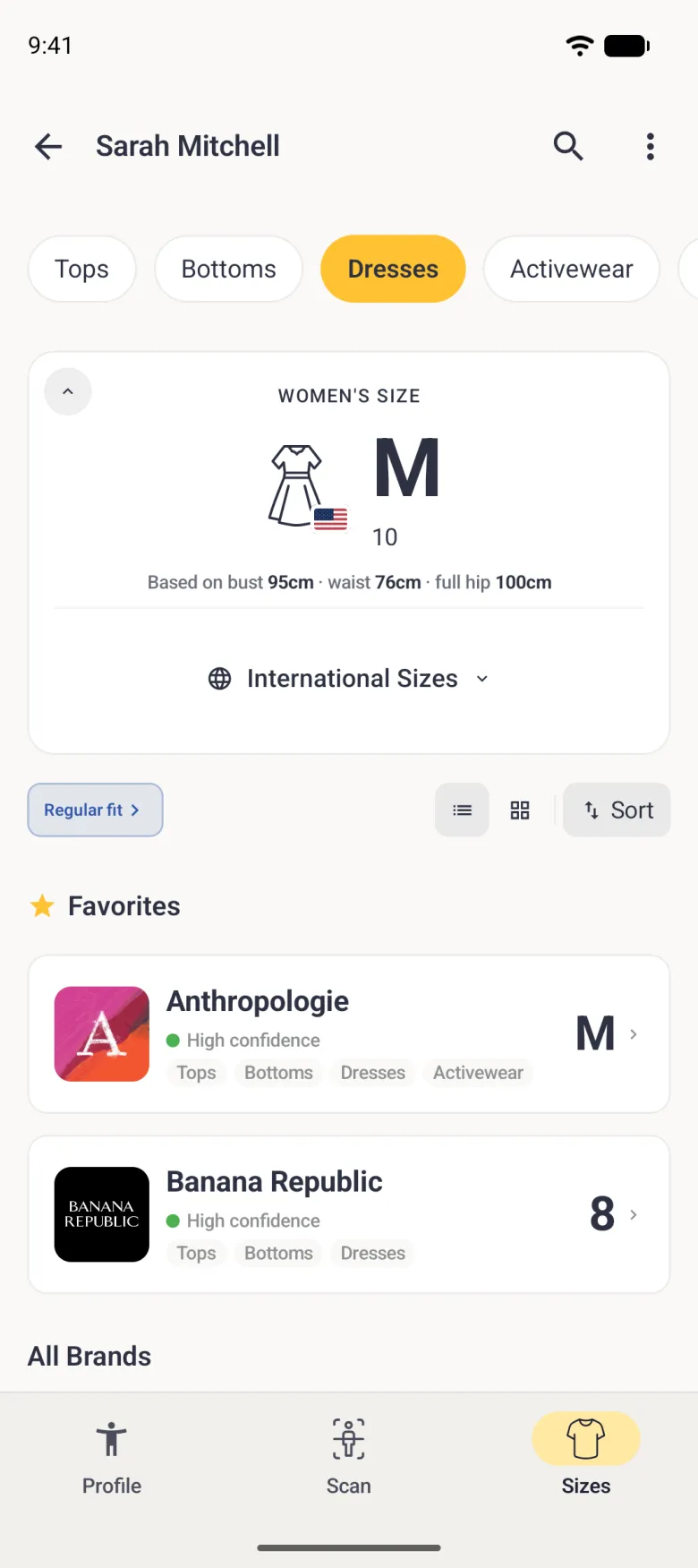
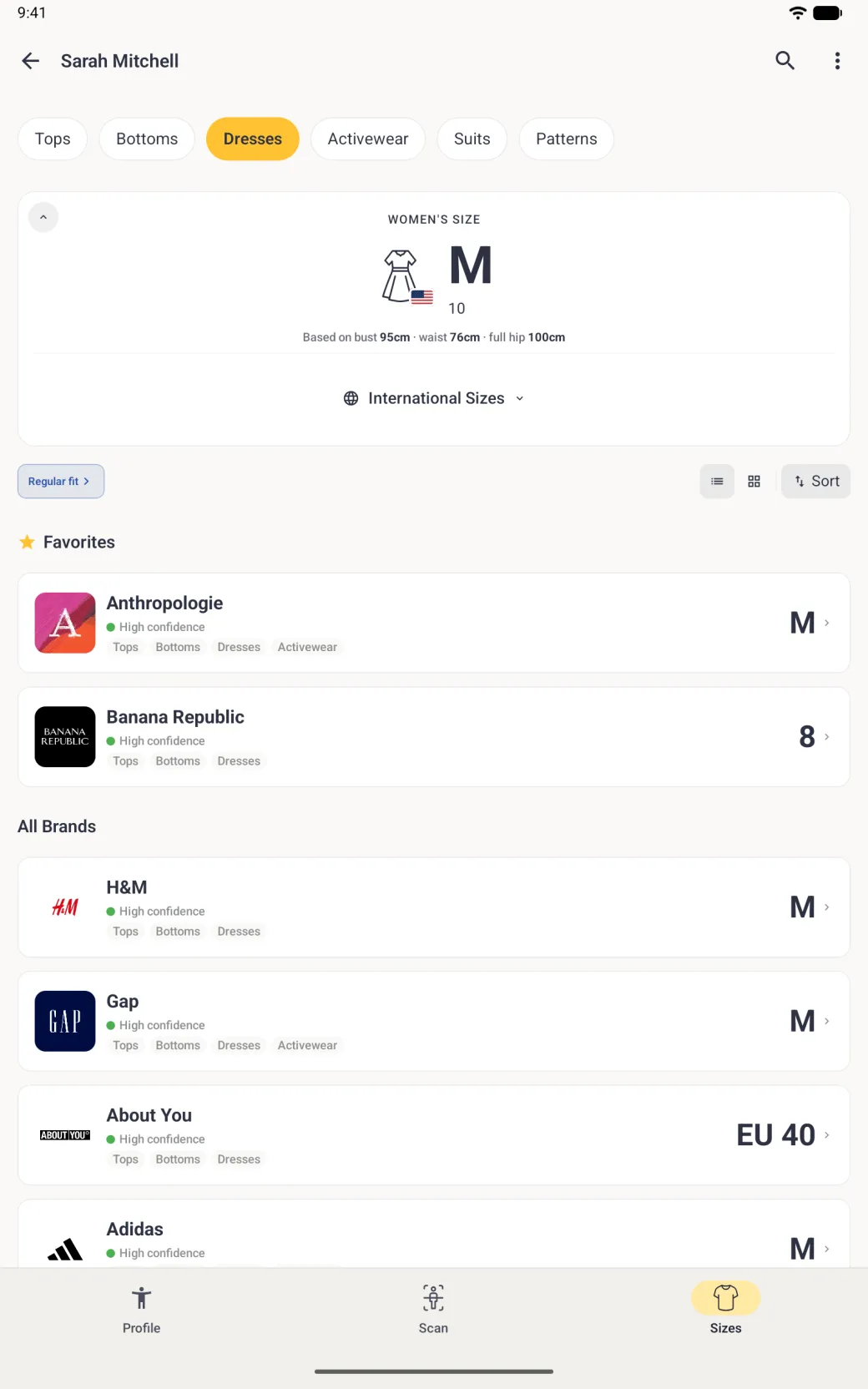
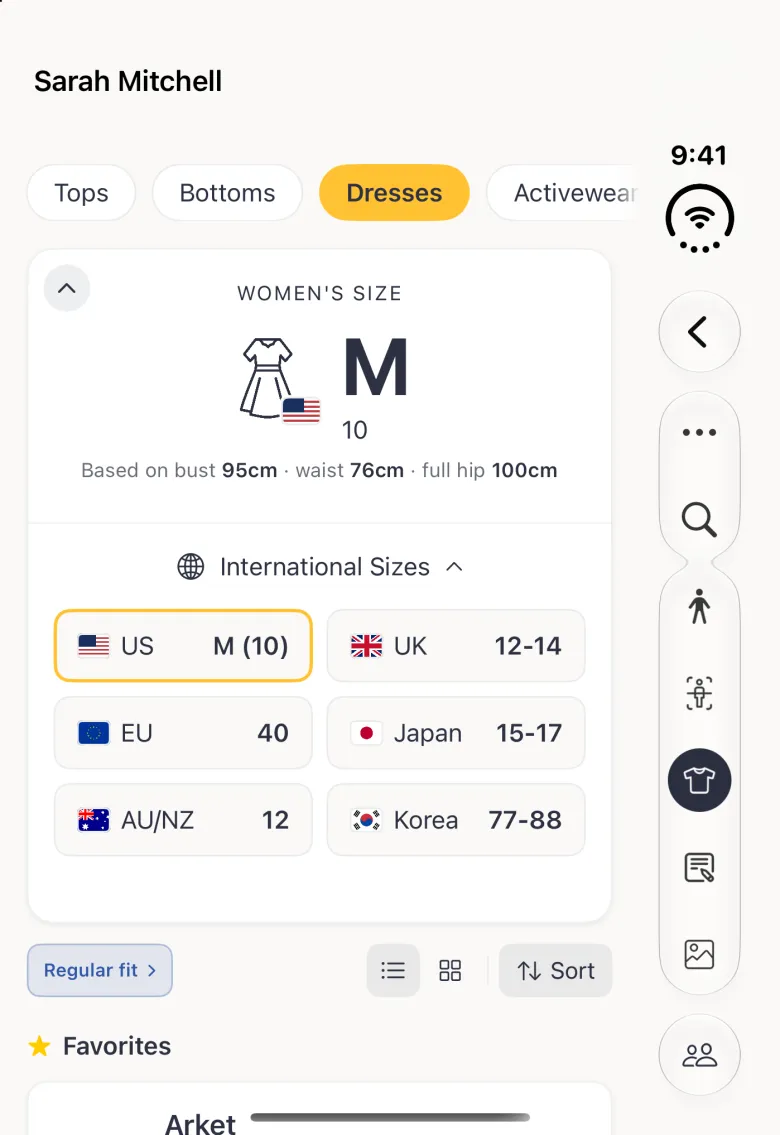
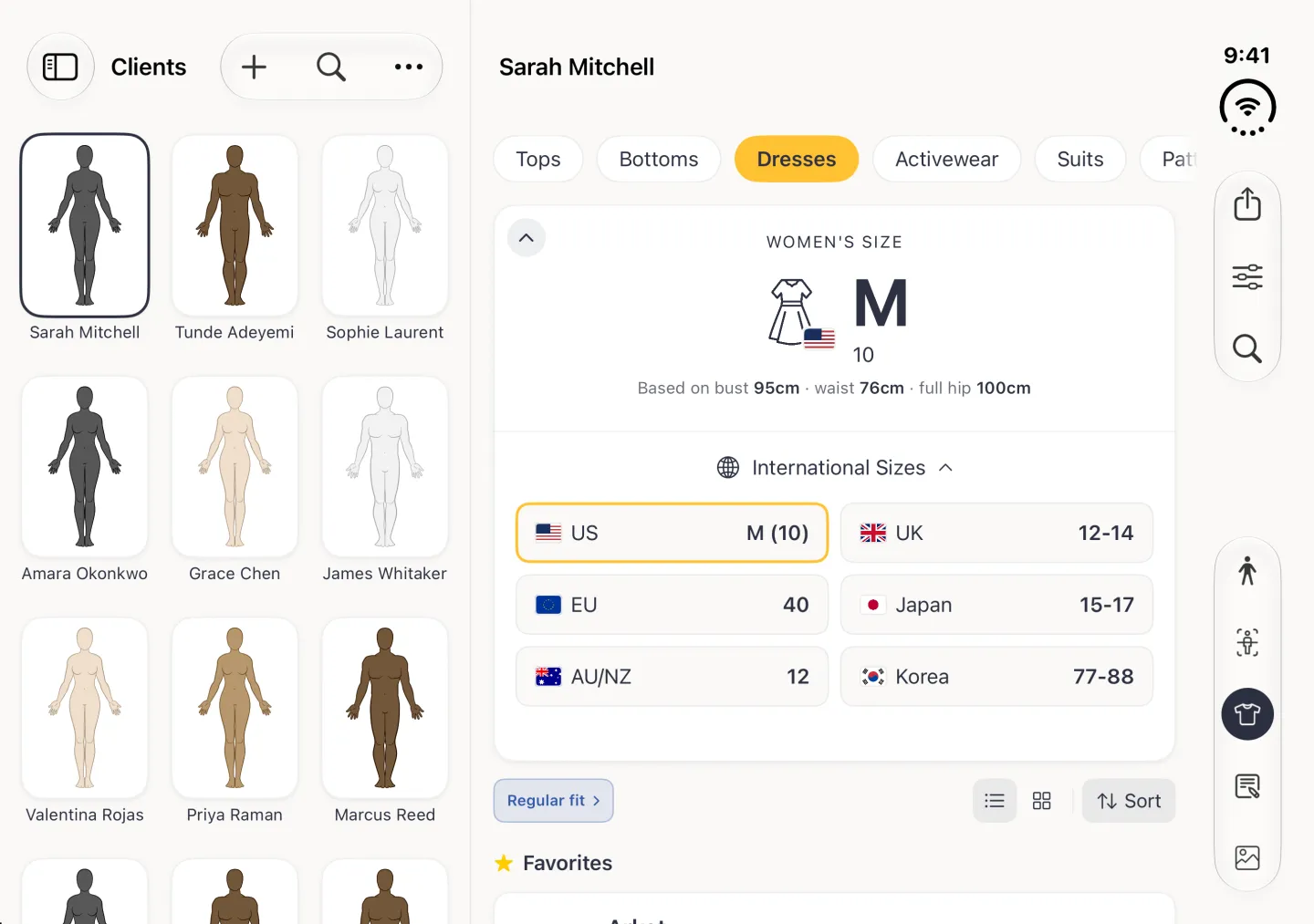
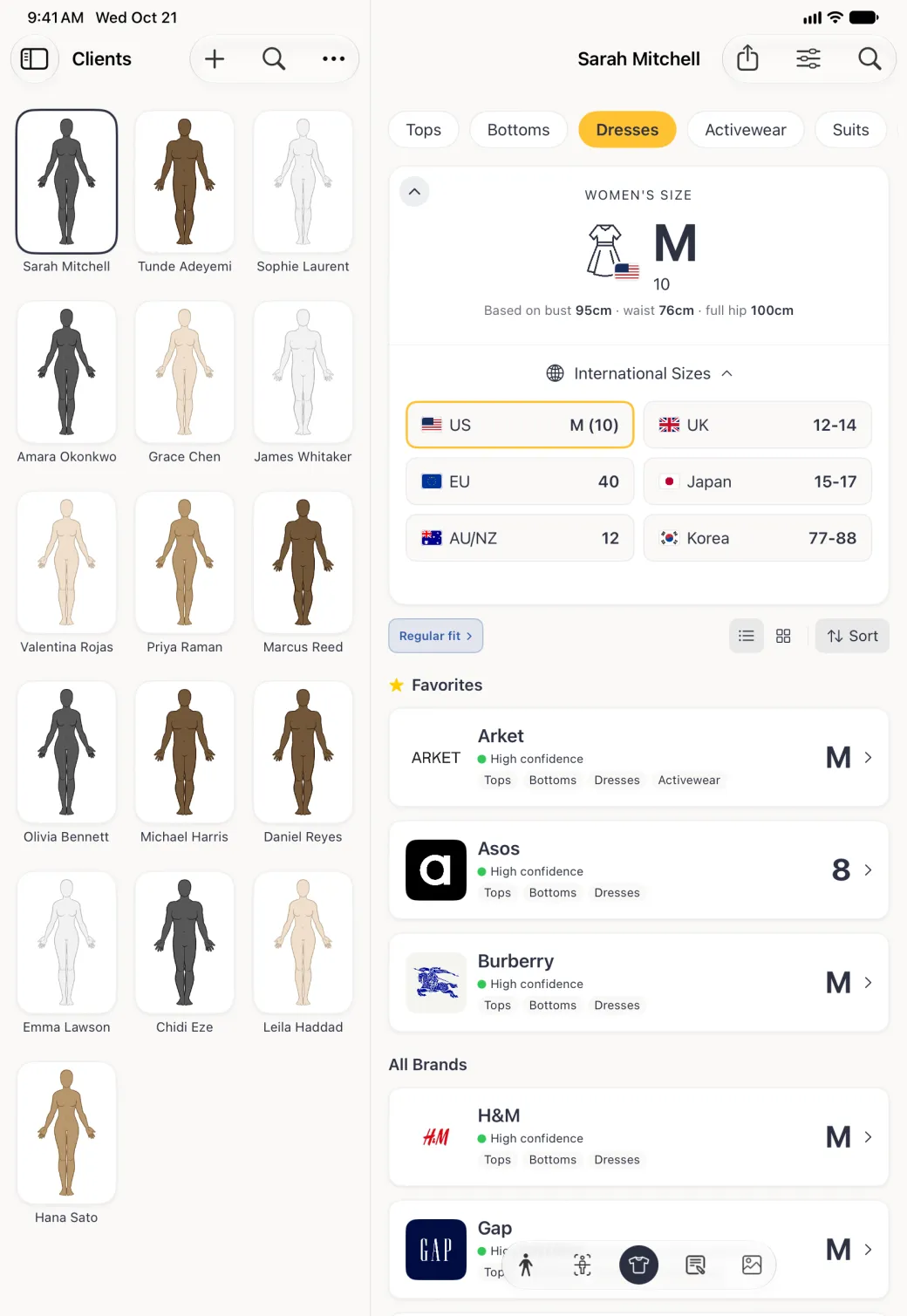
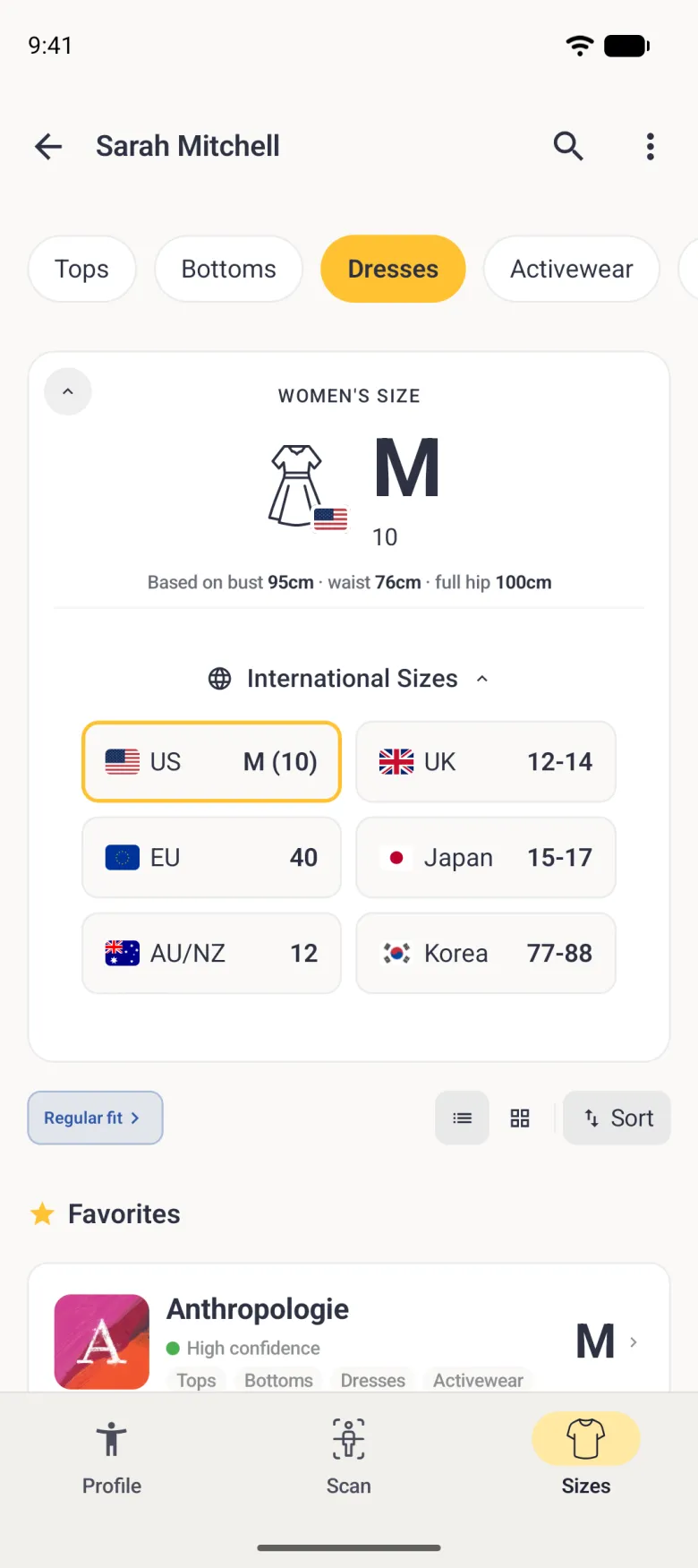
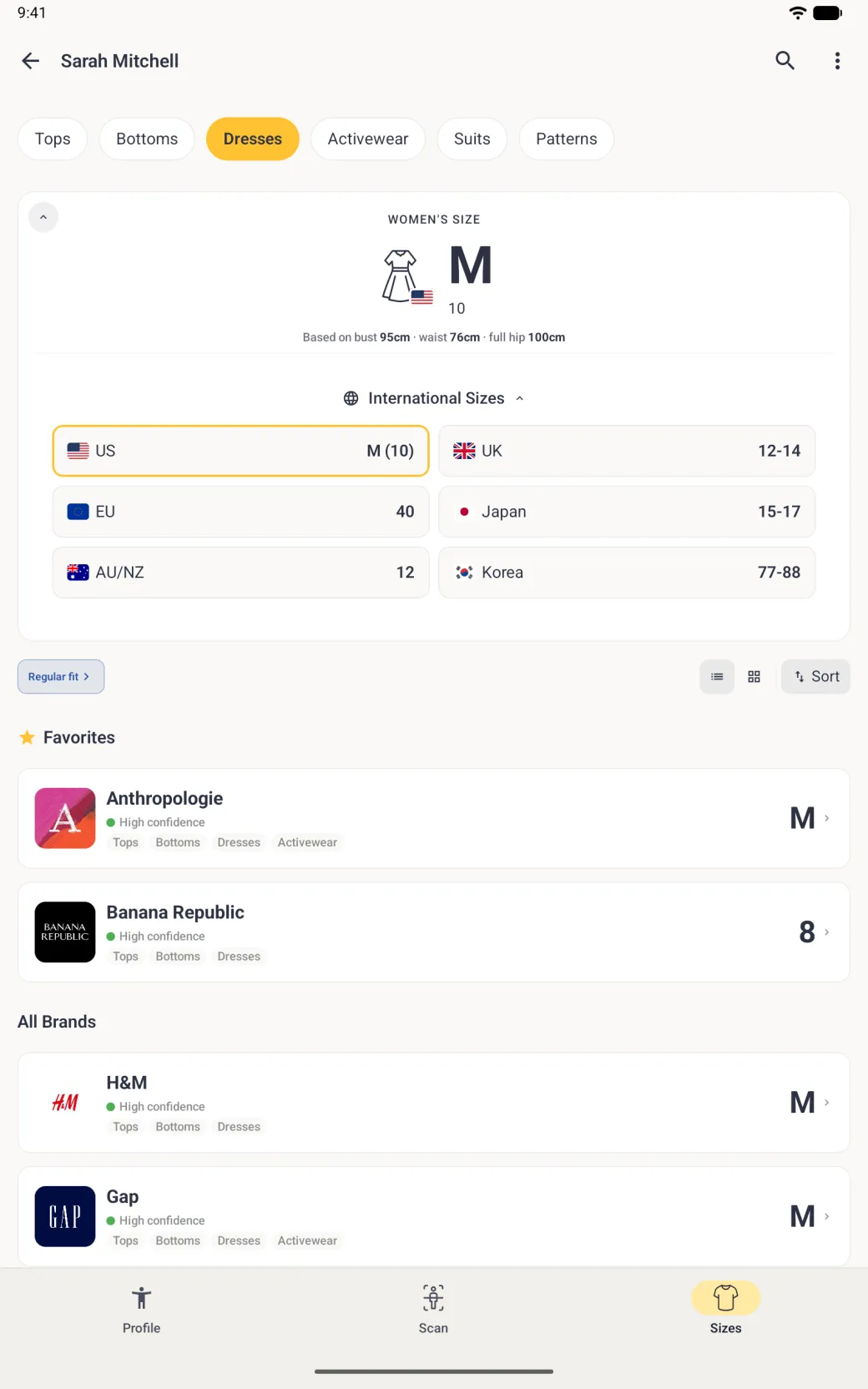
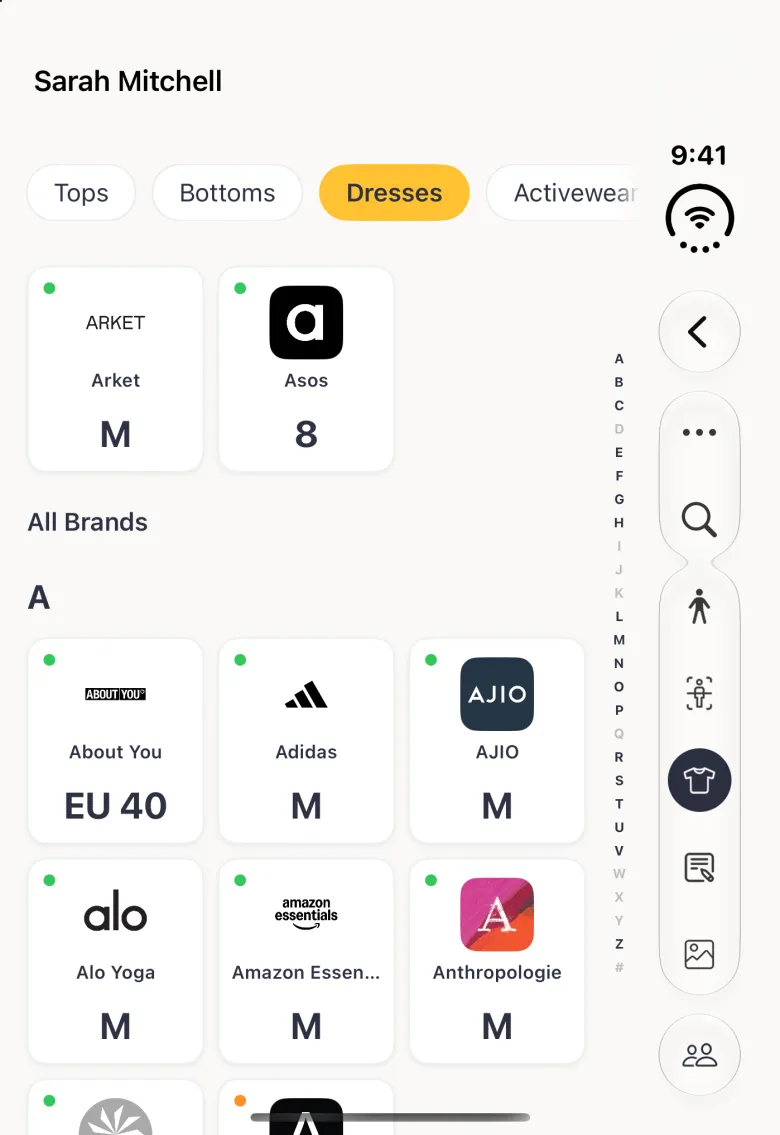
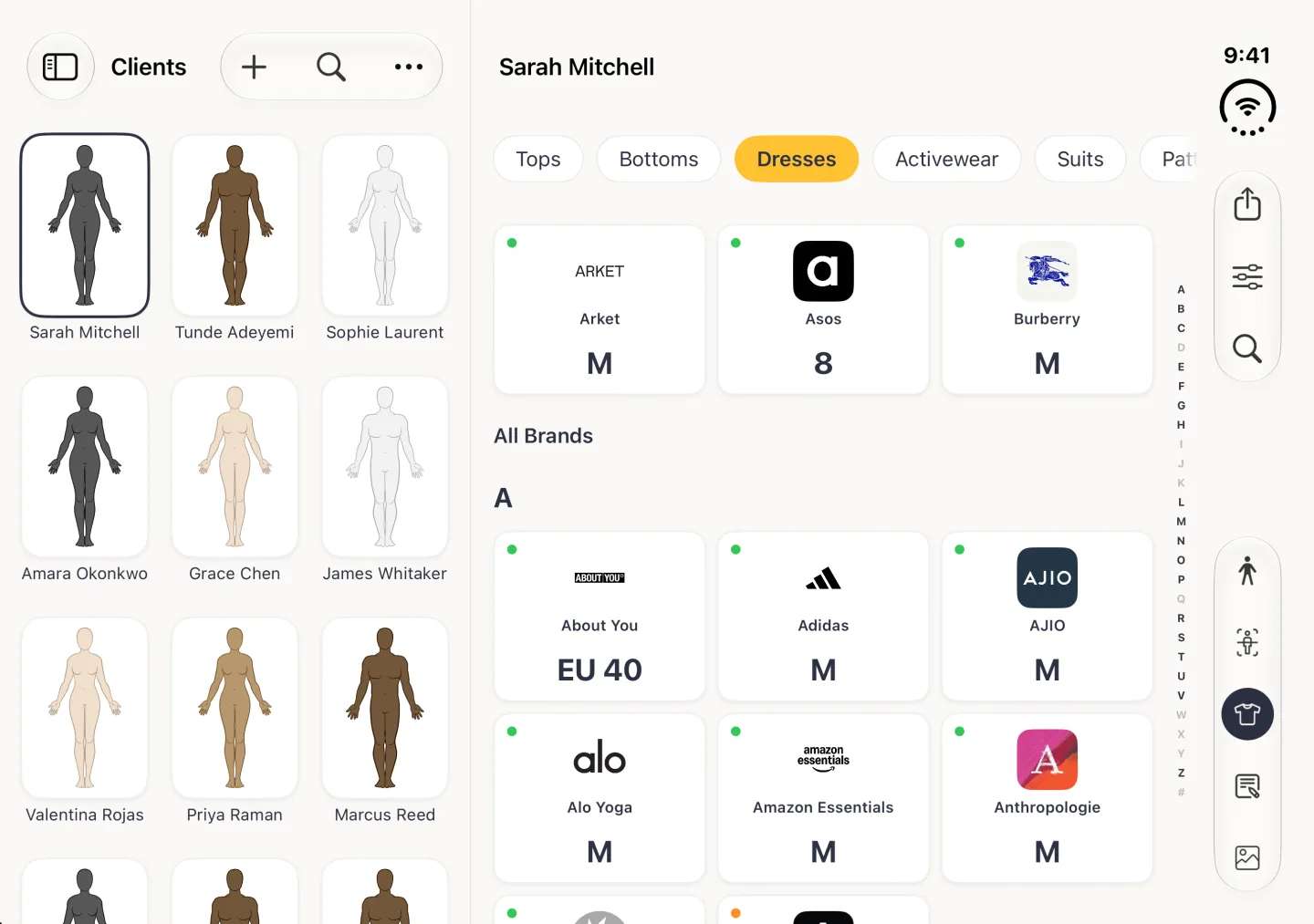
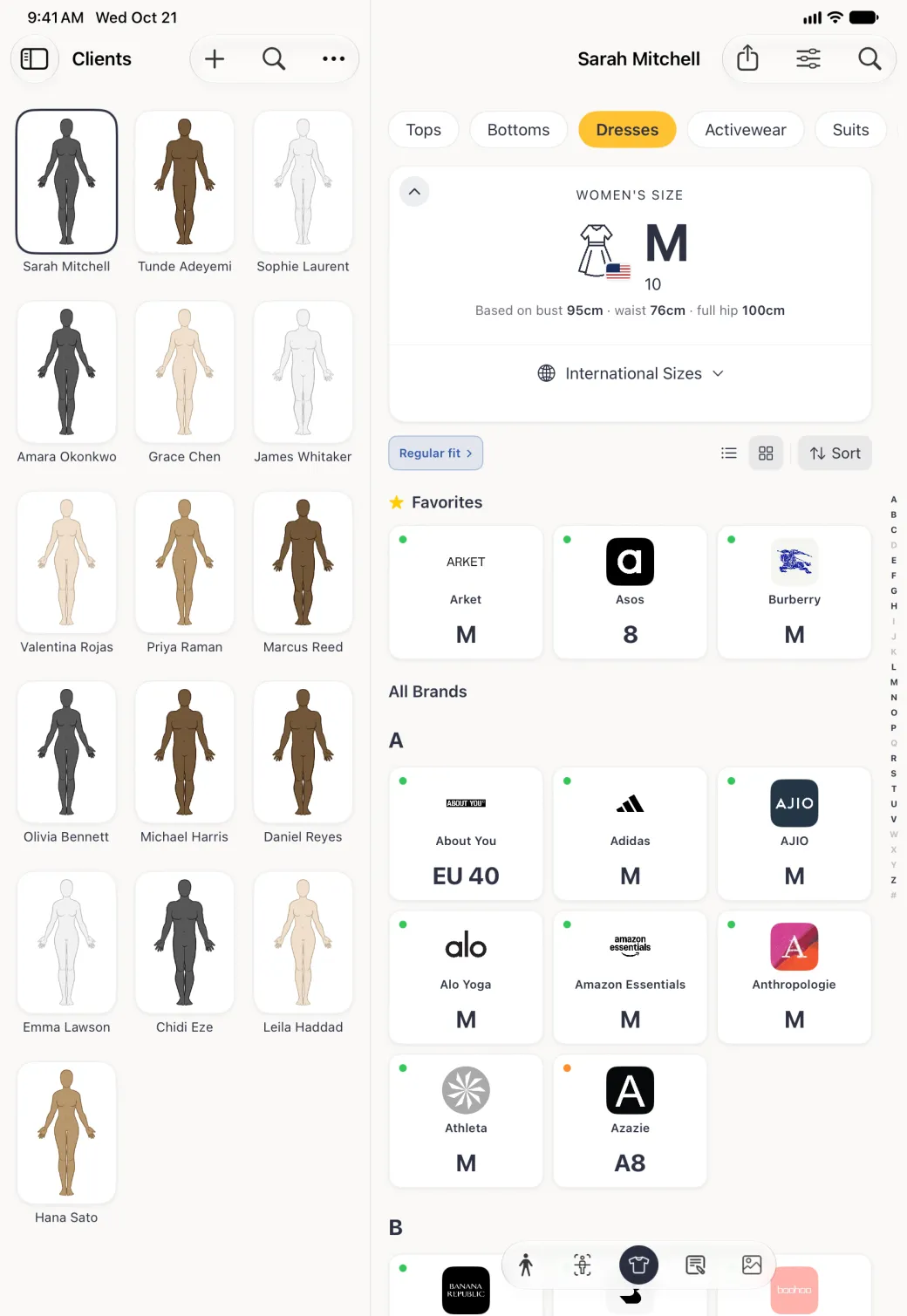
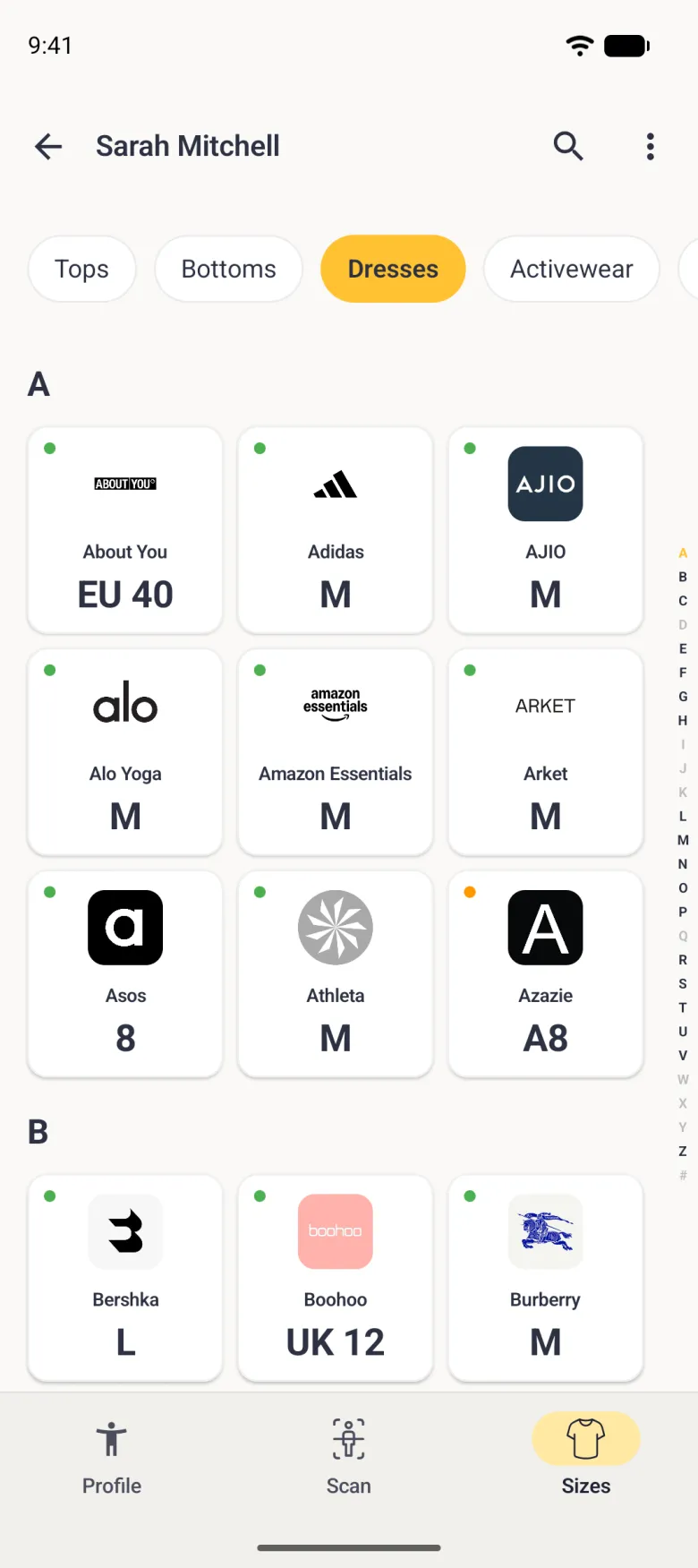
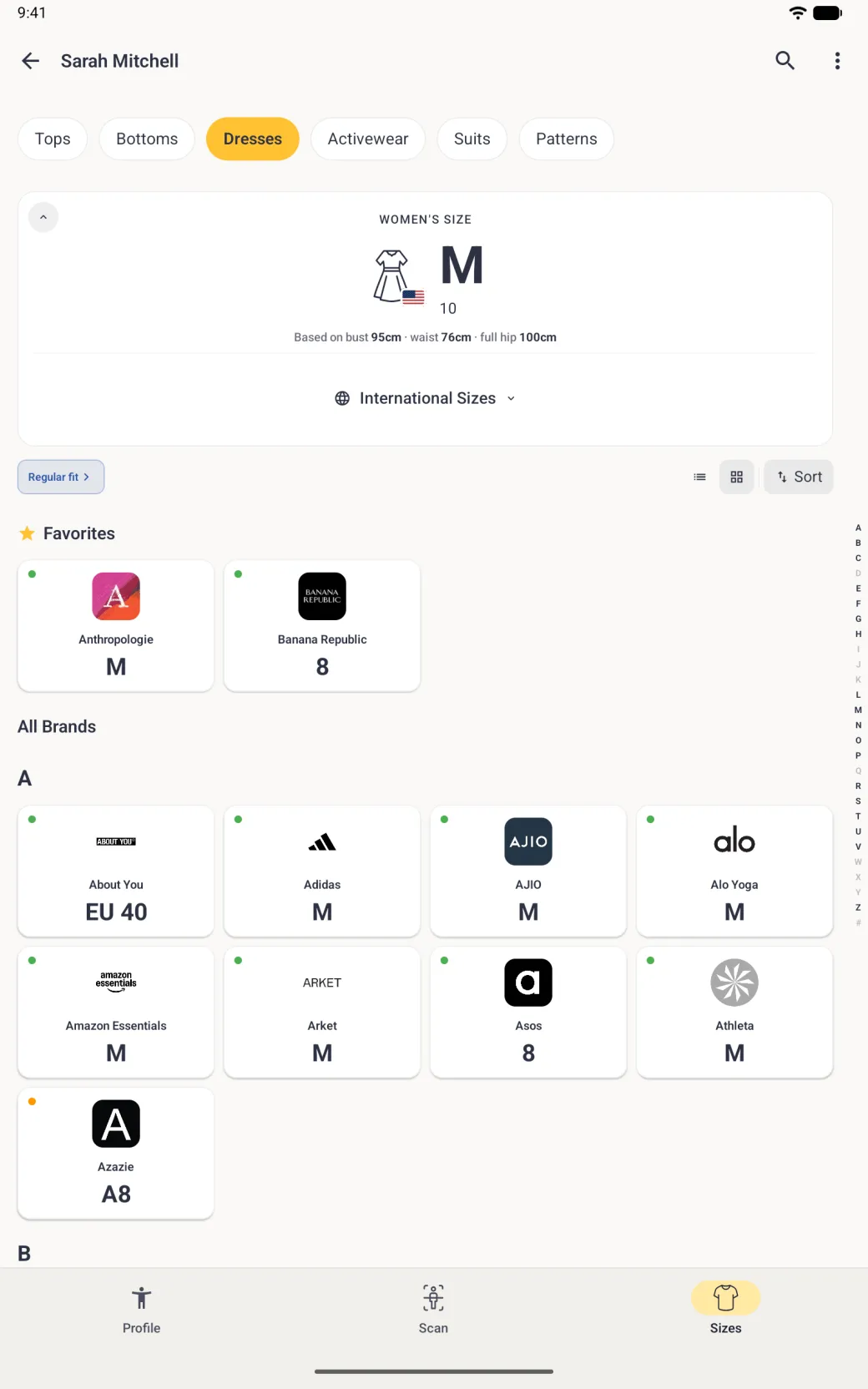
Open a profile and tap the Sizes button (a t-shirt), the third of the round section buttons at the bottom of the profile; on Android it is labelled Sizes in the bar at the bottom. On iPhone Duo the section buttons sit in a strip on the right, with the search button above them, and when it is opened the Clients list stays beside the sizes. The Sizes section opens with an overall size at the top, a small flag on the garment icon for your sizing region, and a “Based on” line that names only the measurements used for the category you are looking at. Below that is a list of brands, each with its own size and a coloured confidence dot, because the same body is not the same size at every label.

How do I get the size for a dress, trousers or a suit?
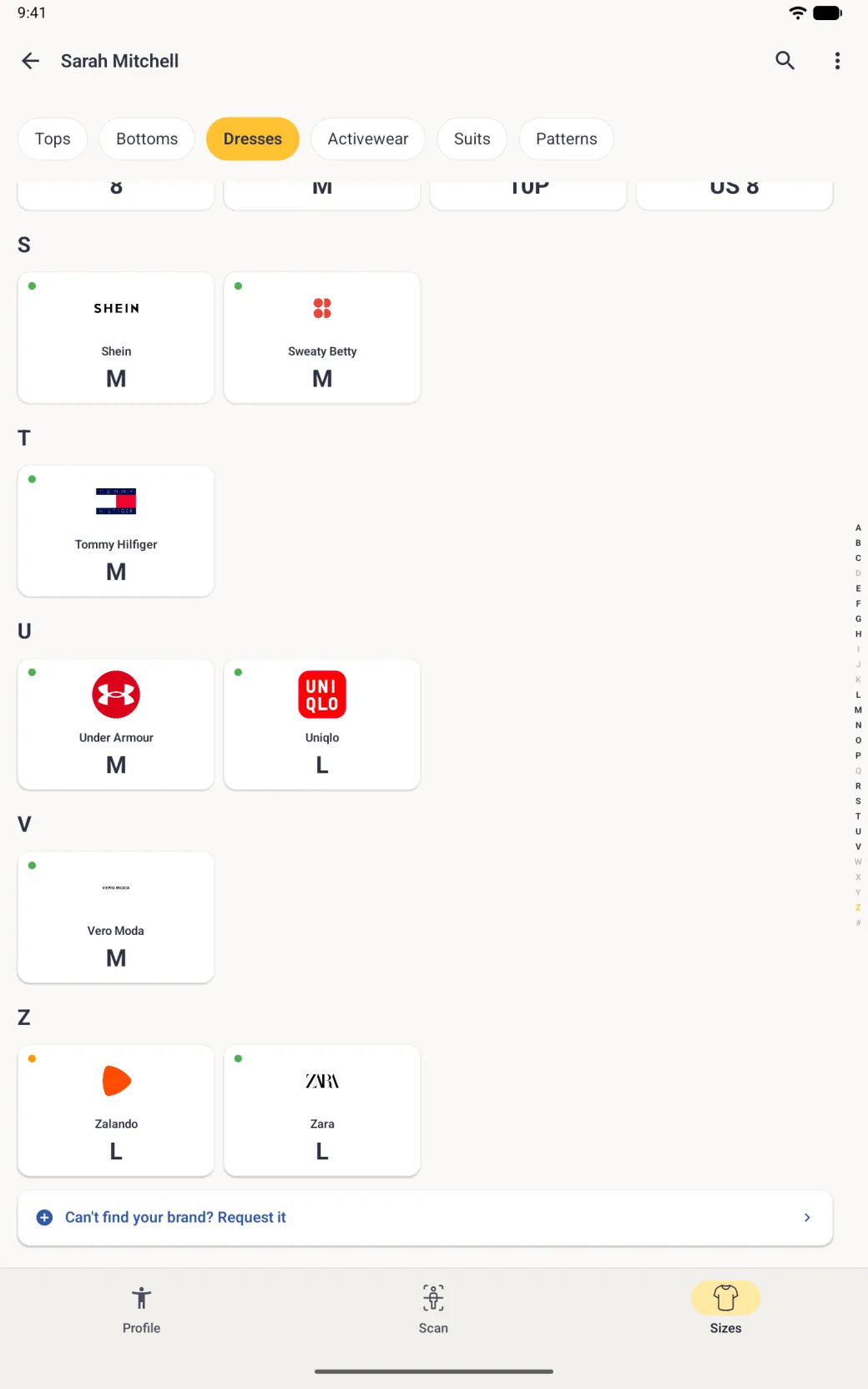
Use the category row along the top: Tops, Bottoms, Dresses, Activewear, Suits and more. Both the headline size and the brand list switch to the category you pick, and so does the “Based on” line, because a dress is matched on bust, waist and full hip while a top is not.

How do I read my size in another country’s numbering?
Tap International Sizes inside the size card. The card expands to show a size for each of six regions: US, UK, EU, Japan, AU and NZ, and Korea. Each region is matched against its own body-measurement chart, so every size comes from your body measurements rather than from converting one label into another, and the regions do not sit a fixed number of sizes apart. The tile for your own sizing region has a gold outline.

How do I change my sizing region?
Tap another country’s tile in International Sizes. A “Switch to” alert names the region and says your size recommendations and brand sizes will show that region’s sizes. Tap Switch sizes, or Switch on Android, to change it for the whole app, or Cancel to keep things as they were. You can also set it in App Settings under Sizing region, and setup asks for it once.
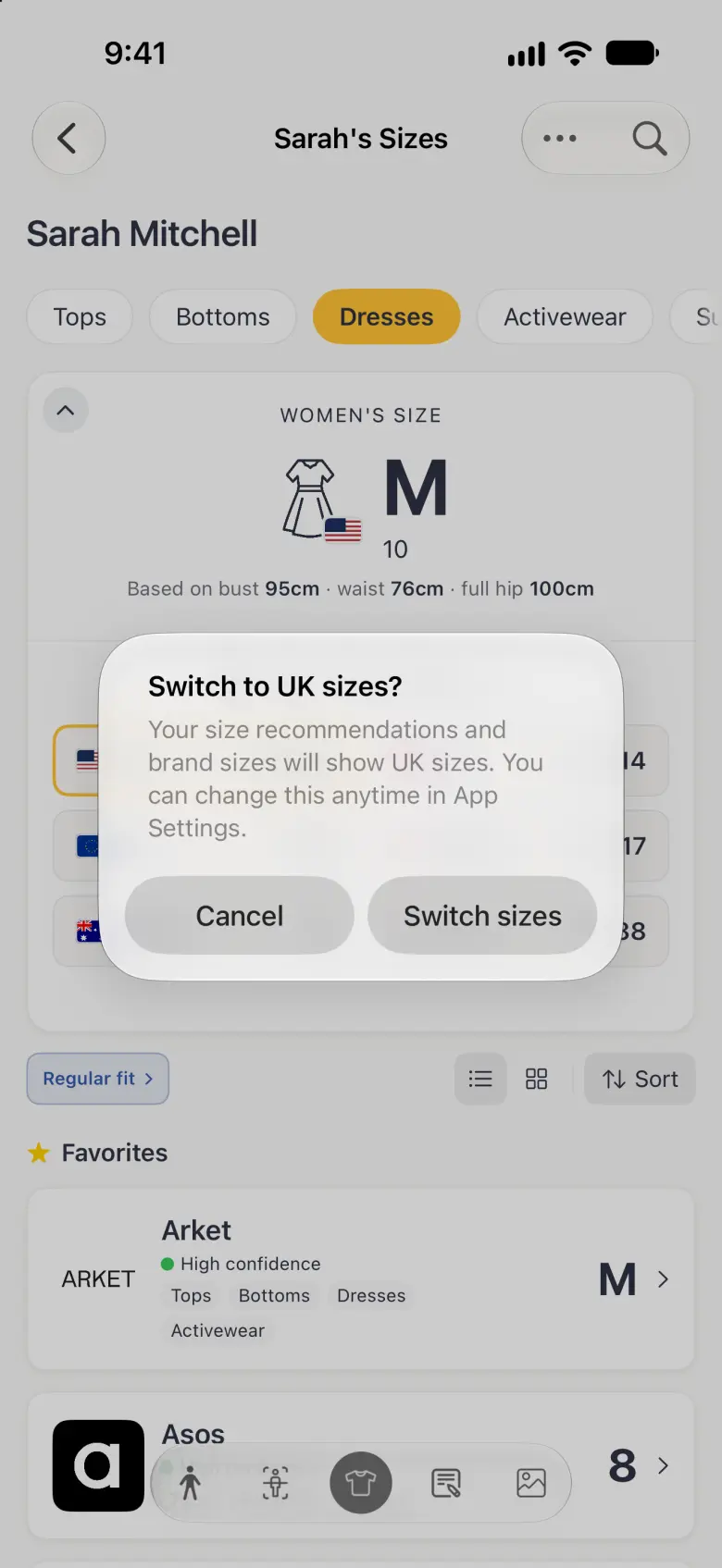
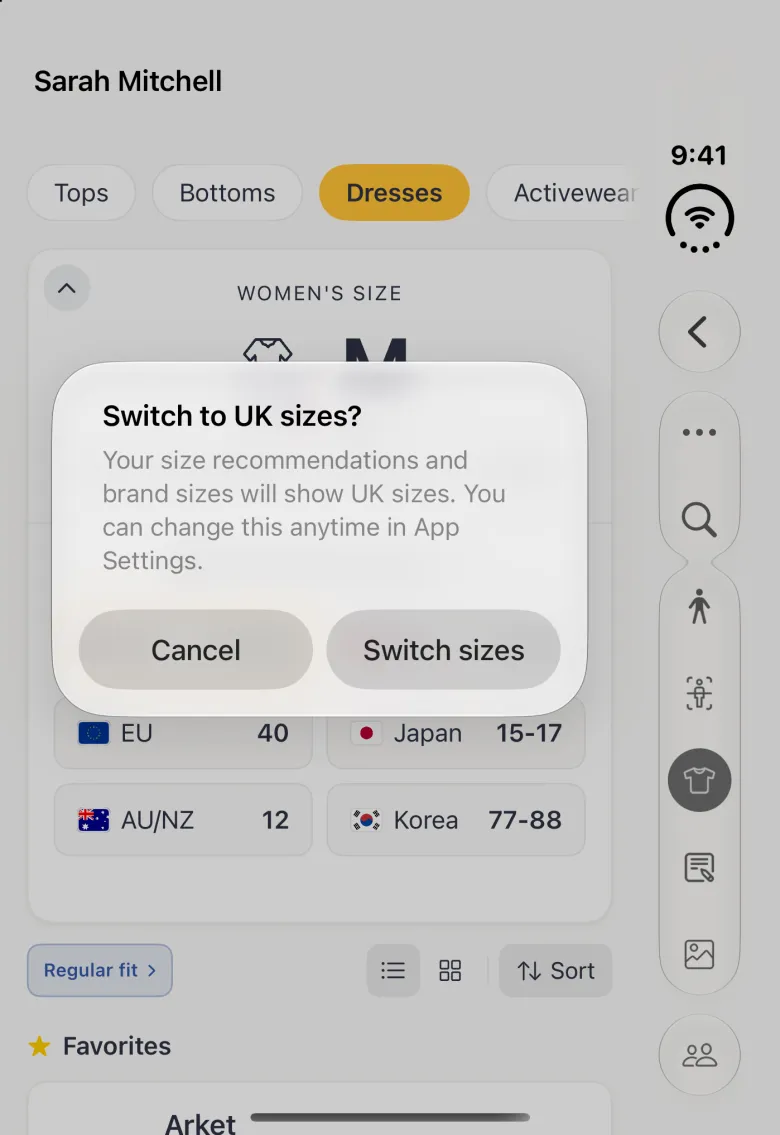
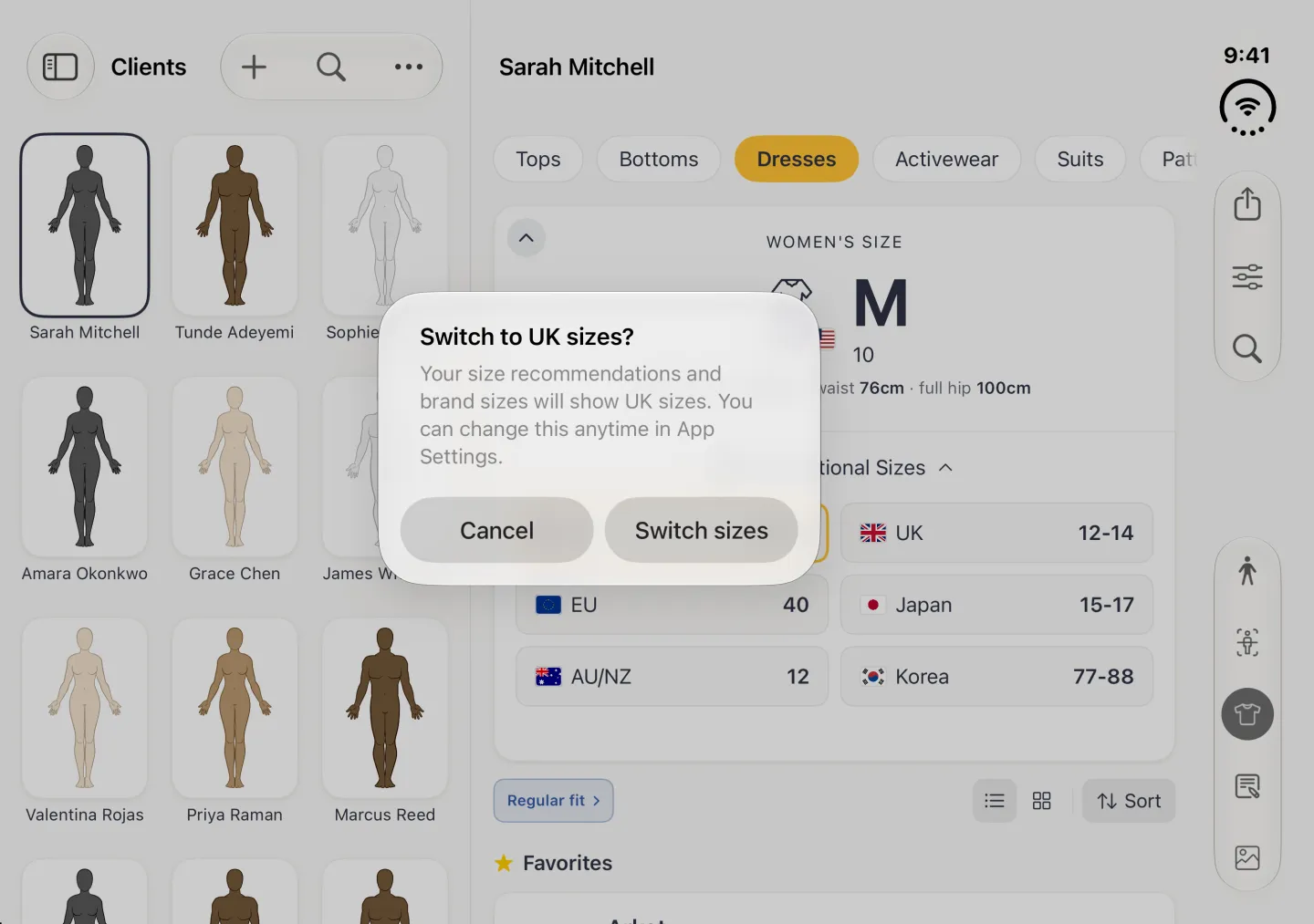
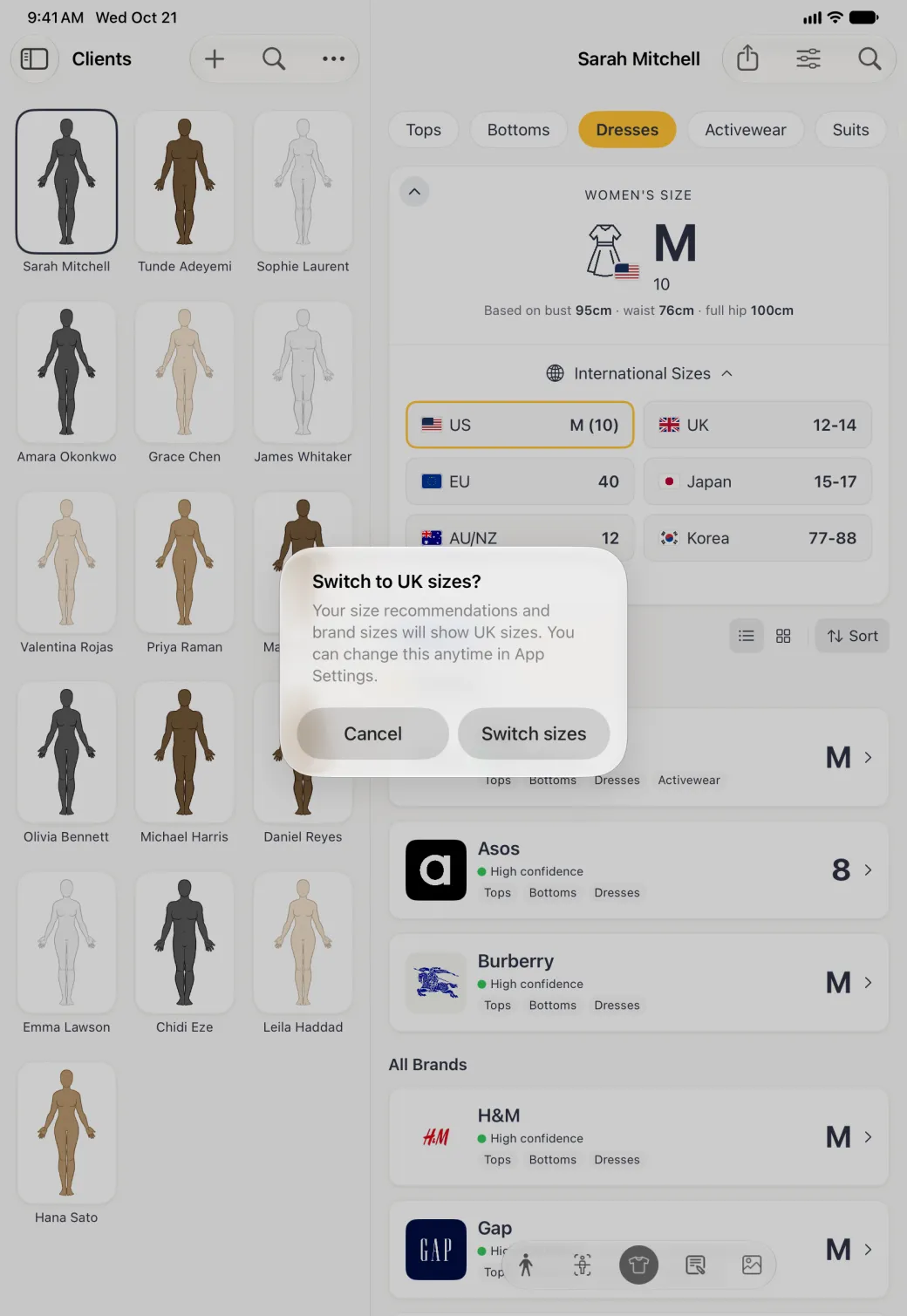
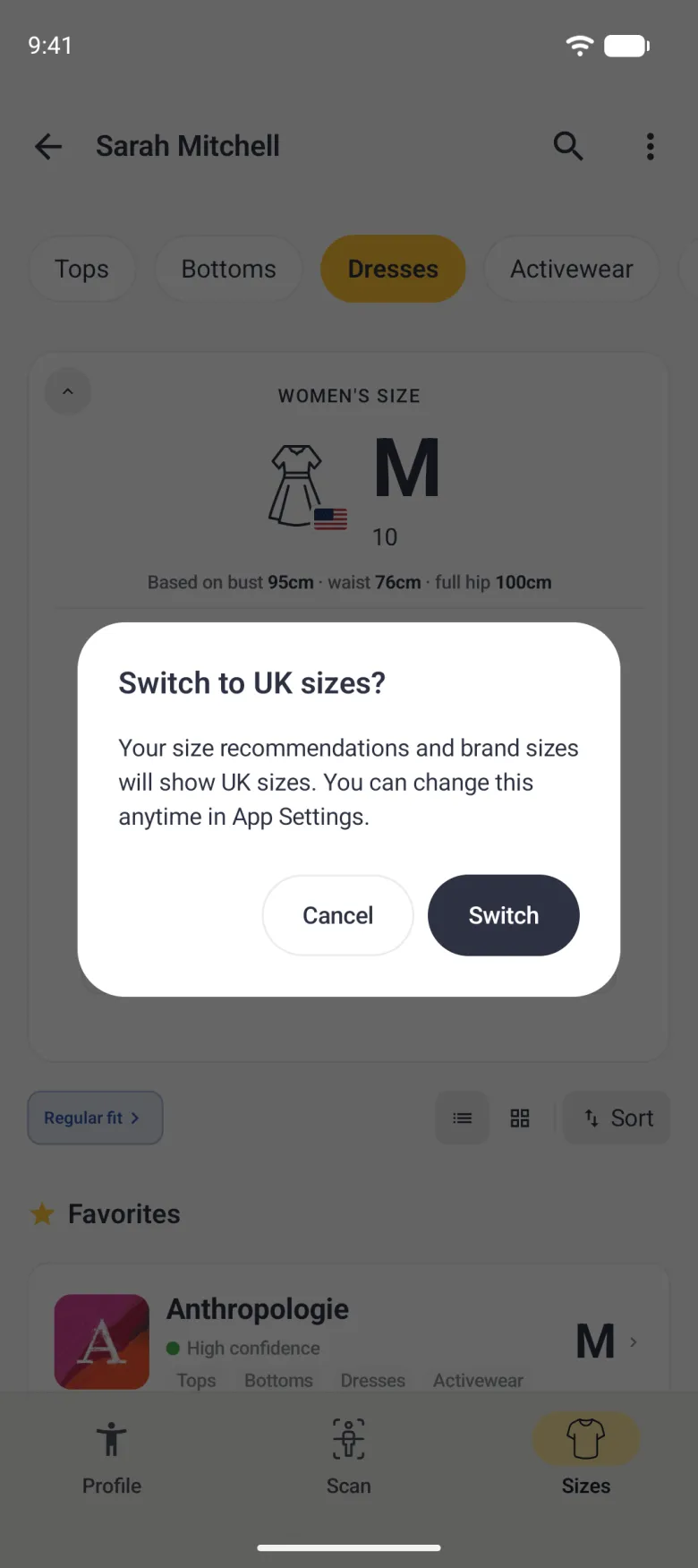
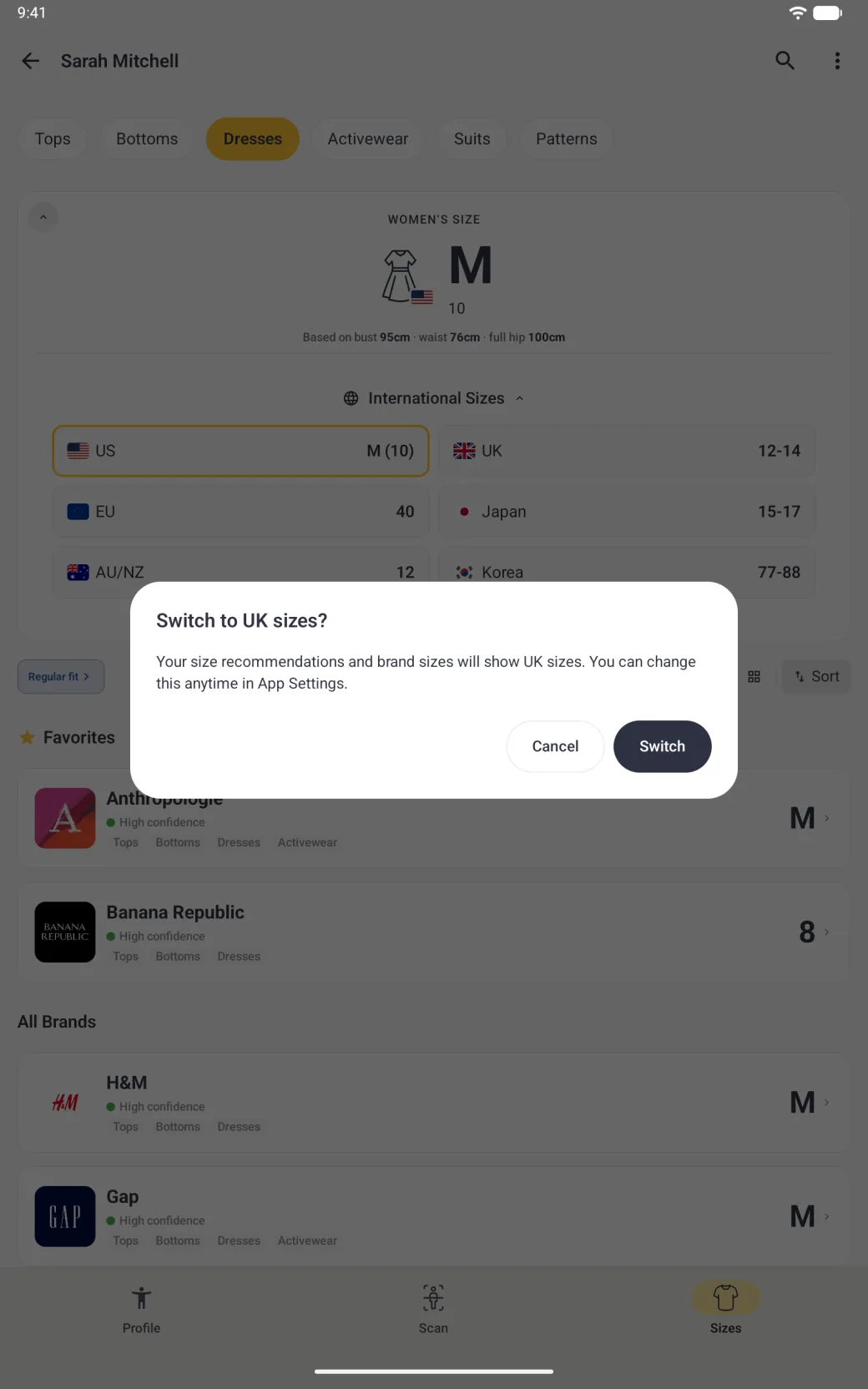
The headline size and its flag change to the new region straight away. Your measurements do not change, only the way the sizes are written.
Why do some brand sizes have a country in front?
A brand’s own size chart is written in one sizing system, and the label is shown to match your region. When a chart uses a different system from yours, a numeric size appears with that system in front, such as US 8 or EU 40, so you can tell which numbering it is. When a chart lists labels for your region, those are shown instead, so a UK shopper can see a size such as UK 12. Letter sizes such as S, M, L or 2XL never get a prefix.
How do I find a particular brand?
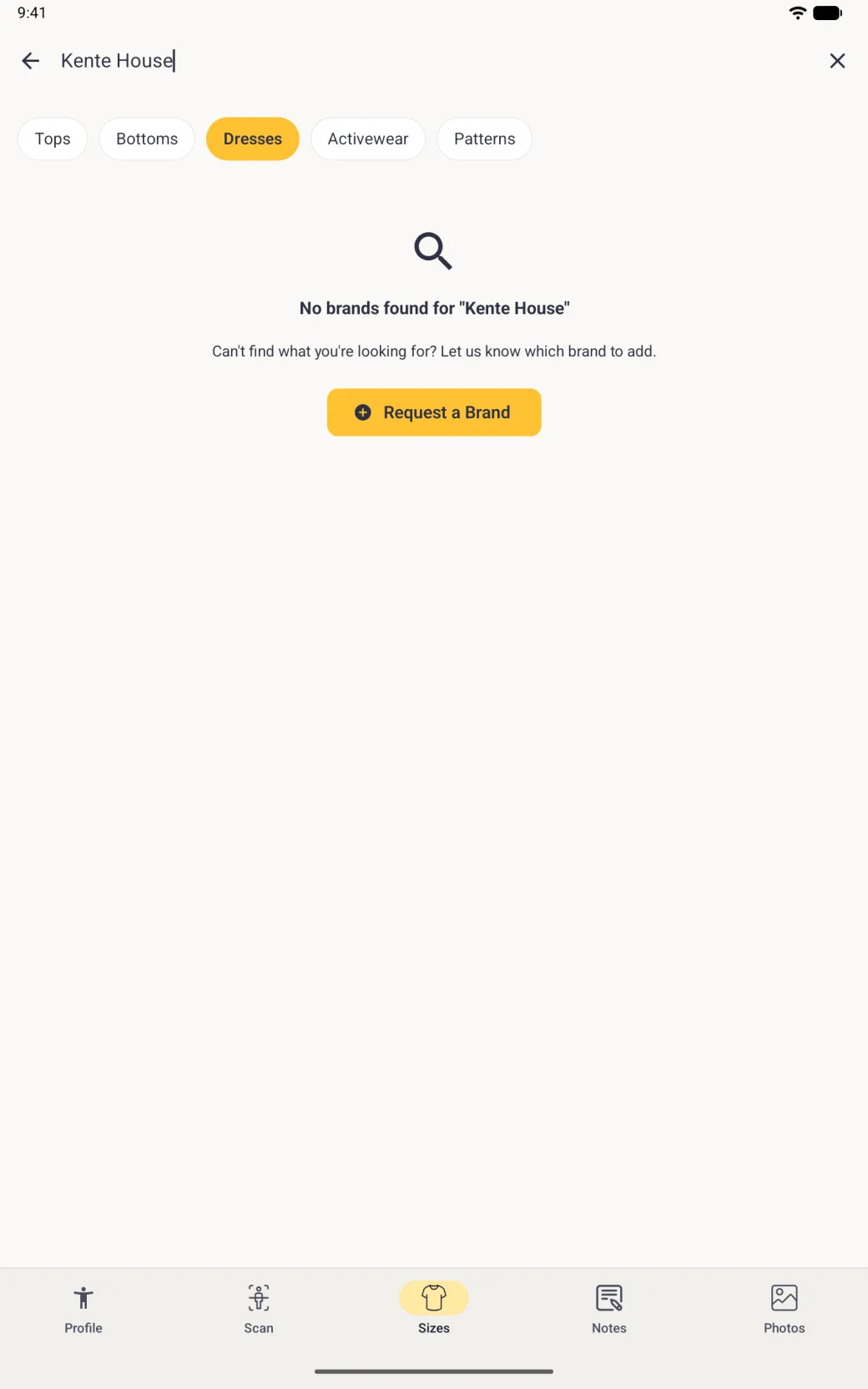
There are three ways through the list, and they work together. Sort, at the right of the toolbar, groups brands under letter headings and puts an alphabet index down the right edge, with the brands you chose in setup kept under Favorites at the top. The two buttons beside it switch between a list and a grid of logos. The magnifying glass at the top right, beside the ••• button, searches by name, narrowing the list as you type, and the round cross beside the field closes the search.

How will I know when new brands are added?
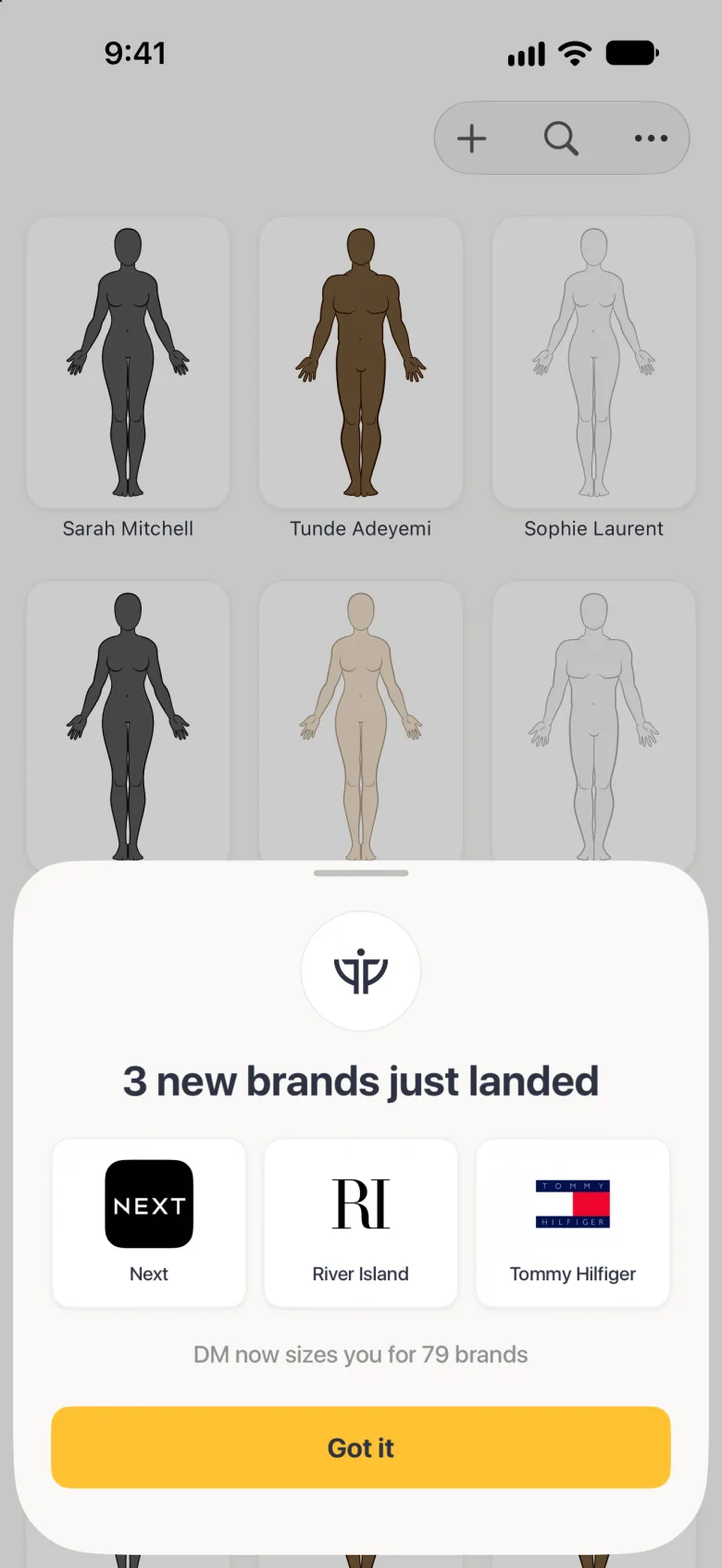
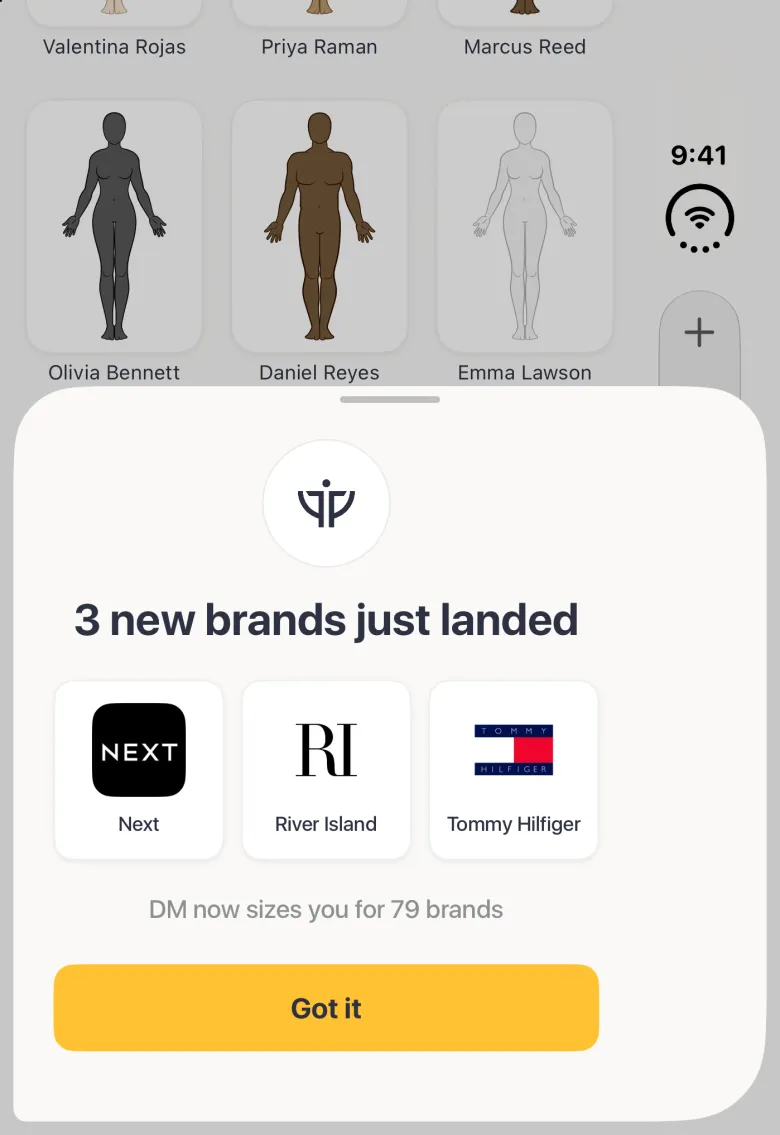
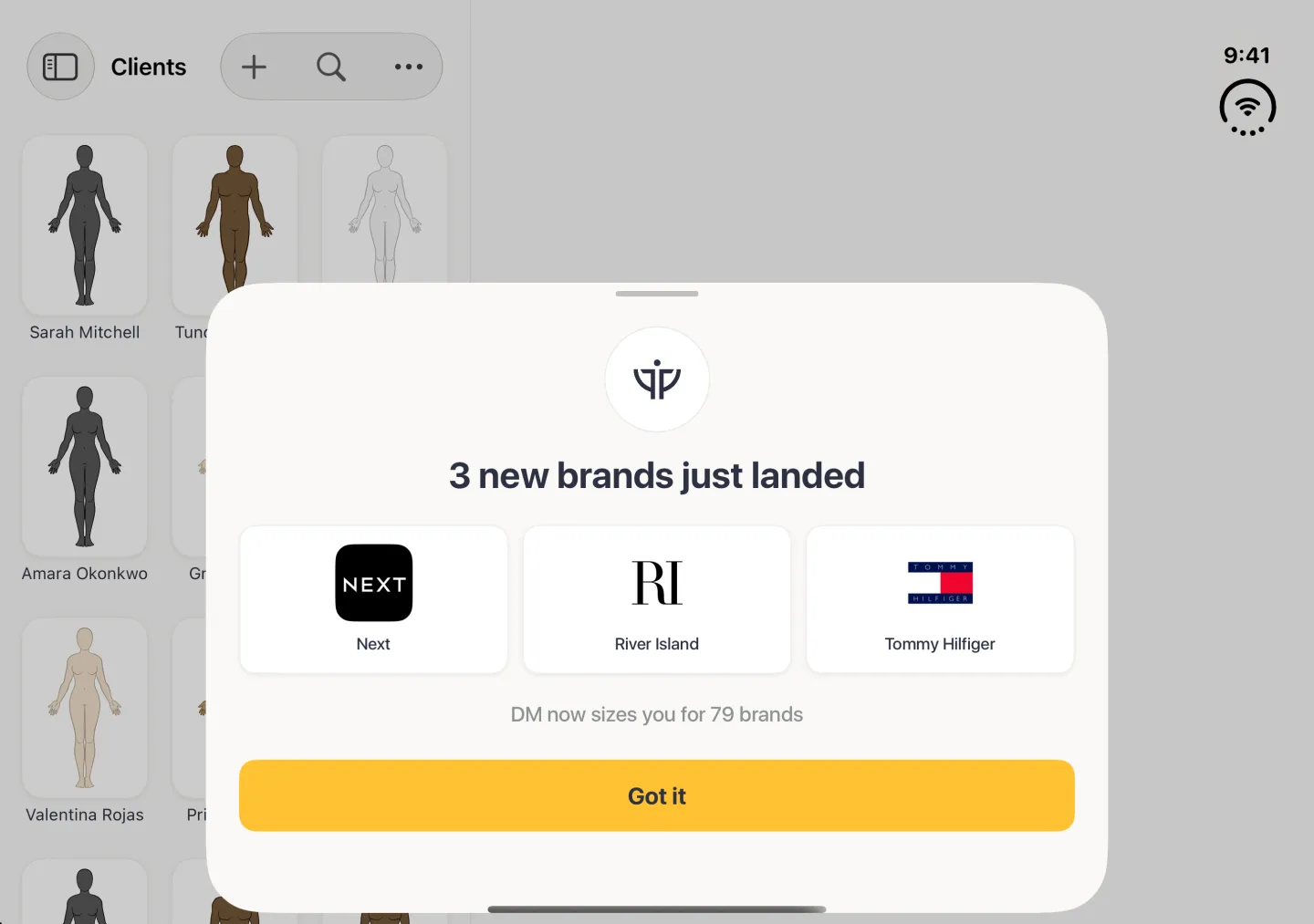
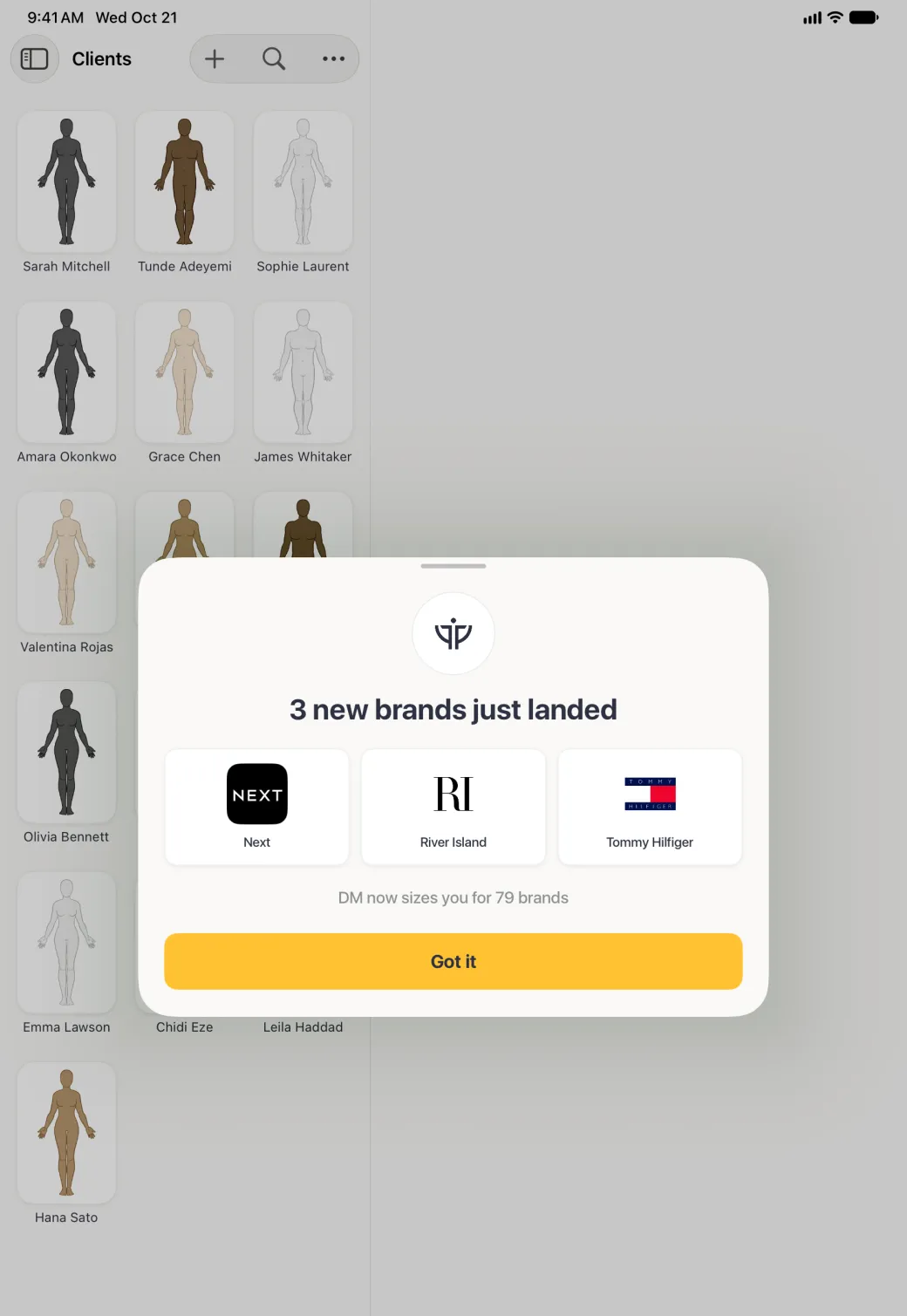
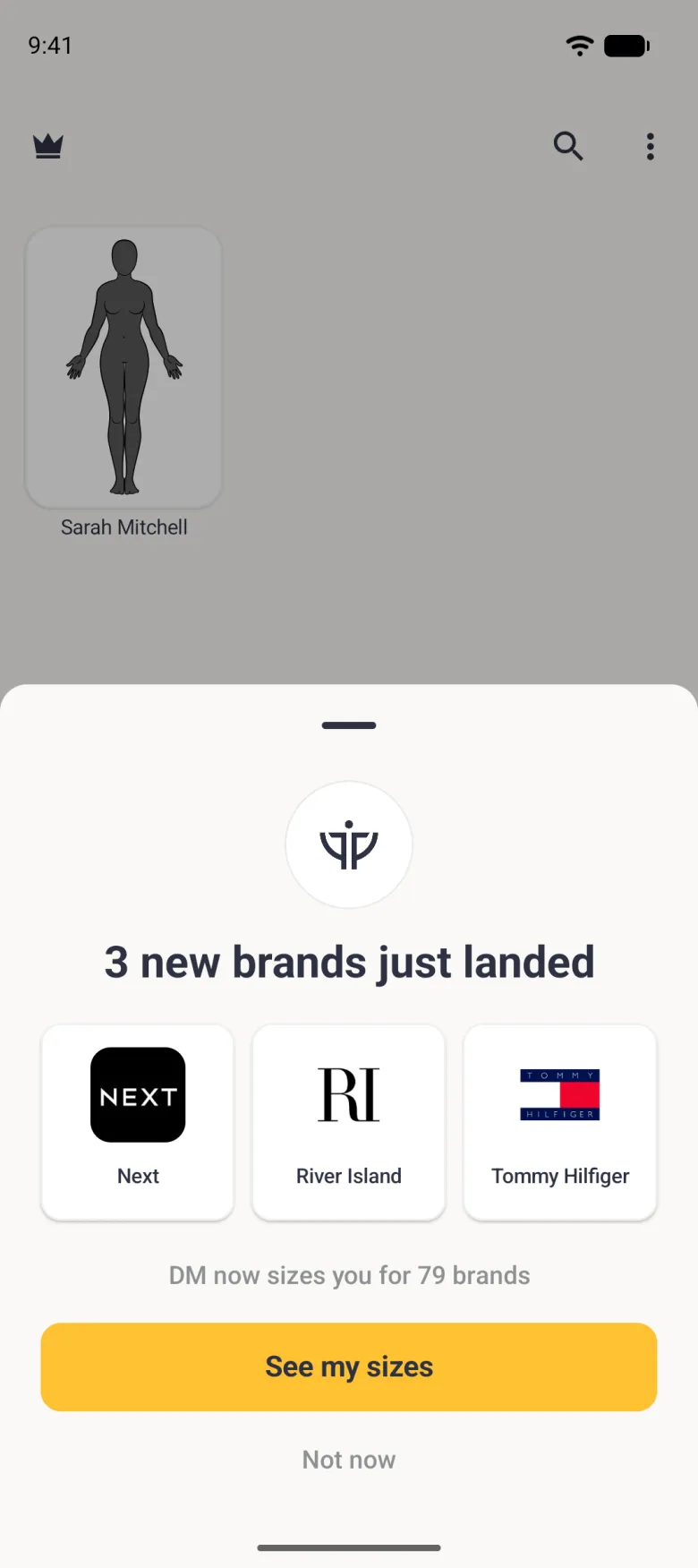
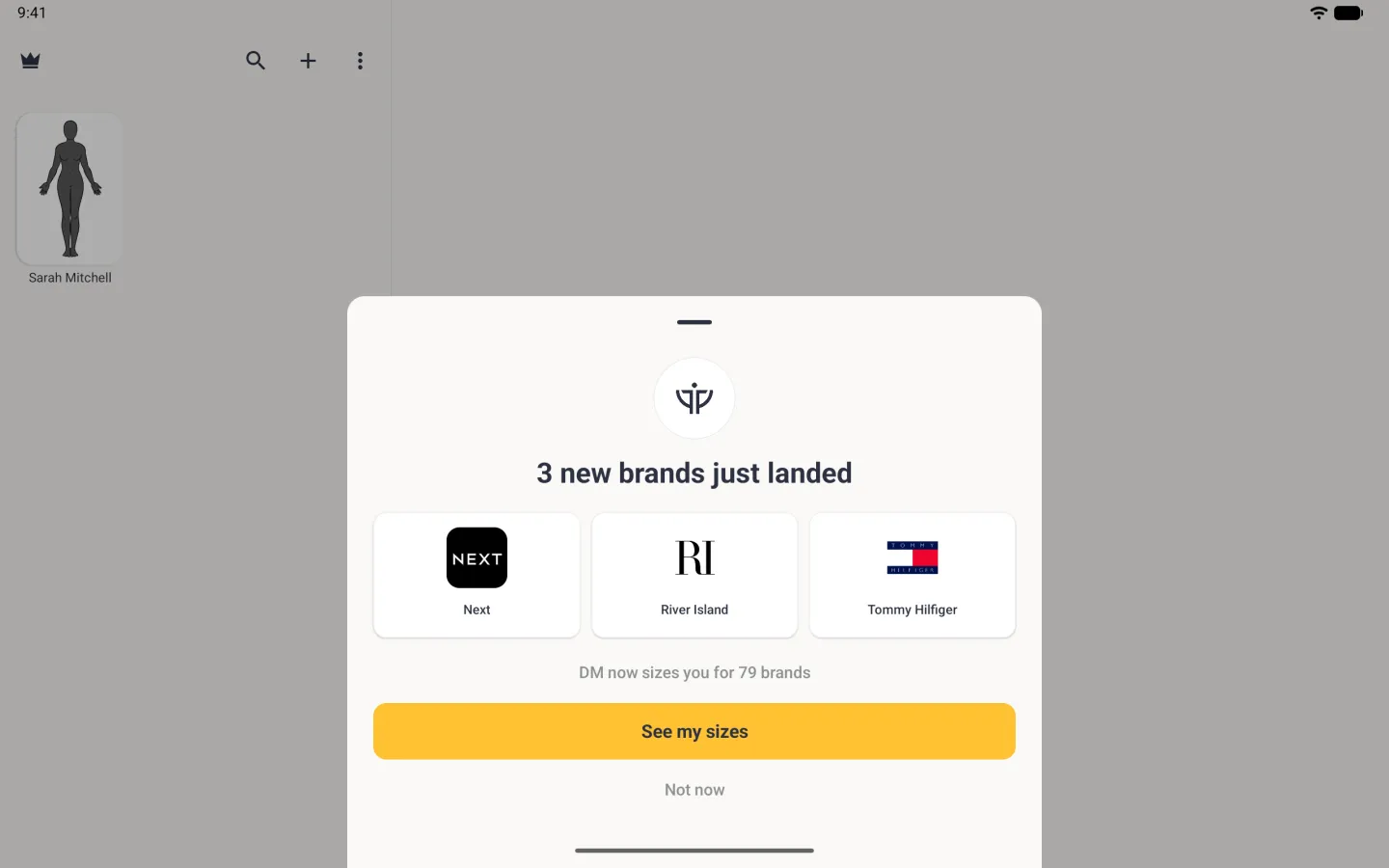
When new brands have been added to the list since you last looked, Dress Measurement tells you the next time you open the app. A sheet lists the new brands and says how many brands you are now sized for. You see it no more often than every few days, so several additions arrive together, and a new install does not announce the brands that were already there.
If you have one profile, the sheet offers See my sizes, which opens that profile’s Sizes tab, and a Not now link. With no profiles, or with two or more, it has a single Got it button.
What does the confidence level mean?
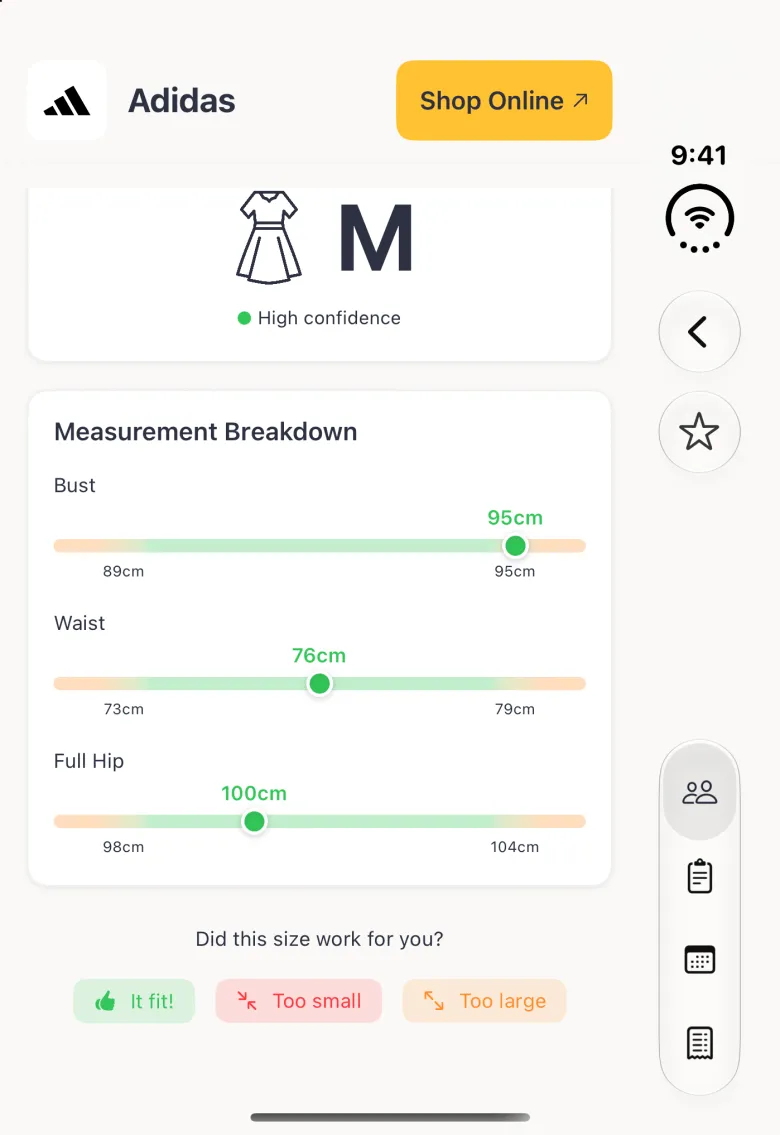
Confidence says how well your measurements sit inside the brand’s own chart for that size. High means they all fall within the range that size is cut for. Medium and low mean at least one of them falls outside it, so the recommendation is the closest fit rather than a comfortable one, and the neighbouring size is worth considering.
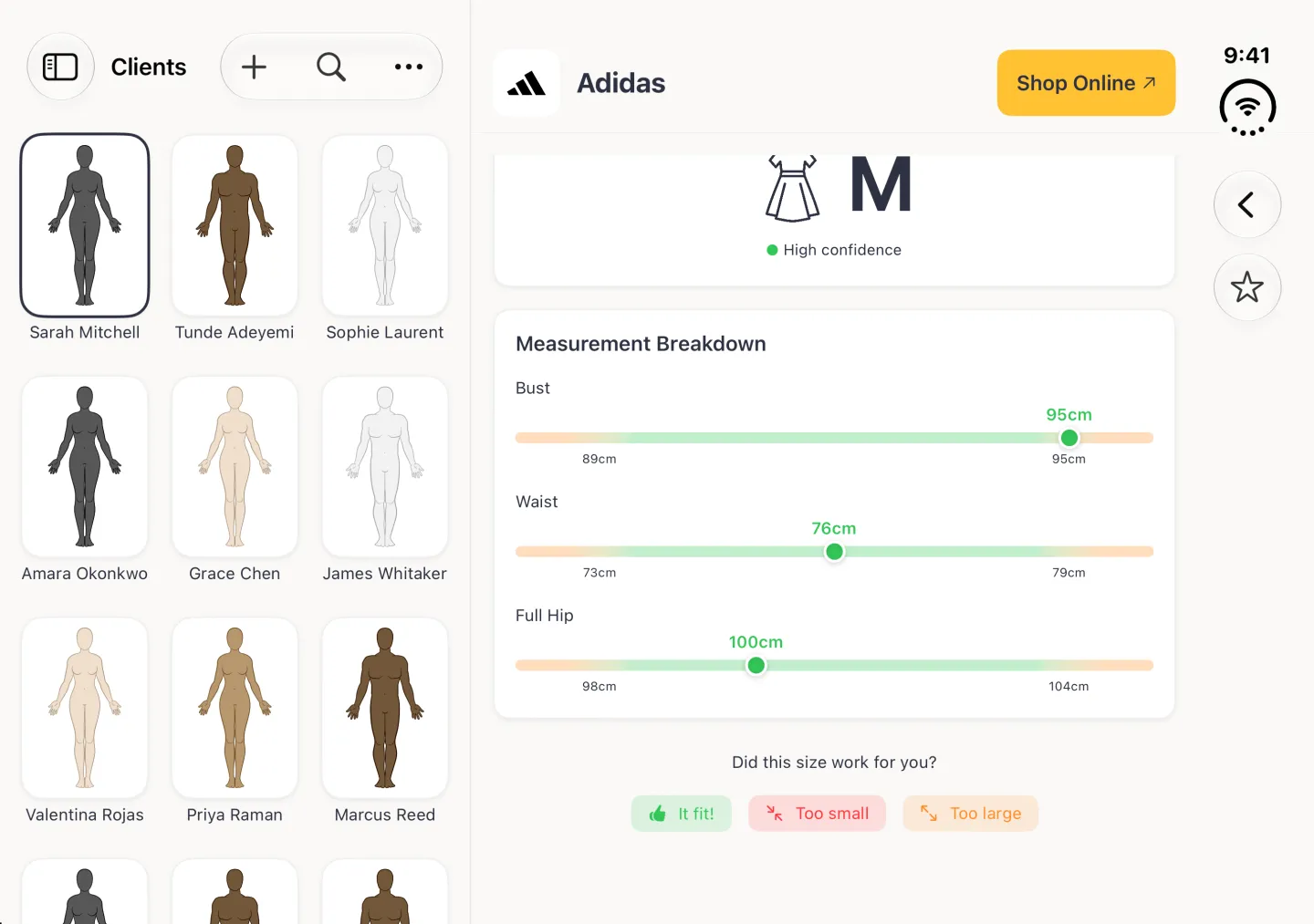
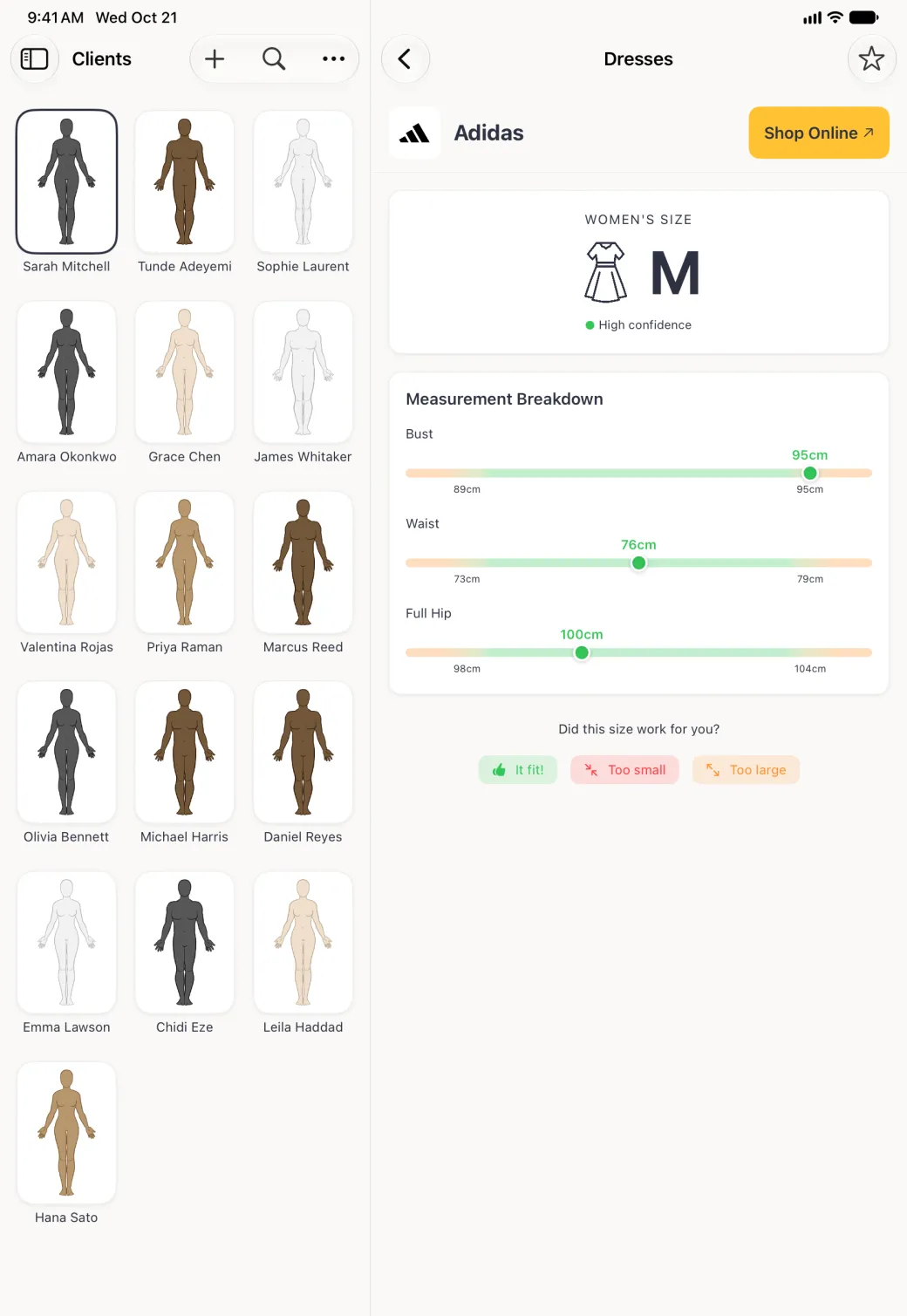
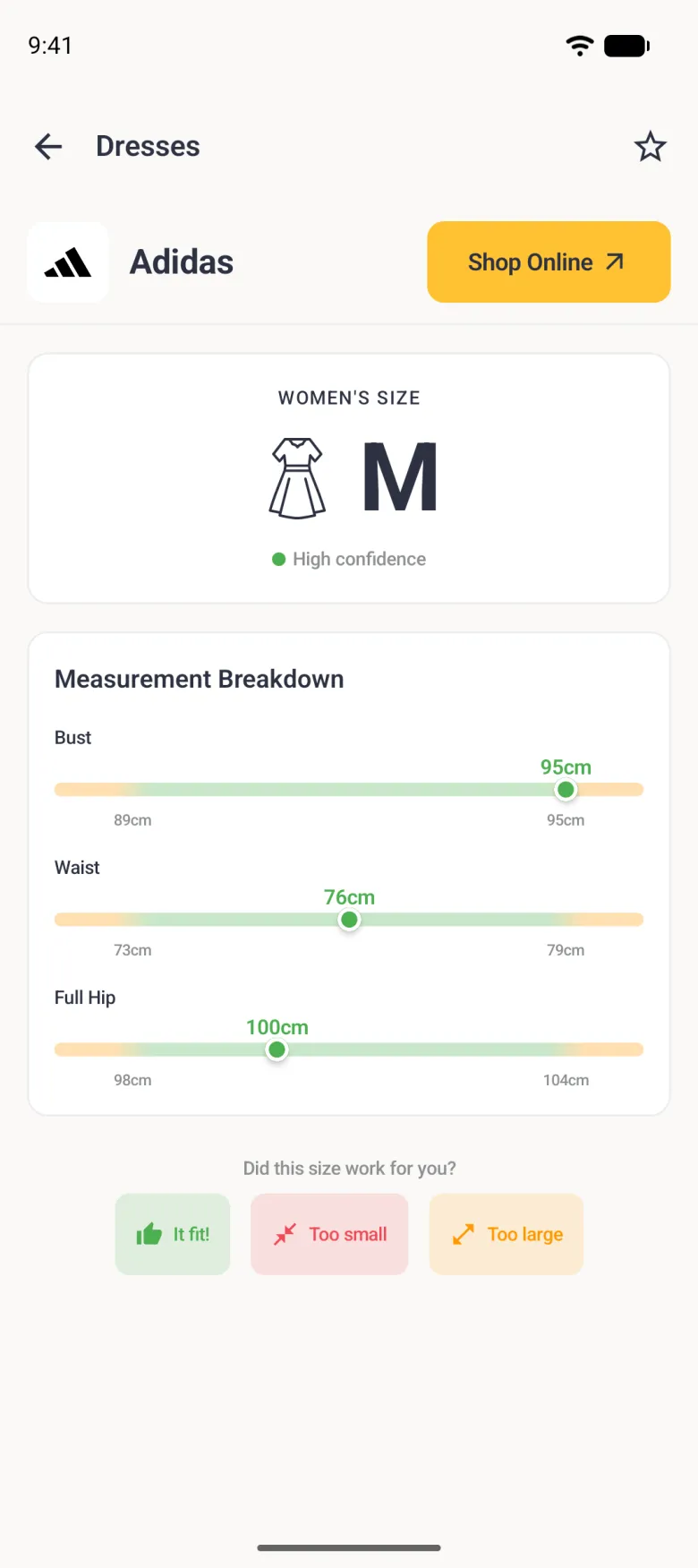
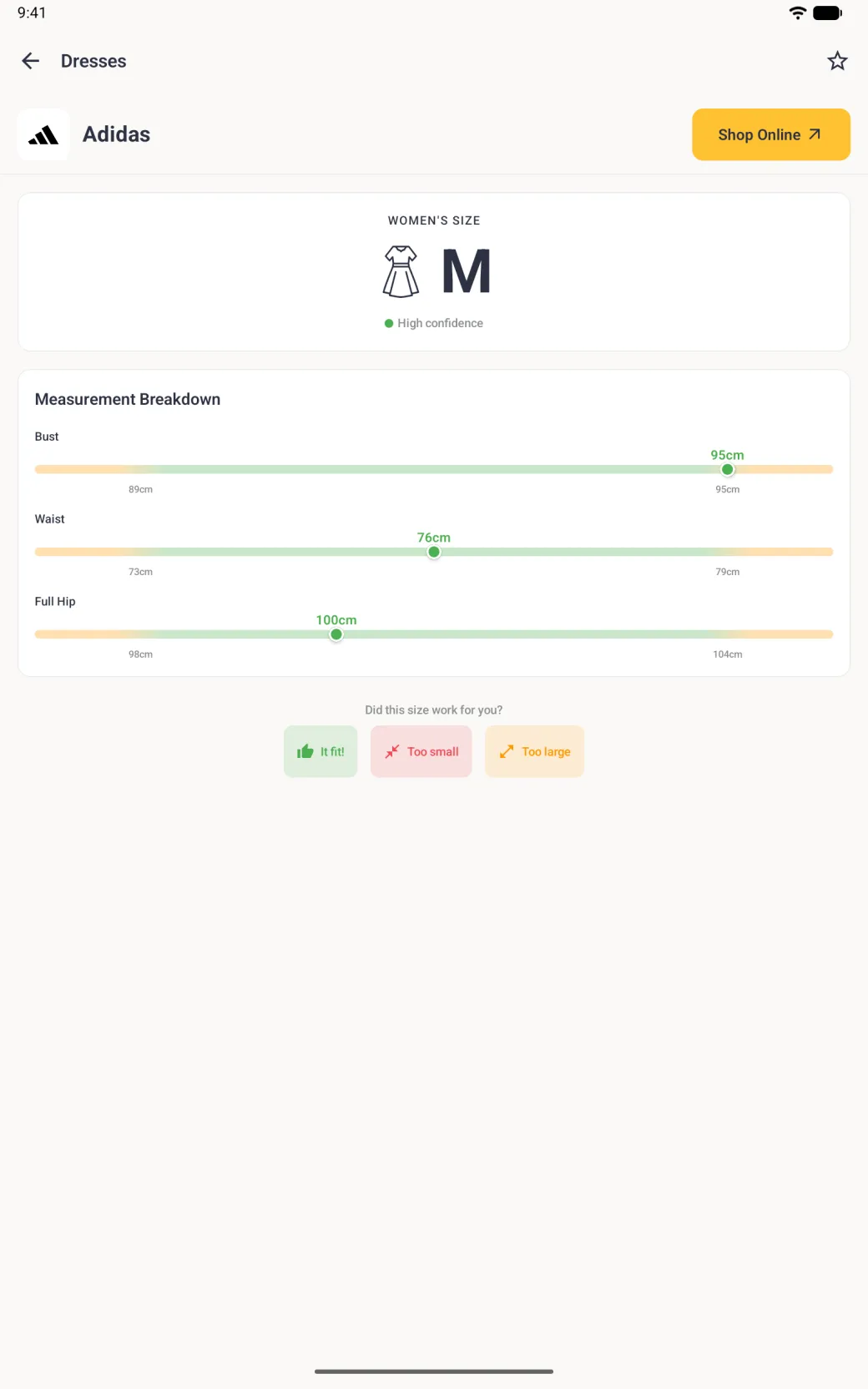
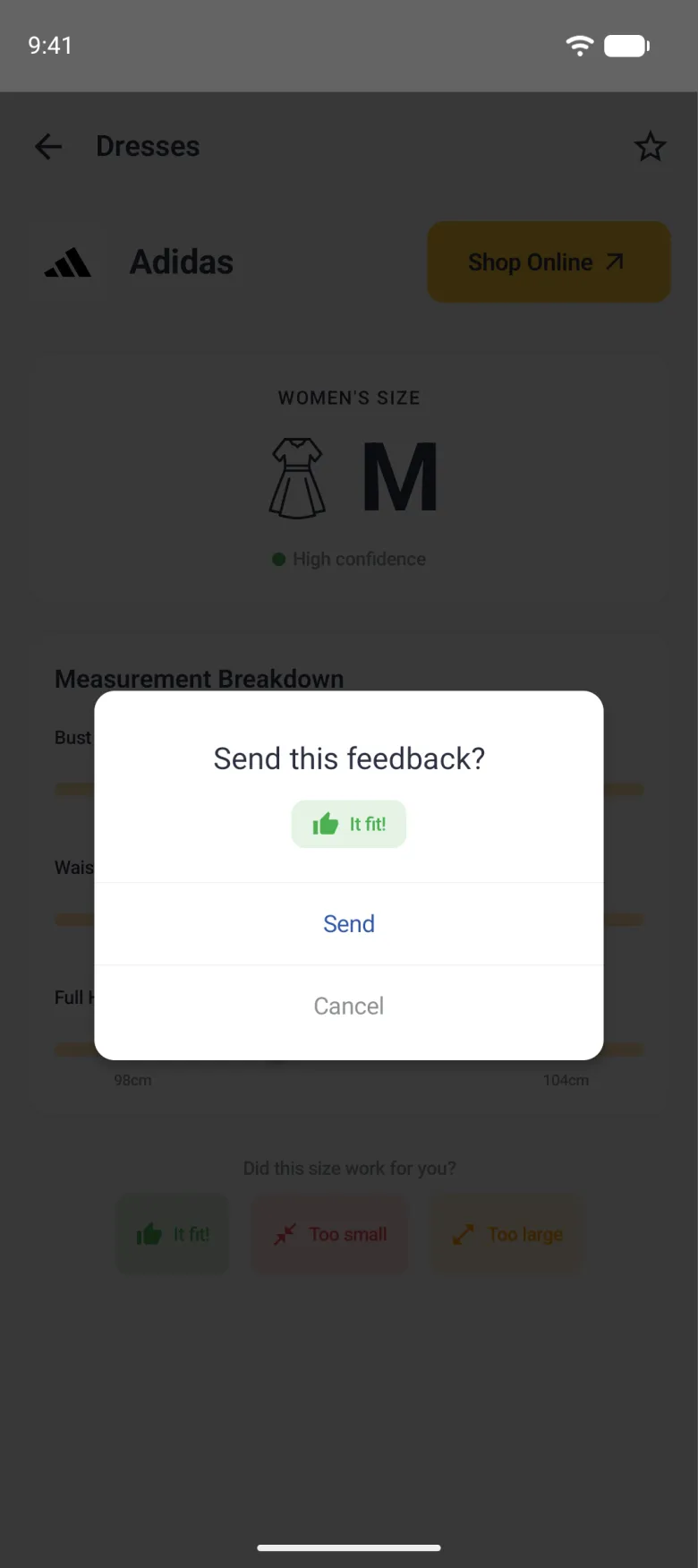
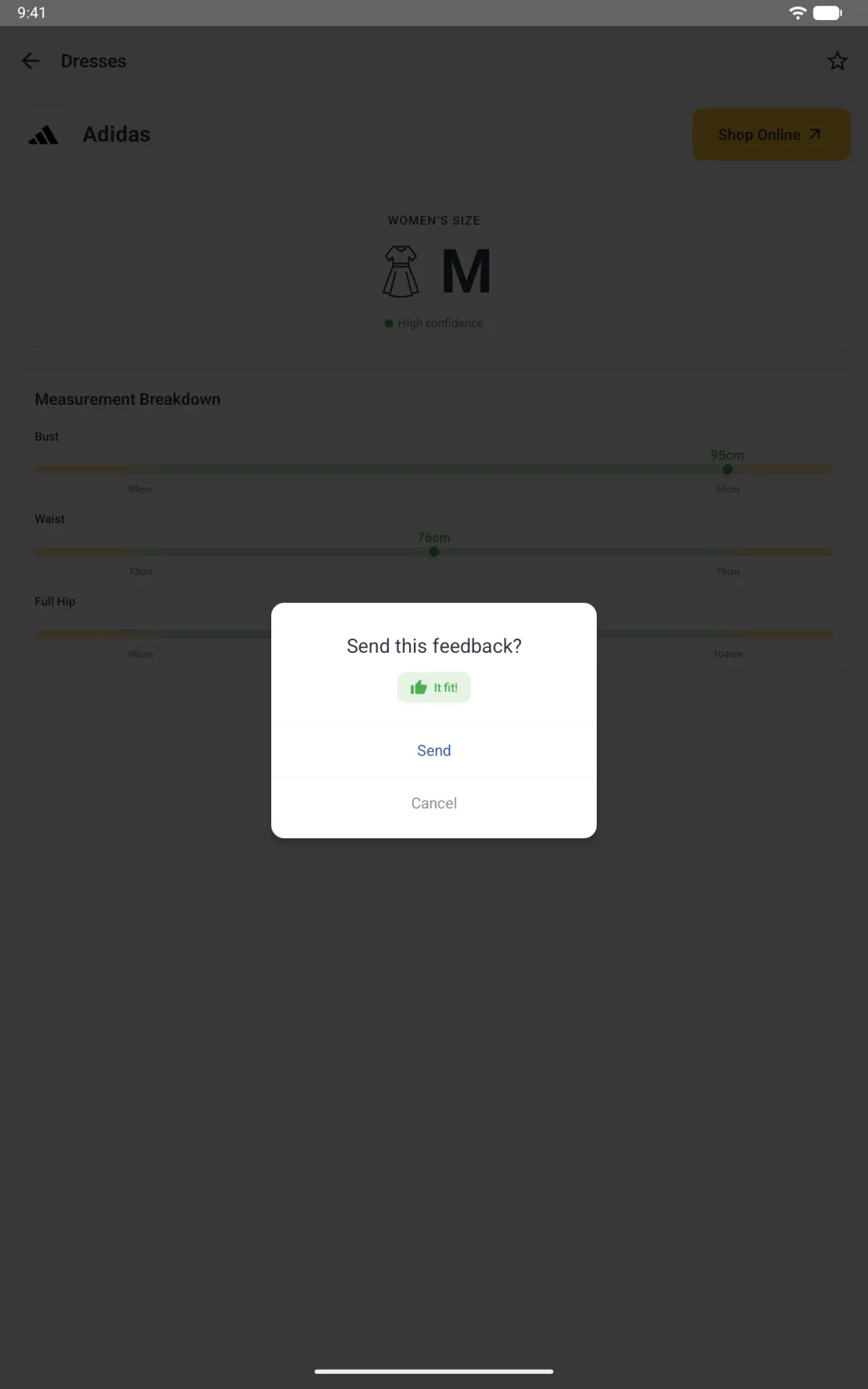
Open a brand to see it in full. The measurement breakdown puts each of your measurements on the range bar for that size, so you can see which one is pulling the answer around. Shop Online, beside the brand’s logo and name, opens the brand’s own site where the brand has one.
The pill at the left of the toolbar shows the fit preference for this profile, and tapping it opens the profile settings where Slim, Regular and Relaxed live. Fit preference is set per profile, and changing it really does change which size you are given.

How do I tell Dress Measurement whether a size fit?
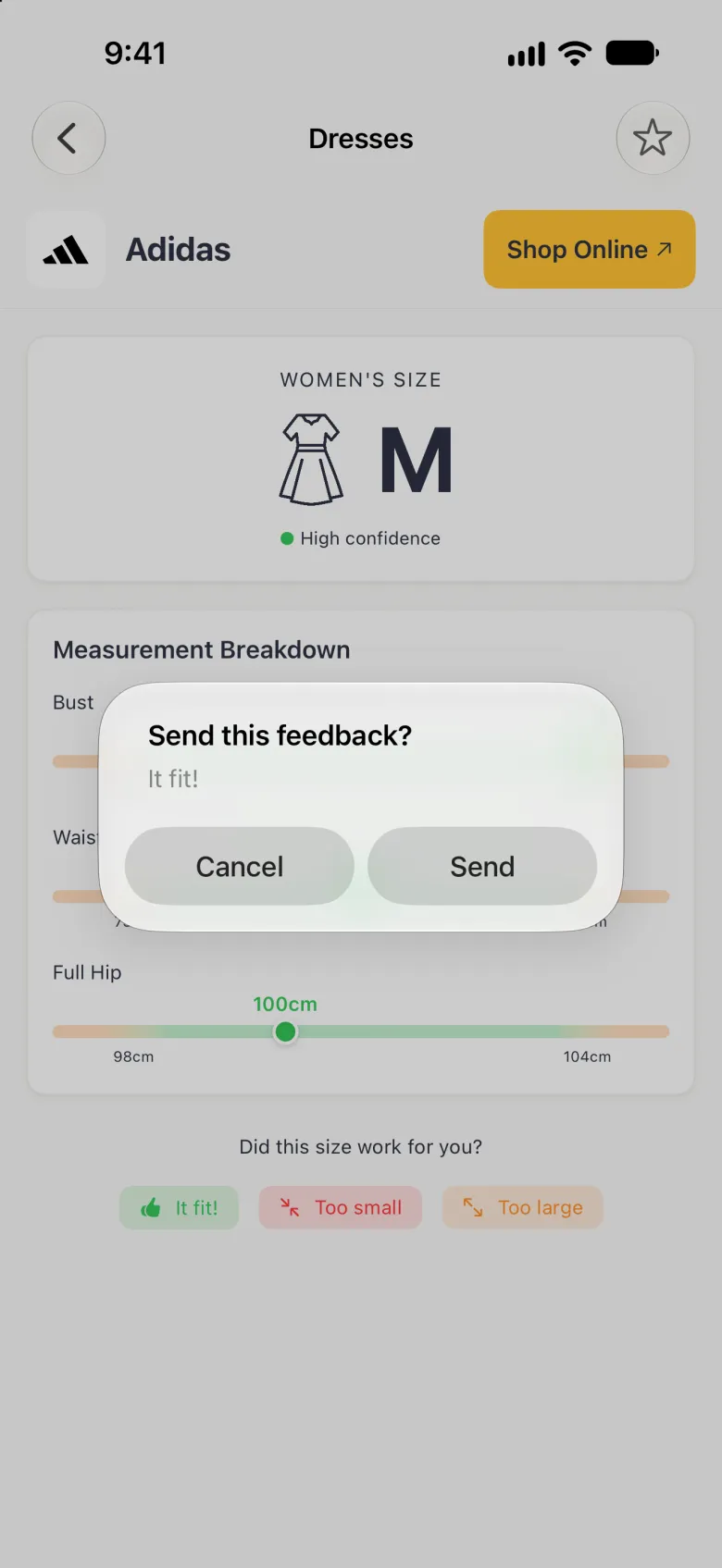
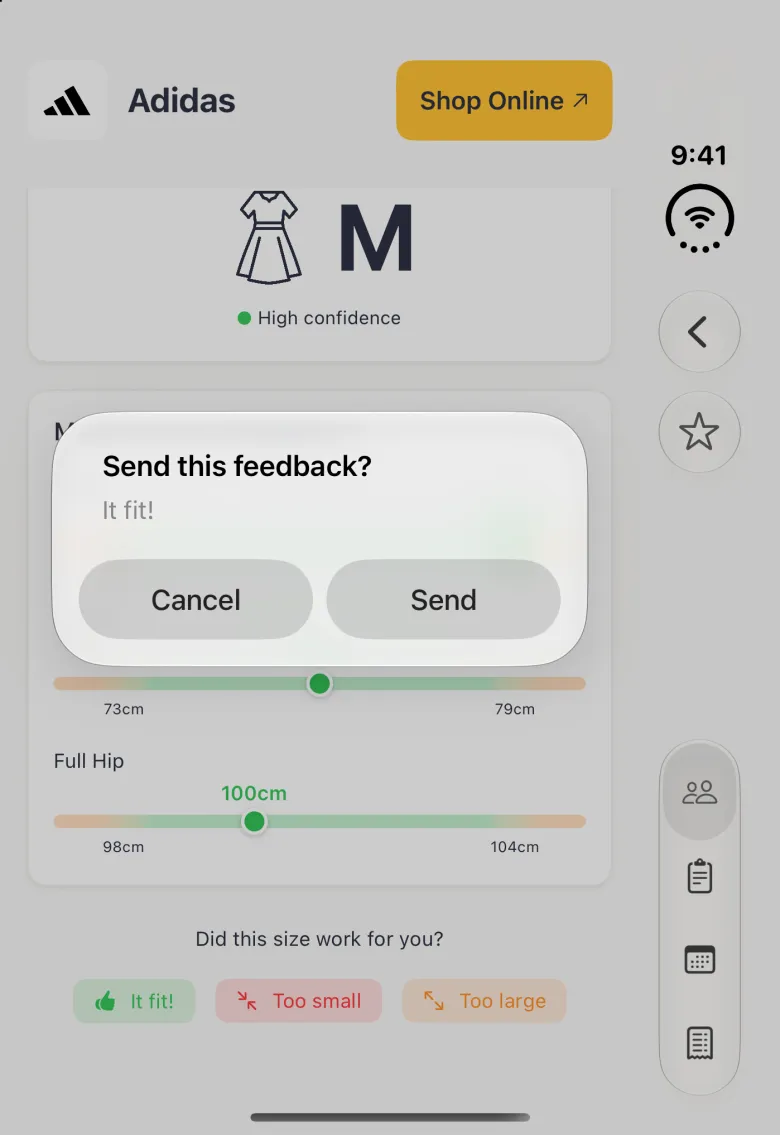
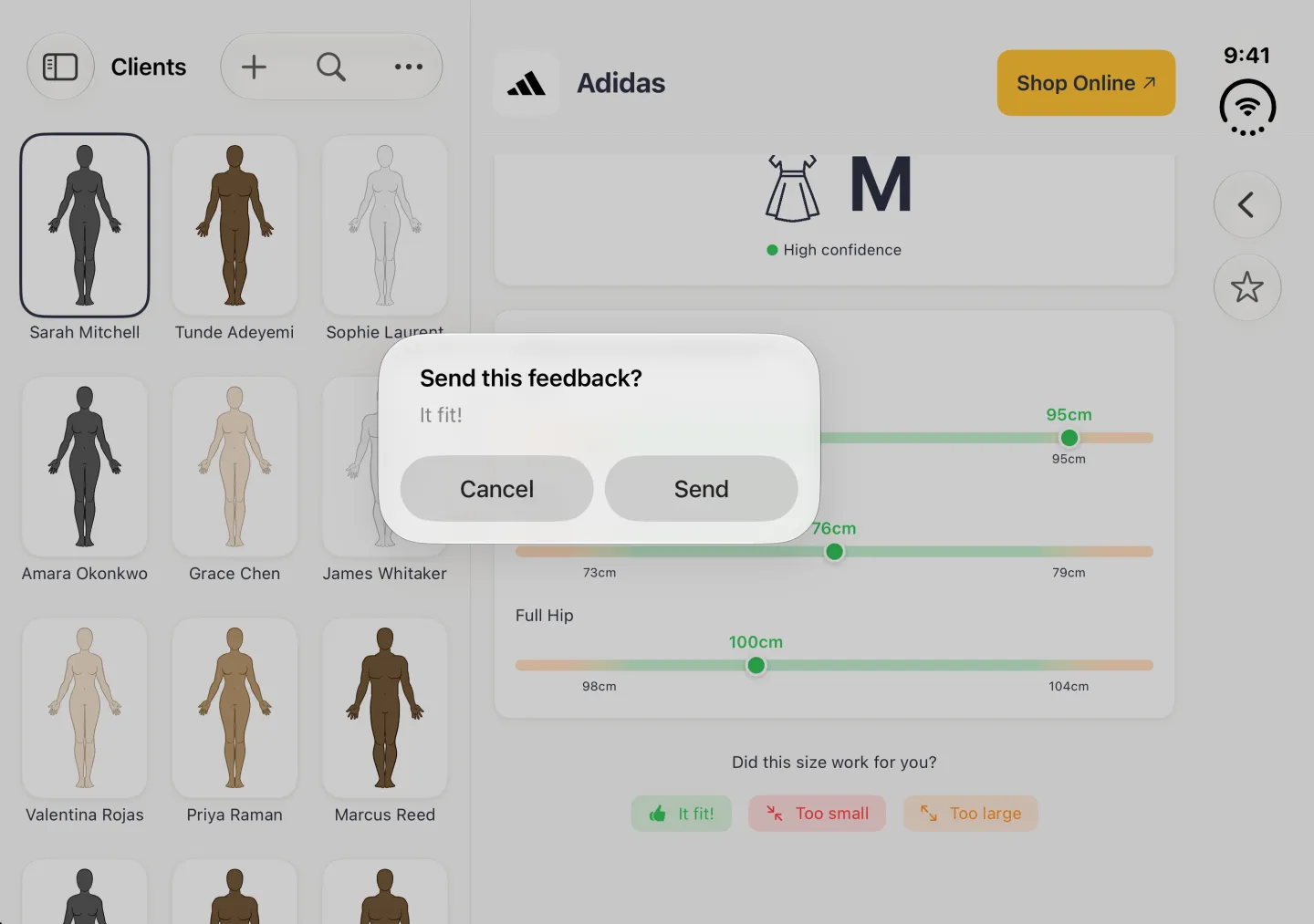
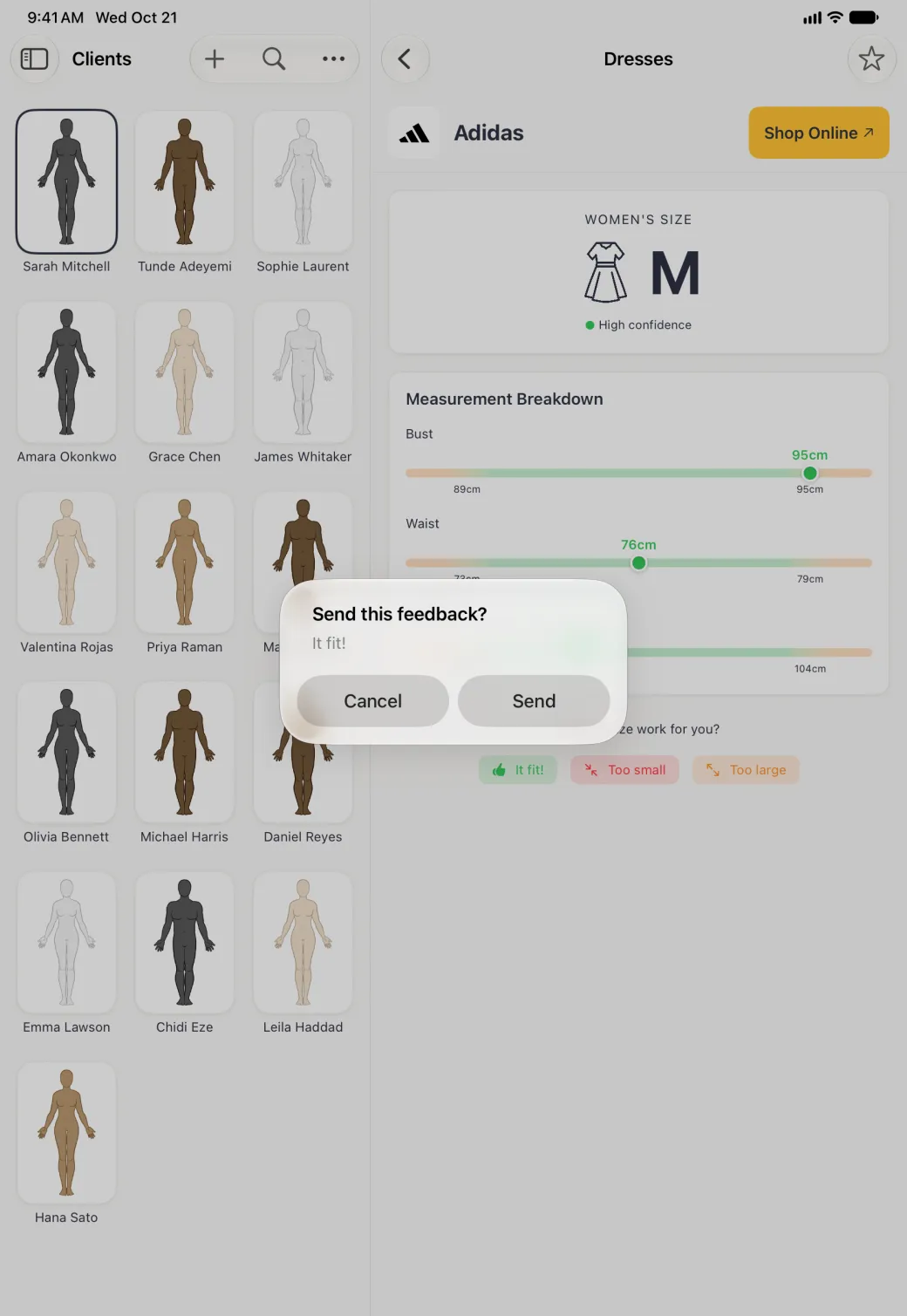
Under the breakdown, Did this size work for you? offers It fit, Too small and Too large. Tap the one that matches how the garment turned out and a “Send this feedback?” dialog repeats your answer. Send submits it and the row changes to Thanks for your feedback, and Cancel closes the dialog and leaves the three buttons. The answer goes to Dress Measurement without a name or account, to help improve the size charts. It does not change your own recommendations.
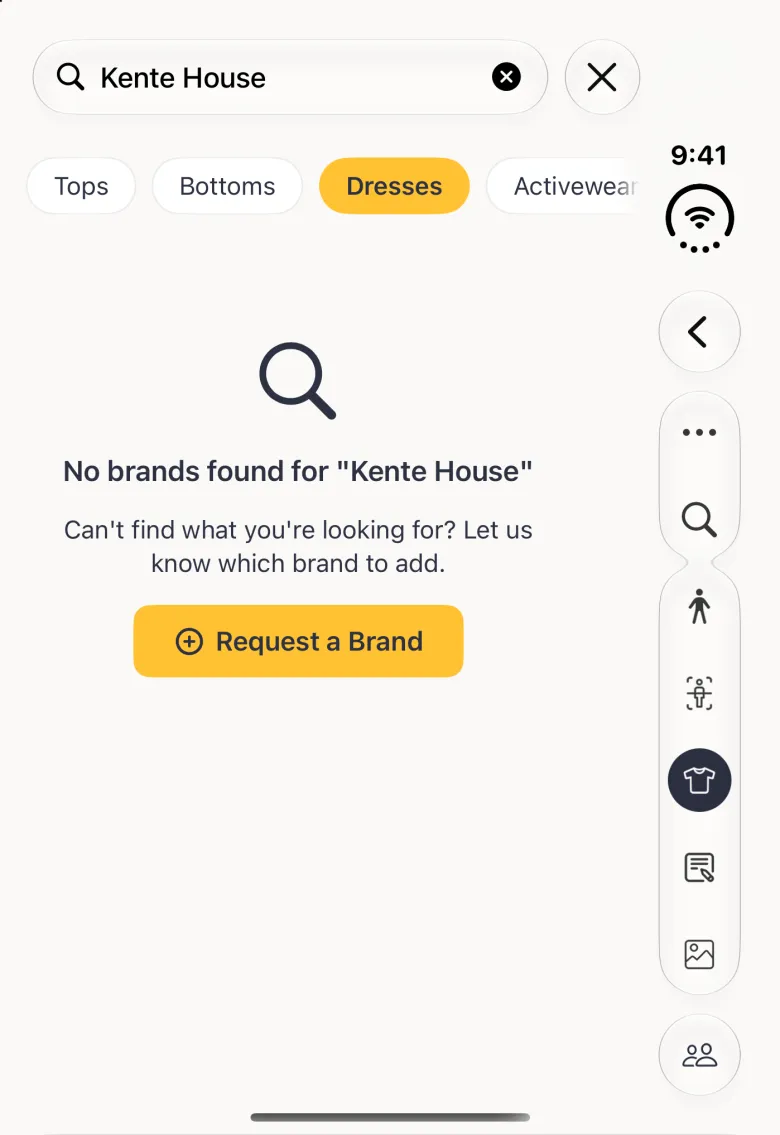
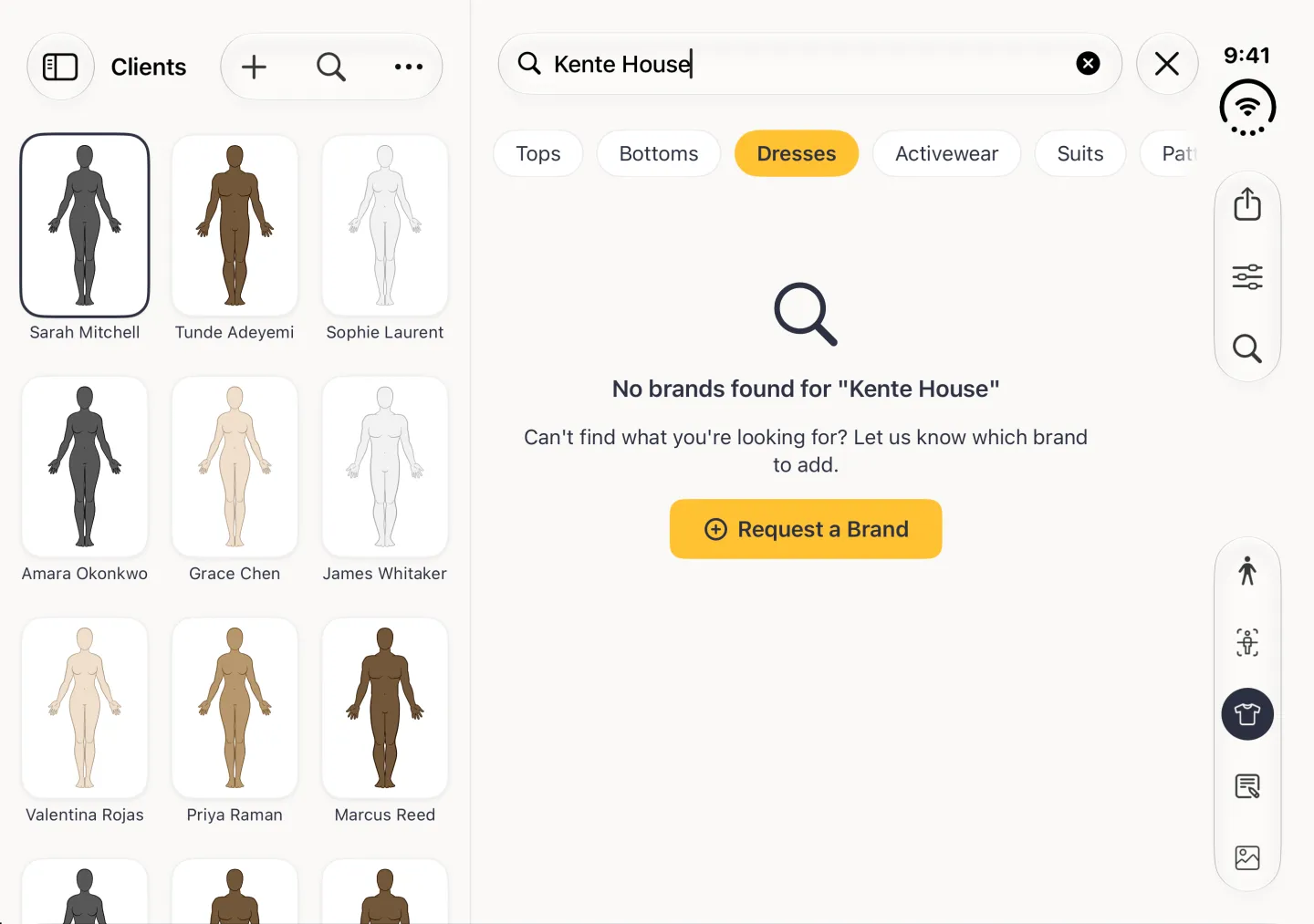
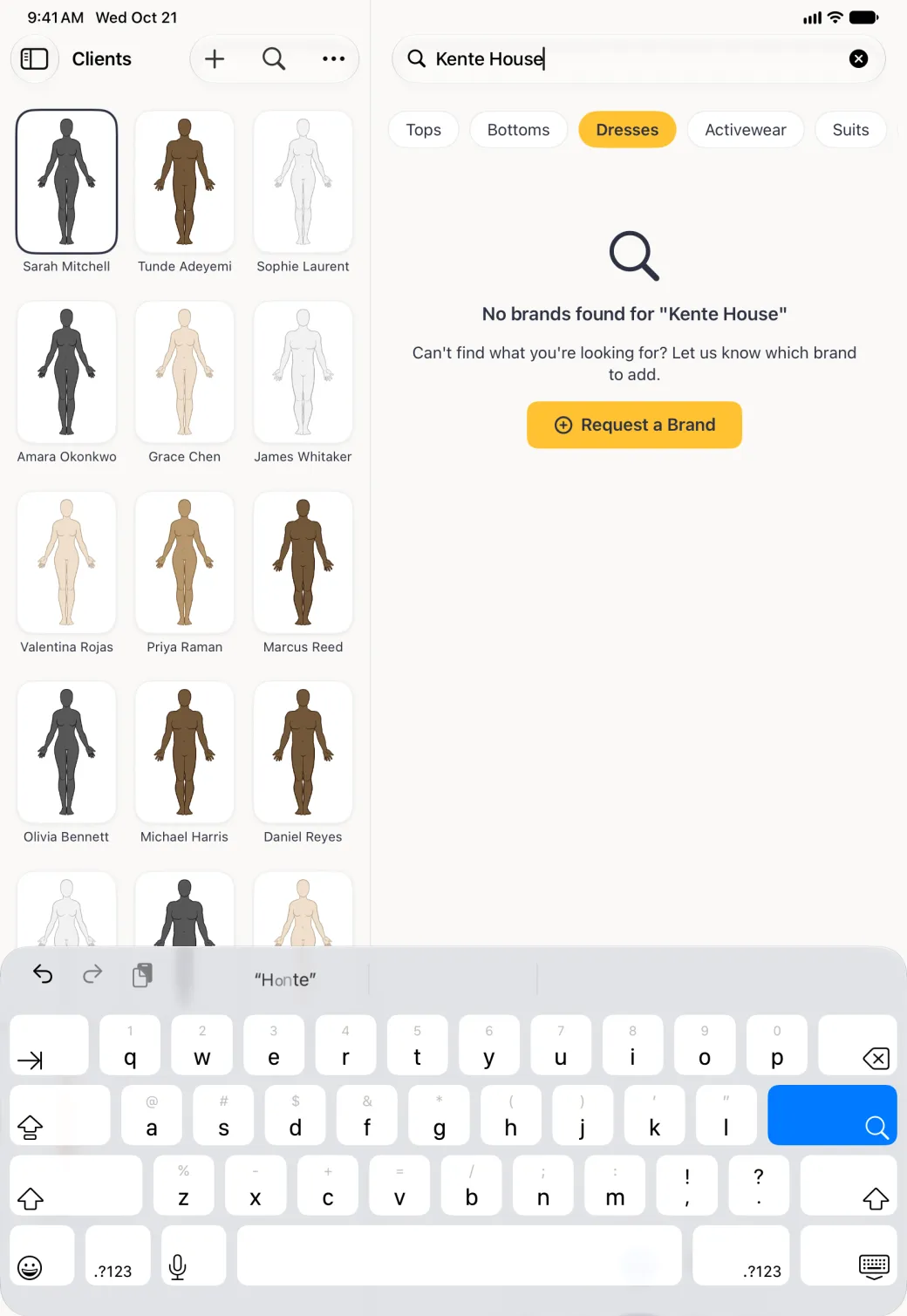
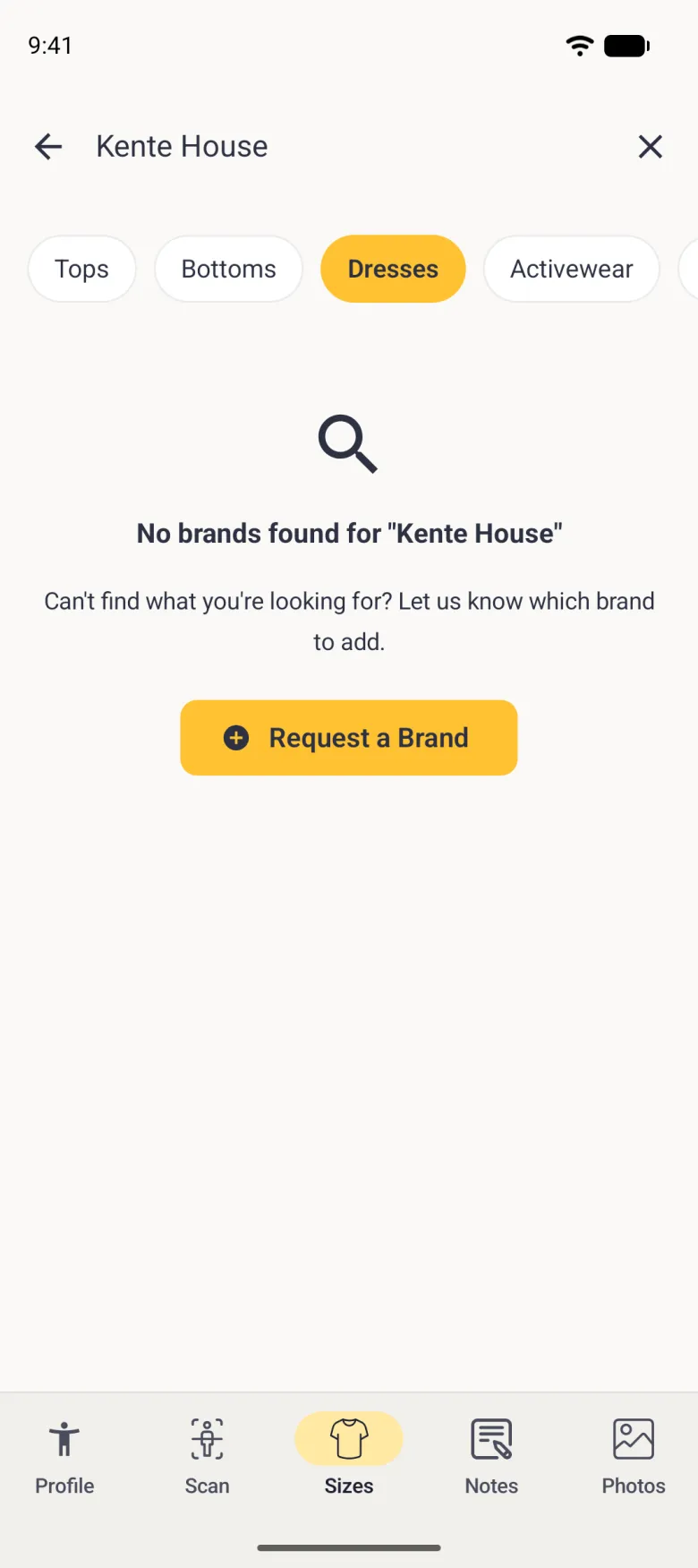
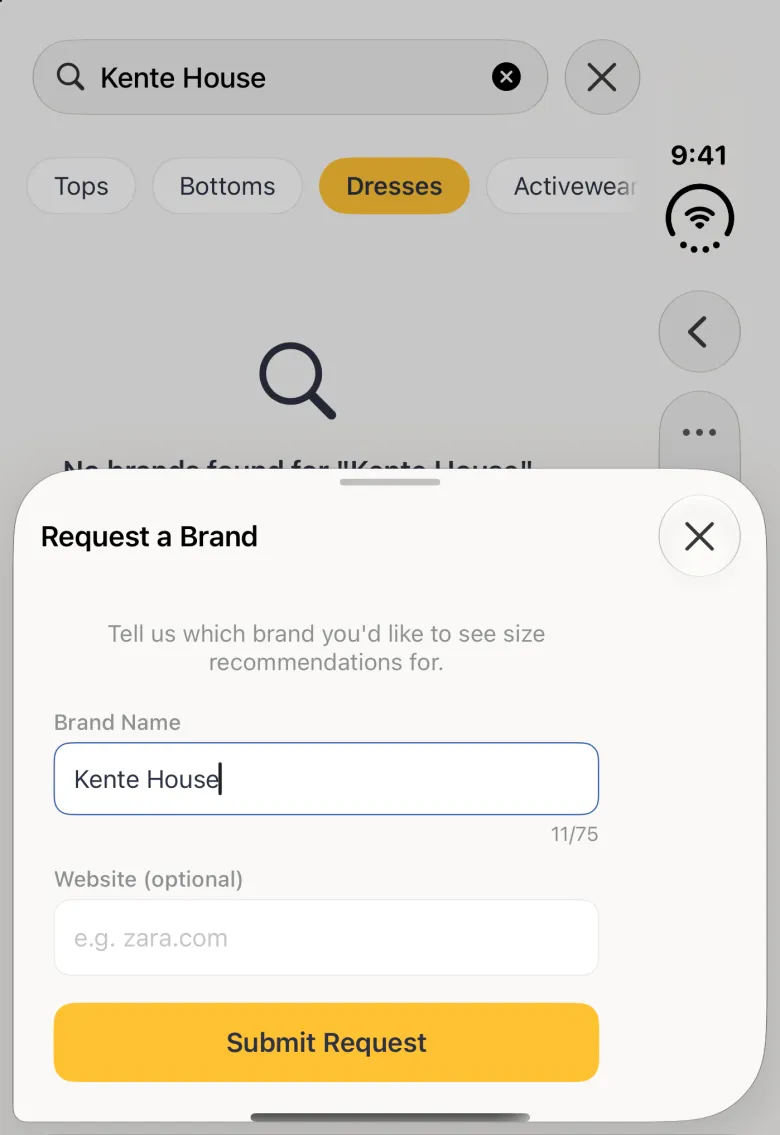
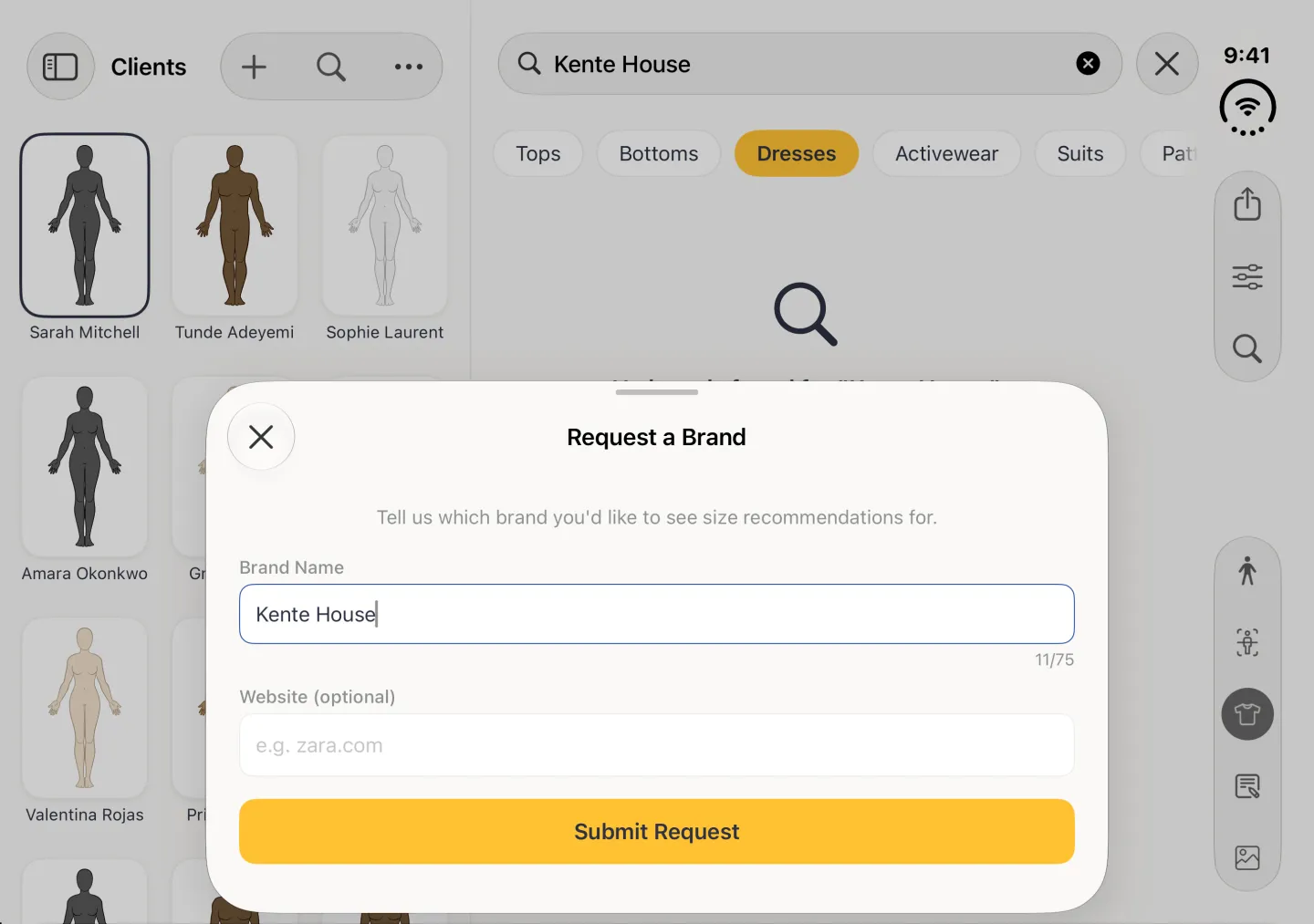
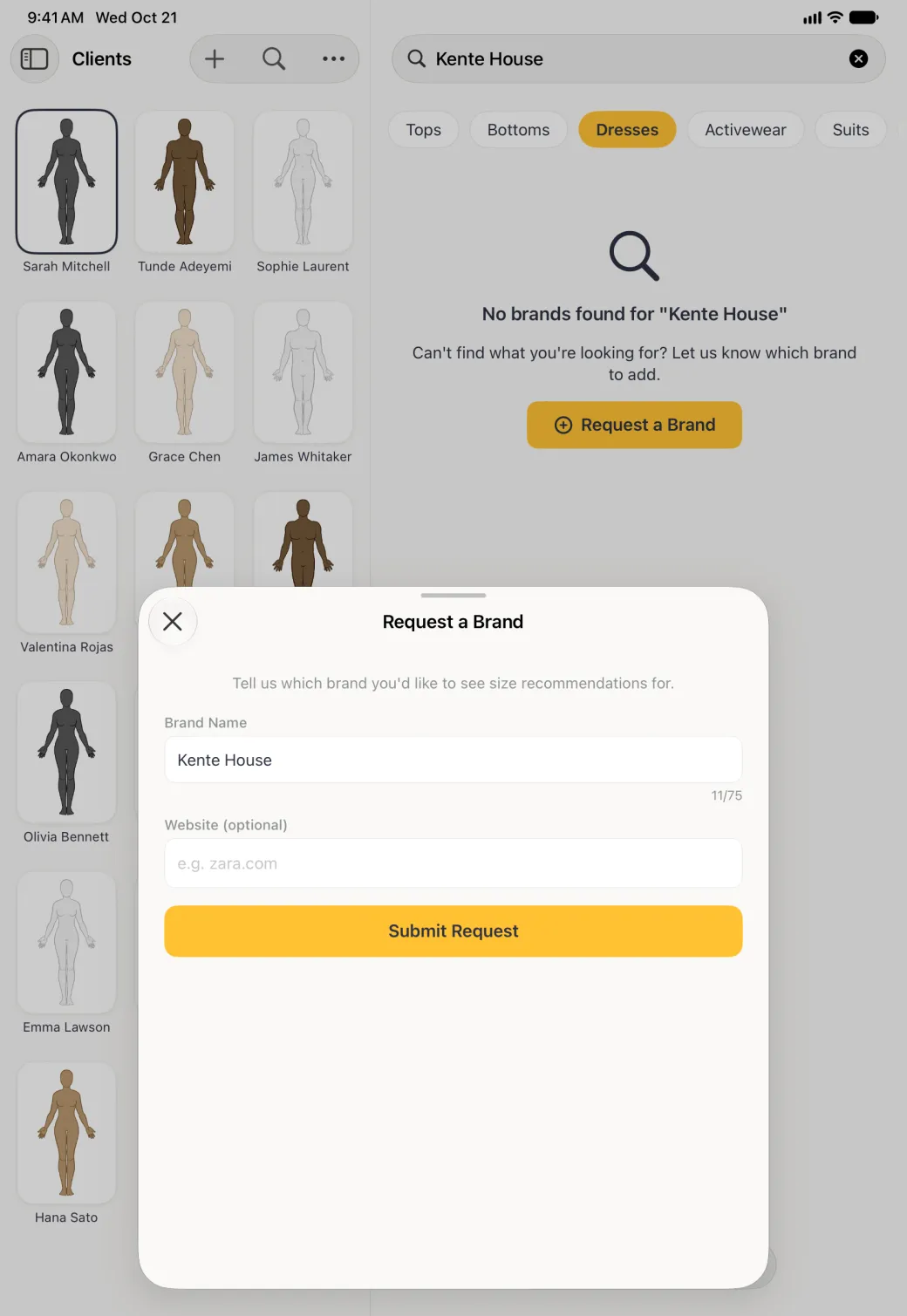
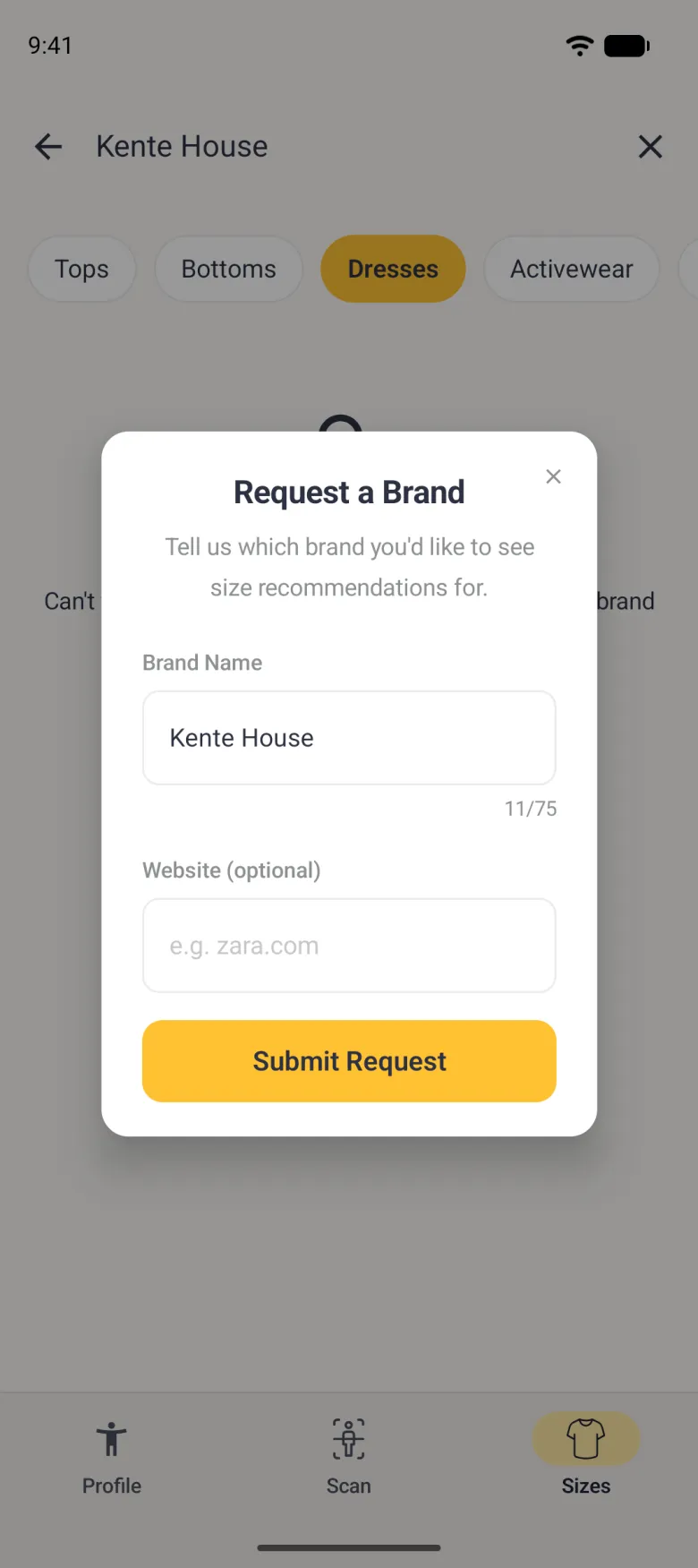
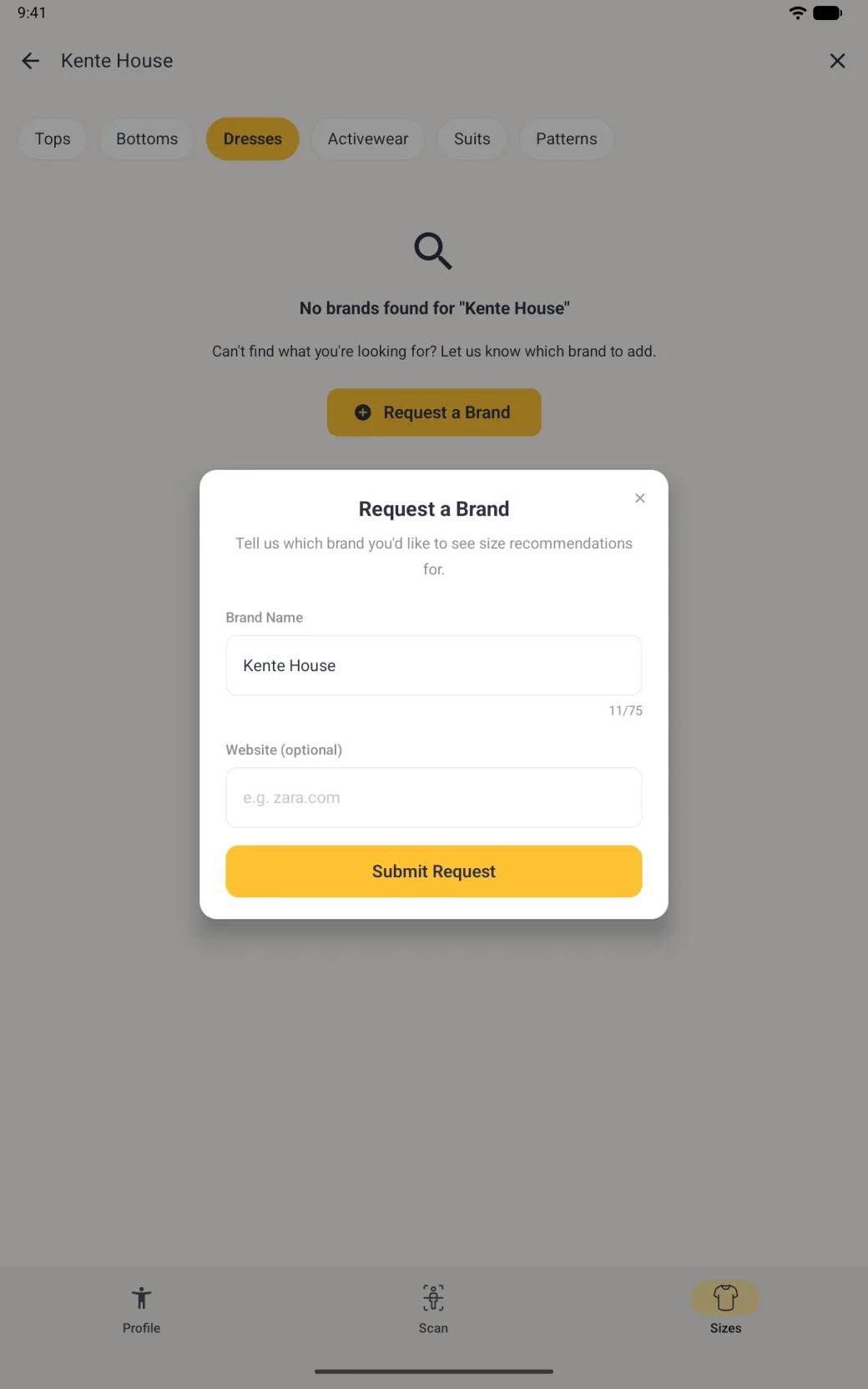
What if the brand I want is not listed?
You can ask for it. A “Can’t find your brand? Request it” row ends every brand list, in every category. If you search first and nothing comes back, the no results message offers a Request a Brand button as well. Either one opens a Request a Brand sheet over the screen: check the brand name, add the website if you know it, then tap Submit Request. The name is already filled in when you came from a search, and empty when you came from the row. The website is optional, but it makes the brand easier to identify when its chart is added.