Tailor Shop
Messaging clients
Send a client a status update by WhatsApp, SMS or email, using five ready-made messages that fill in the name, the garment, the fitting date and, for an appointment invite, the place and a calendar link.
Available on
- iPhone
- iPhone Duo
- iPad
- Android
- Tailor Shop feature
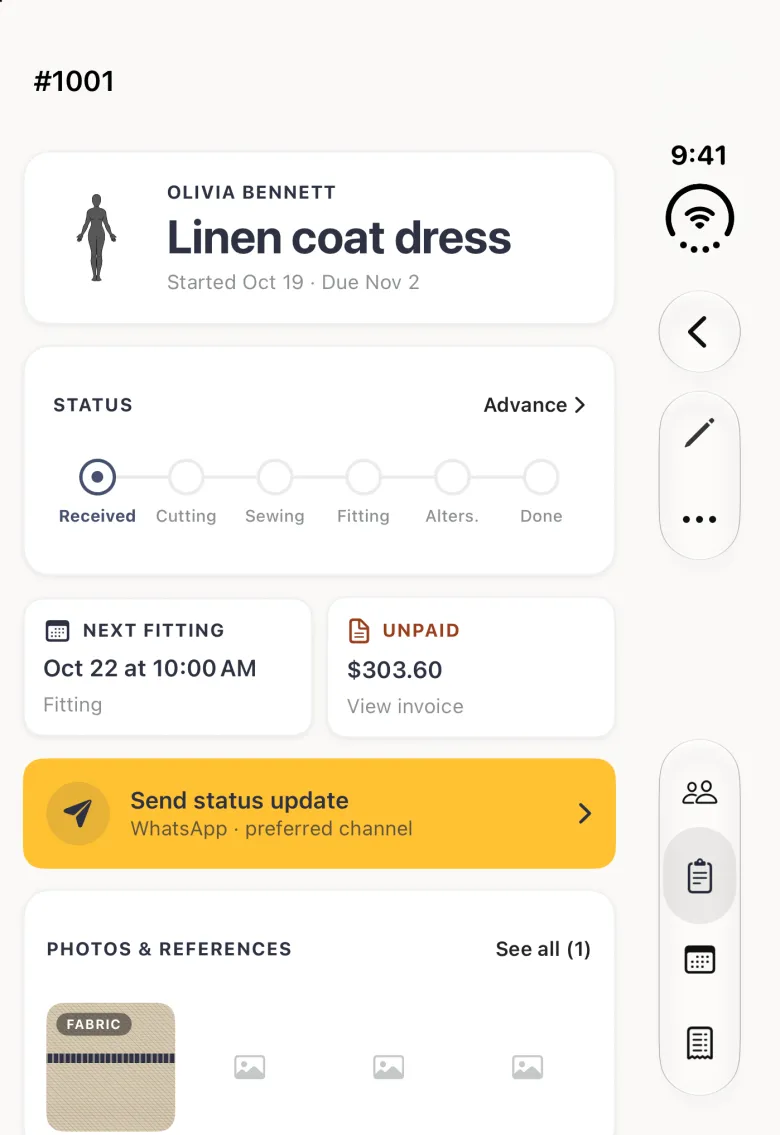
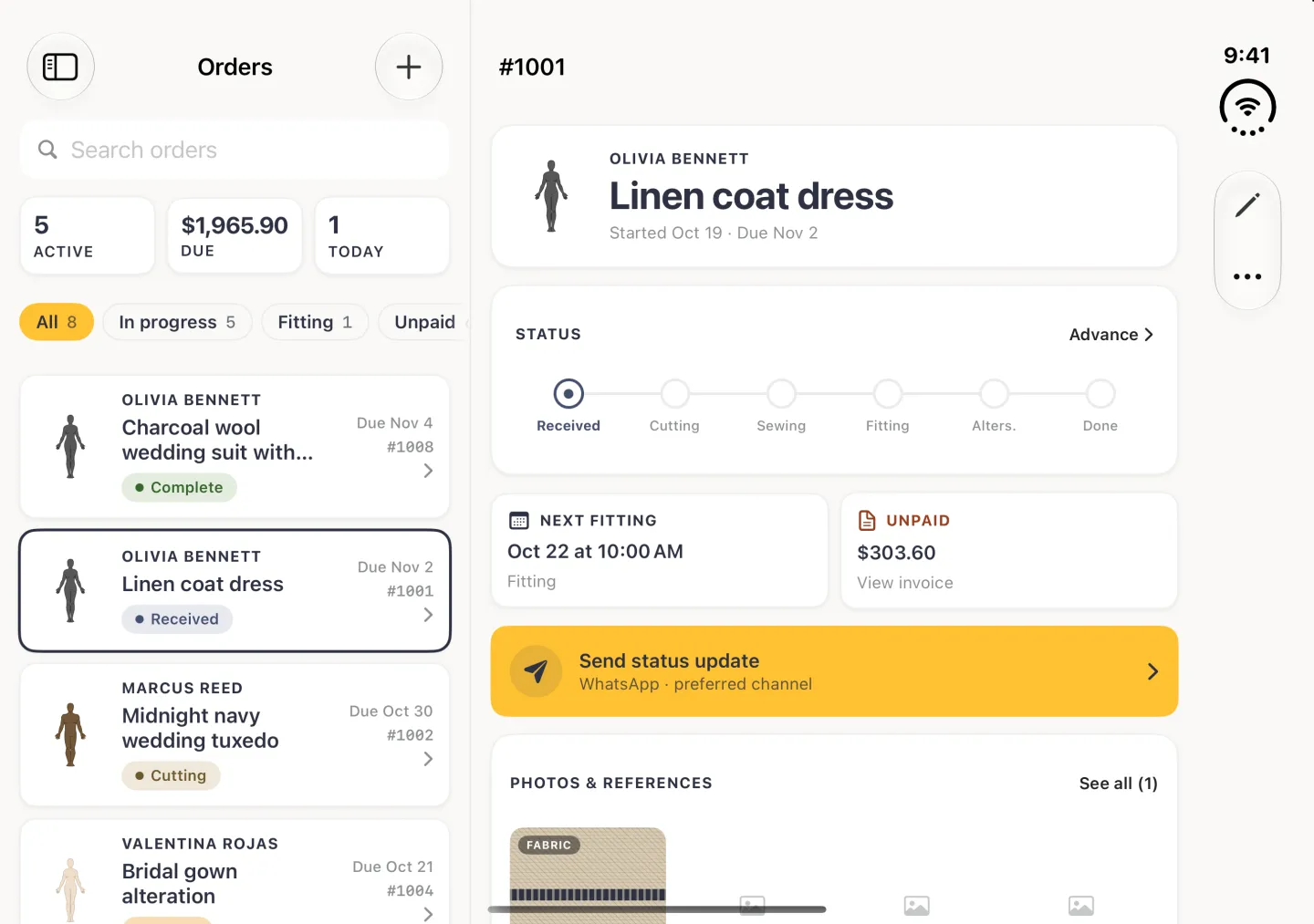
The Tailor Shop tools described here are on iPhone, iPad and Android. On iPad the tabs are a sidebar on the left, and on Android the tabs are a bar along the bottom of a phone and a rail down the left on a tablet. On iPhone Duo, opened, the list sits beside the page, the tabs sit behind the sidebar button at the top left and the bar buttons move to a strip on the right; closed, it works like an iPhone with the buttons and the four tabs in a strip on the right. Messages are written in Dress Measurement and sent from the app your client already uses, so nothing leaves your phone until you send it there yourself.
How to send a client a status update
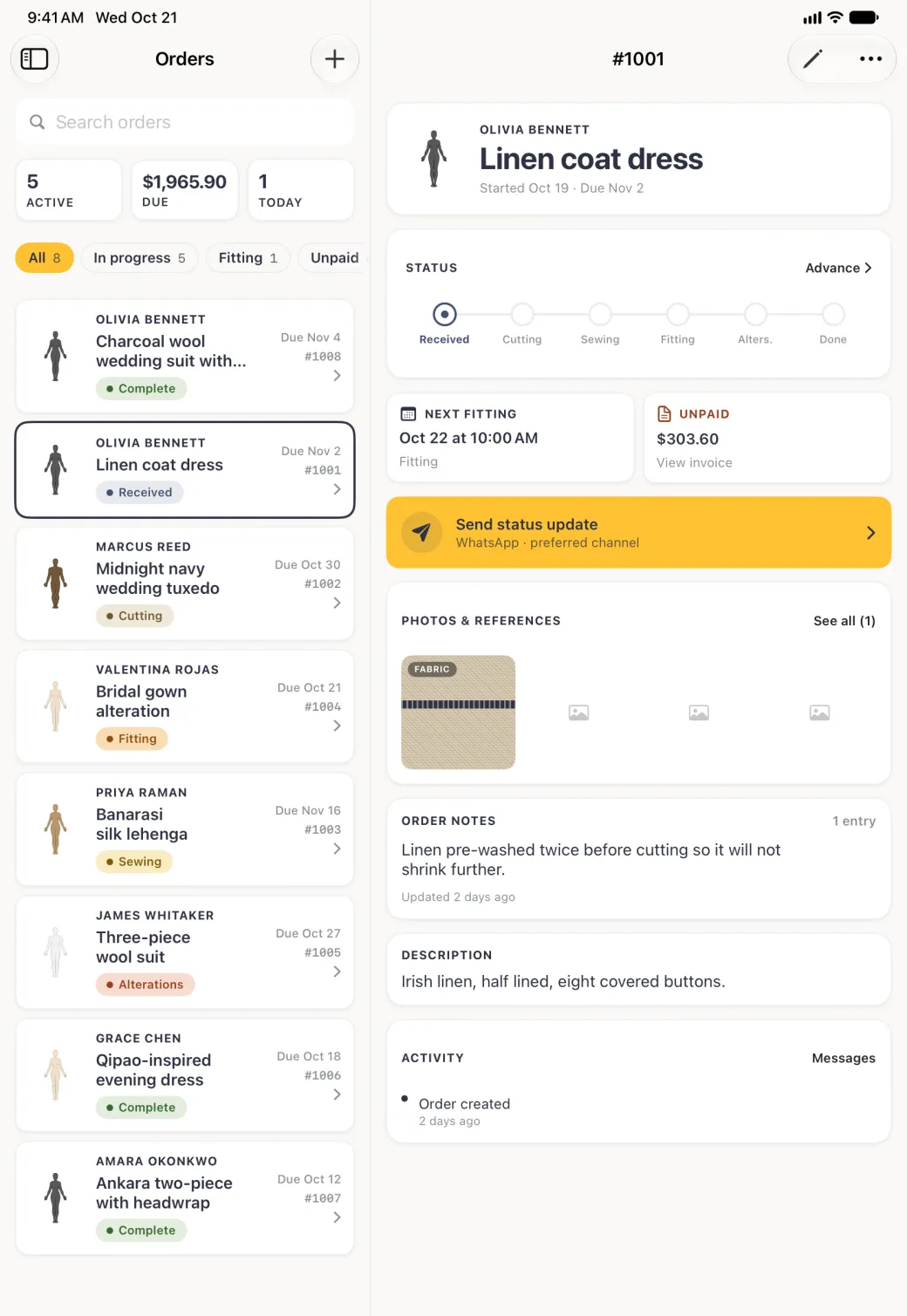
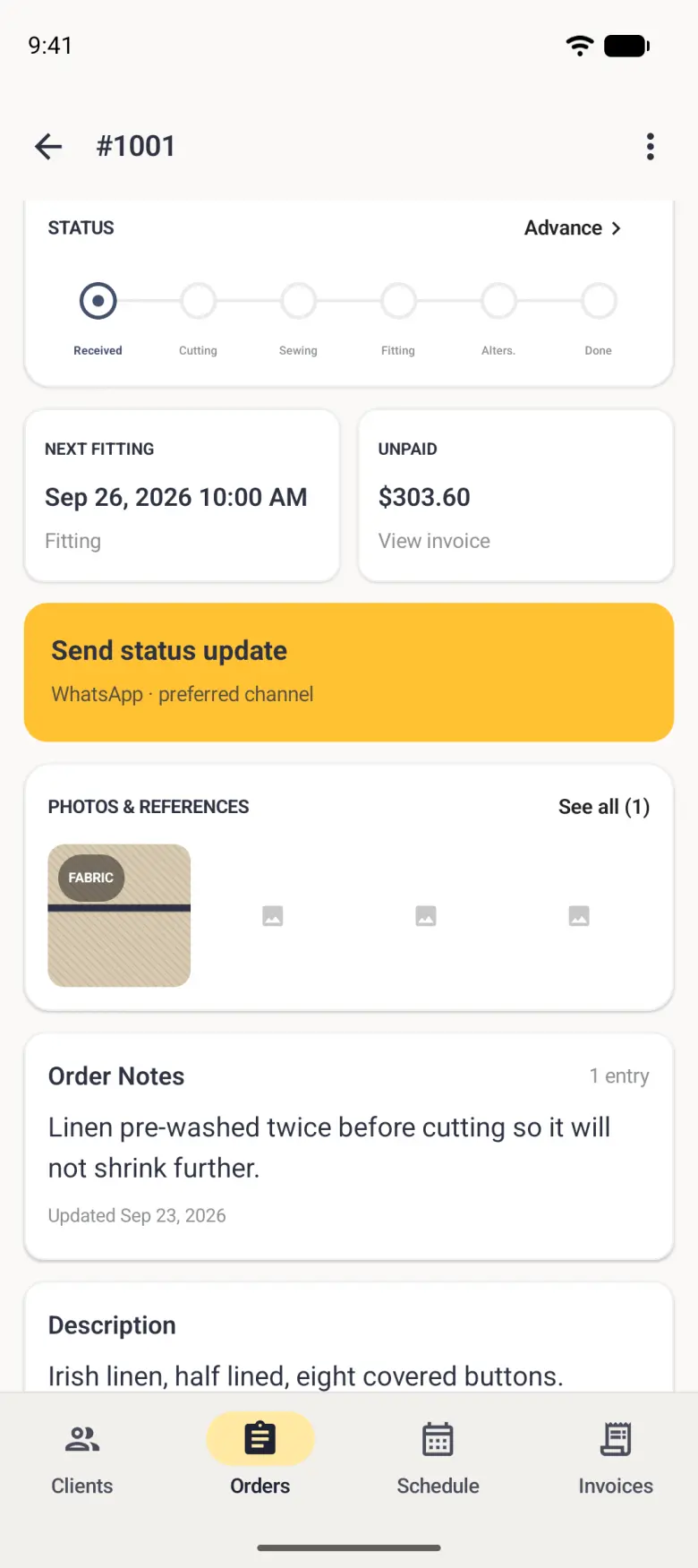
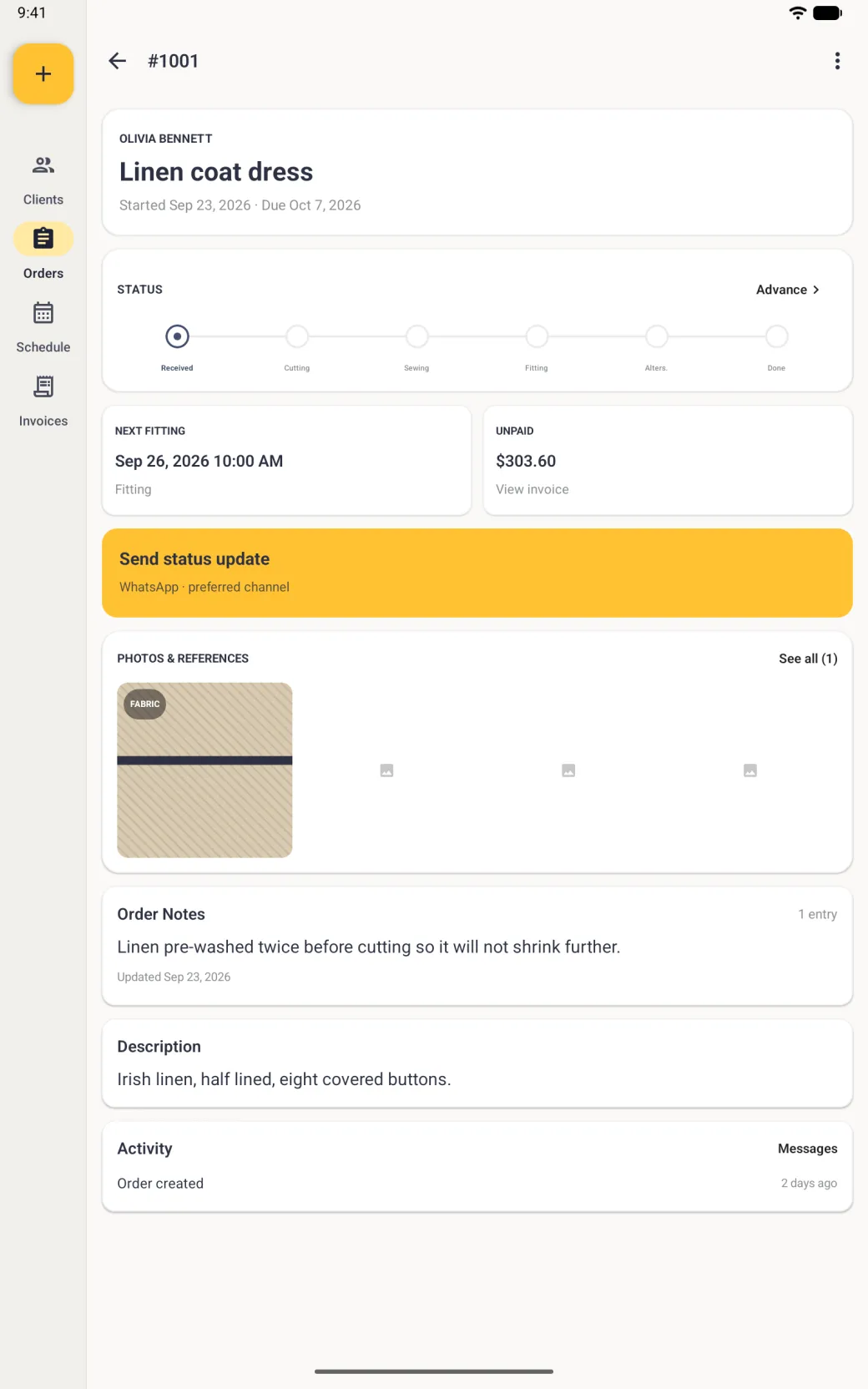
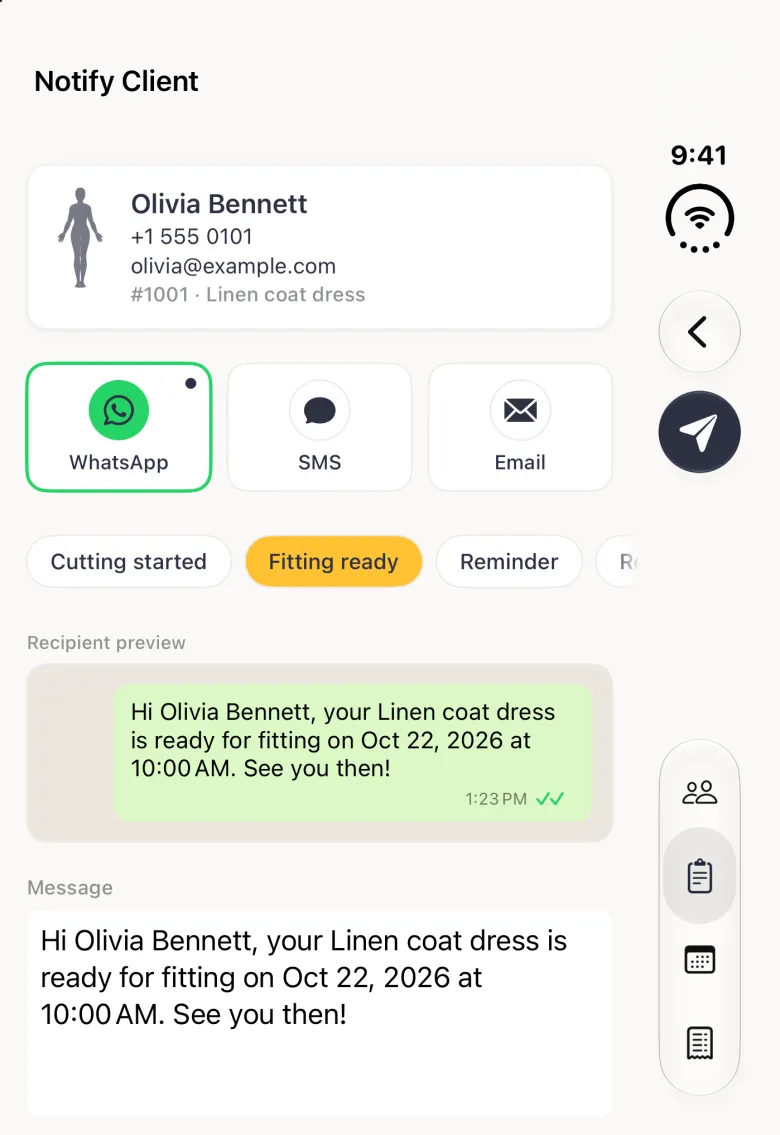
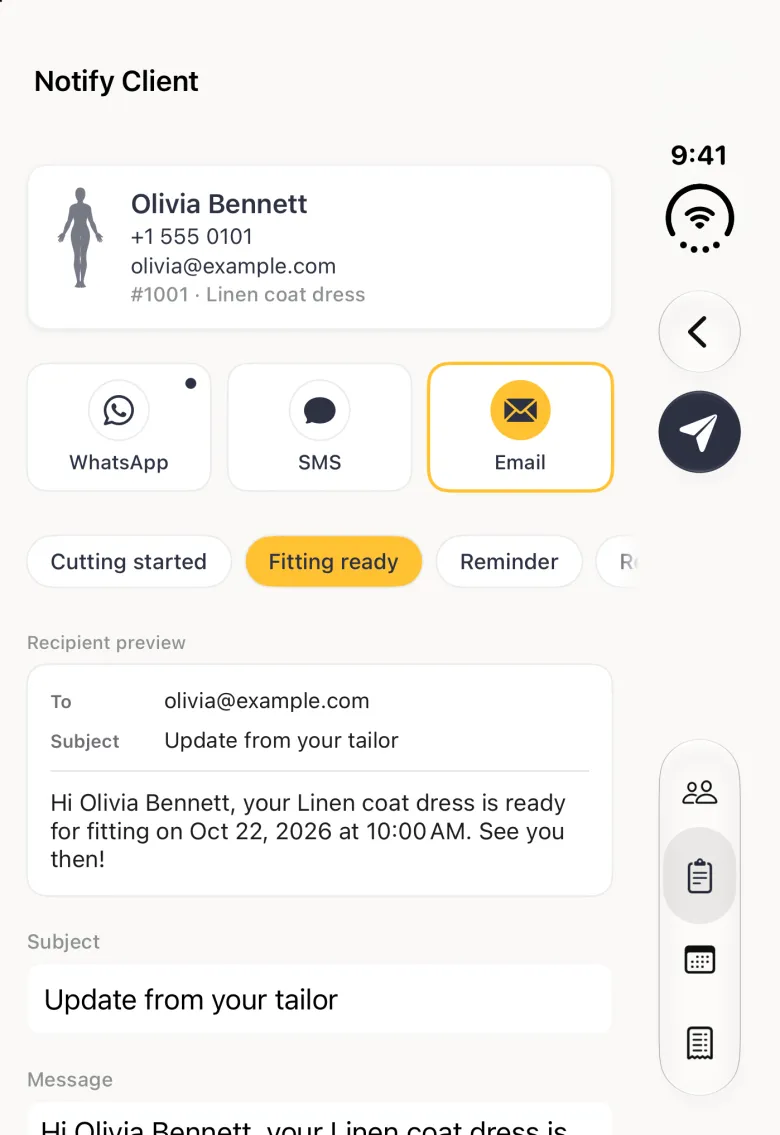
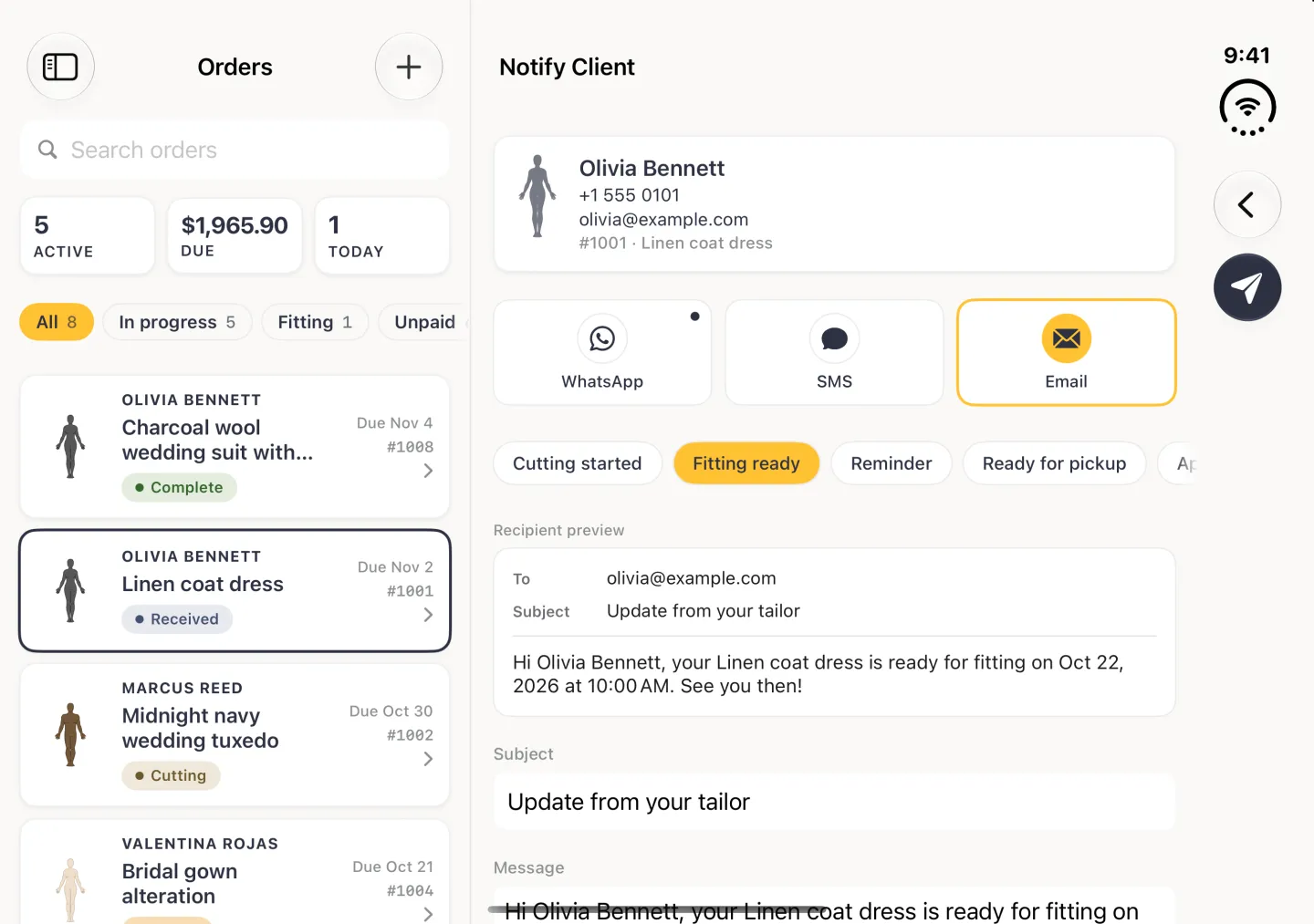
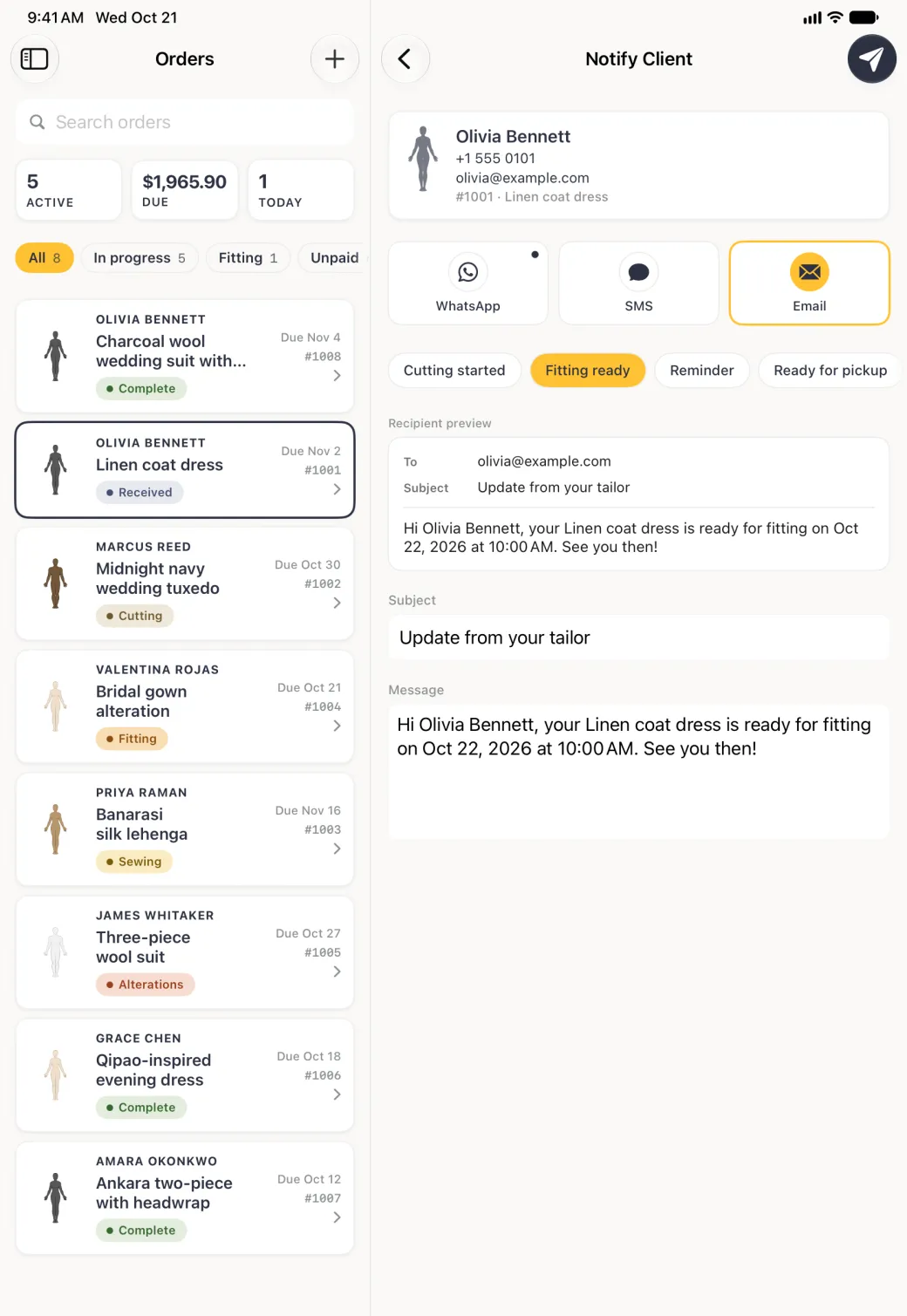
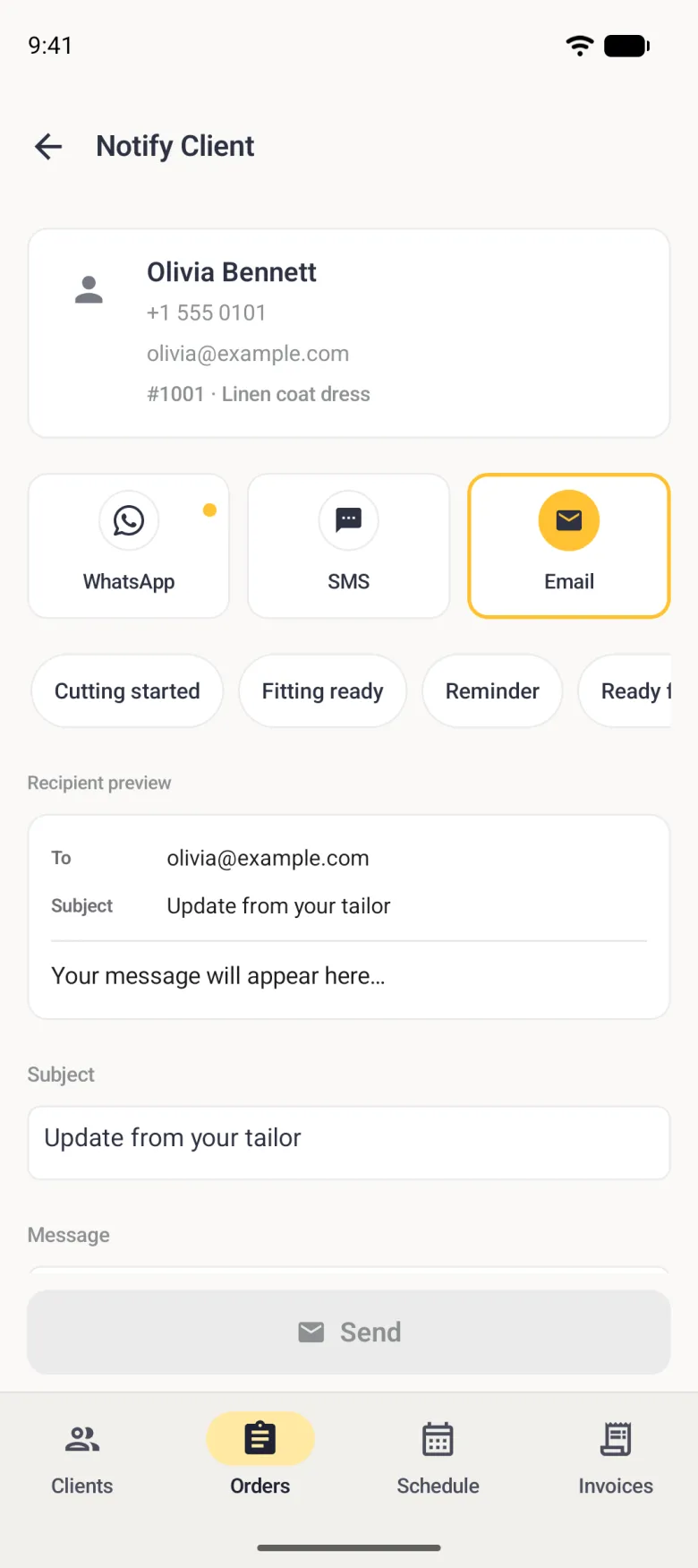
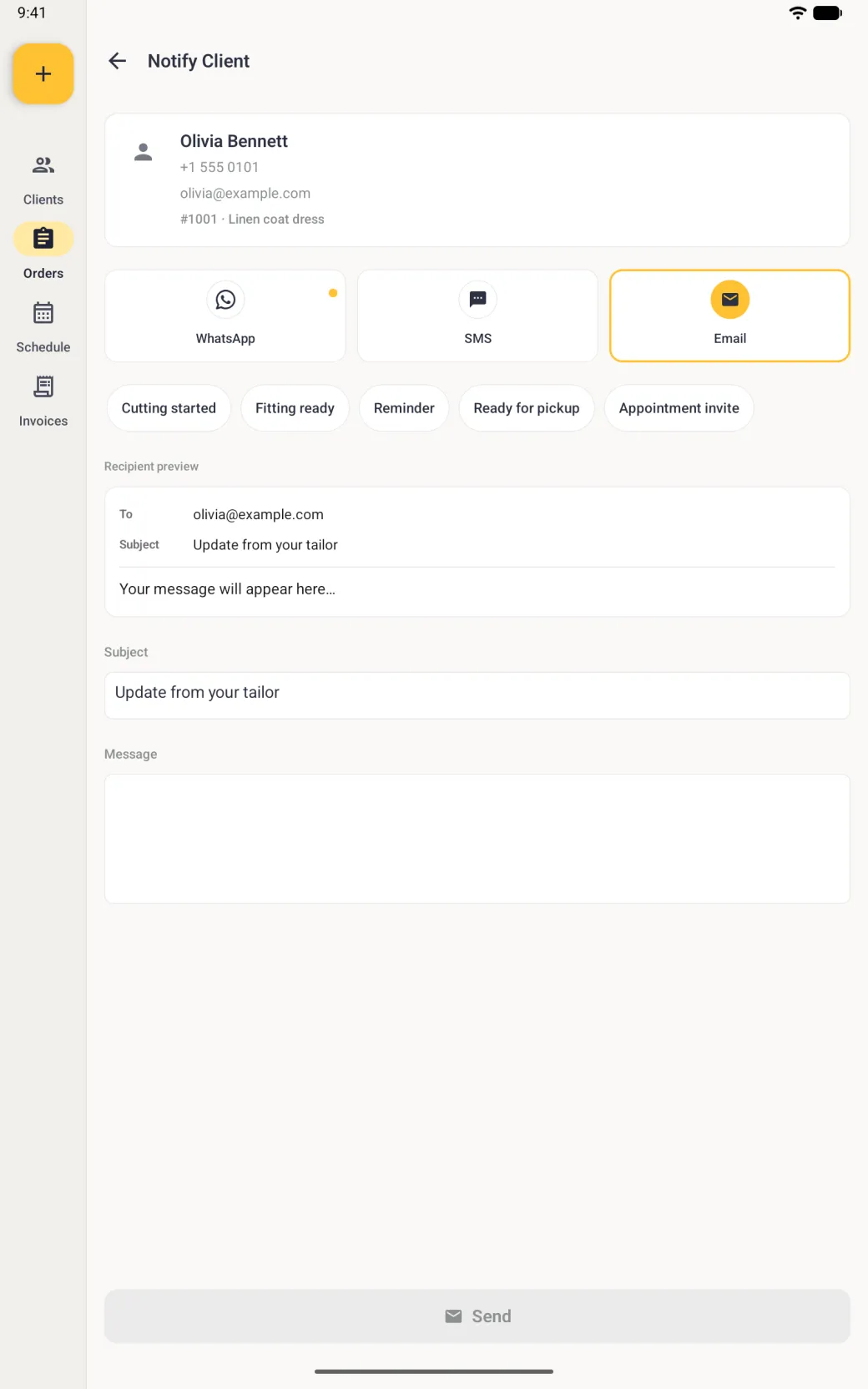
Every message starts from an order. The gold Send status update bar sits under the two small cards on the order detail, and the line beneath it names the channel that client prefers. Tapping it opens the Notify Client screen with the client’s contact details, a channel row, the templates and a preview of the message.
- Open the order and tap the gold Send status update bar.
- Pick a template chip. The message writes itself from the client’s name, the garment and the order’s next appointment.
- Change the channel if you want to reach them another way, and adjust the wording in the message box if the job needs it.
- Check the recipient preview above the message. It is drawn the way the message will land: a green chat bubble for WhatsApp, a blue one for SMS, an addressed card for email.
- Tap the paper-plane Send button at the top right. WhatsApp, Messages or Mail opens with the text already written, and you send it from there.
On Android, Send is a green button at the bottom of the screen, and it opens WhatsApp, Messages or your email app instead of Mail.
The chip row scrolls sideways, and the fifth chip, Appointment invite, is offered only on an order that has an appointment booked. The app also offers this screen after a stage change. Confirm an advance on an order that has a matching template and it asks whether to let the client know, with Review message opening the same screen.


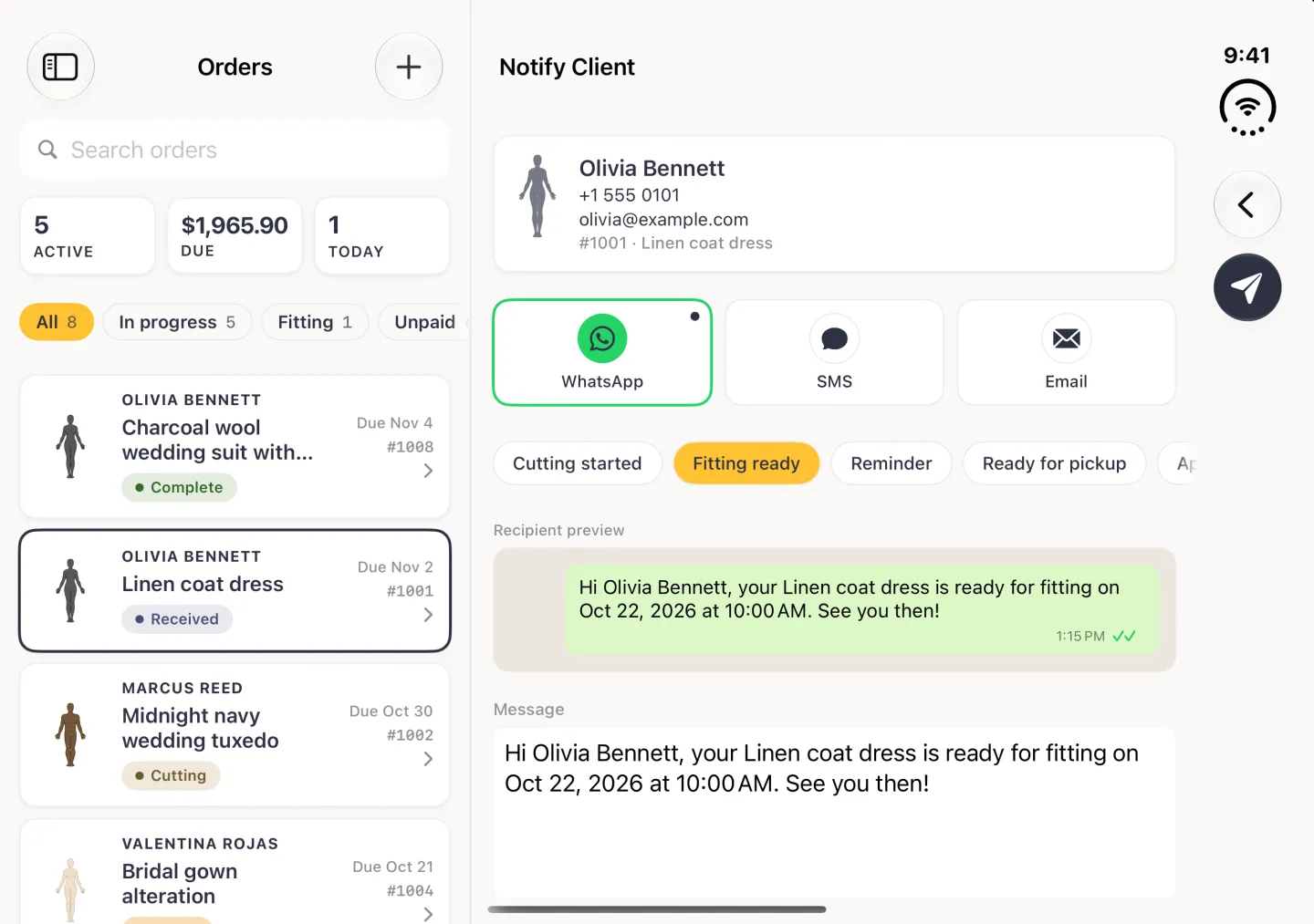
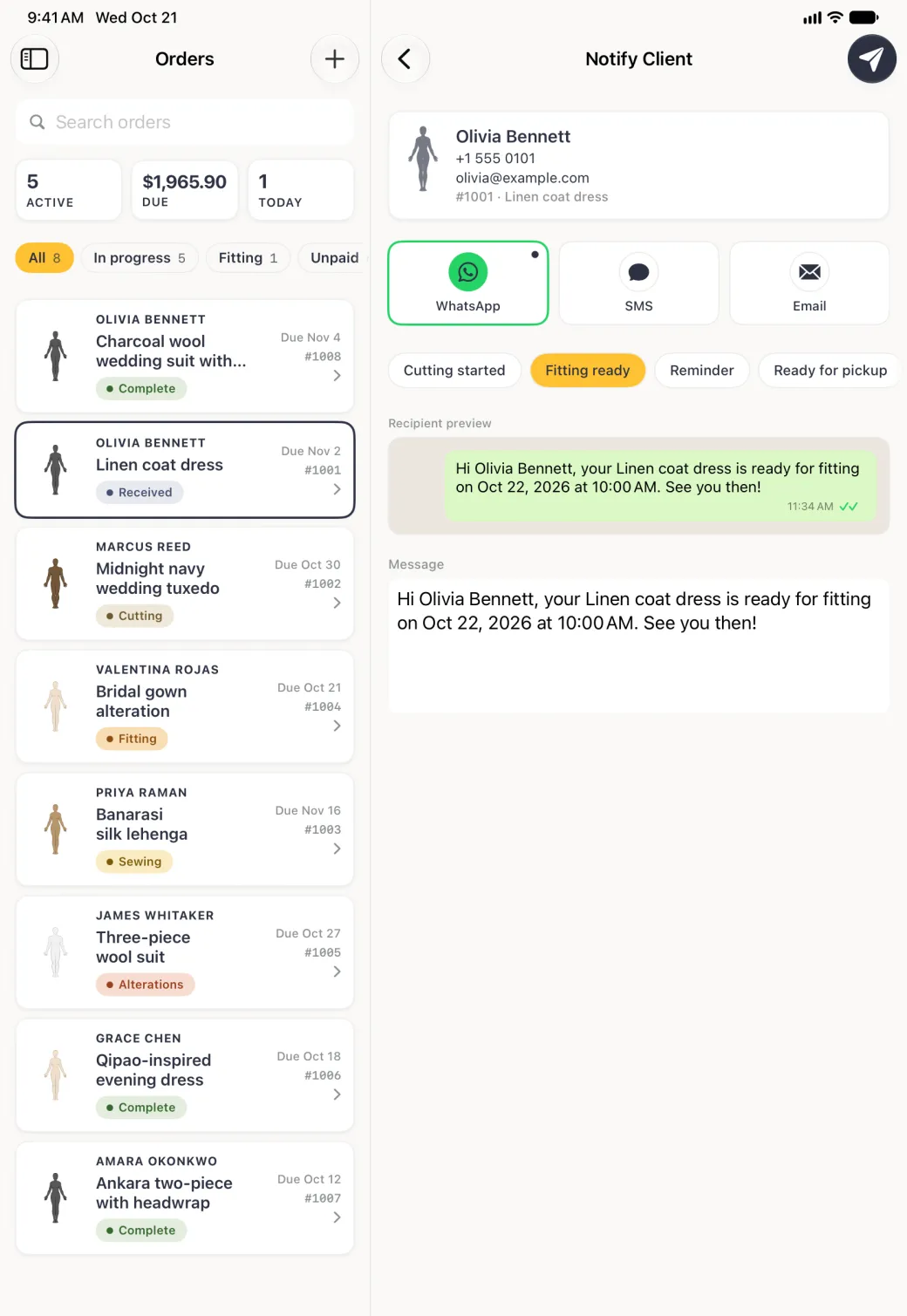
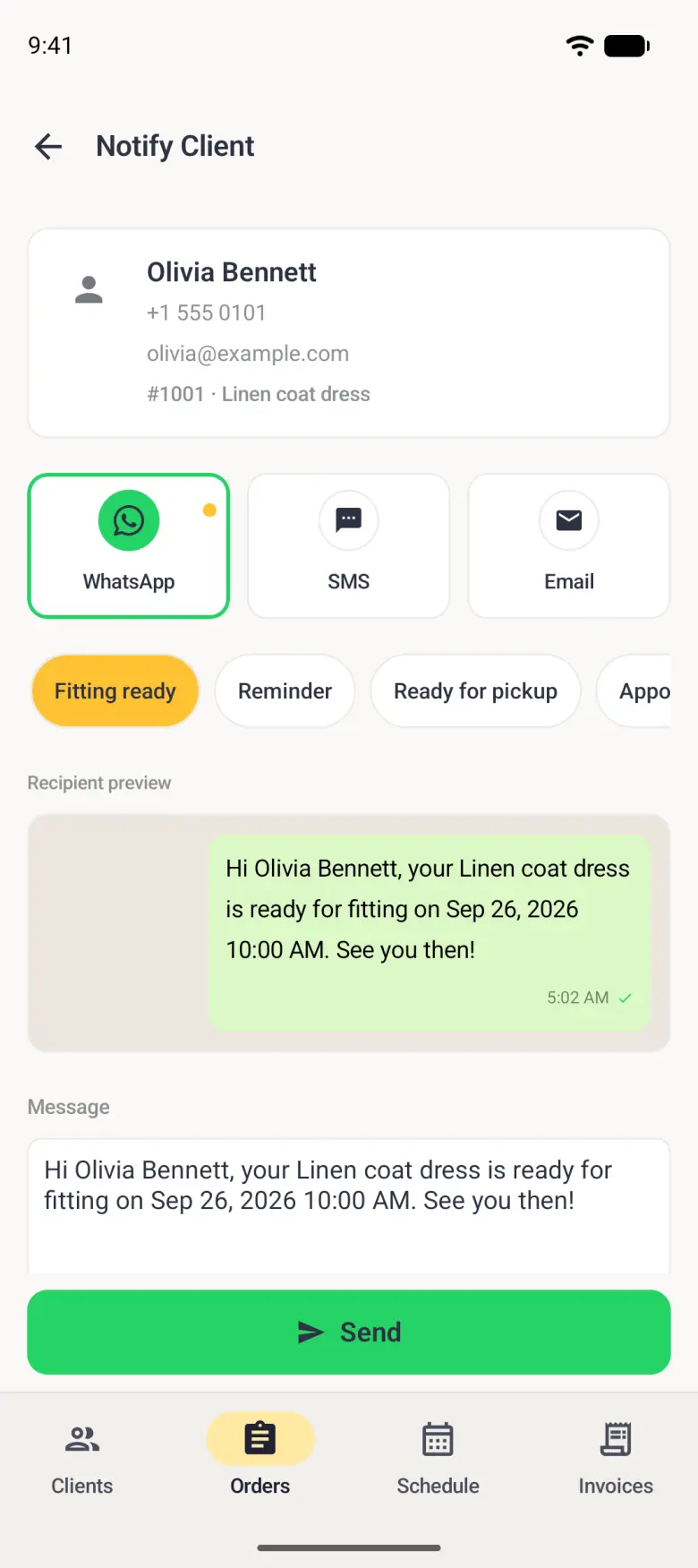
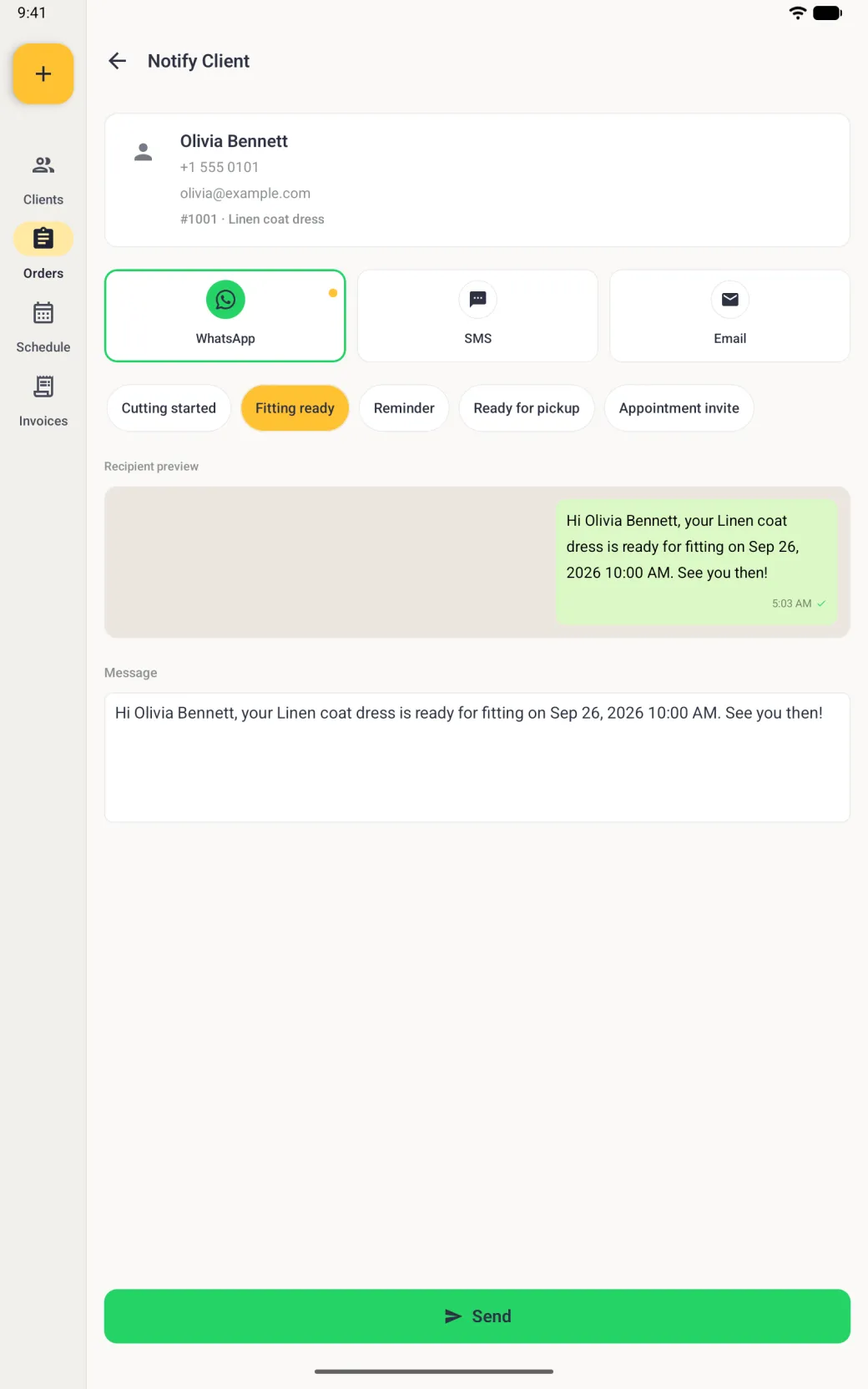
Which channel a message opens on
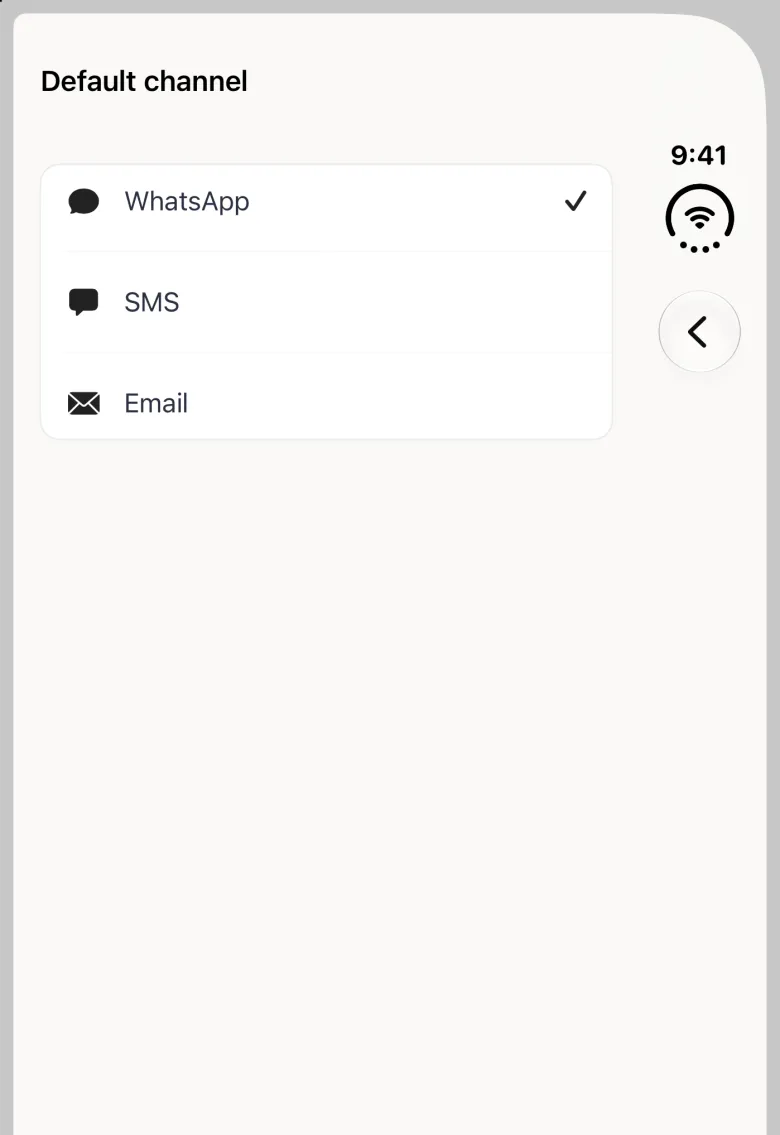
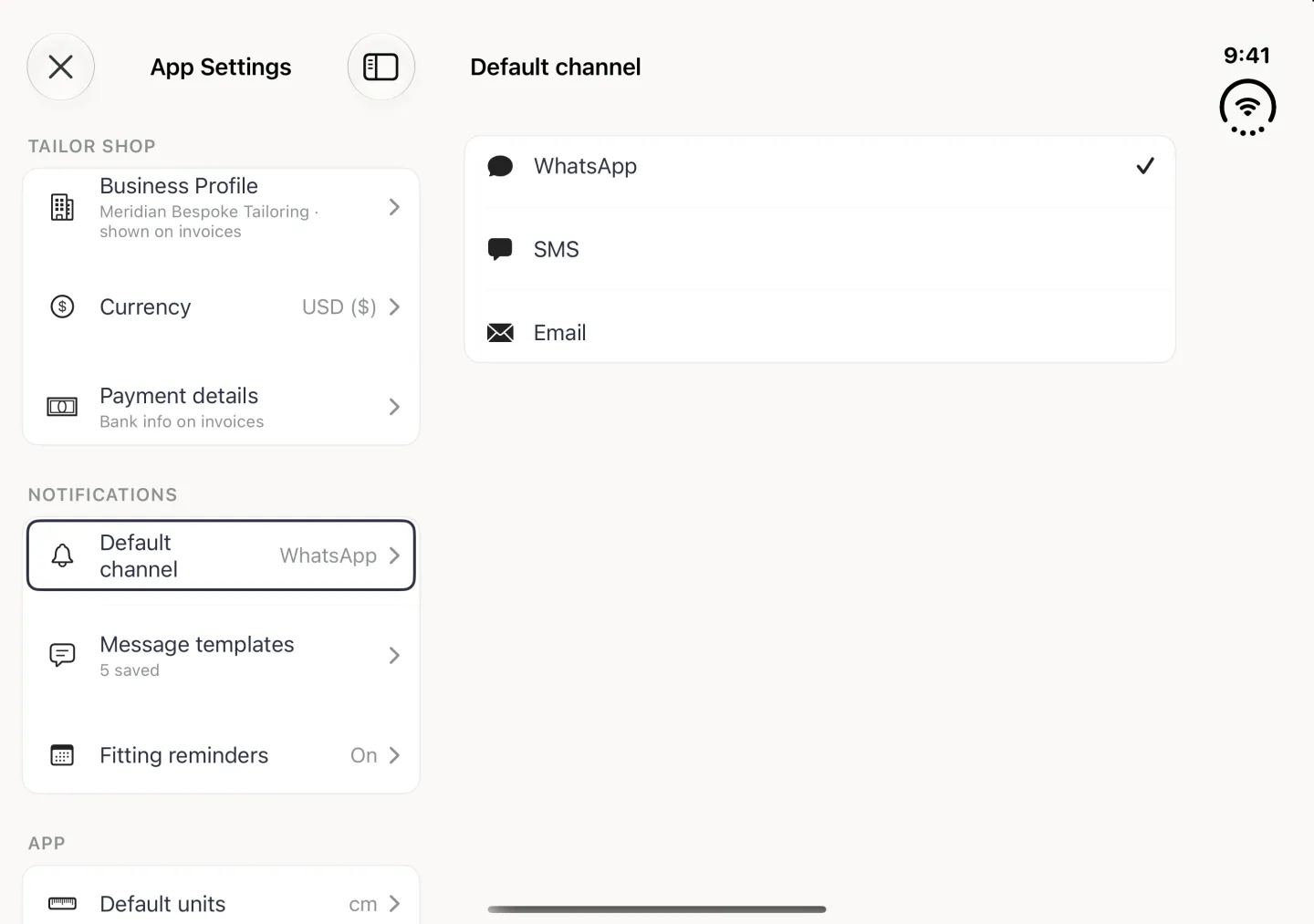
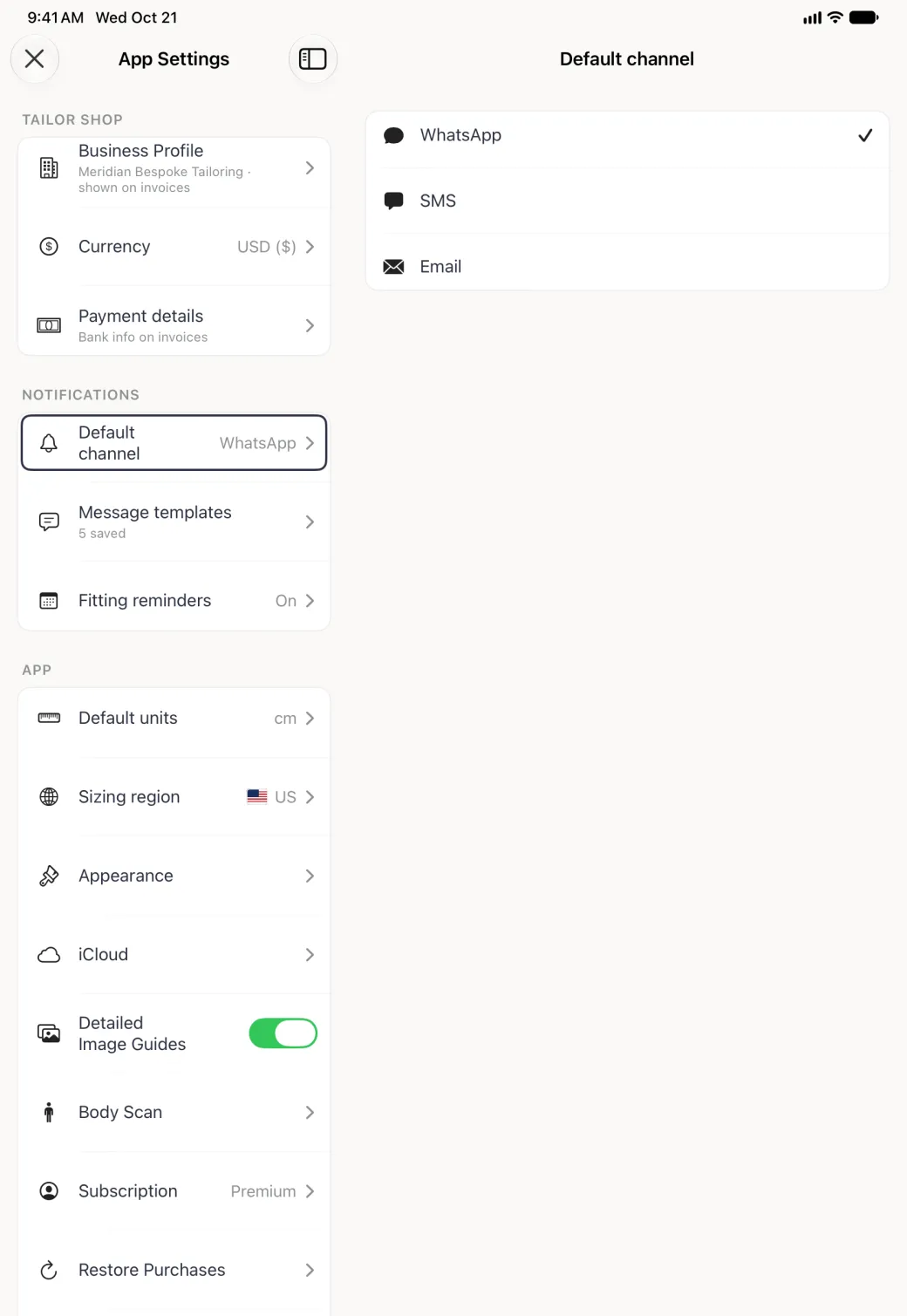
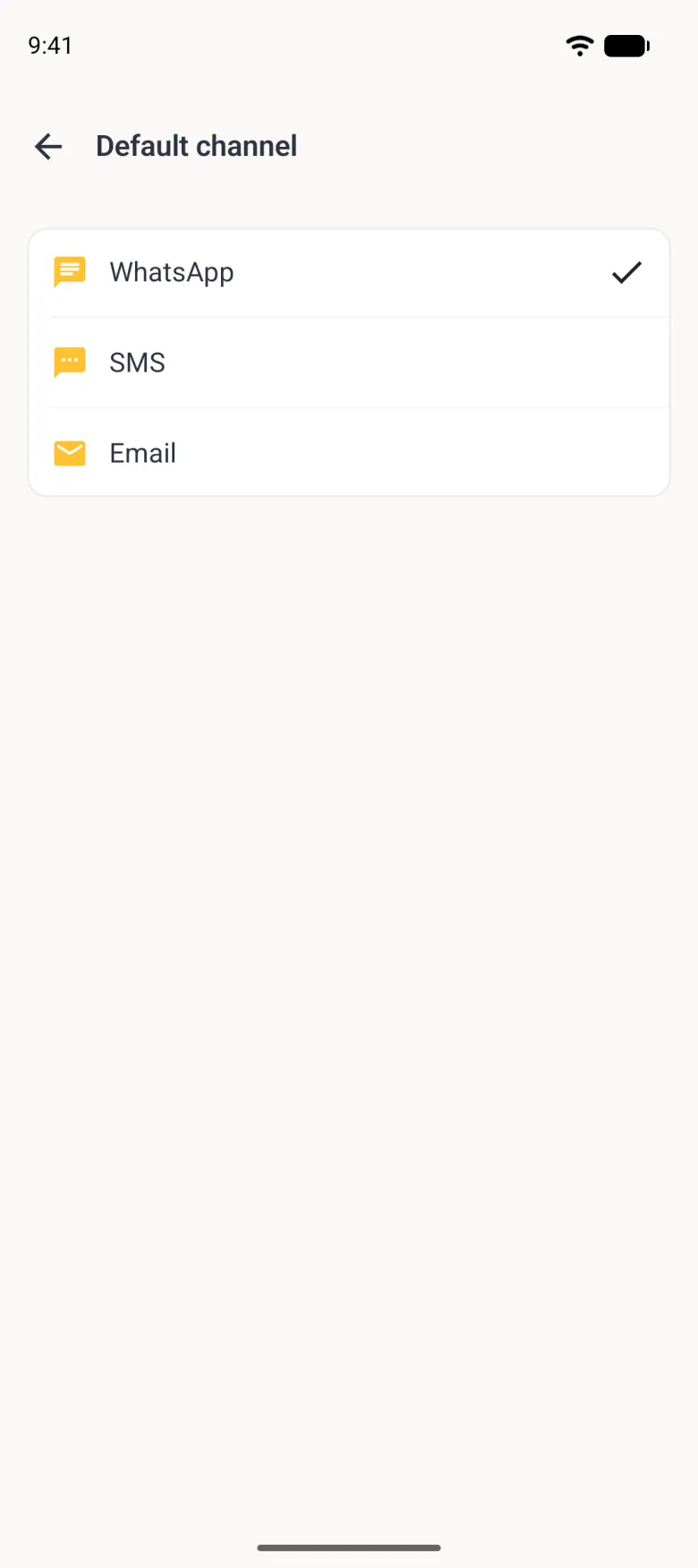
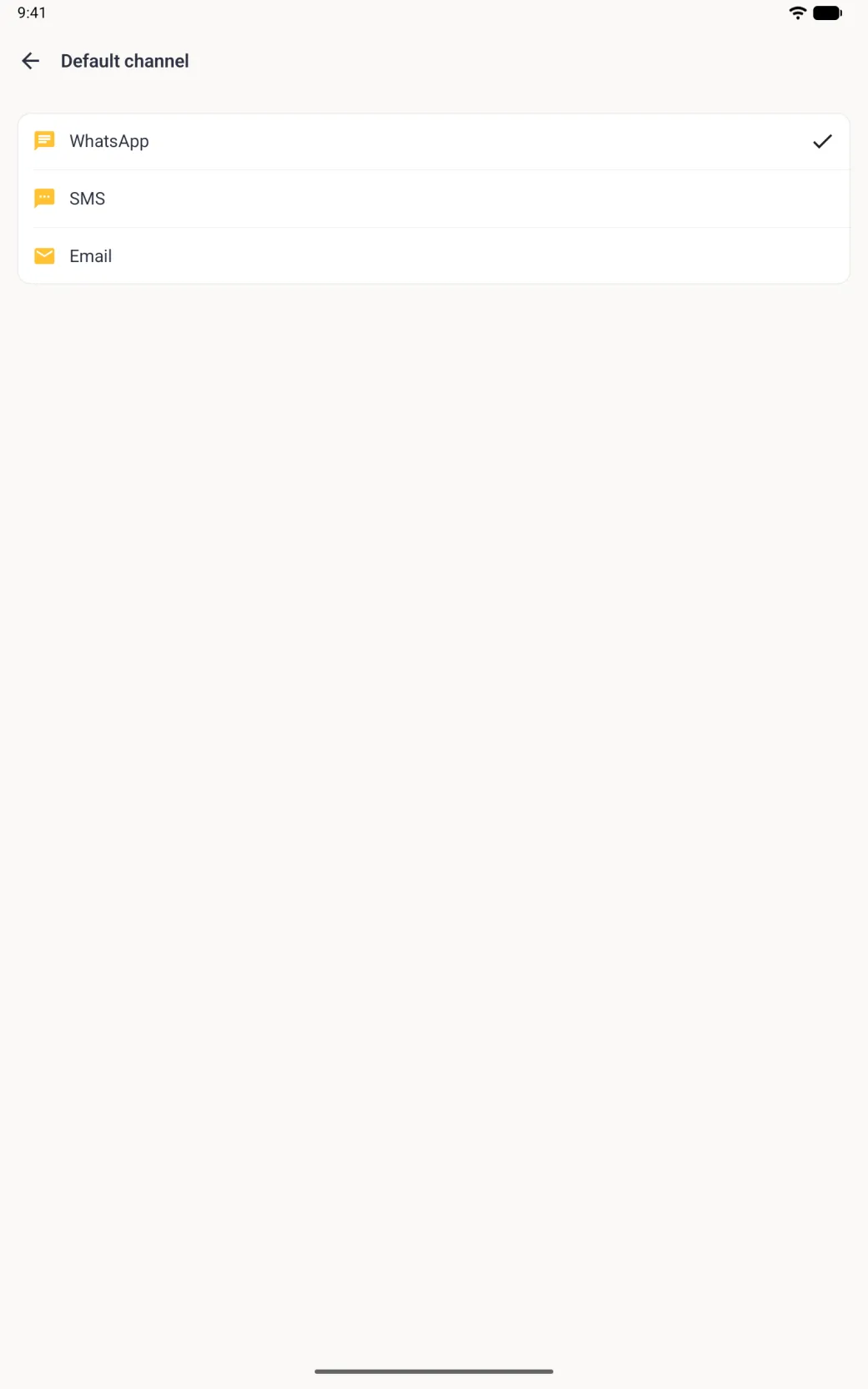
The composer works down a short list. A client with a preferred channel on their record always wins, then the channel you used last, then the default in App Settings, then WhatsApp. Because most clients have a preference of their own, the app setting mainly covers the ones who do not.
Switching channel on the Notify Client screen changes the preview to match, and email adds a subject line you can edit. To change what a client prefers for good, open their profile settings and set the preferred channel there.


What the five templates say and how to change them
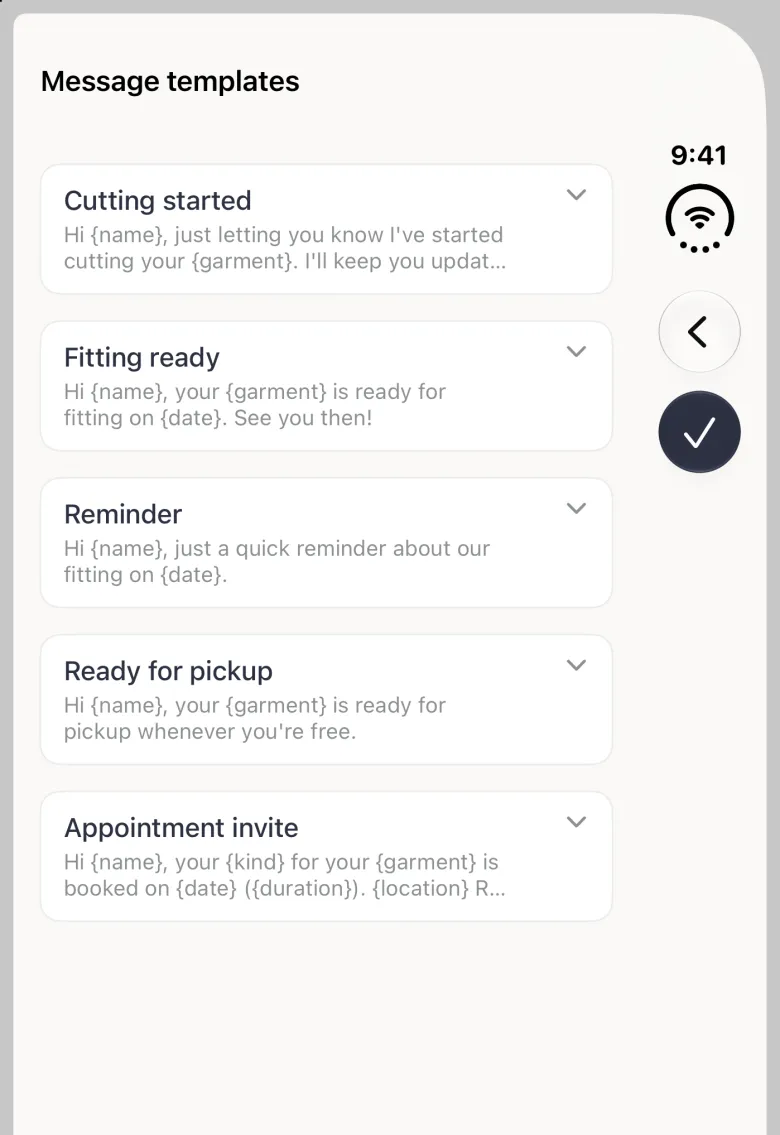
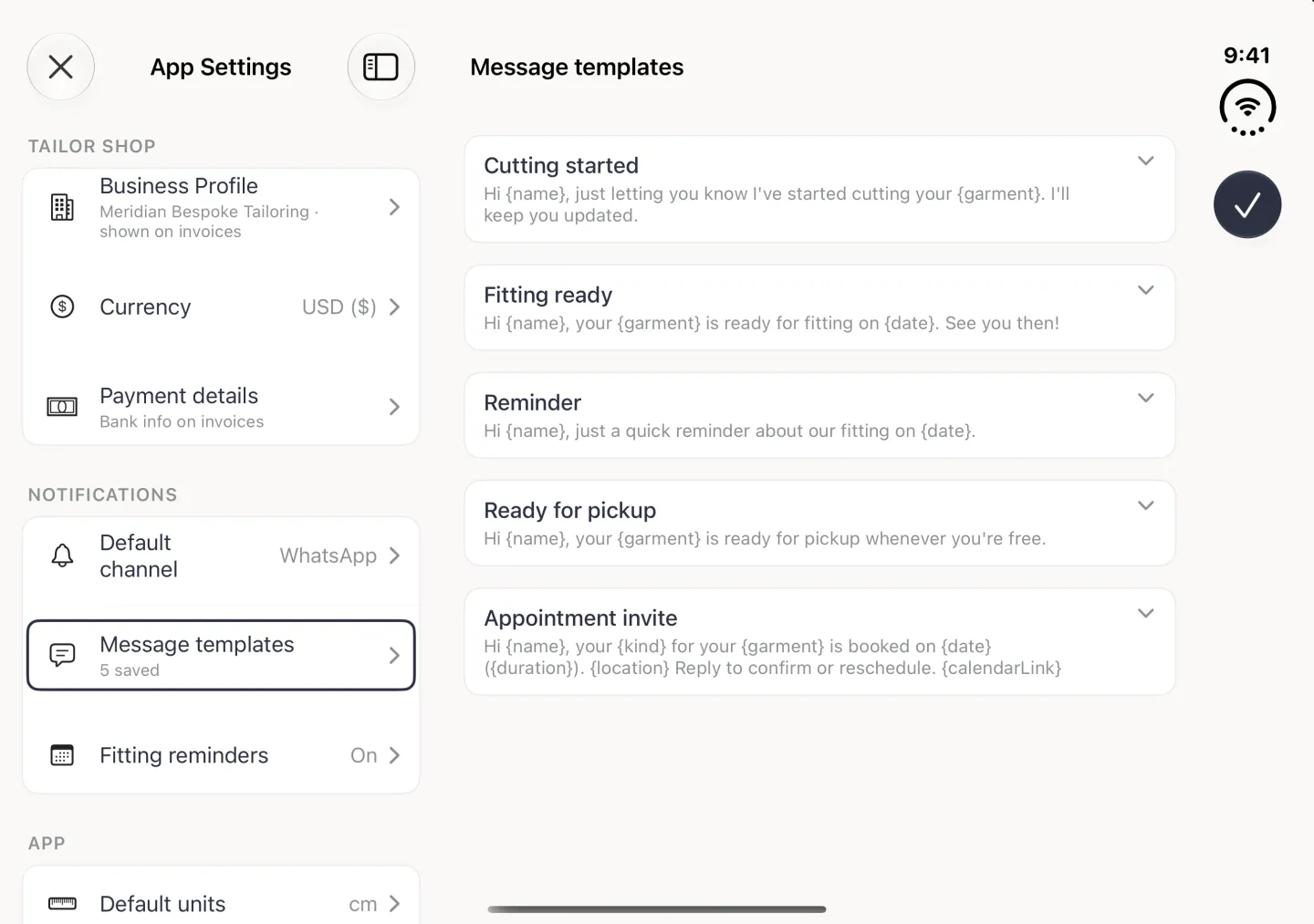
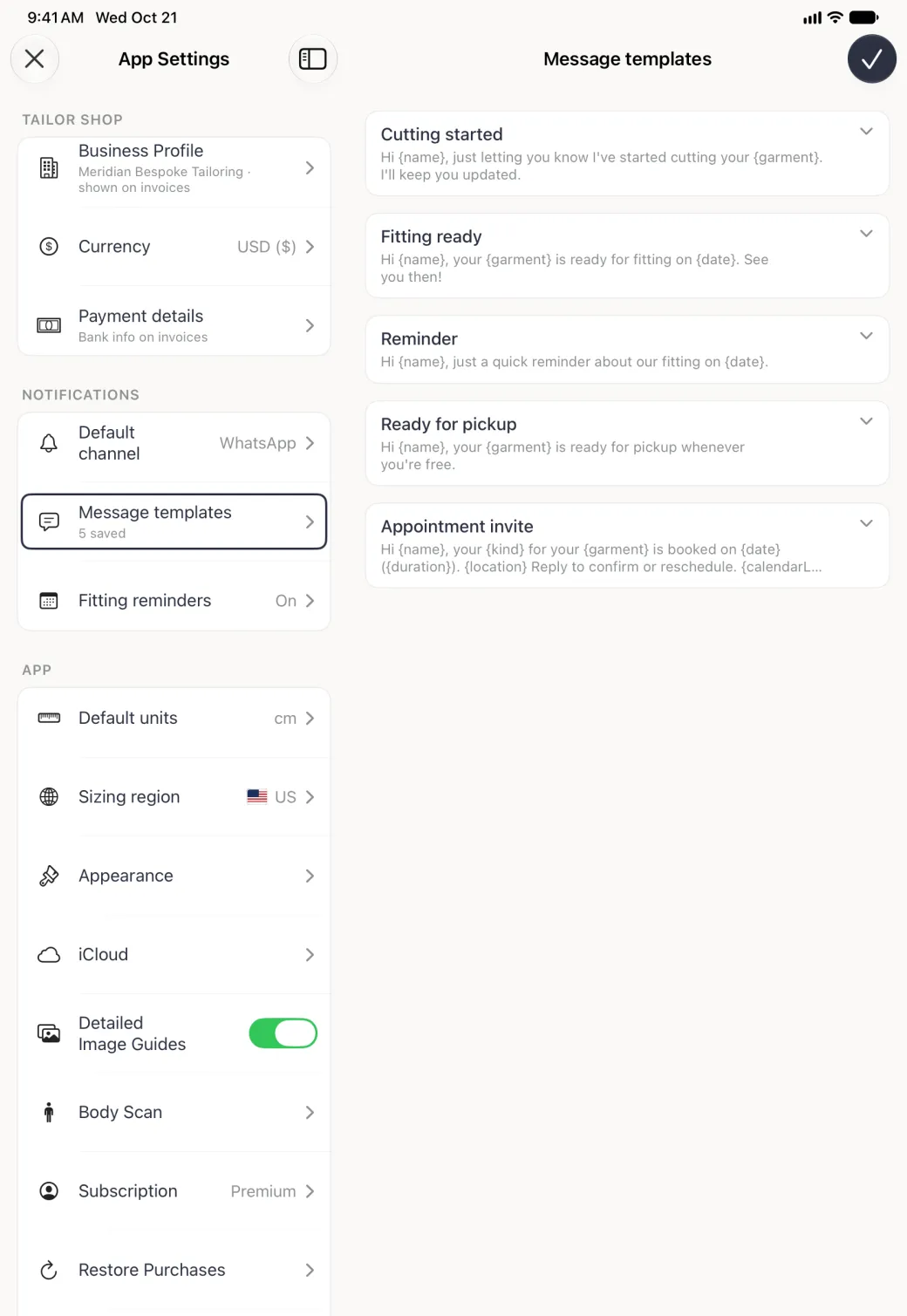
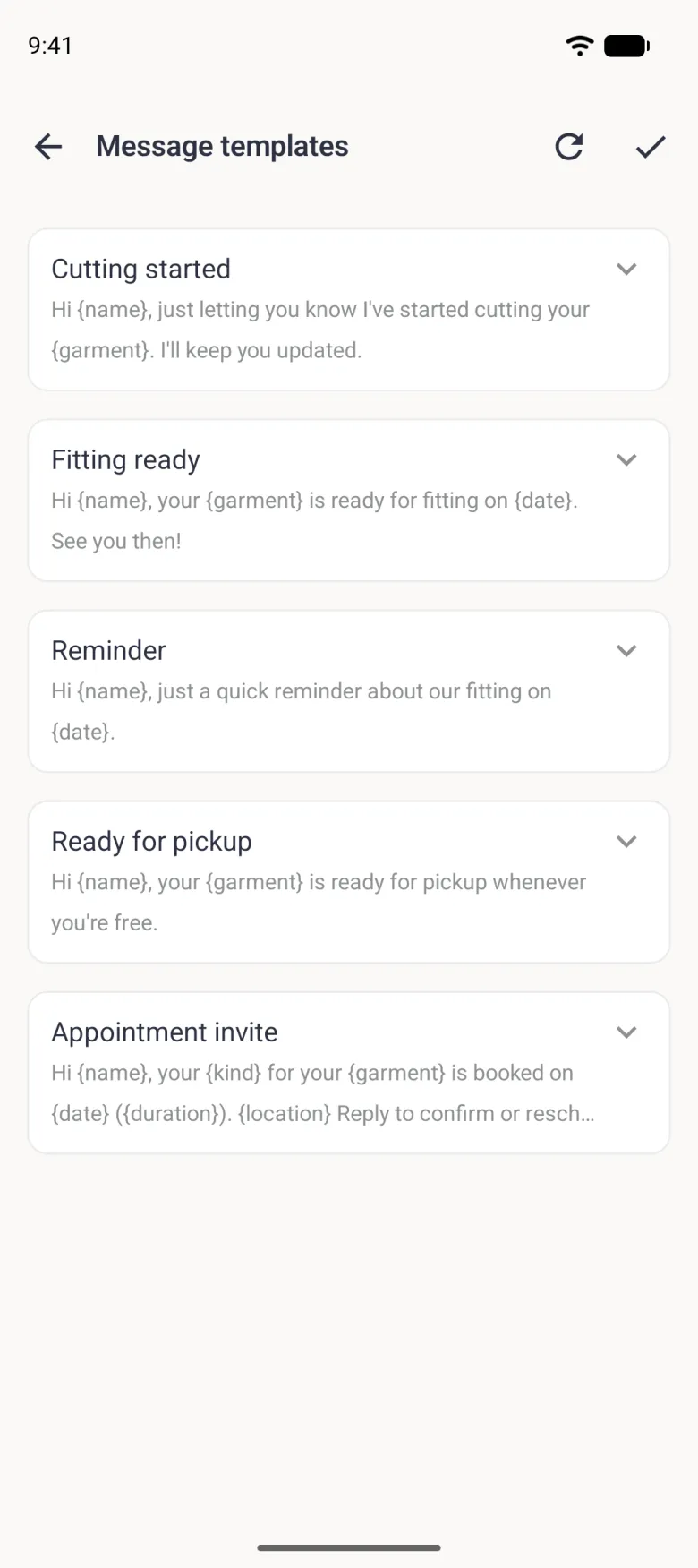
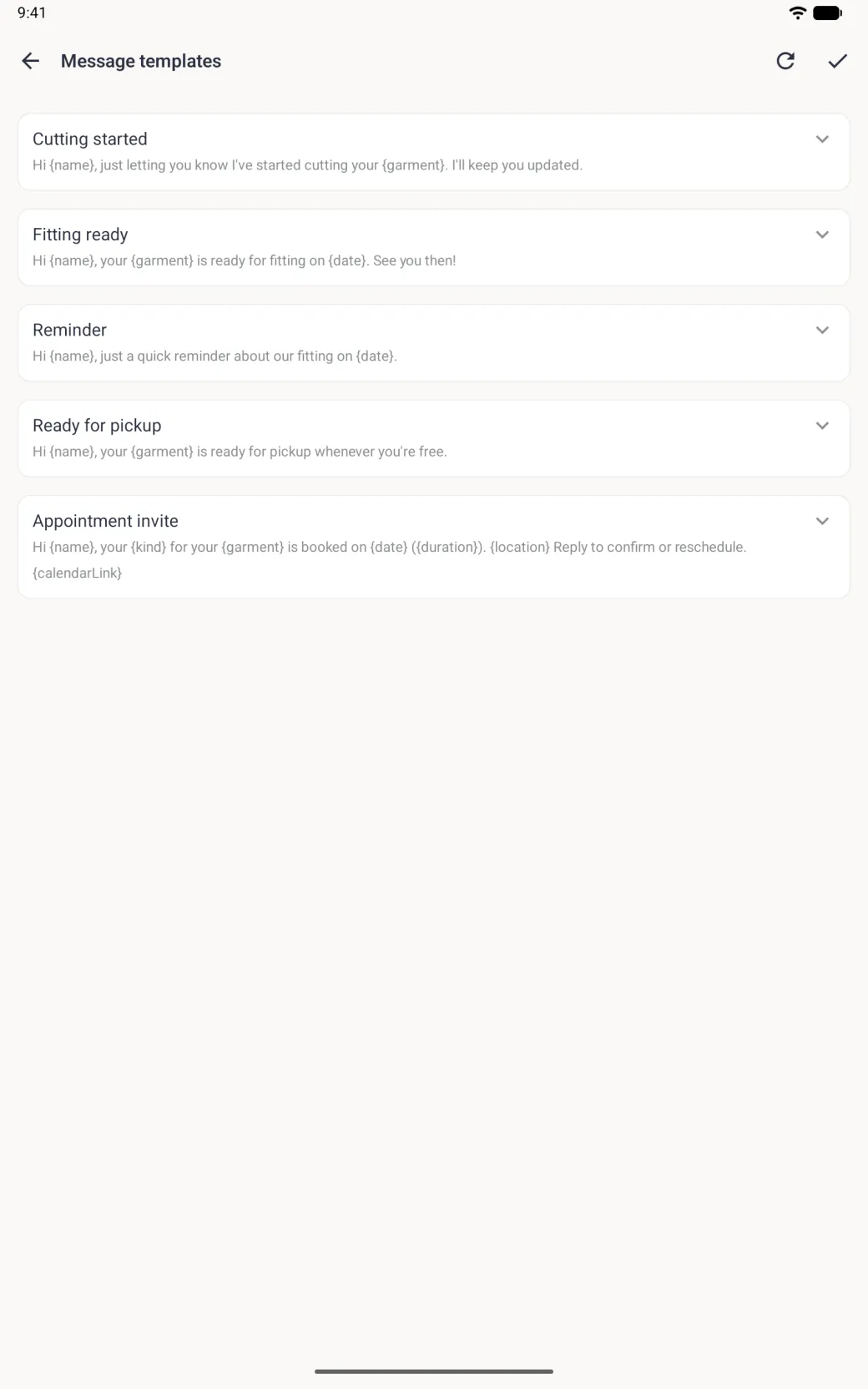
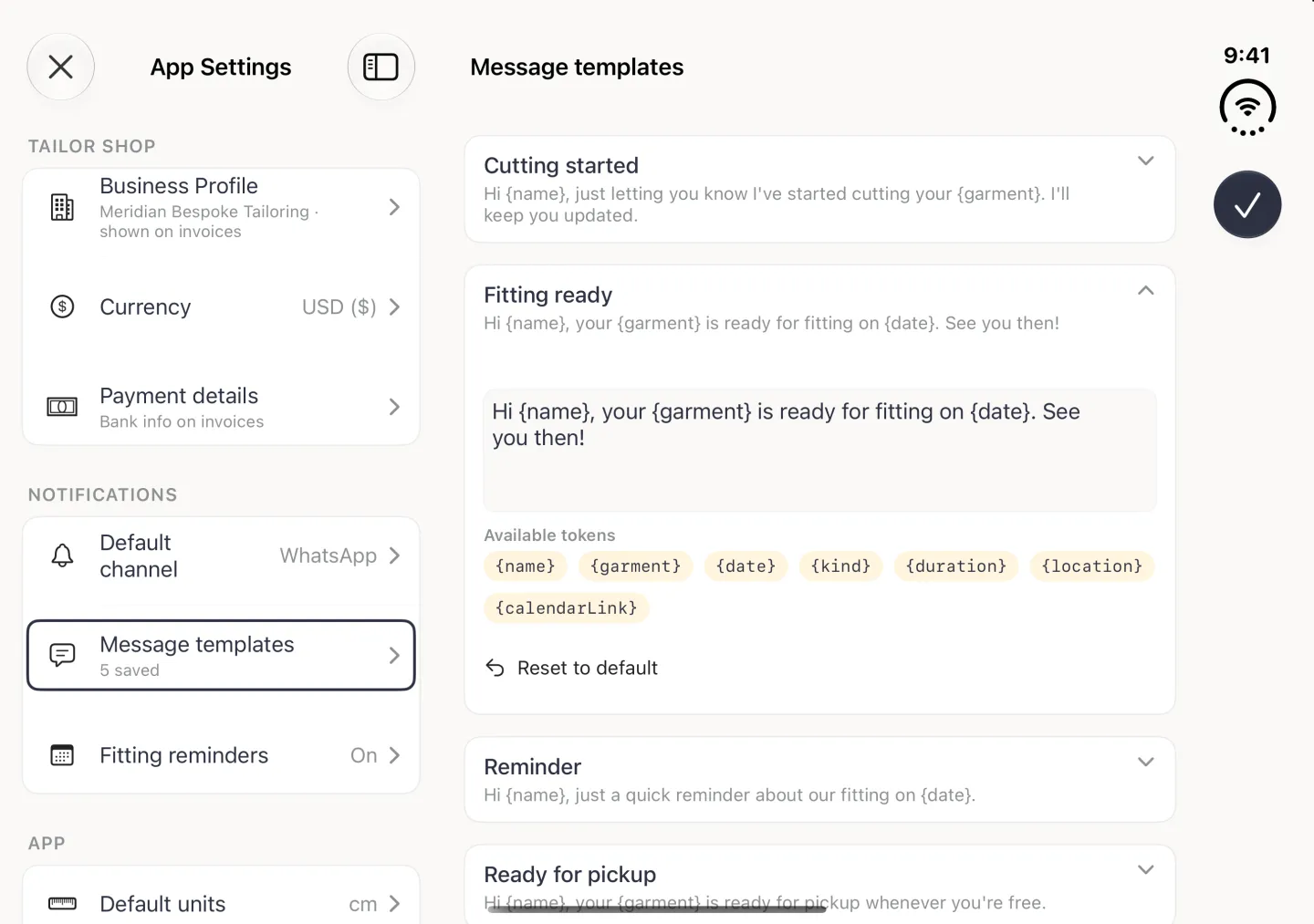
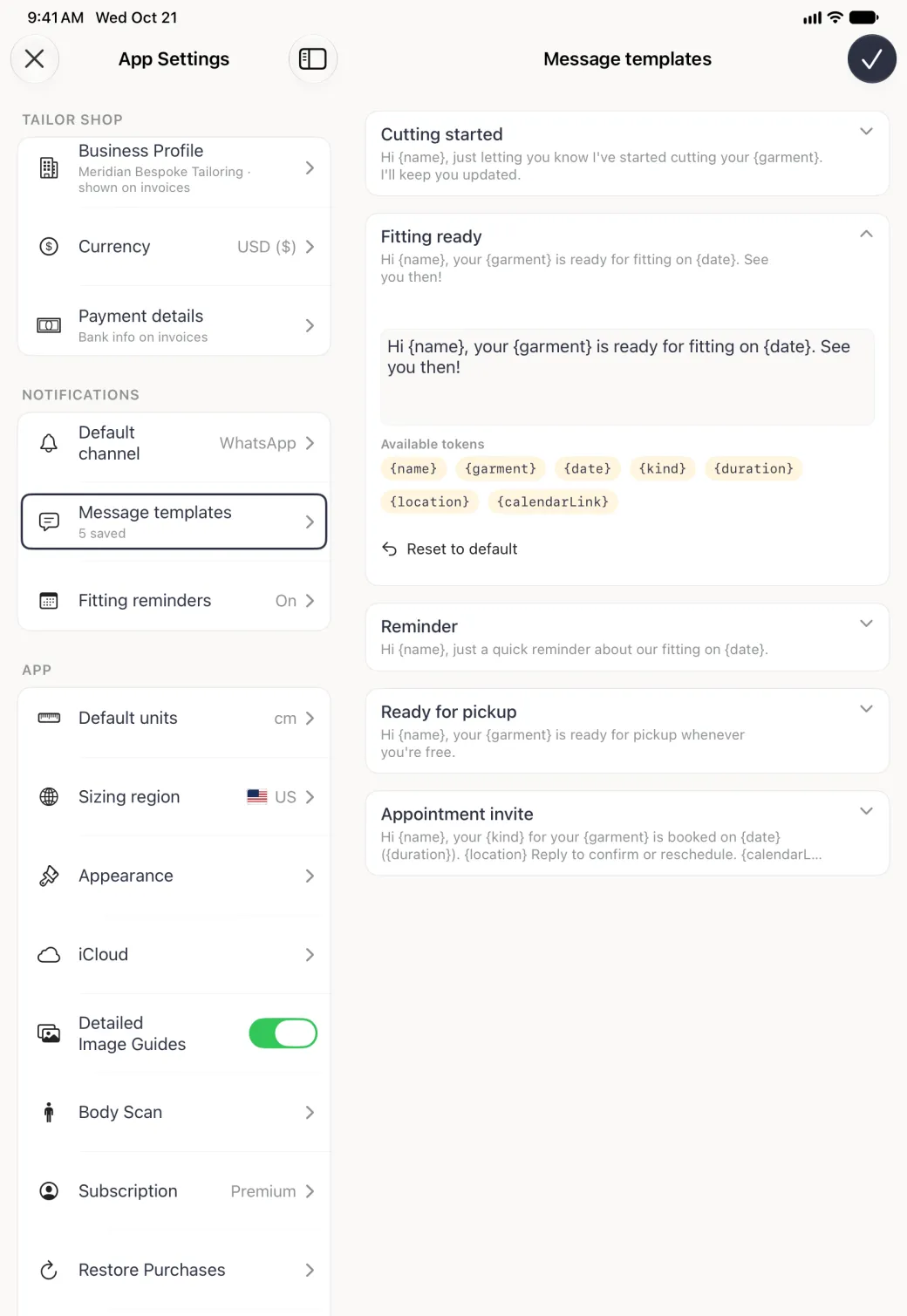
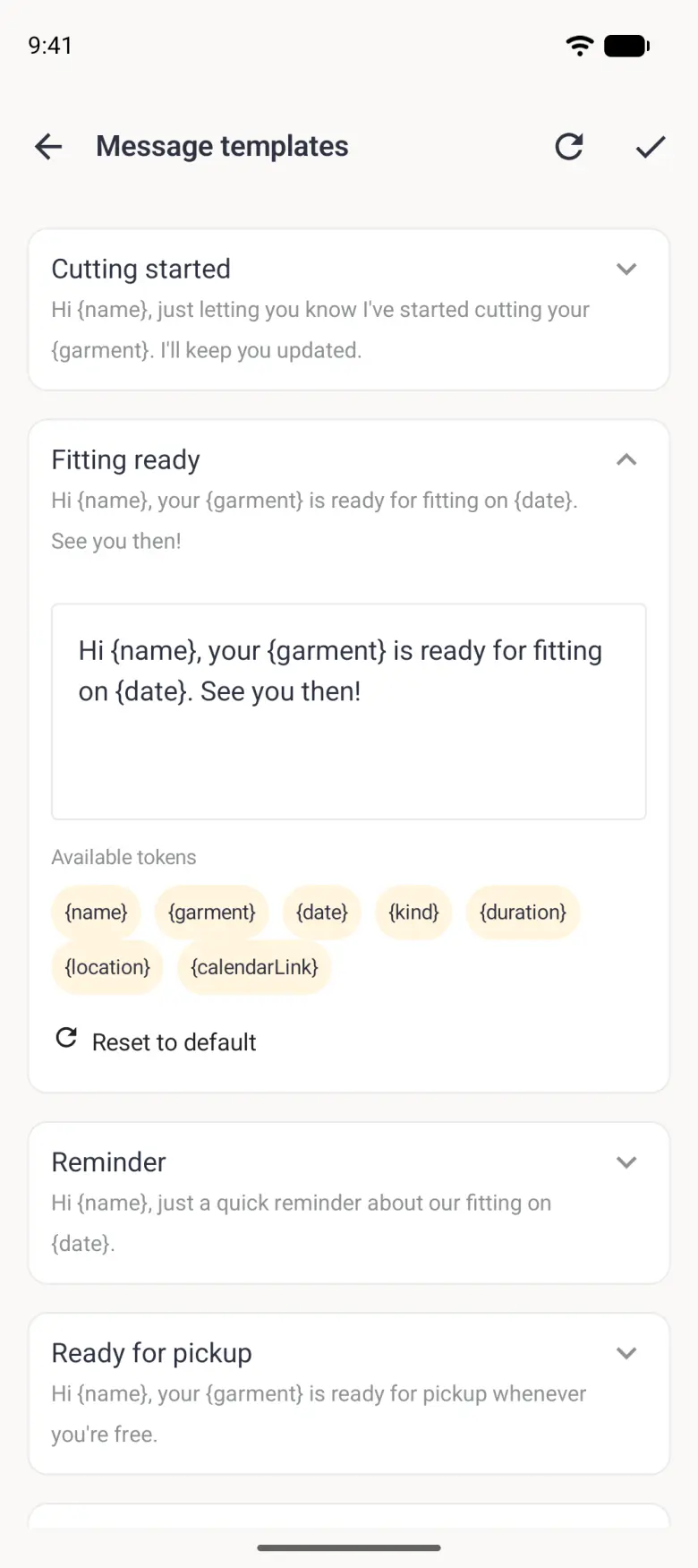
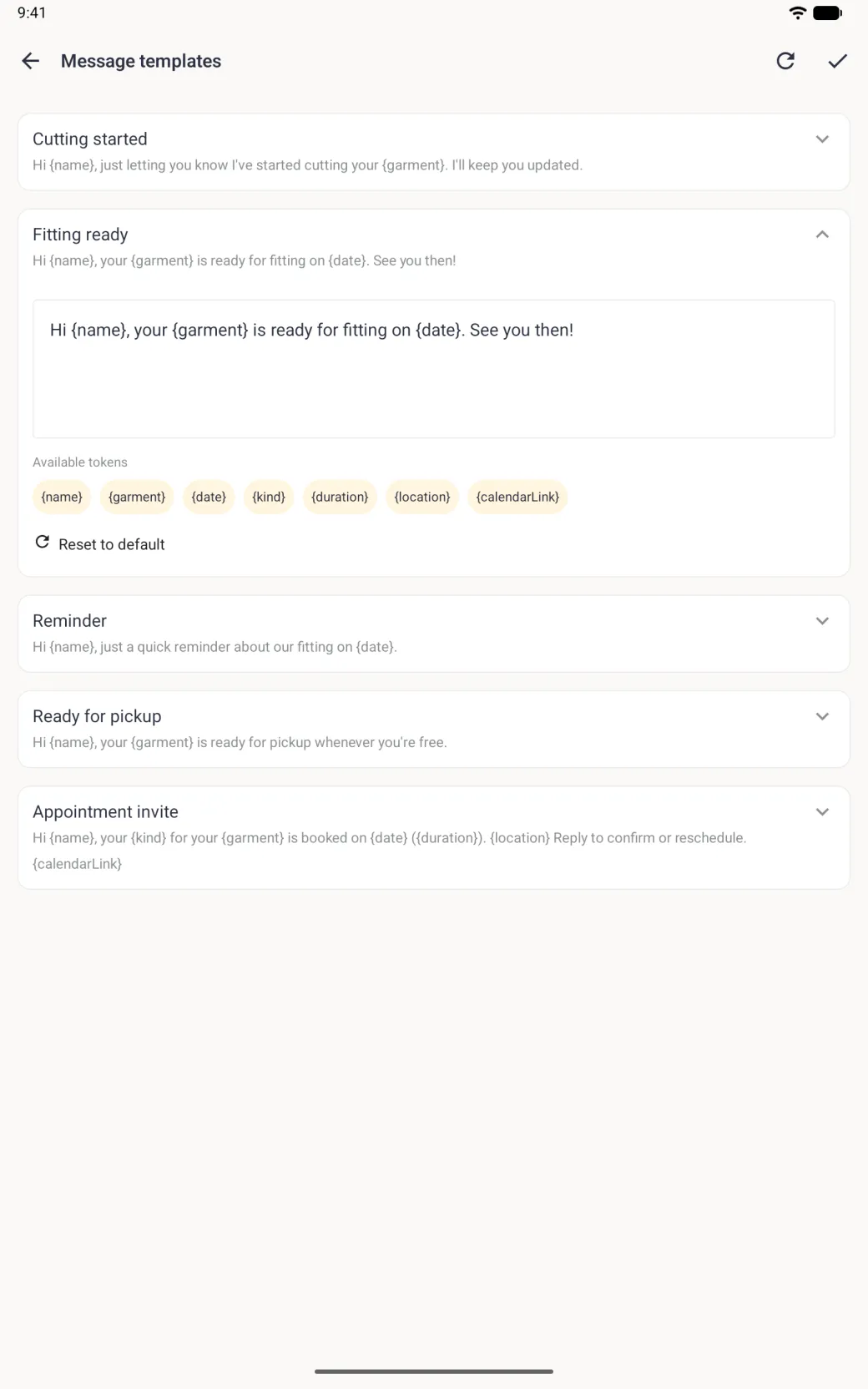
Five templates cover the updates a shop sends most: Cutting started, Fitting ready, Reminder, Ready for pickup and Appointment invite. Each one is a short line with tokens in curly brackets where the real values go. The invite is the longest of them, naming the kind of appointment, the garment, the date and time, the duration and the shop address, and ending with a link the client can tap to add the booking to their own calendar.
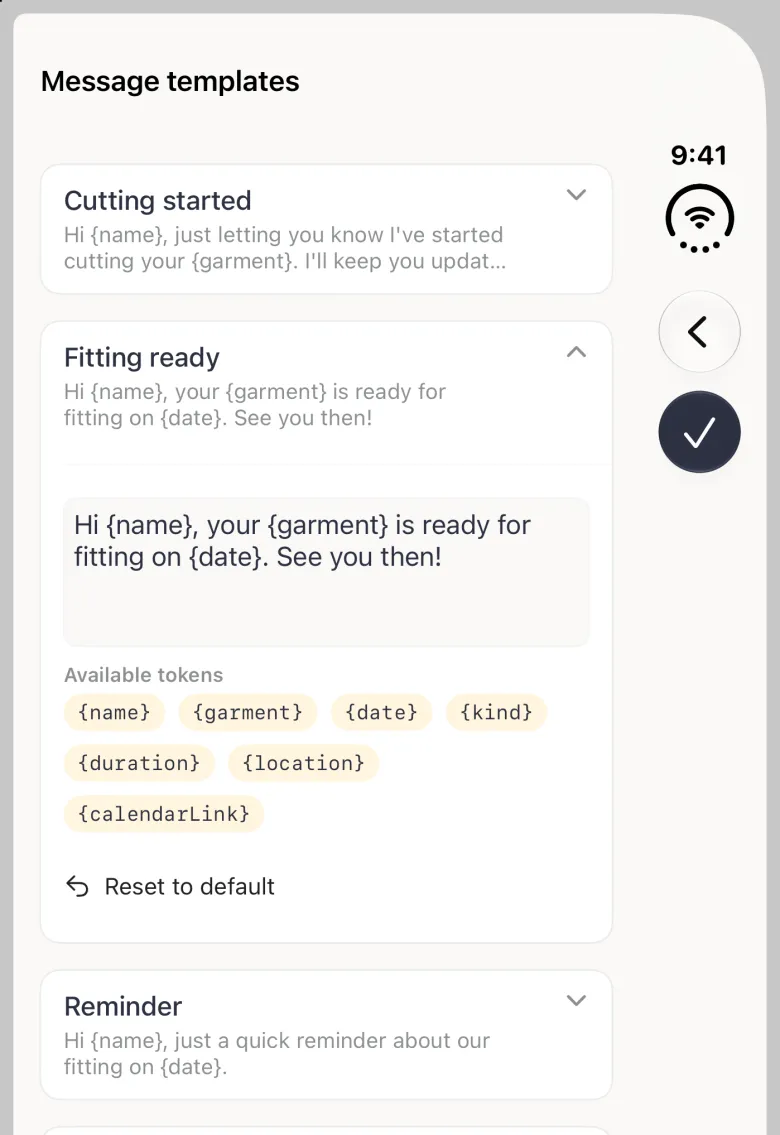
There are seven tokens to build with: {name}, {garment}, {date}, {kind}, {duration}, {location} and {calendarLink}. The first three come from the client and the order, and the last four come from the appointment attached to the order and from your business profile. When there is nothing to fill one with, the sentence built around it drops out of the message rather than leaving a gap.
To reword one, open App Settings, then Message templates under Notifications, and tap the chevron on the template you want to change. The row expands into an editor with the text, the tokens you can drop in and a Reset to default link that puts the original wording back. Save with the checkmark at the top right.


Booking the fitting before you write the message is what makes the date appear, so schedule first and message second.
Where to see what you have already sent
Message history is kept per order. Scroll to the Activity card at the foot of an order and tap Messages at the top right of that card. The list shows every message sent for that order, newest first, with the channel icon, the template name, how long ago it went and the start of the text. The row is the whole record, so there is nothing further to open.
An order you have never messaged about shows a paper-plane icon over No messages yet until the first send.