Tailor Shop
Fittings and the schedule
The Schedule tab lists every fitting, pickup, consultation and alteration by day, with the next one at the top, and can remind you before each one.
Available on
- iPhone
- iPhone Duo
- iPad
- Android
- Tailor Shop feature
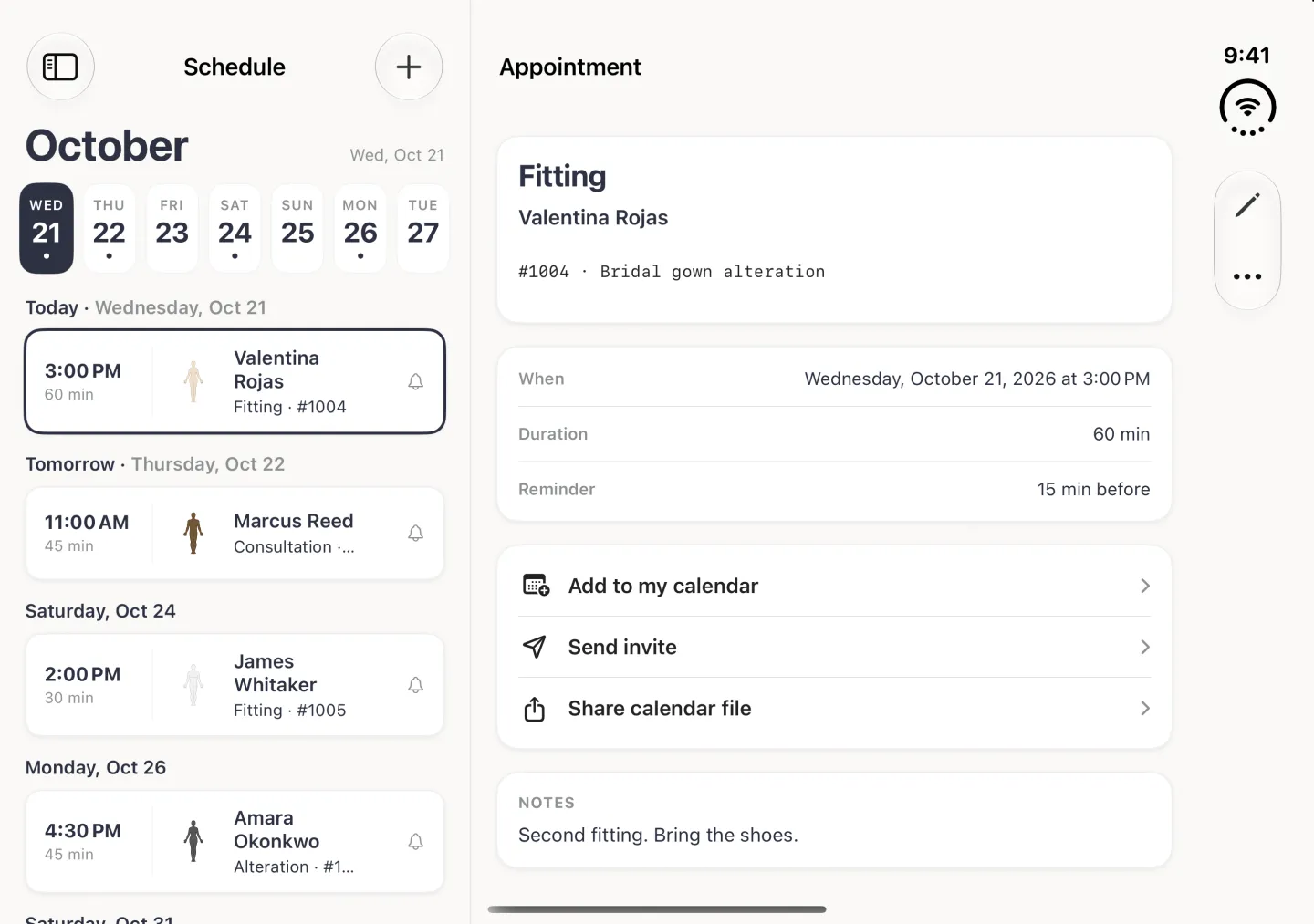
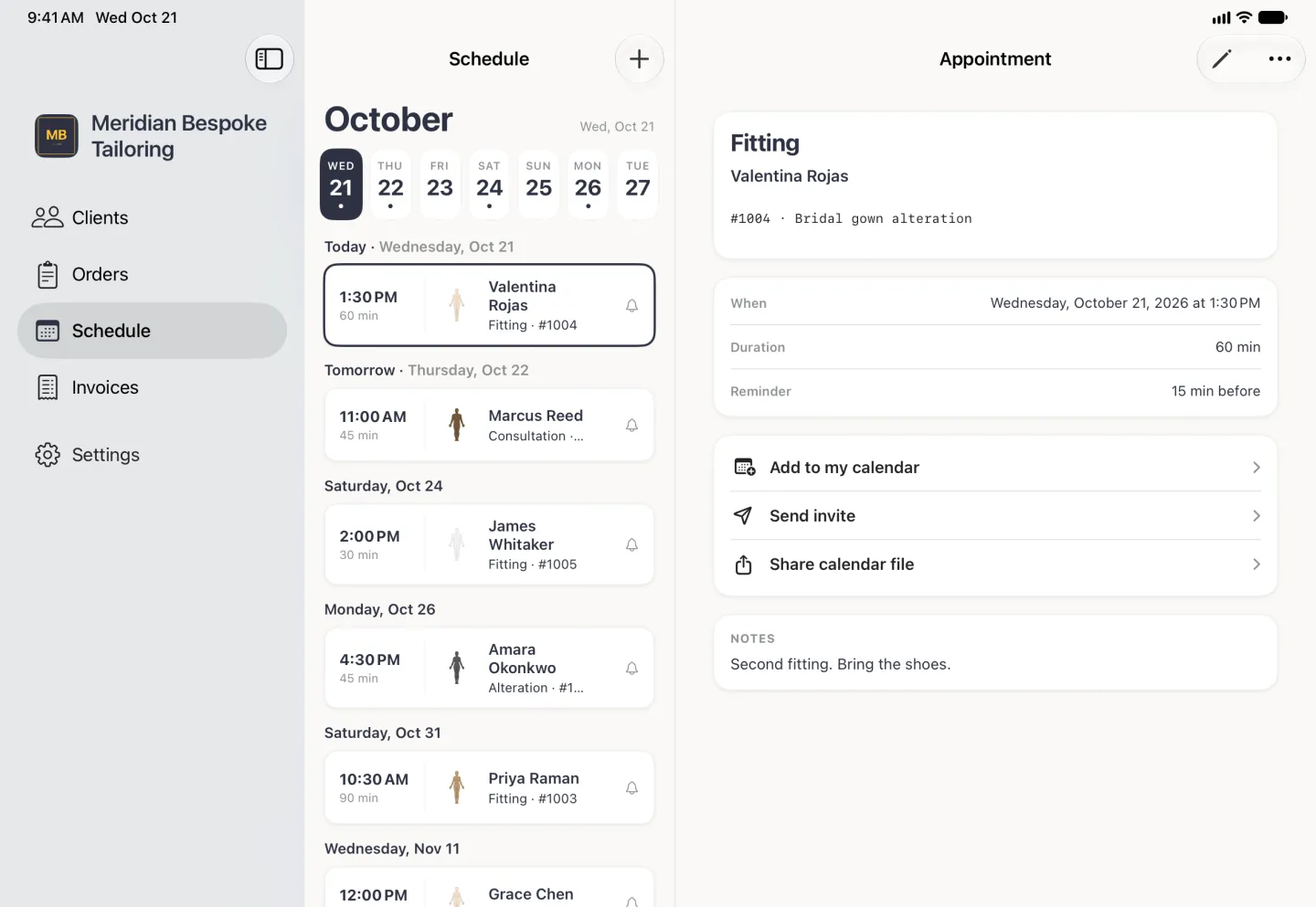
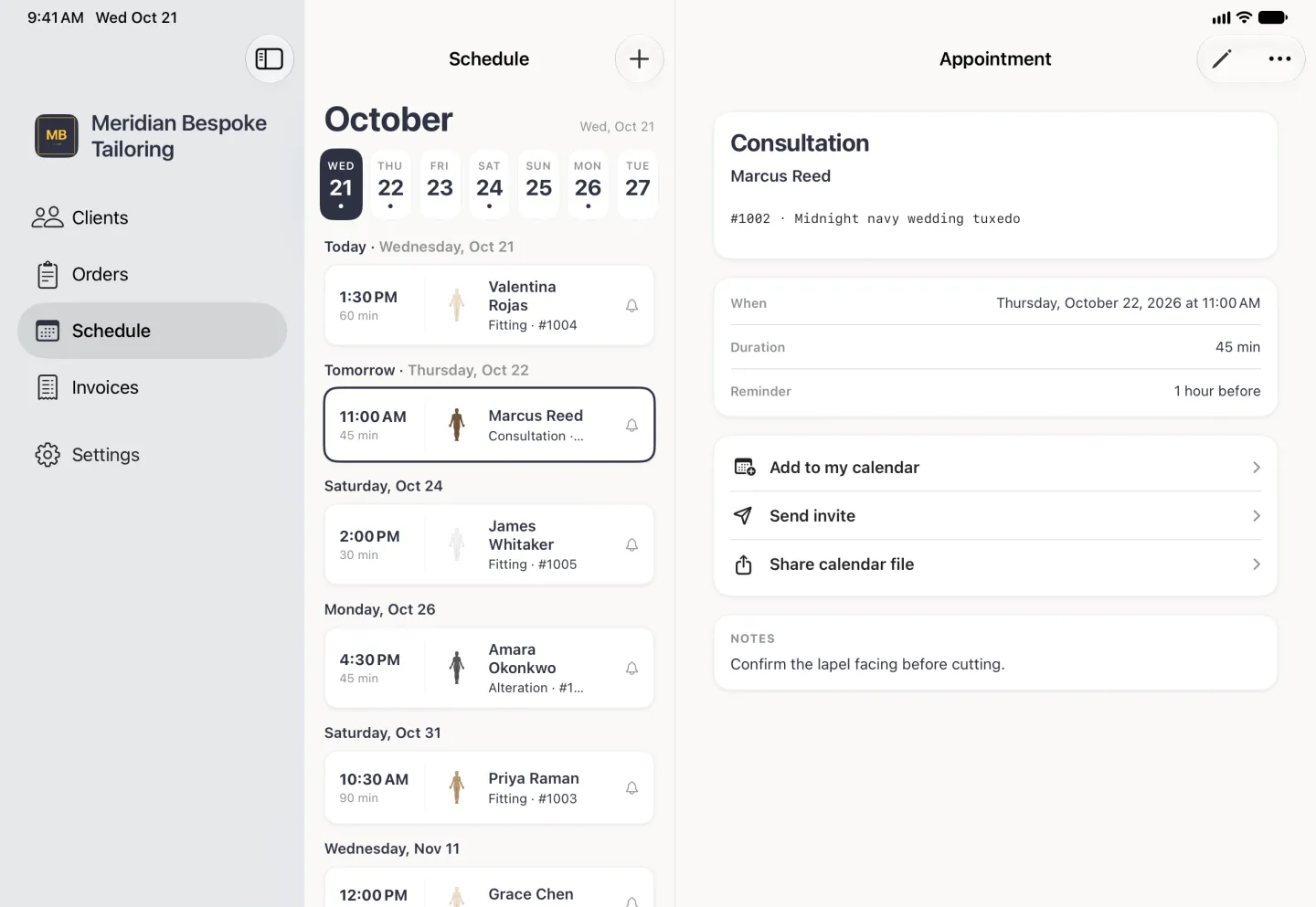
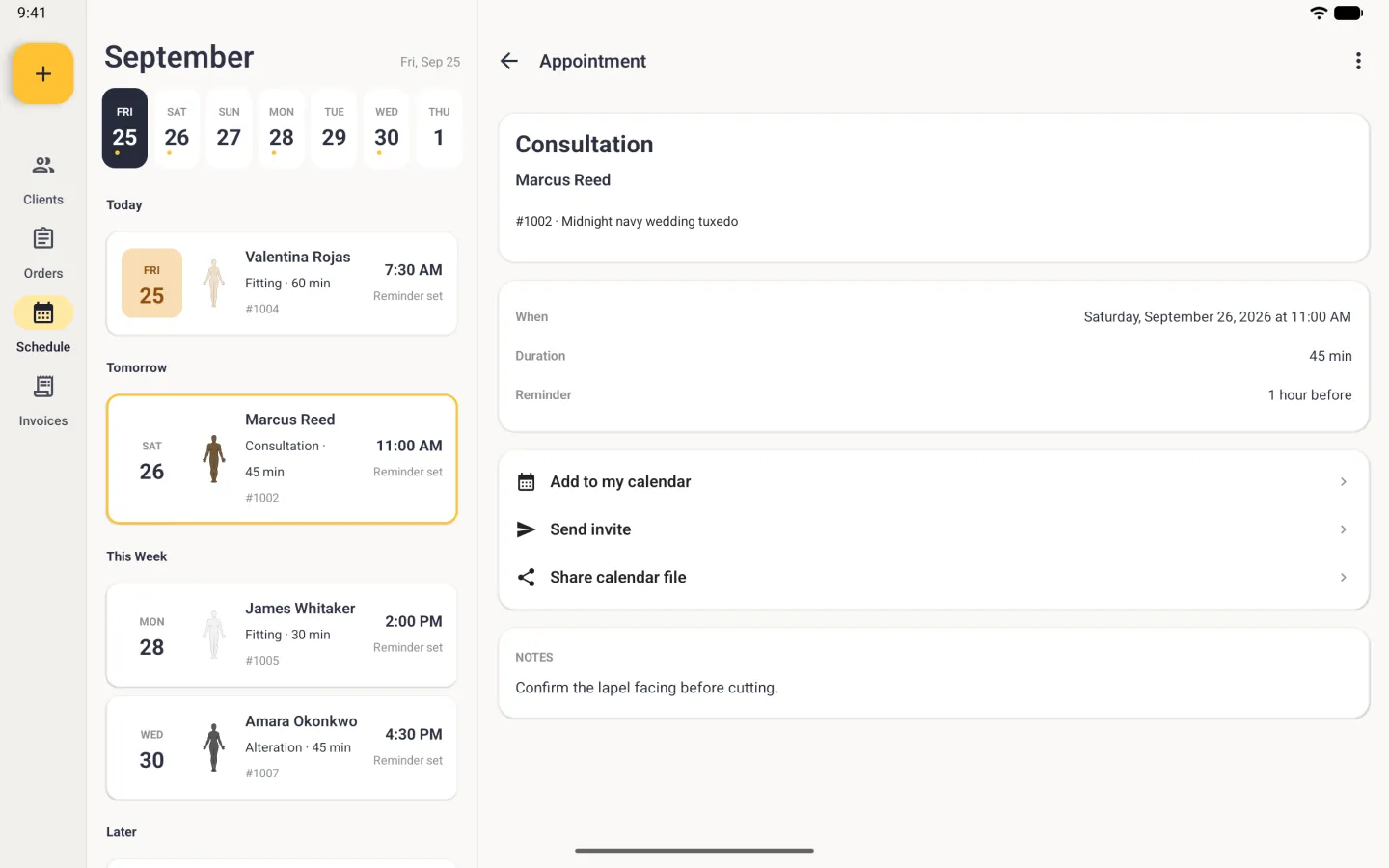
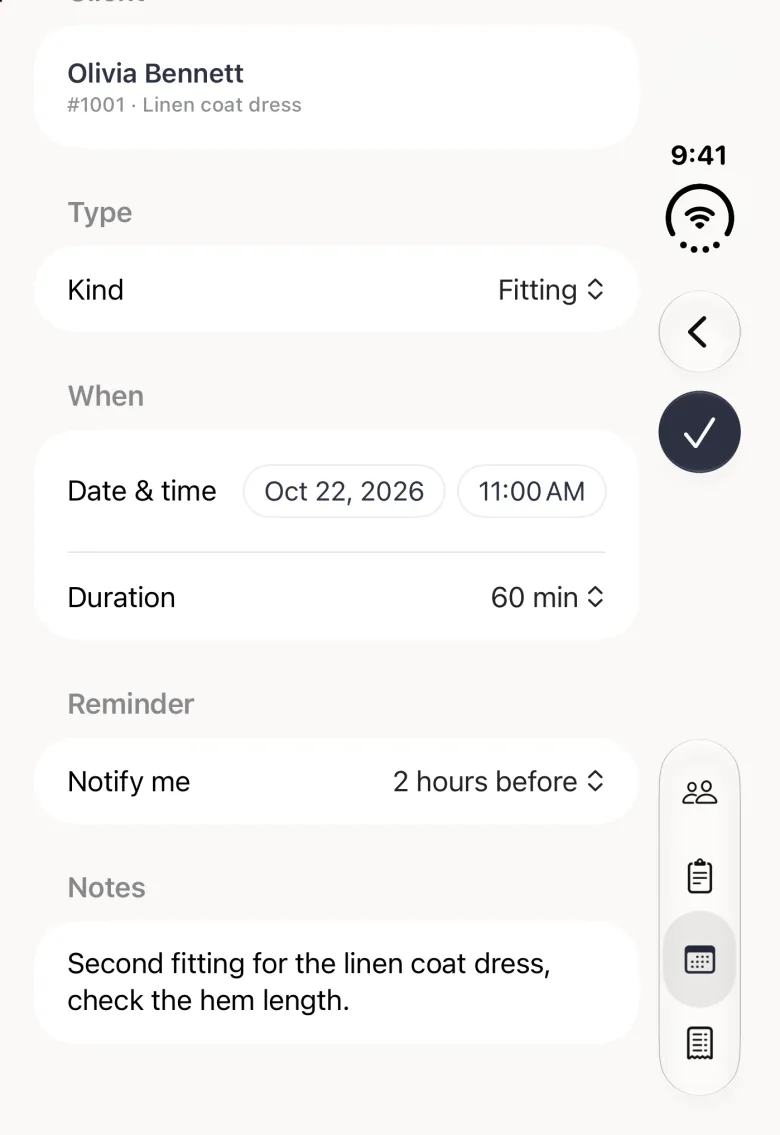
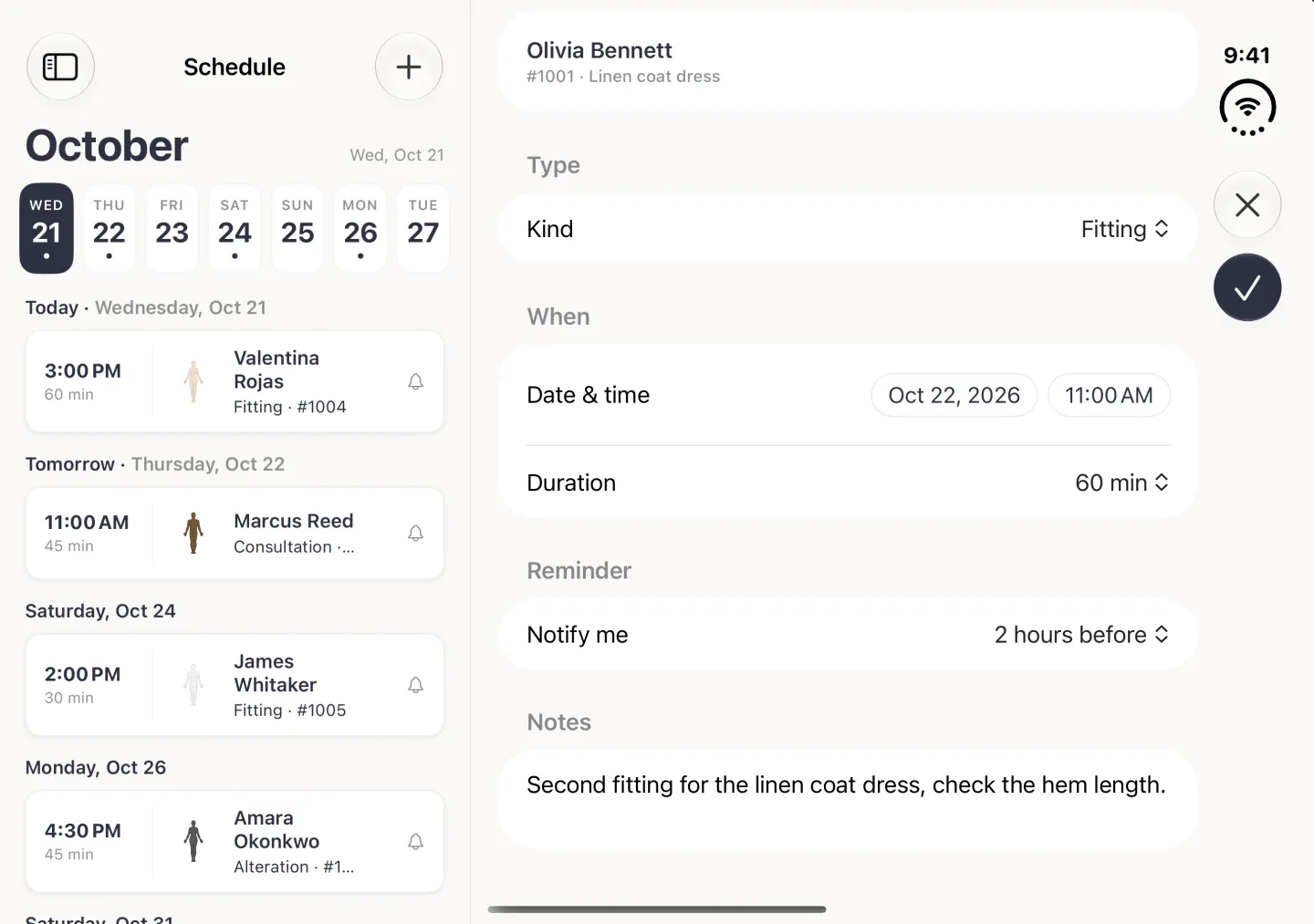
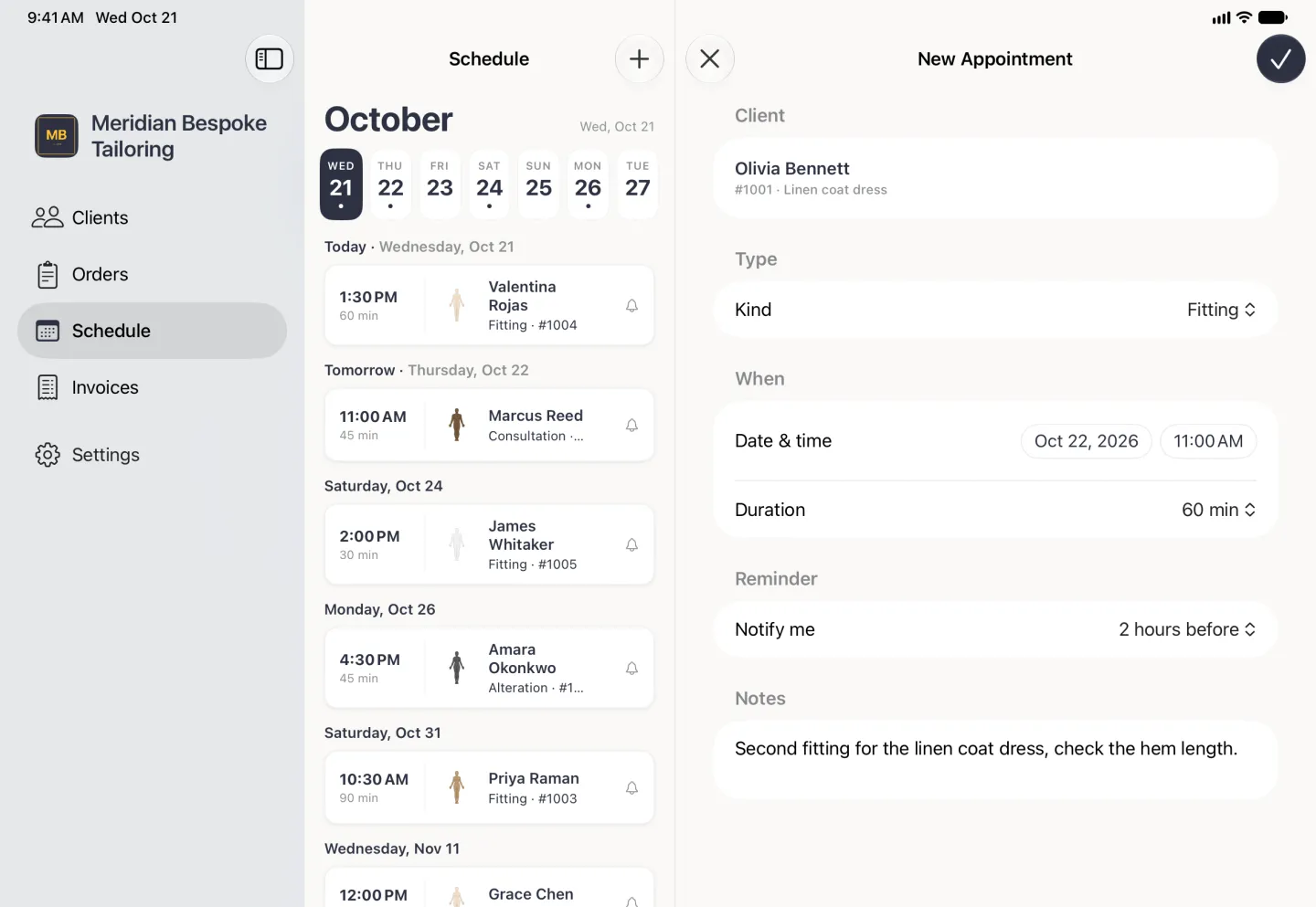
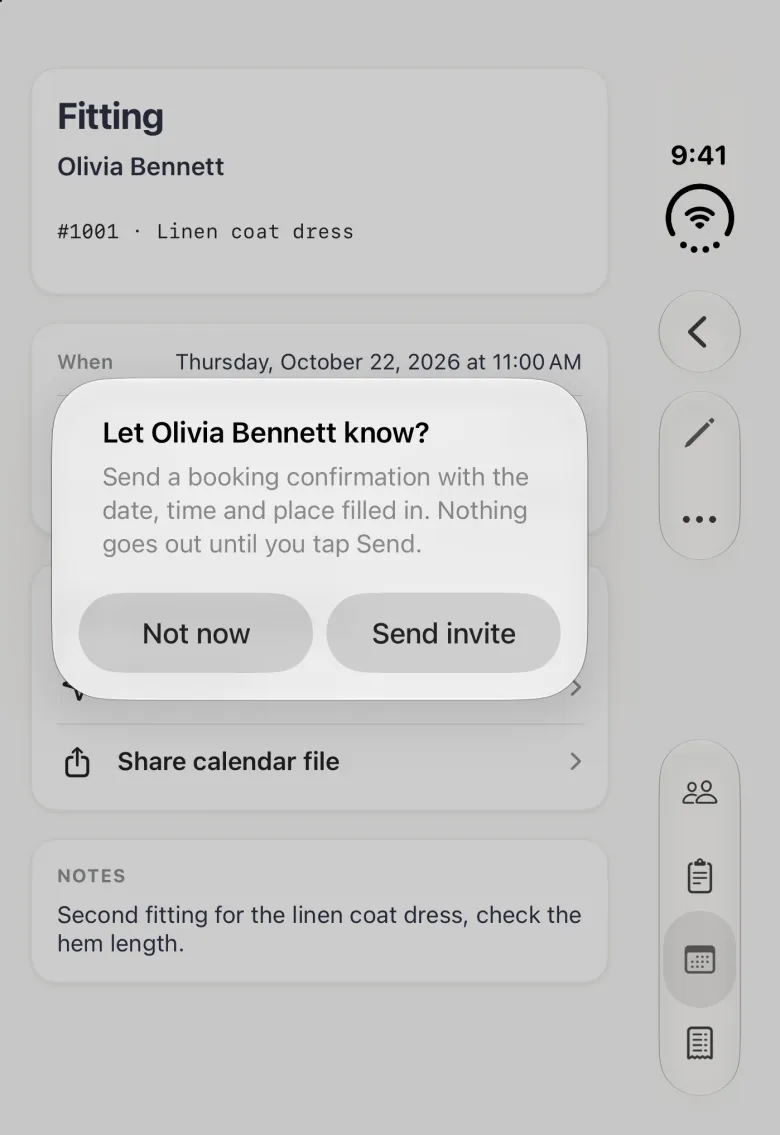
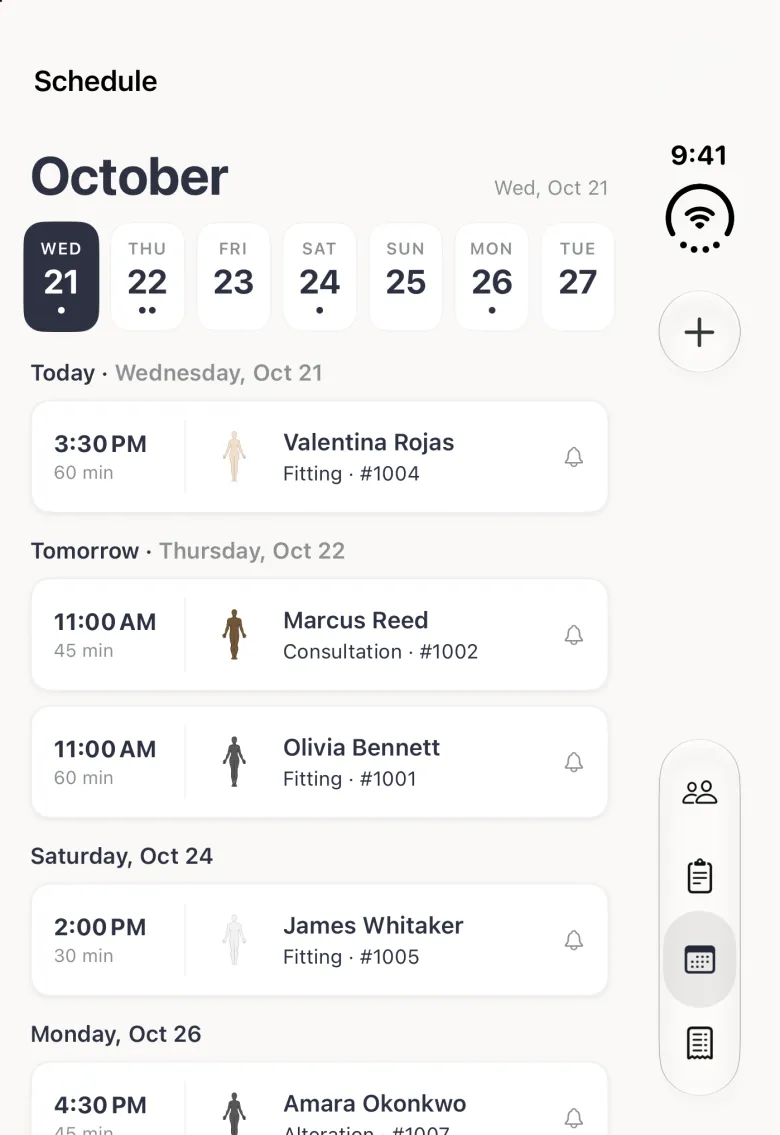
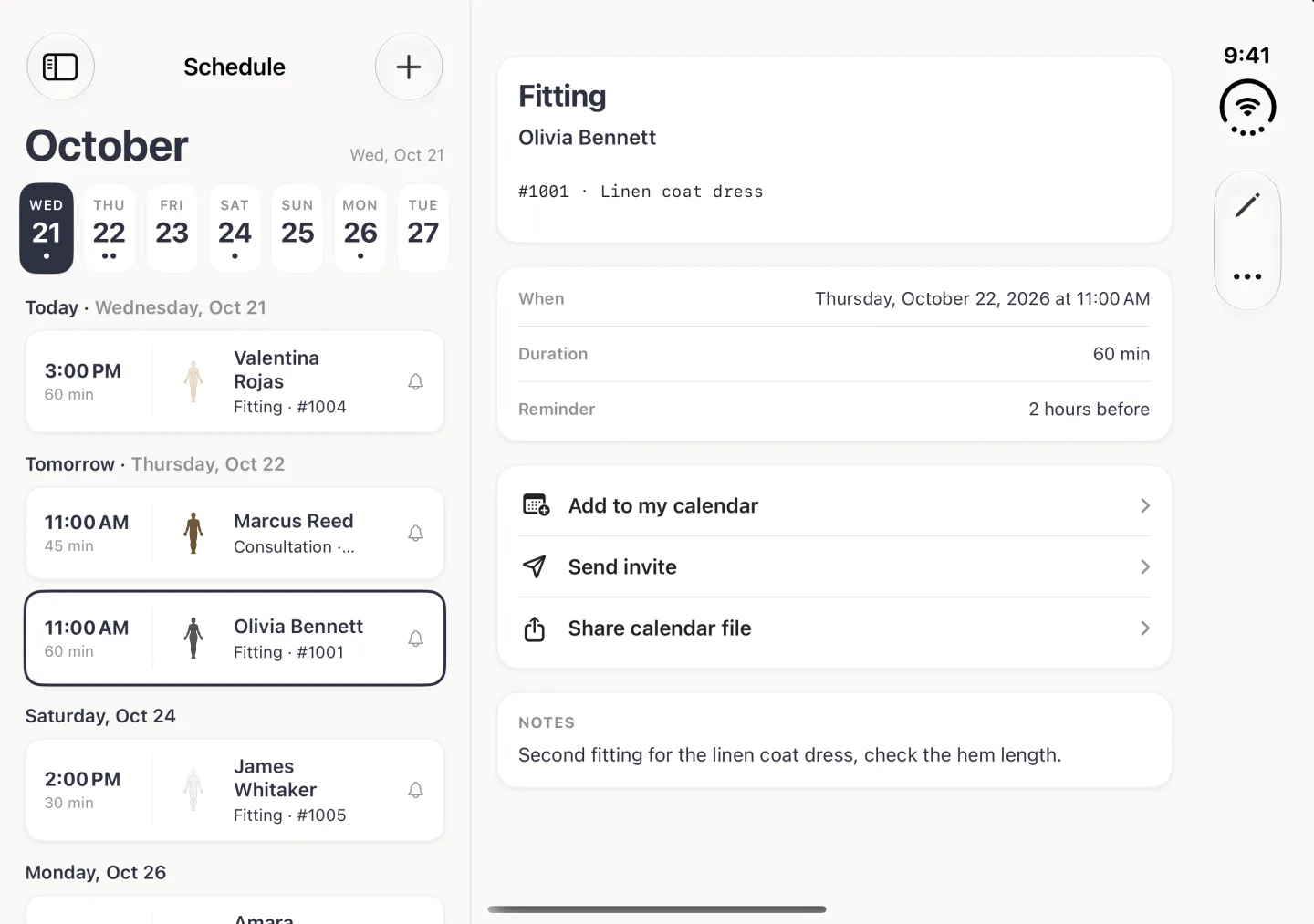
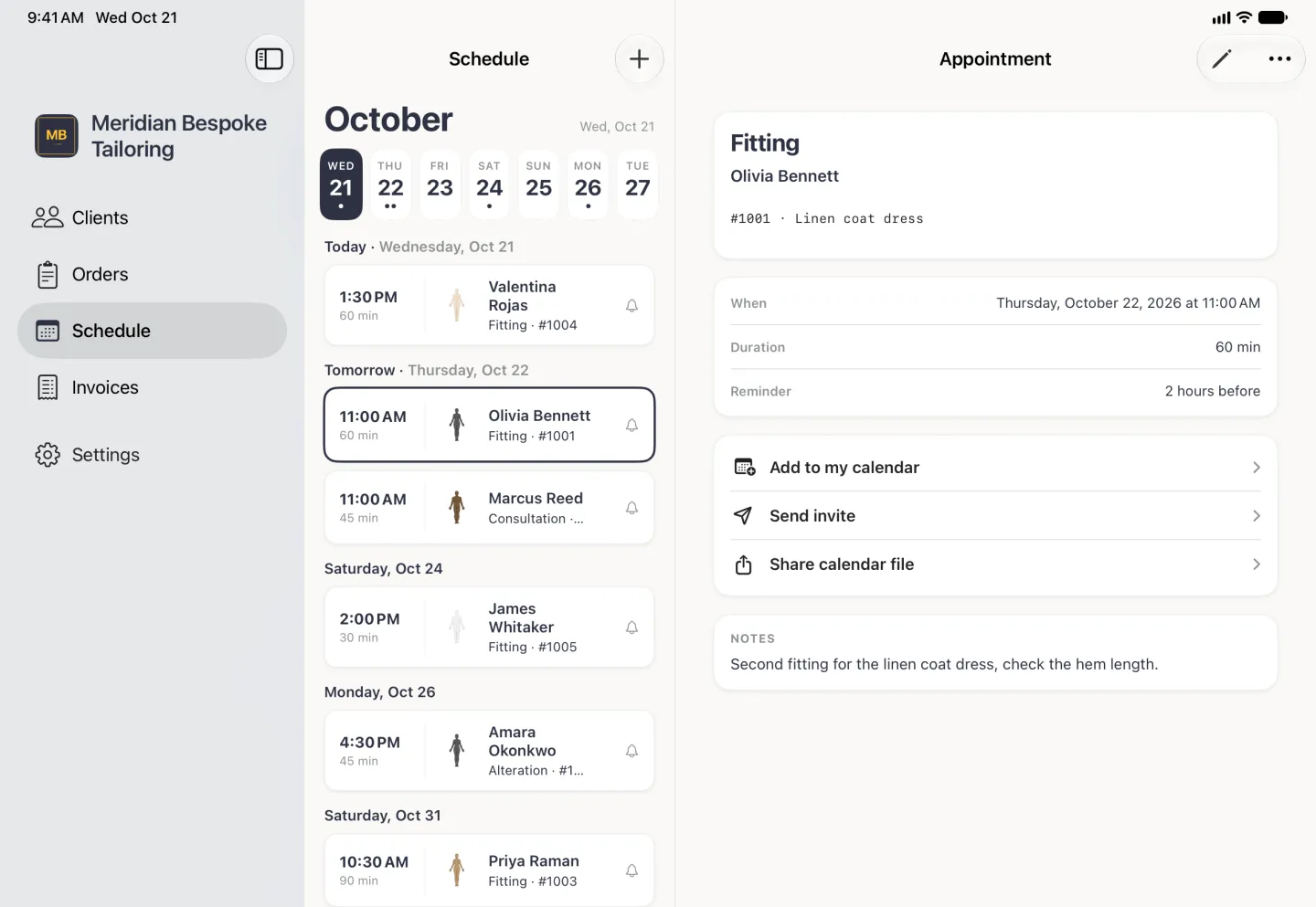
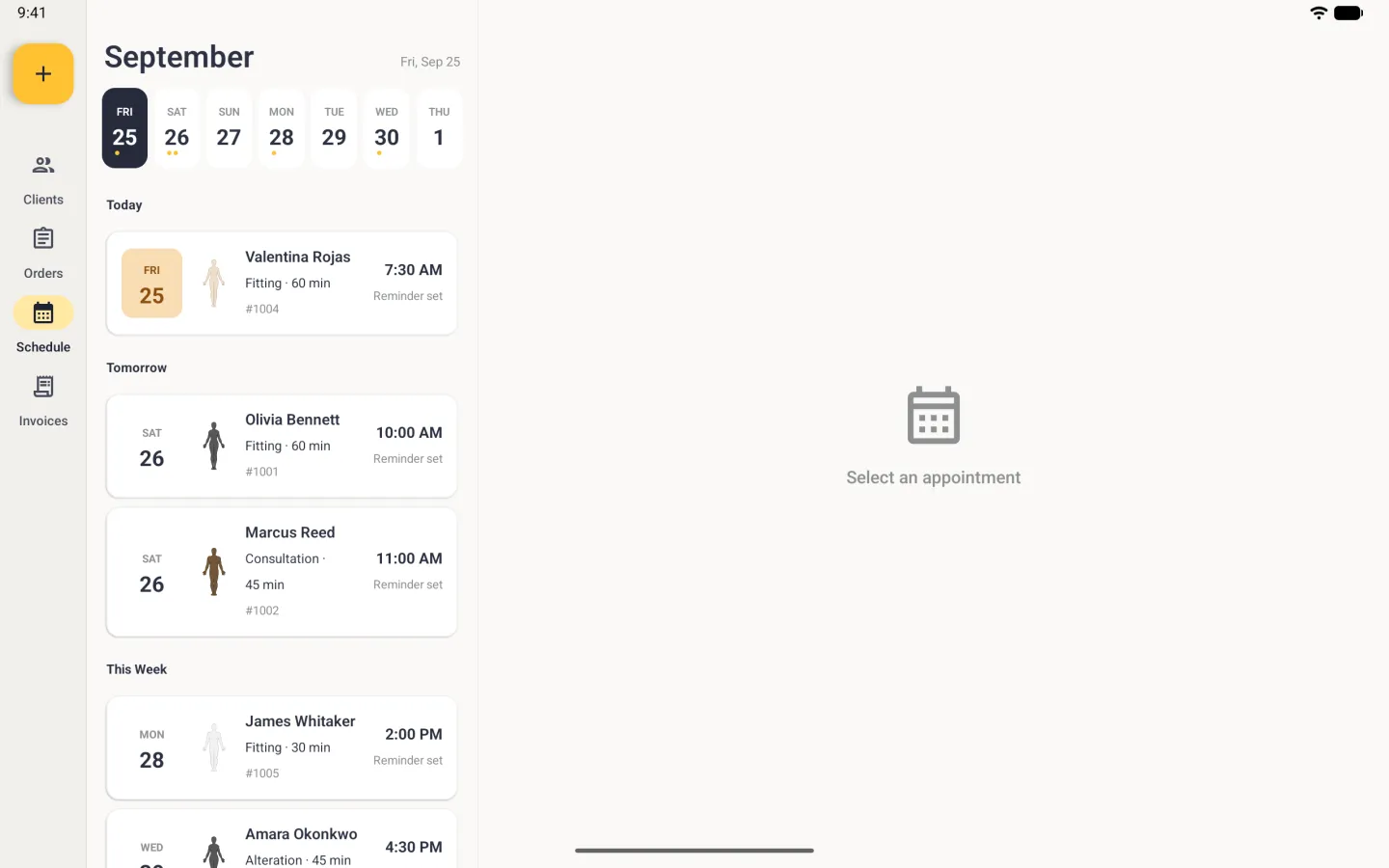
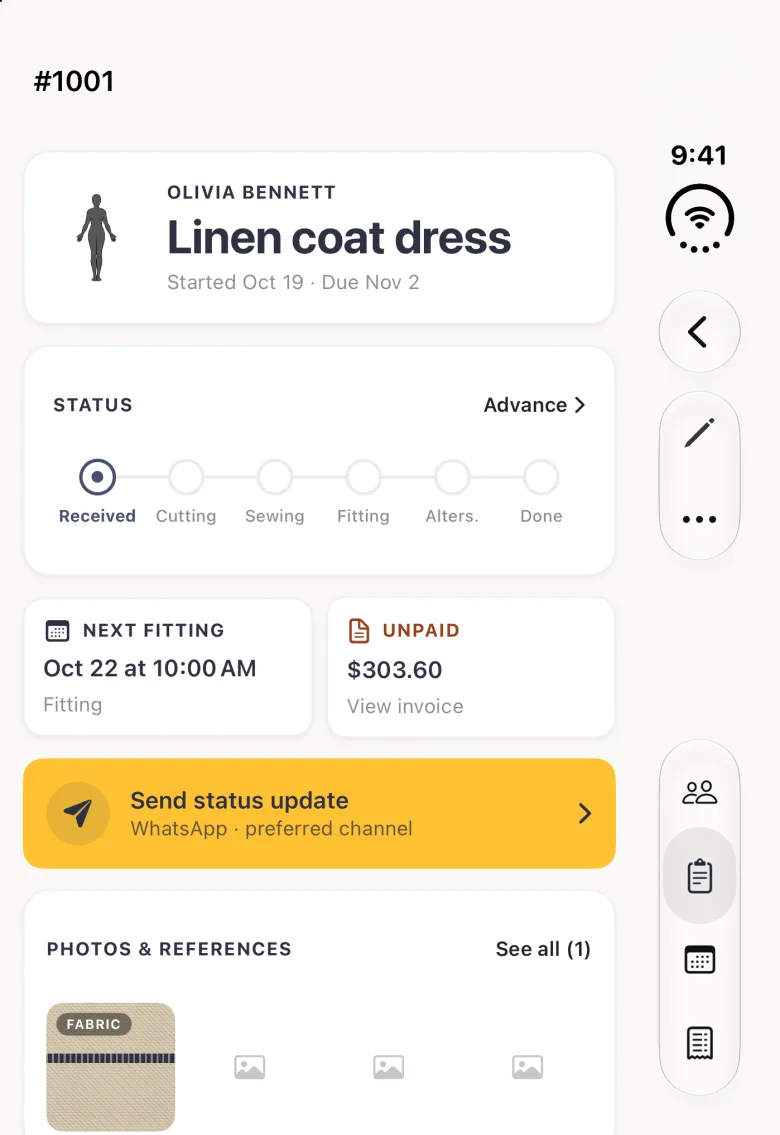
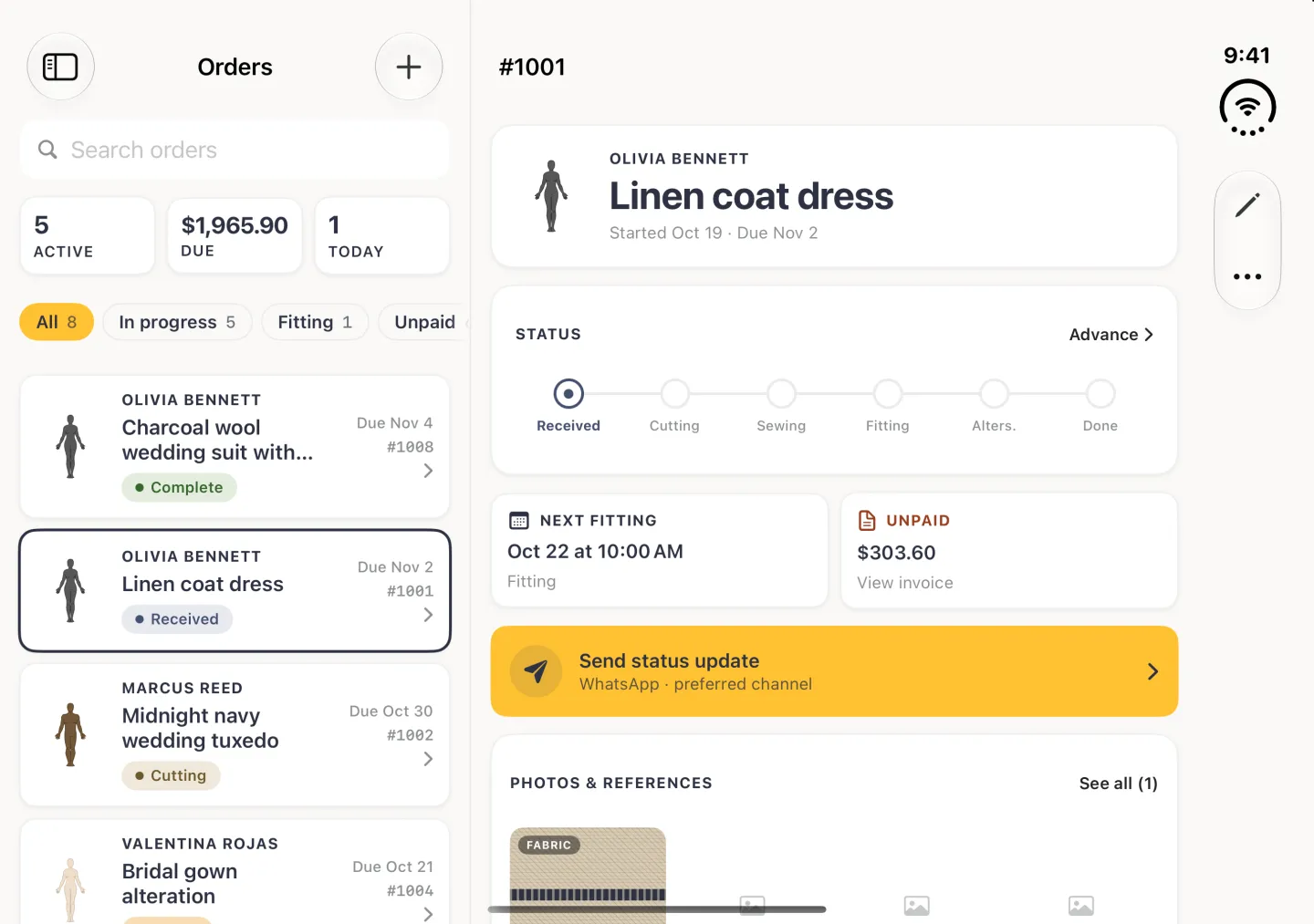
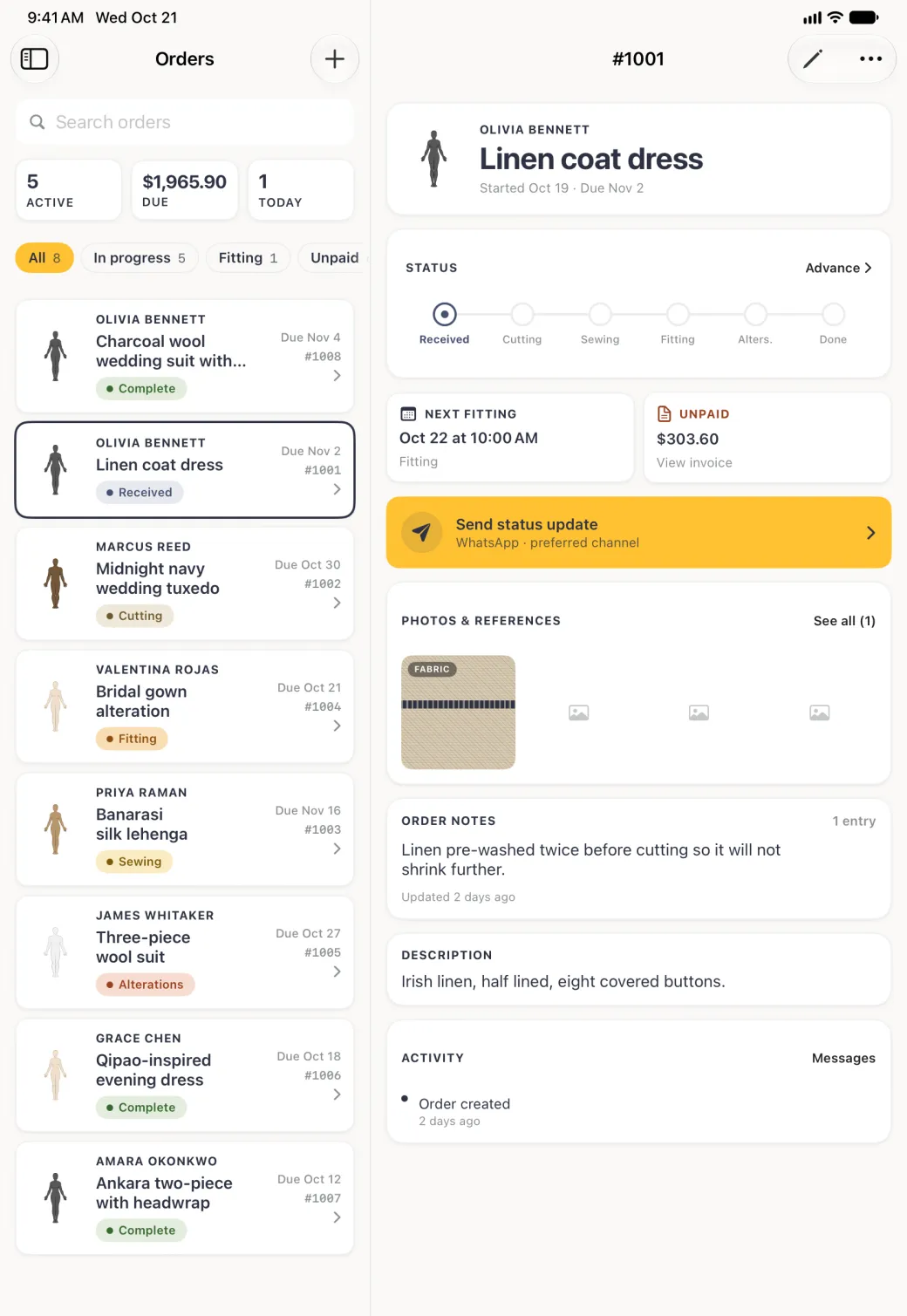
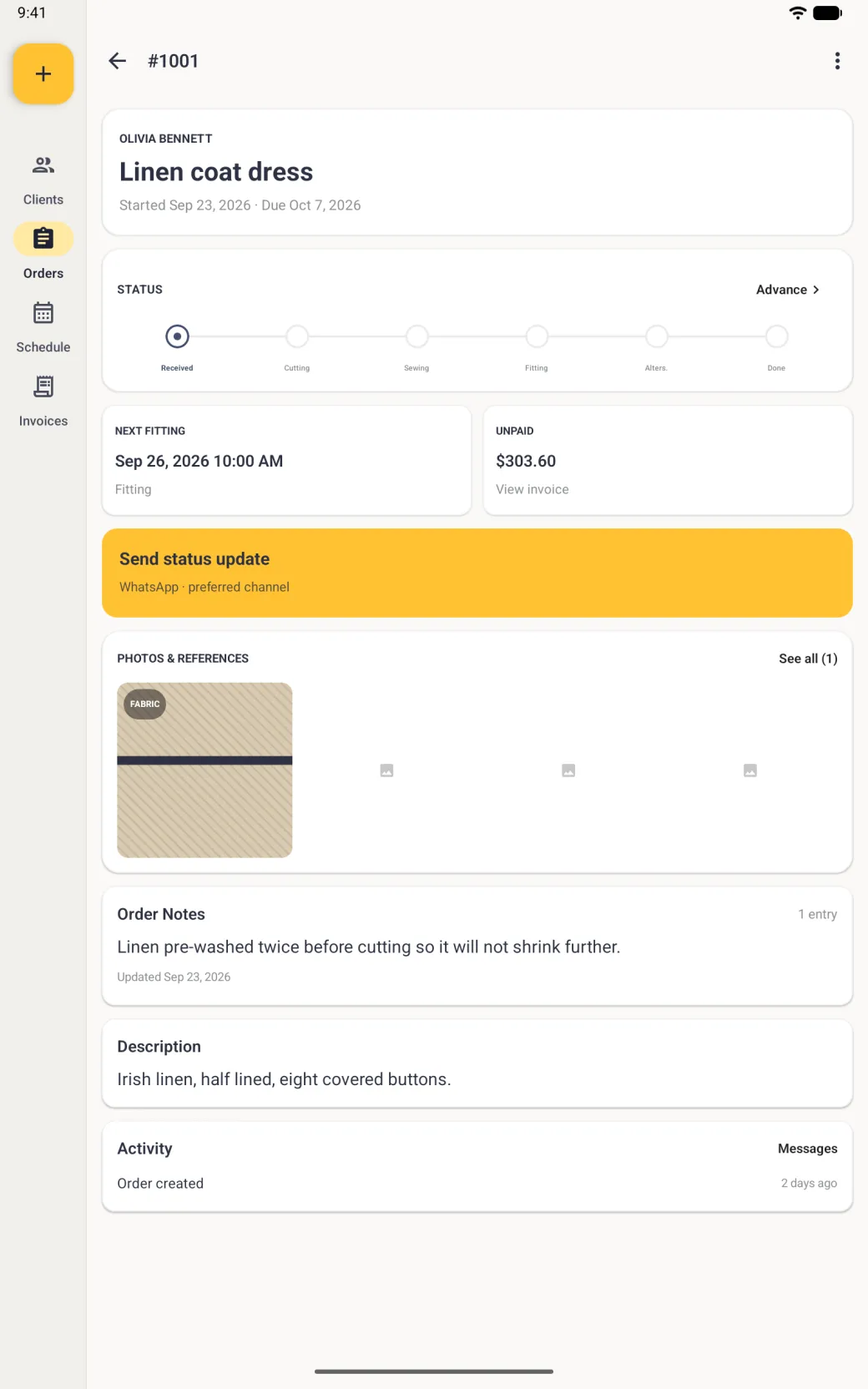
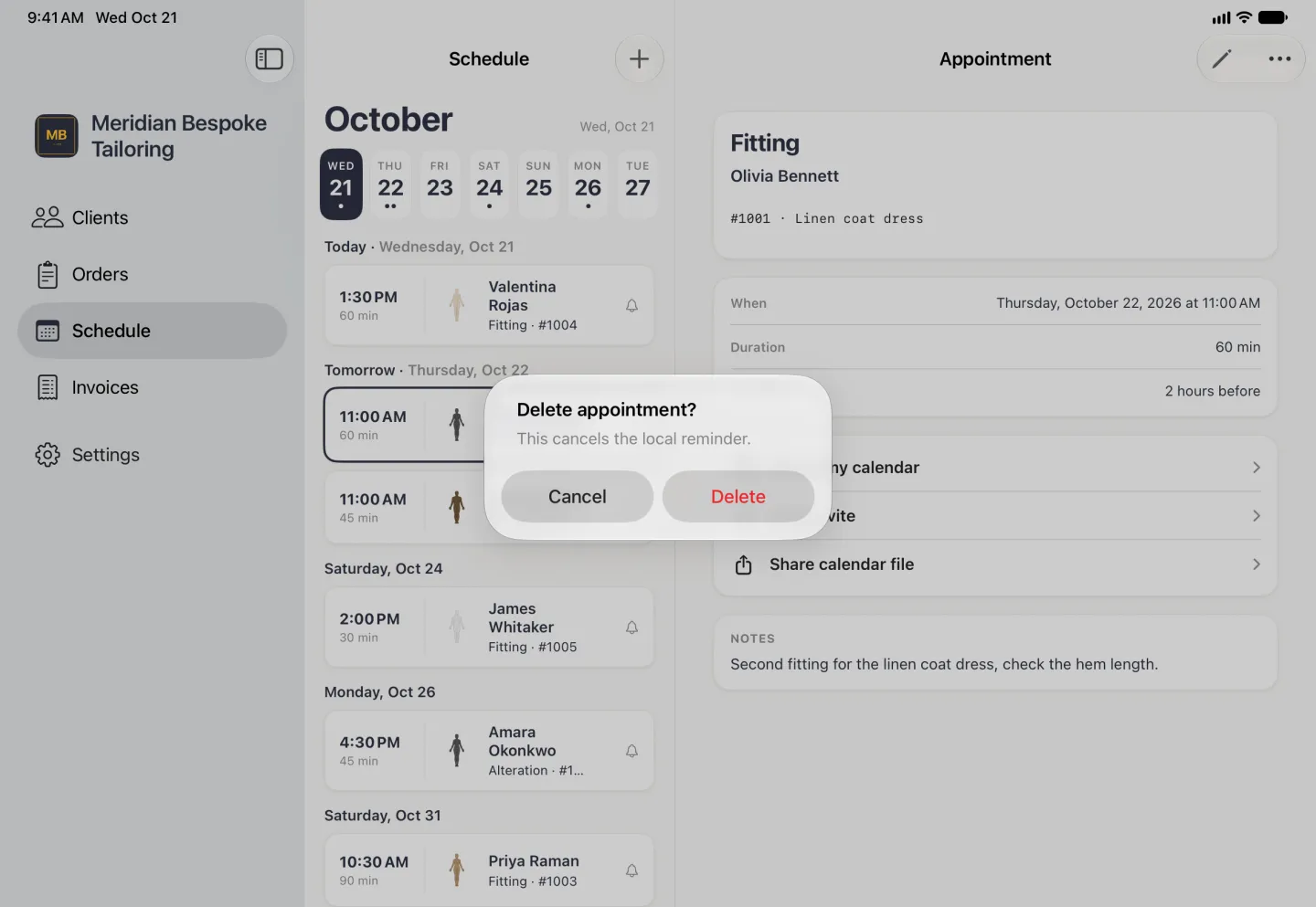
The Tailor Shop tools described here are on iPhone, iPad and Android. On iPad the tabs are a sidebar on the left, and on Android the tabs are a bar along the bottom of a phone and a rail down the left on a tablet. On iPhone Duo, opened, the list sits beside the page, the tabs sit behind the sidebar button at the top left and the bar buttons move to a strip on the right; closed, it works like an iPhone with the buttons and the four tabs in a strip on the right. Appointments belong to orders rather than to clients, so every booking names the job it is for.
What the Schedule tab shows
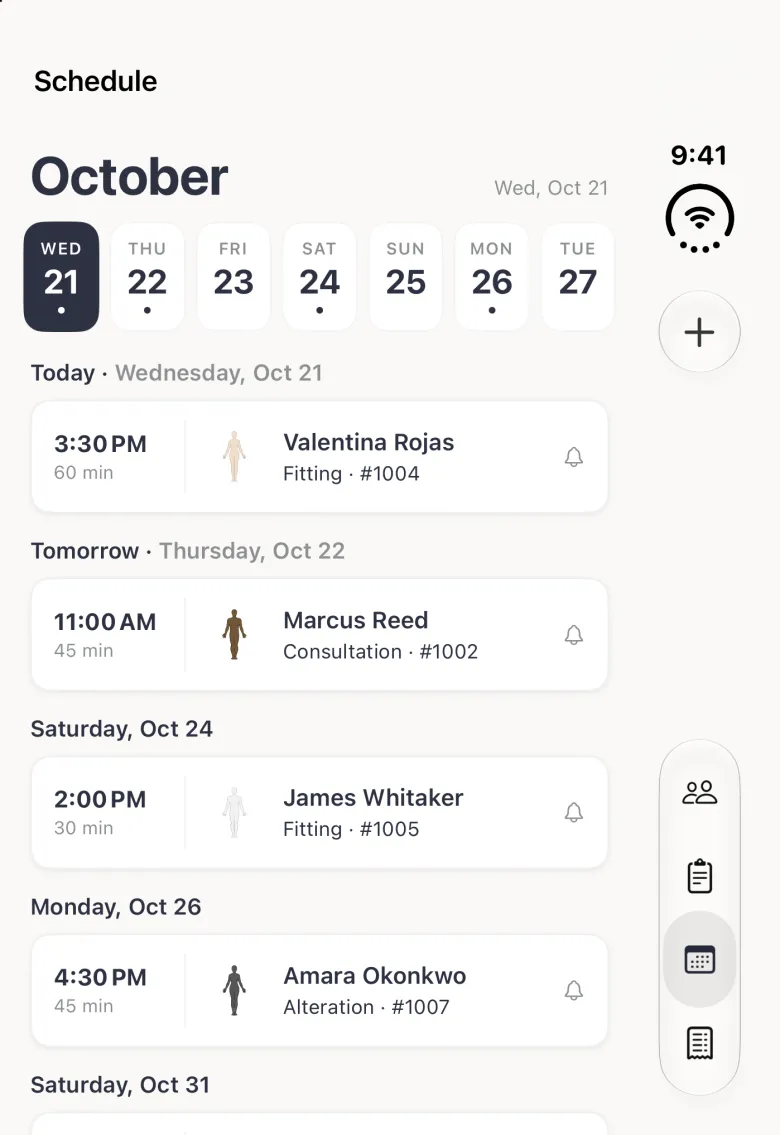
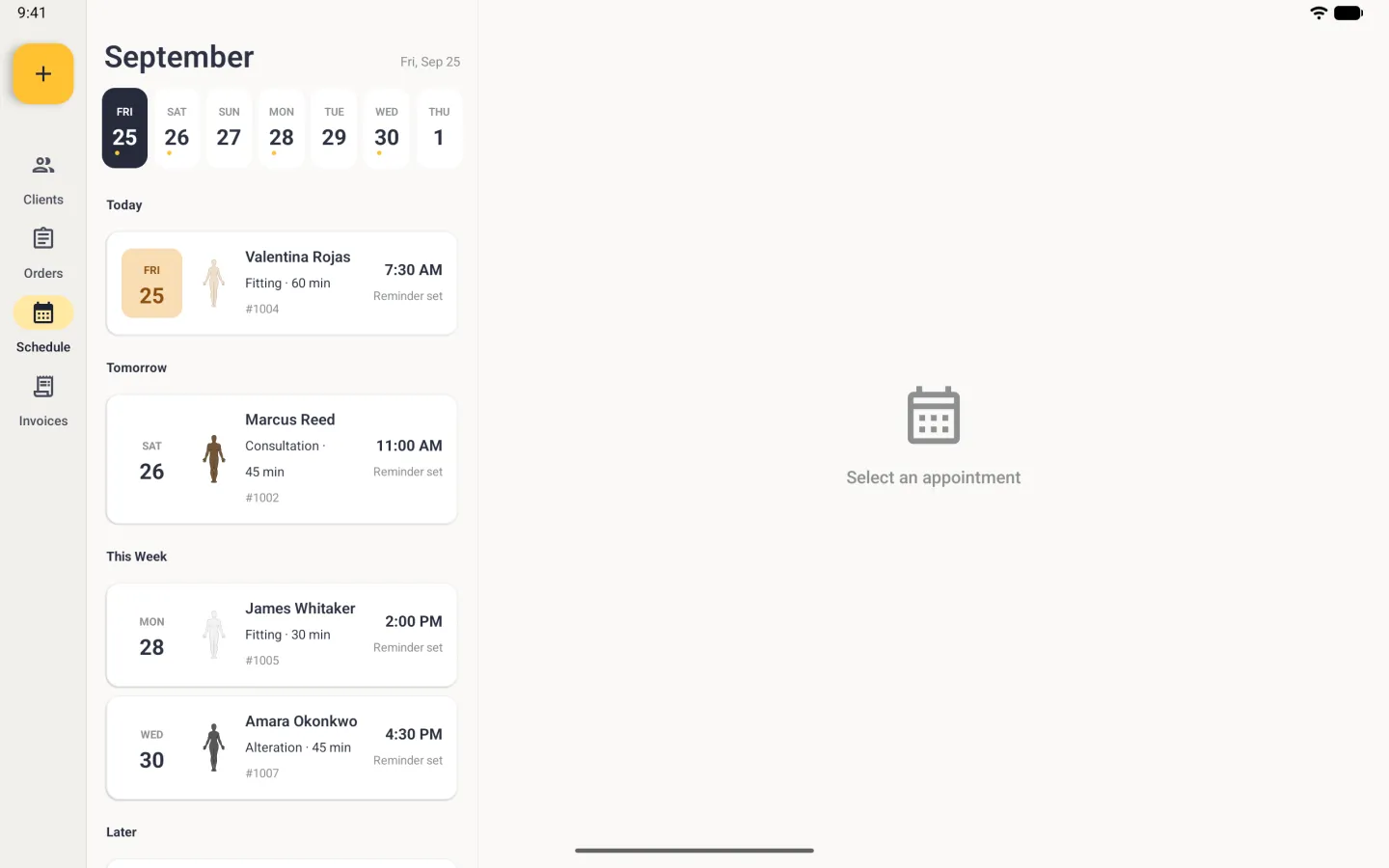
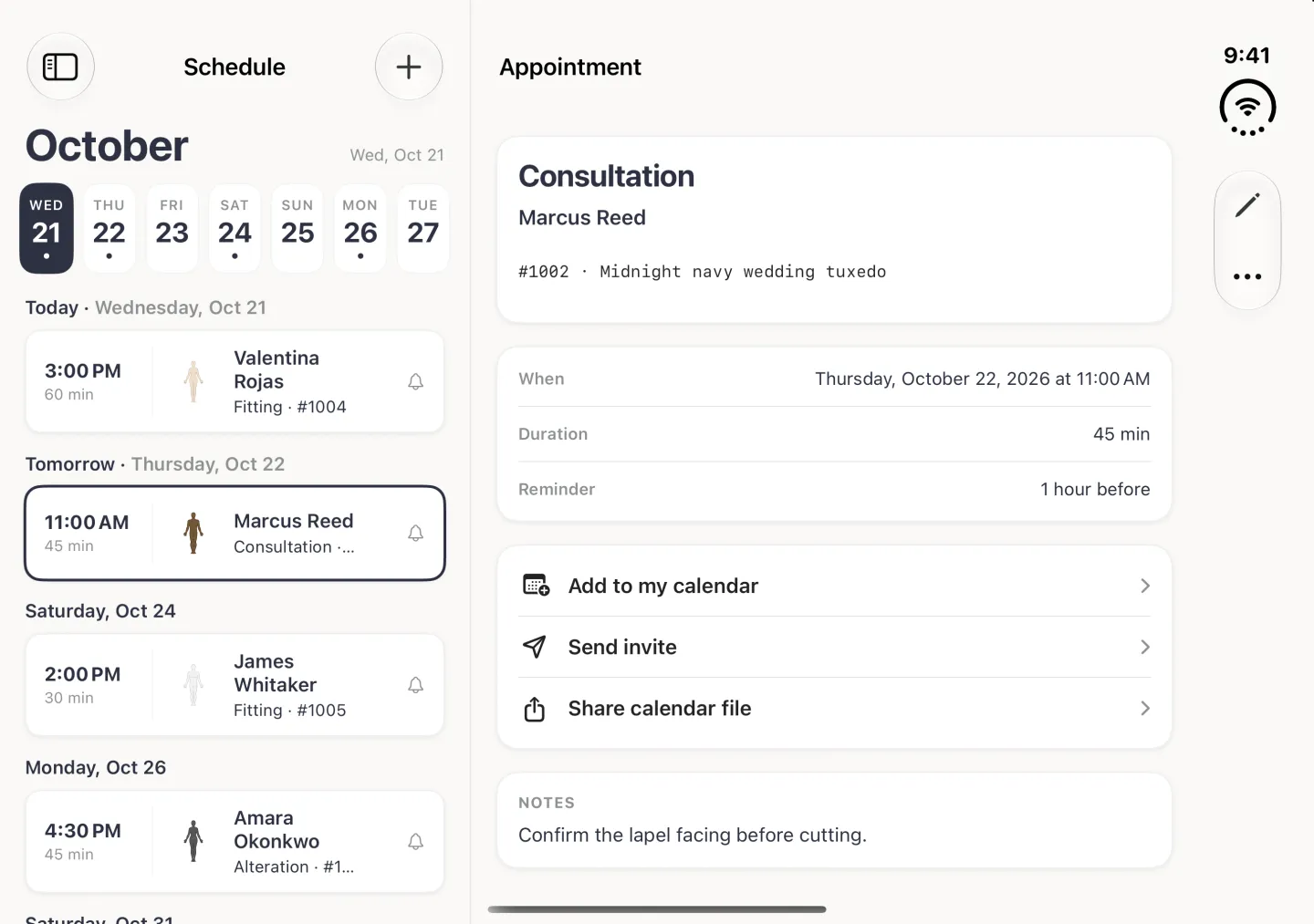
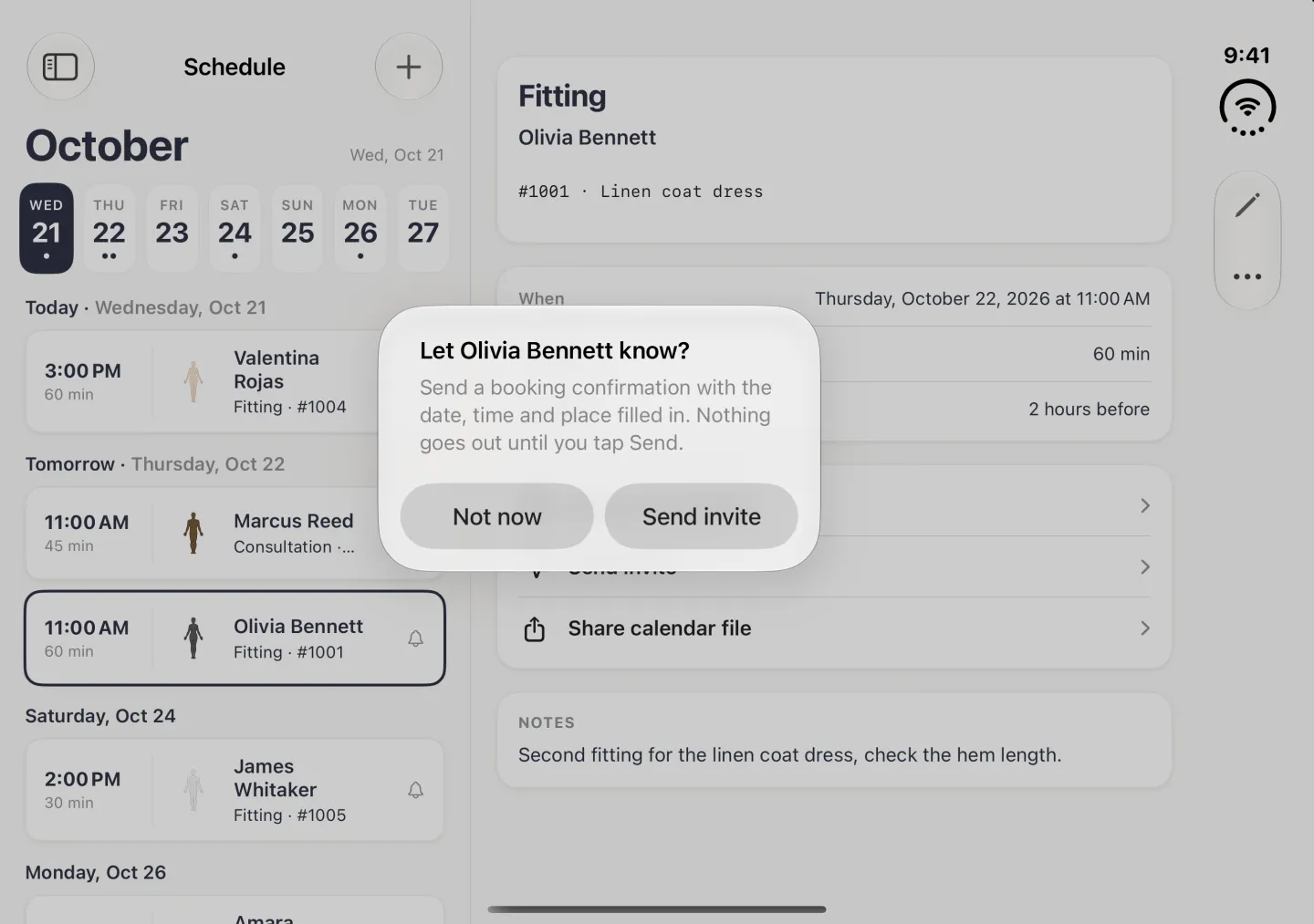
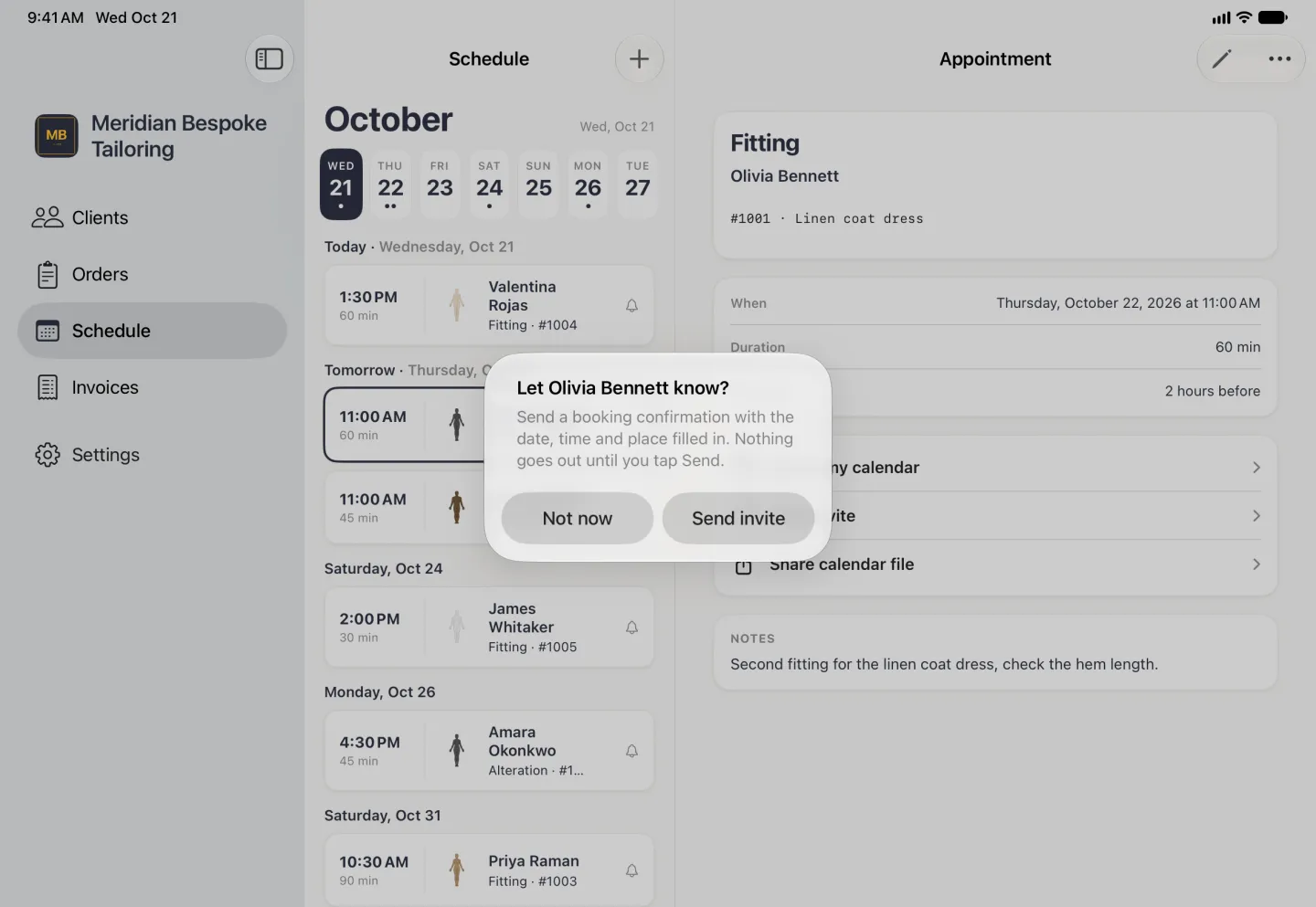
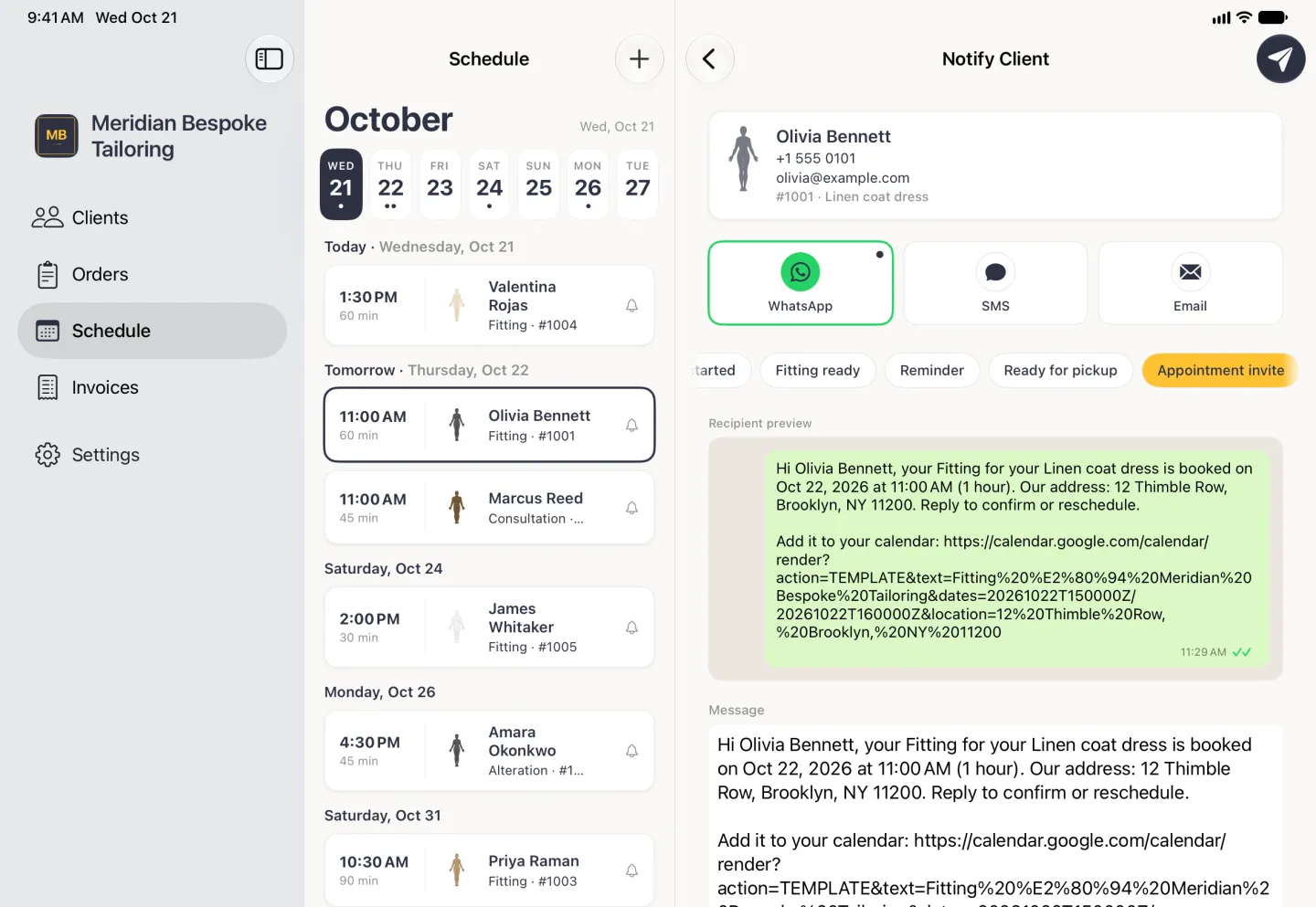
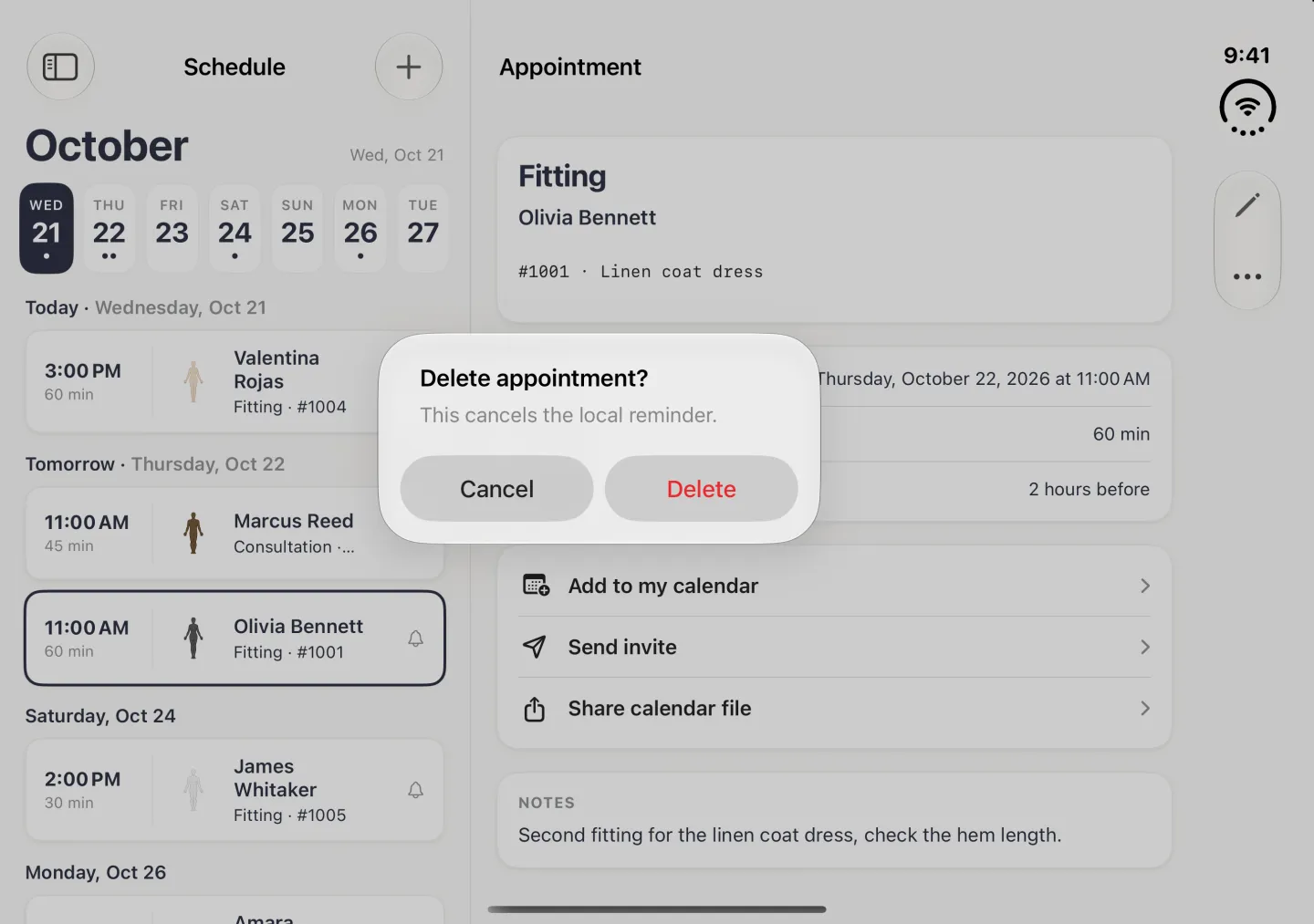
The Schedule tab lists every upcoming appointment by day, so the next job is always at the top. Under the month name is a strip of seven day pills: today is the filled navy pill, and a dot under a day means that day has appointments, up to three dots. The strip is there to read, not to tap.
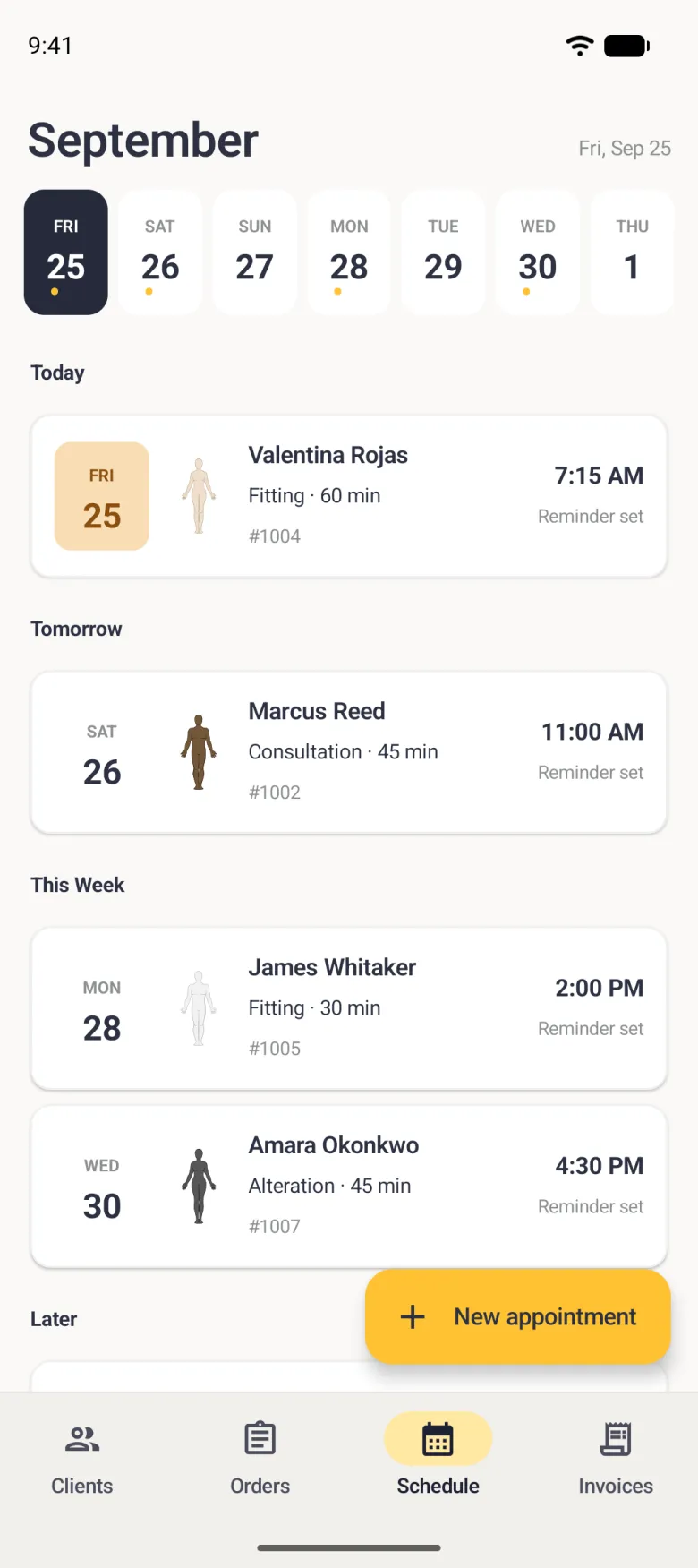
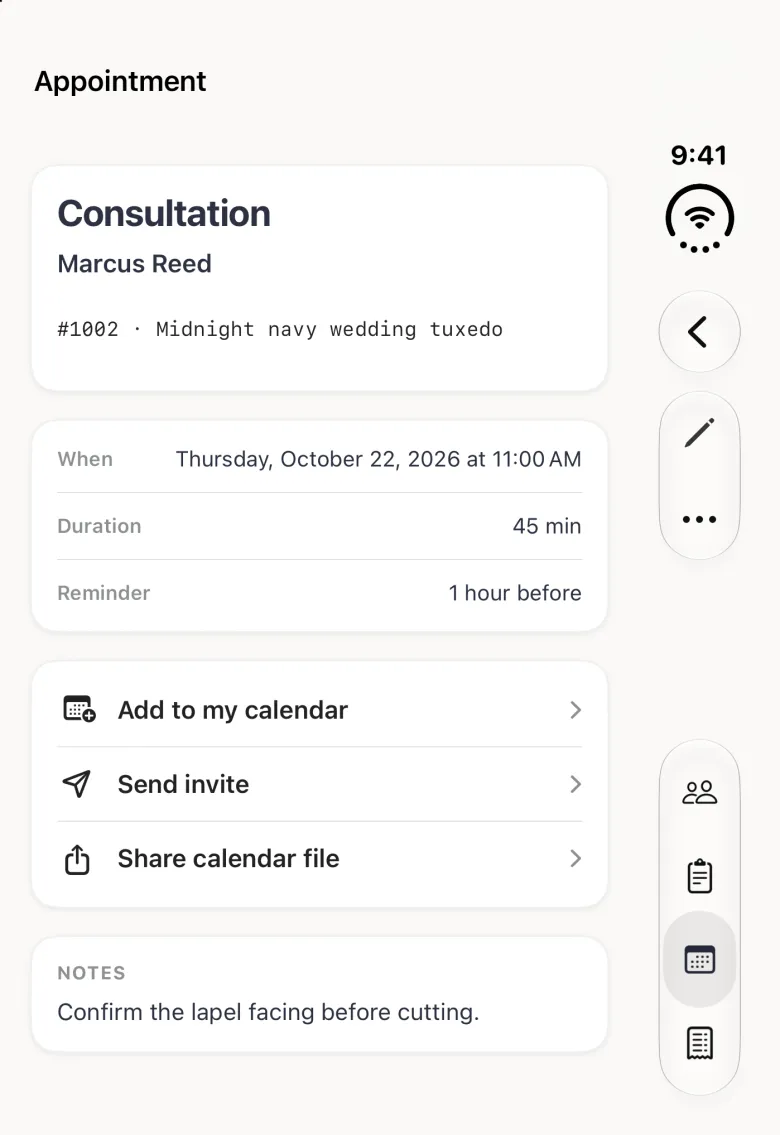
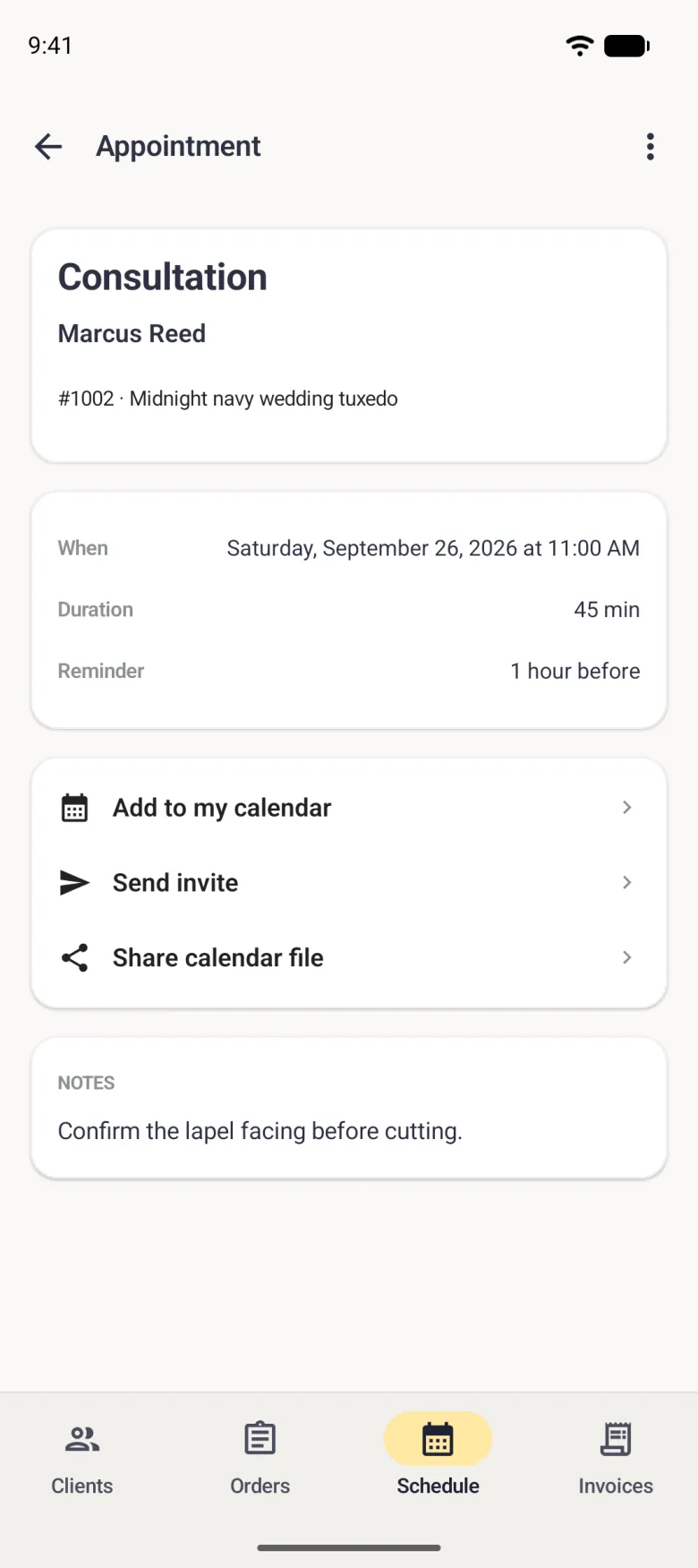
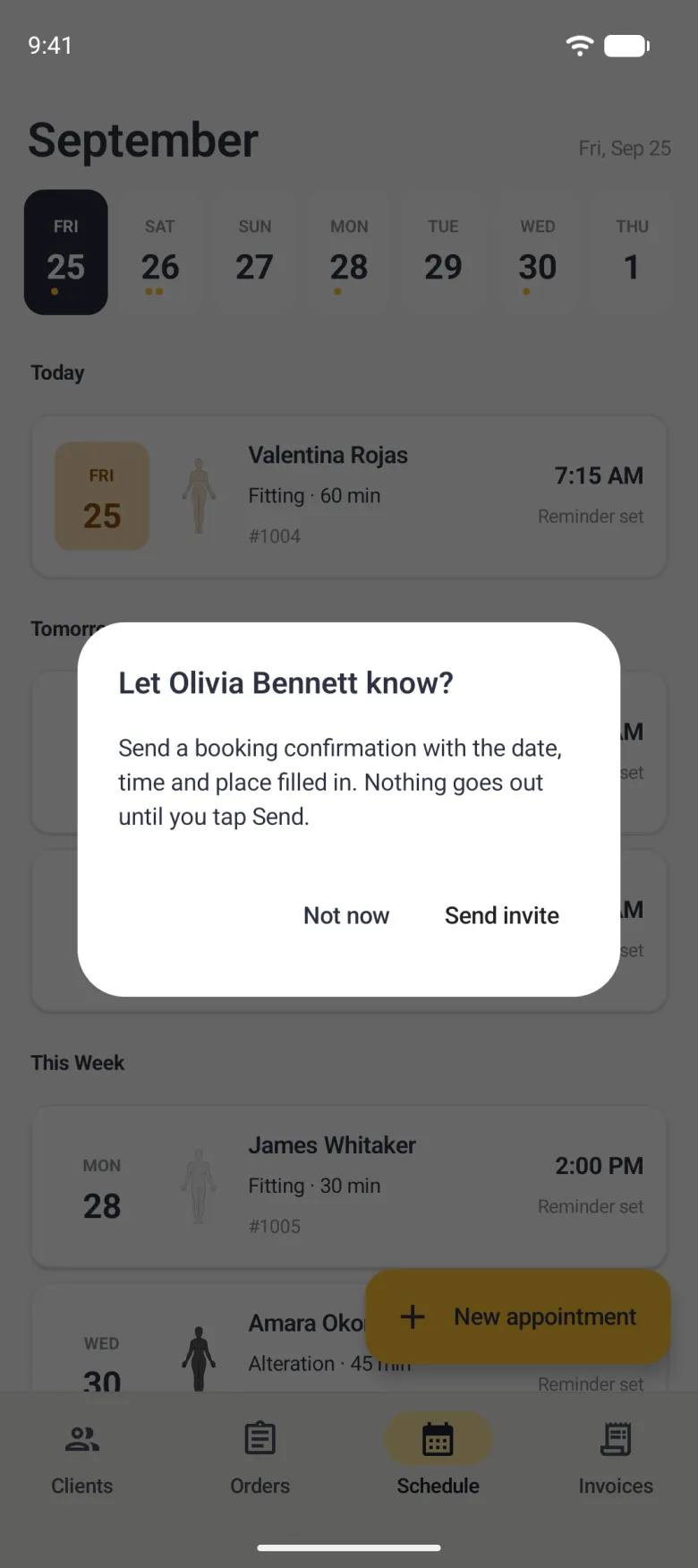
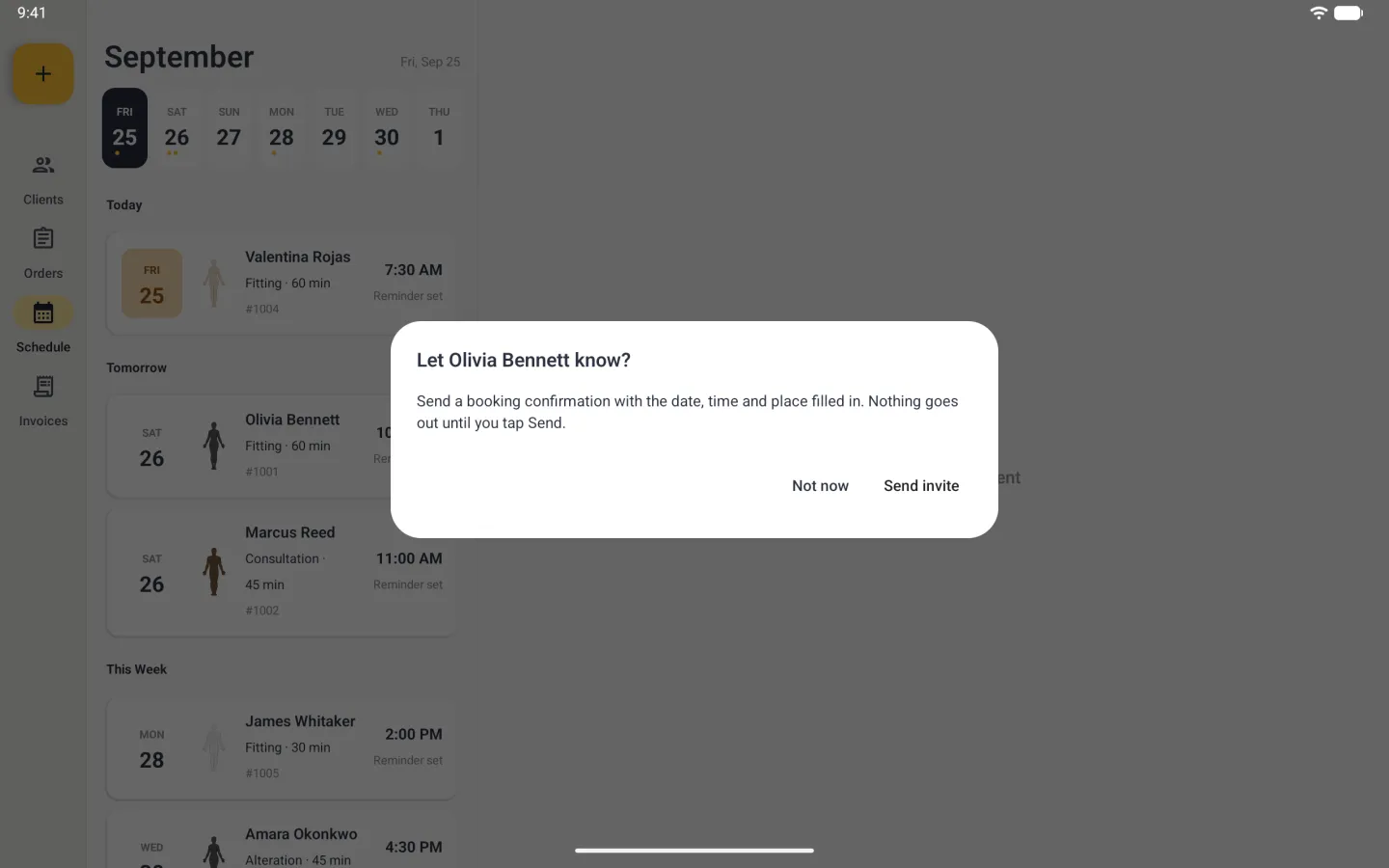
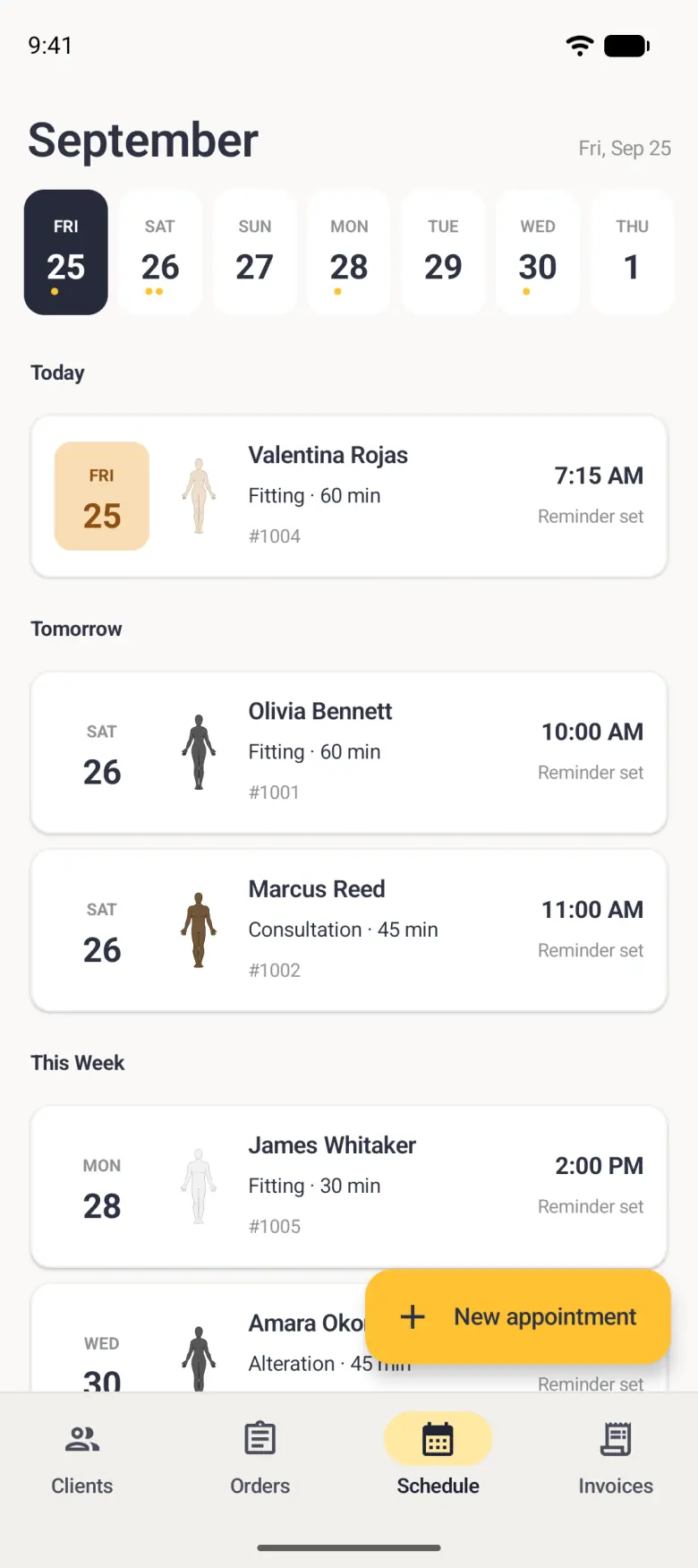
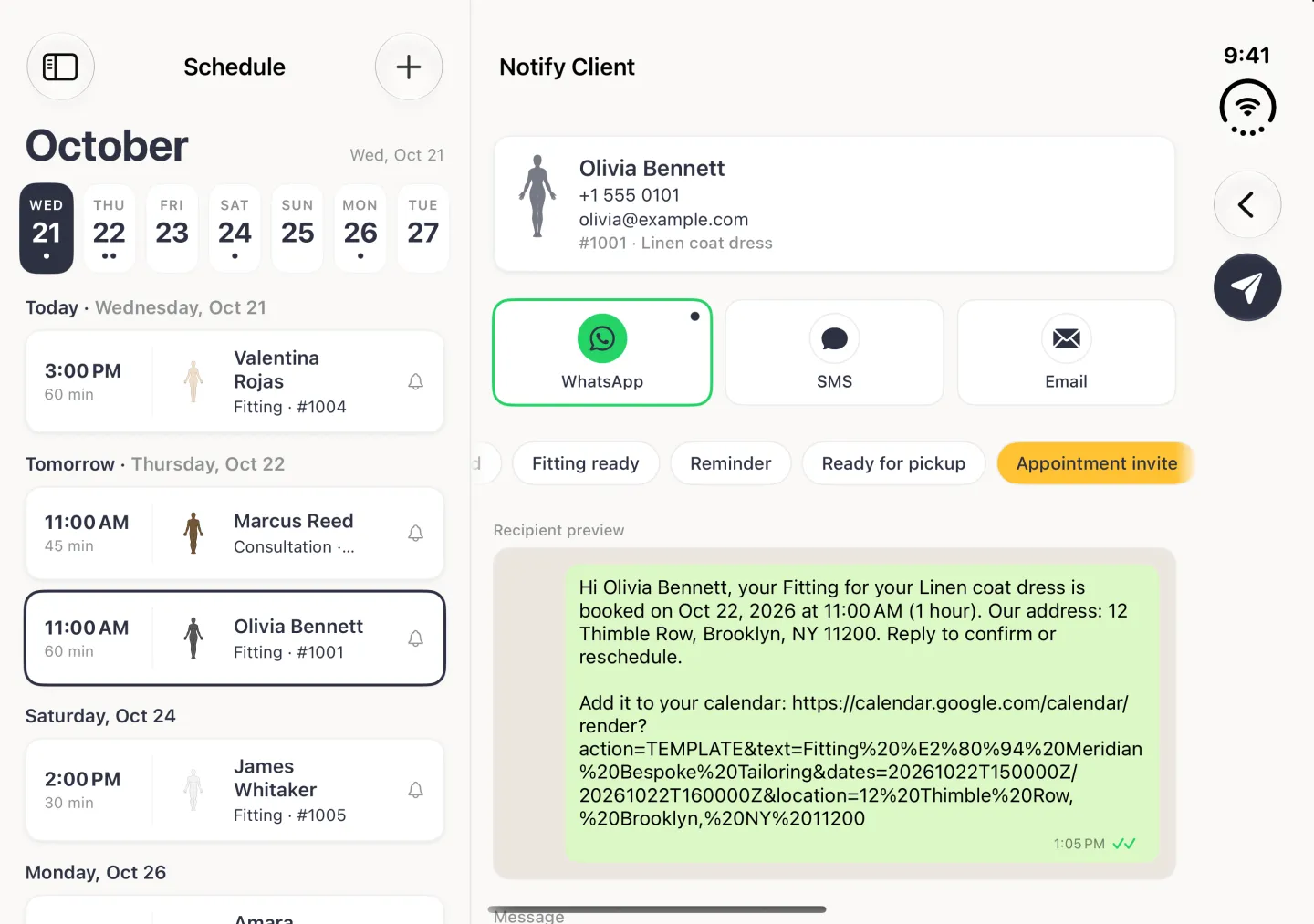
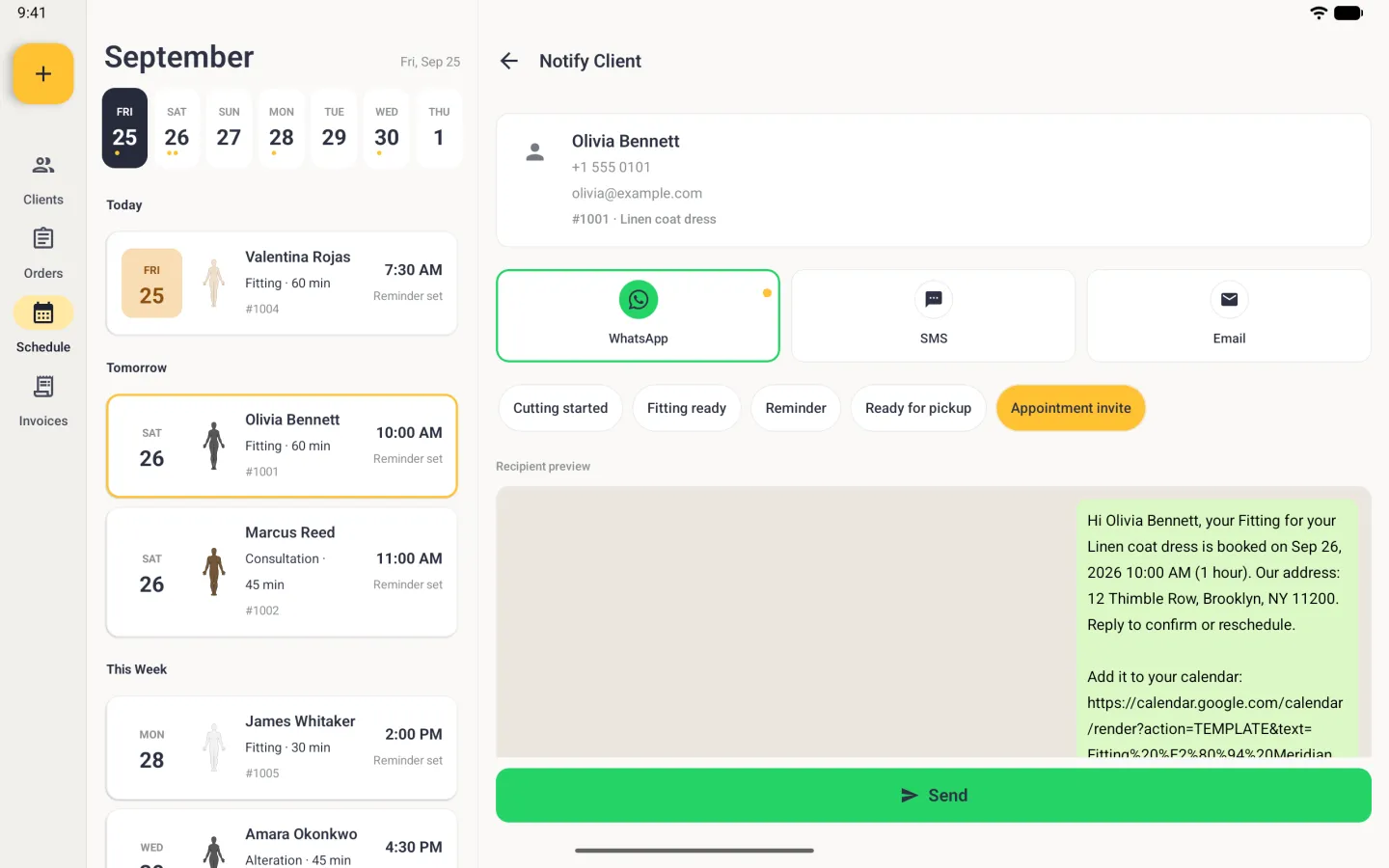
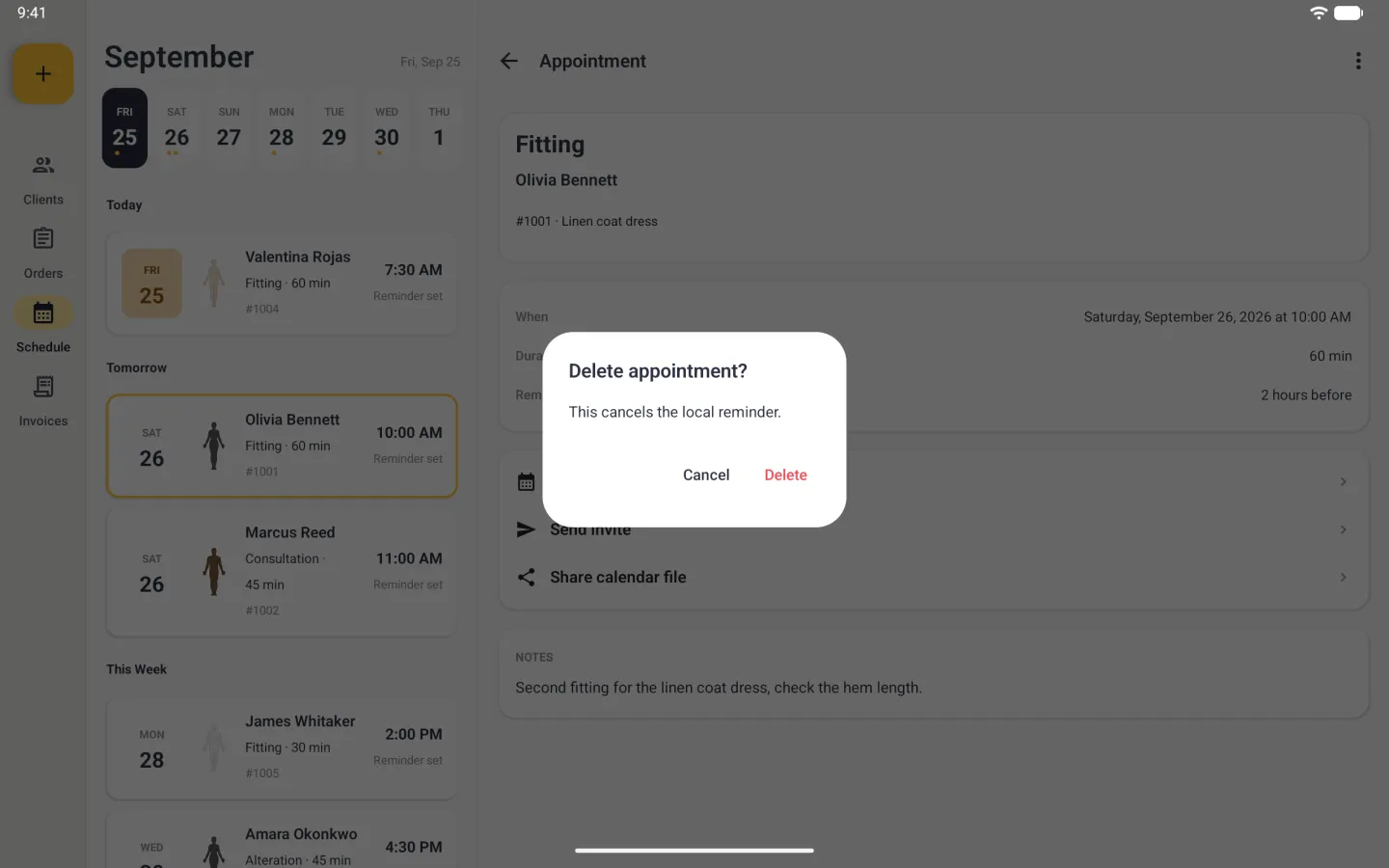
Below the strip each day has its own heading, with Today and Tomorrow named in front of the date. Each row gives the start time and length, the client, the kind of appointment and the order number, with a small bell at the right end when a reminder is waiting. On Android the list is grouped under Today, Tomorrow, This Week and Later instead (This Week means the next seven days), the dots under the days are gold, and Reminder set is written under the time. Tap a row to open the appointment in full, and while the booking is still ahead the detail also carries a card of three rows, Add to my calendar, Send invite and Share calendar file, above the note you left yourself.



How to book an appointment
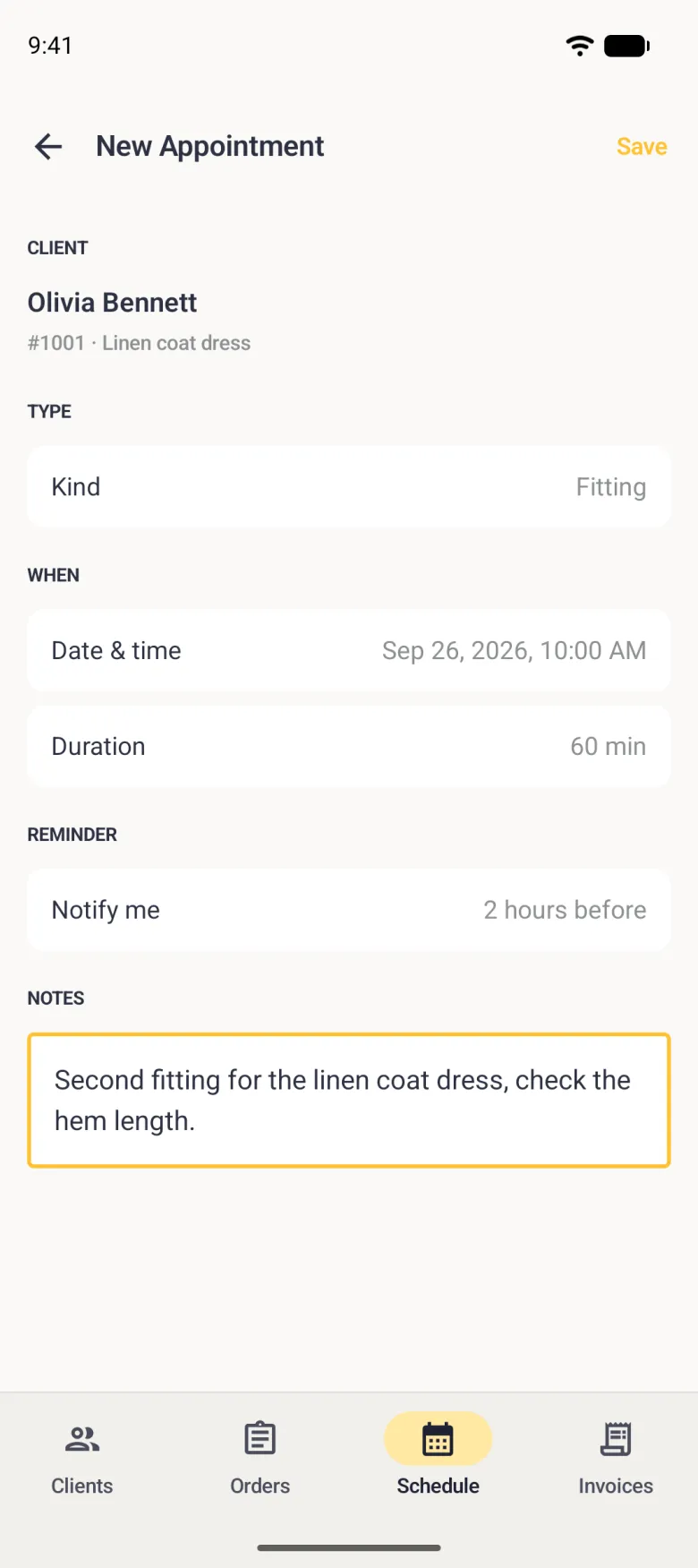
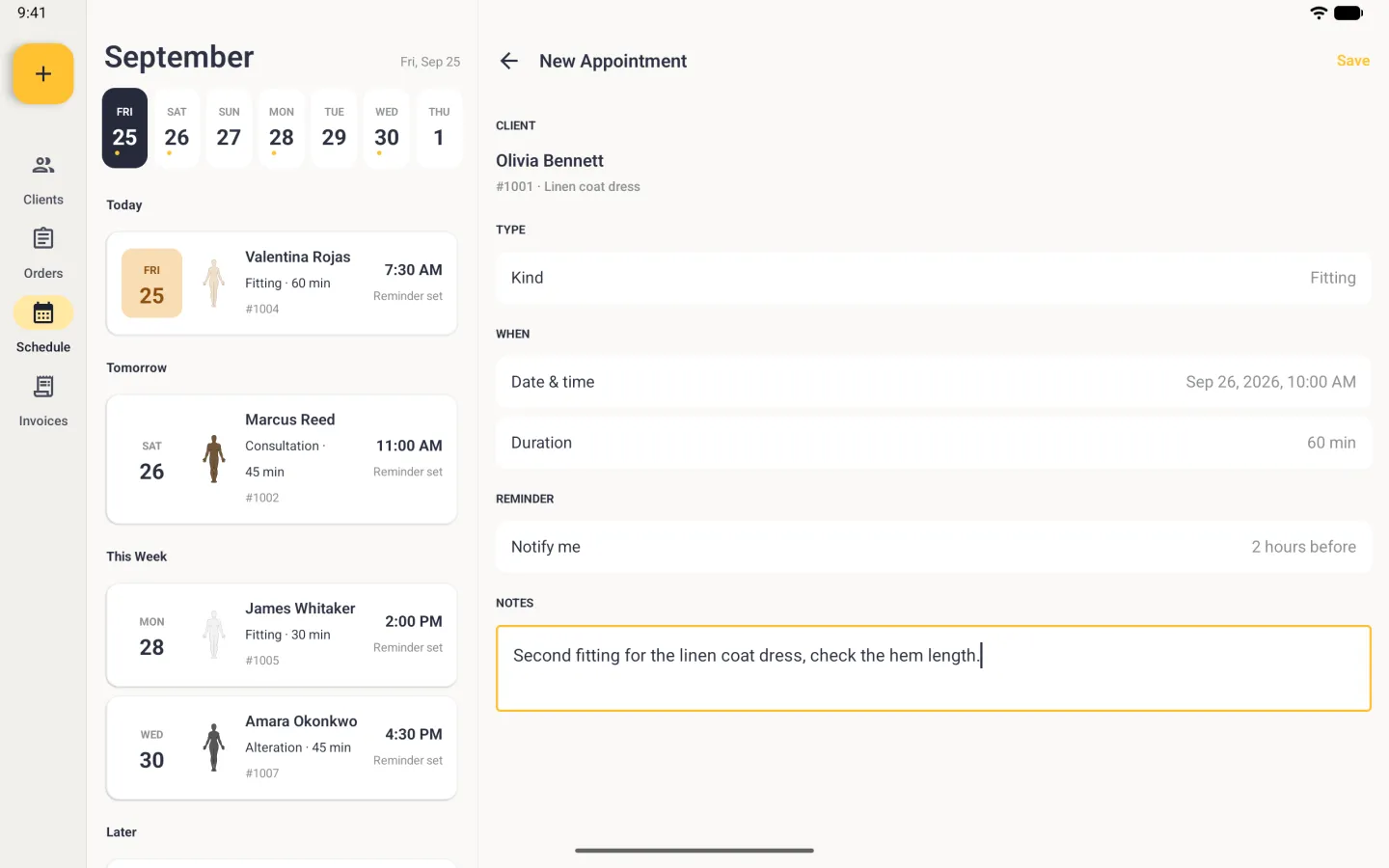
Every appointment is attached to an order, so the plus button asks which order first. The rest of the form is short: what kind of appointment it is, when it starts, how long it runs, and how far ahead you want reminding. When you save, the app offers to tell the client.
On Android the New appointment button is a labelled gold floating button at the bottom right of the Schedule tab instead of a plus in the top bar, and it shrinks to a plus while the list scrolls. On an Android tablet it sits at the top of the navigation rail.
- Tap the plus button at the top right of the Schedule tab.
- Pick the order from the Choose an order sheet, or search for it.
- Set Kind to Fitting, Pickup, Consultation or Alteration. The kind shows as the label on the schedule card.
- Tap the date chip and pick a day, then the time chip and set the time.
- Choose a duration of 15, 30, 45, 60 or 90 minutes.
- Set Notify me to 15 minutes, 30 minutes, 1 hour, 2 hours or 4 hours before. New appointments start at the default you chose in App Settings.
- Add a note about what the client should bring or what to check.
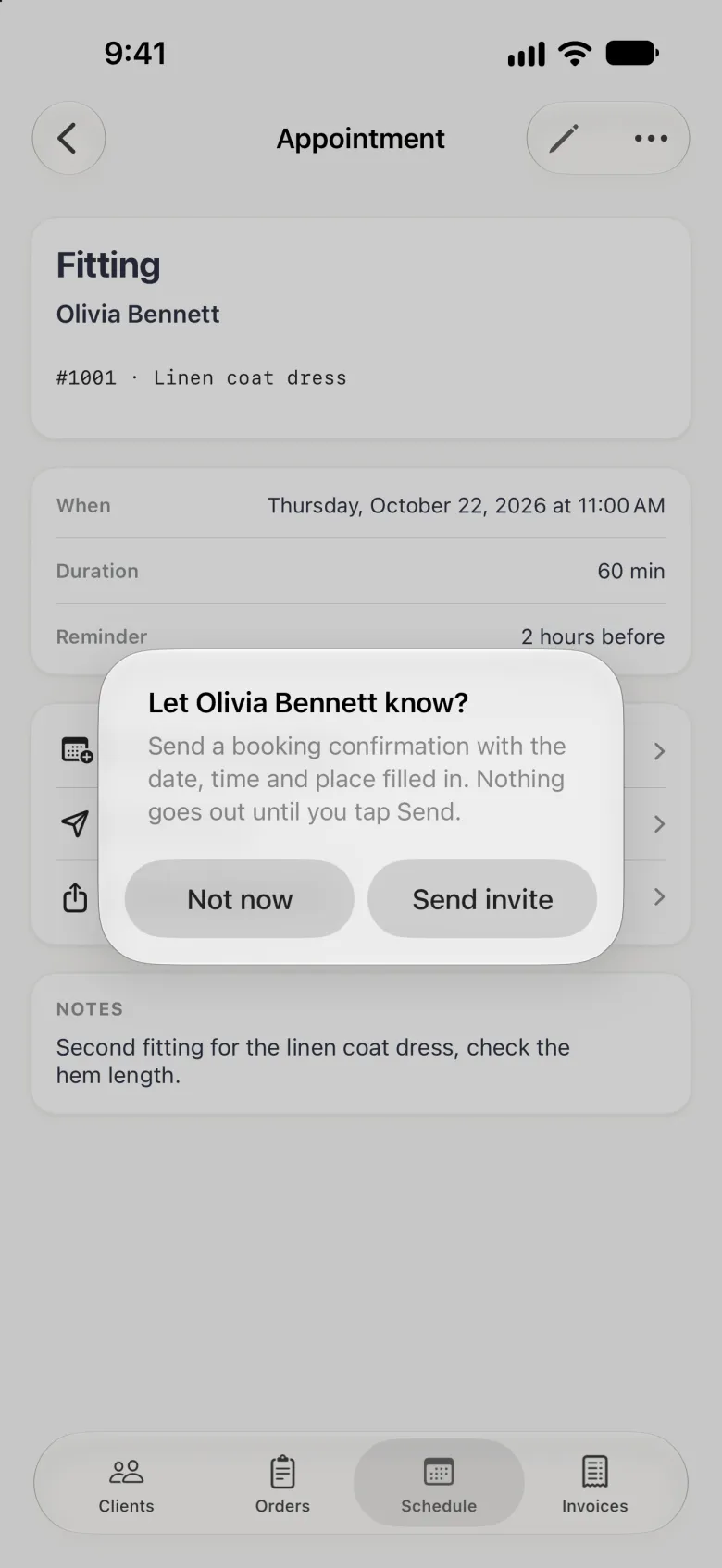
- Tap the checkmark at the top right, or Save on Android. On iPhone and iPad the new appointment’s page opens with an alert over it asking whether to let the client know; on Android the alert appears over the Schedule.
- Tap Send invite to write them a booking confirmation, or Not now to leave it. Either way the appointment takes its place on the schedule.
The offer comes up after you save a new appointment, whether you started from the plus button or from an order’s Next Fitting card. Send invite opens the message composer on the Appointment invite template, and nothing reaches the client until you tap Send there. Editing an appointment you already booked does not ask, so tell the client yourself when a time moves.


What you can do with a booked appointment
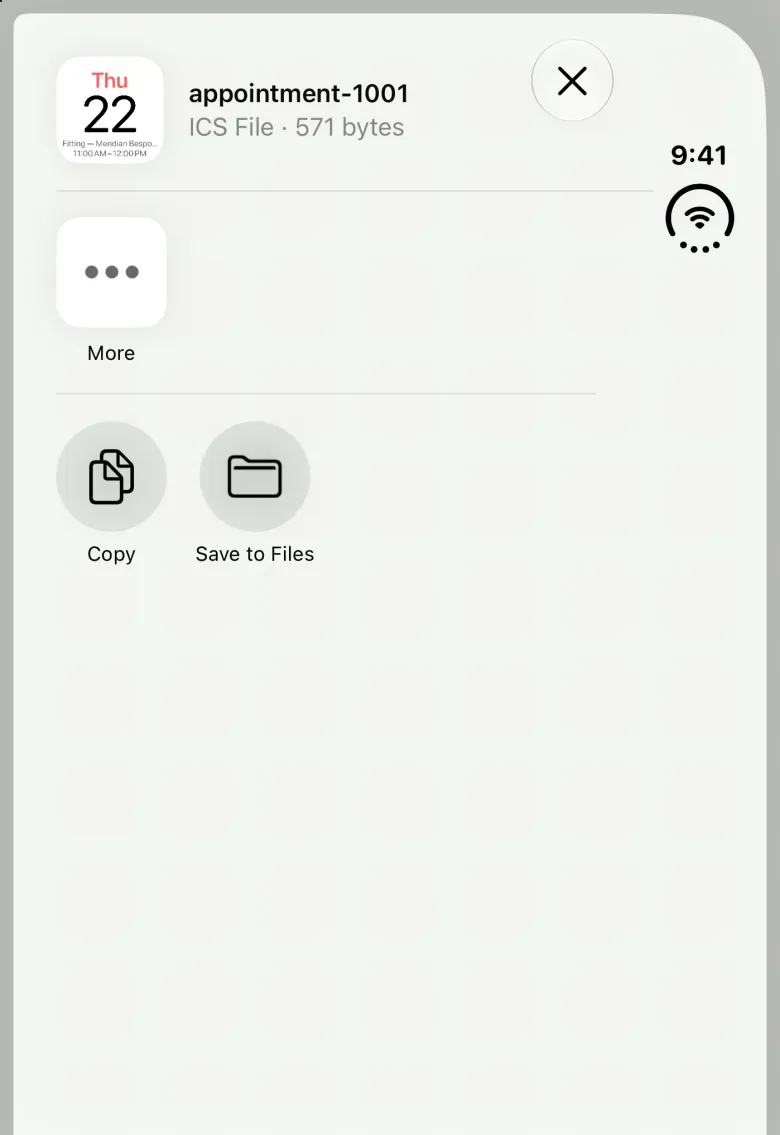
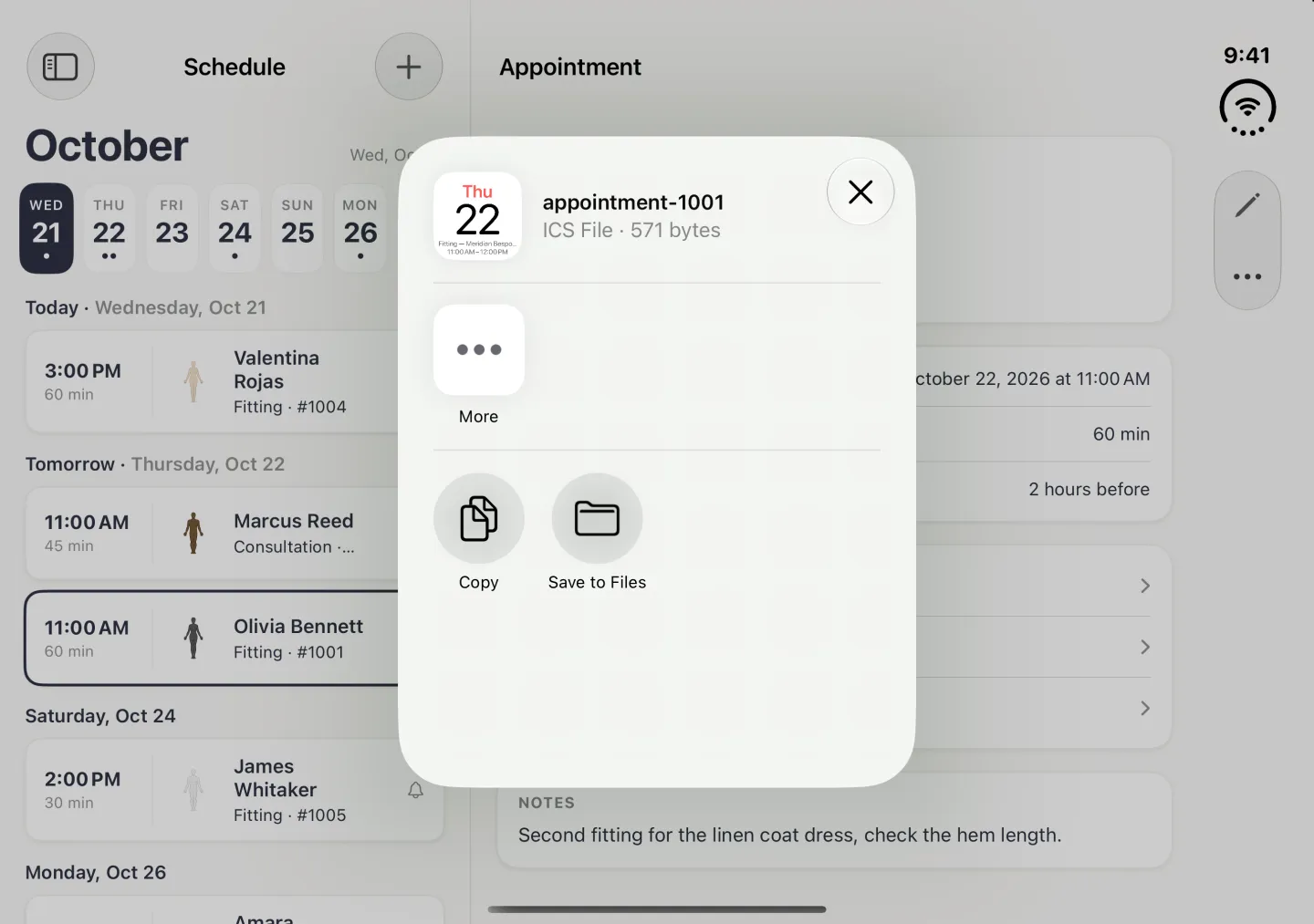
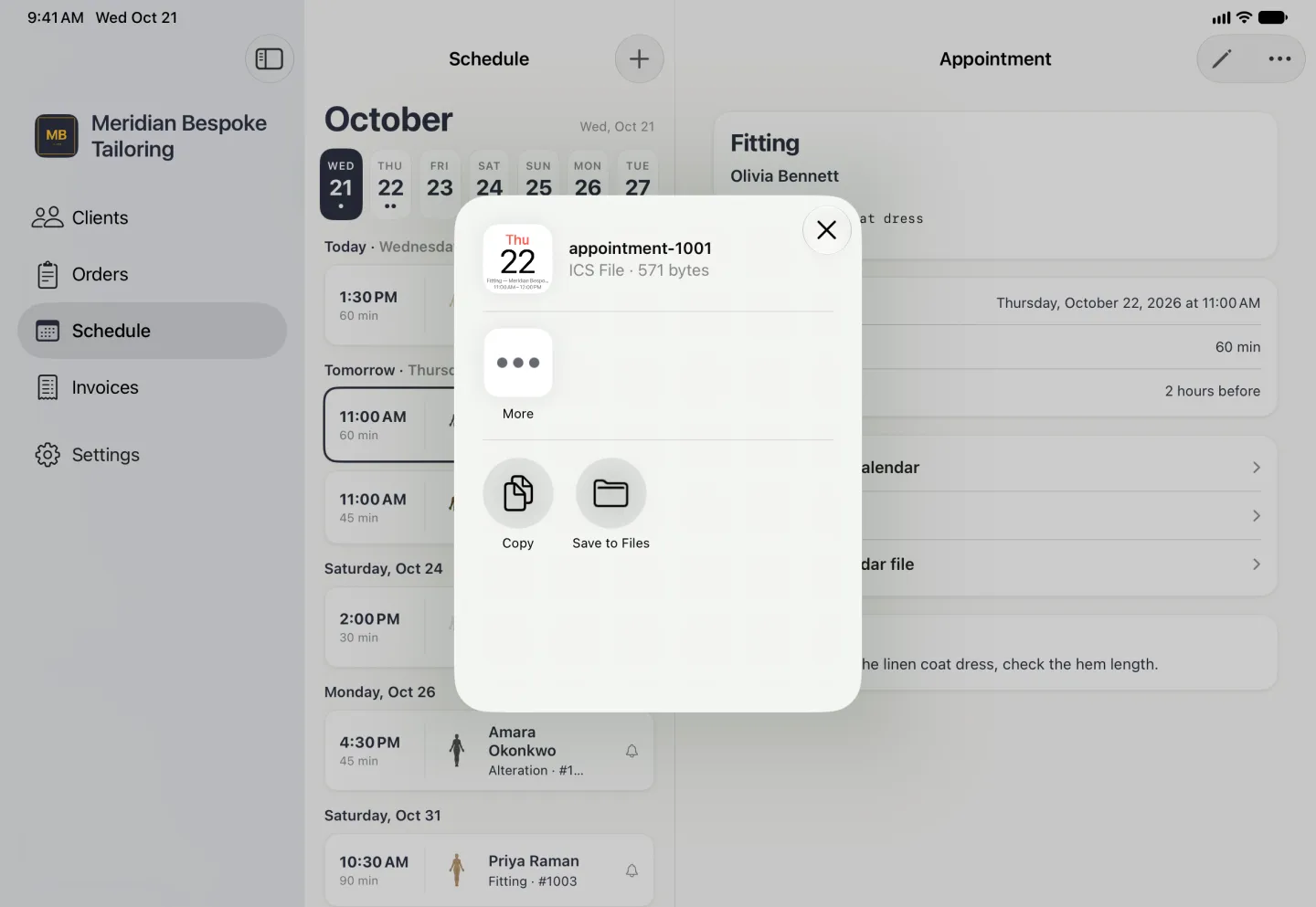
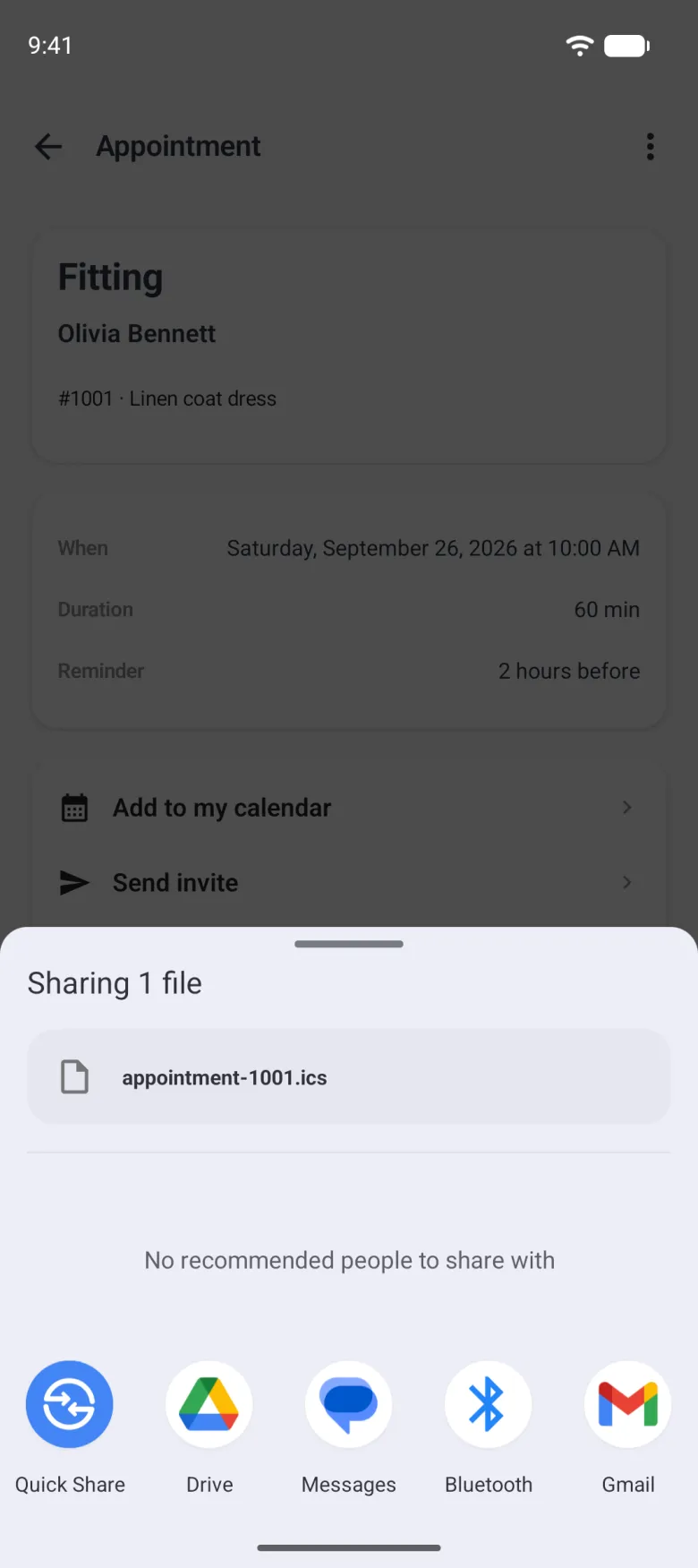
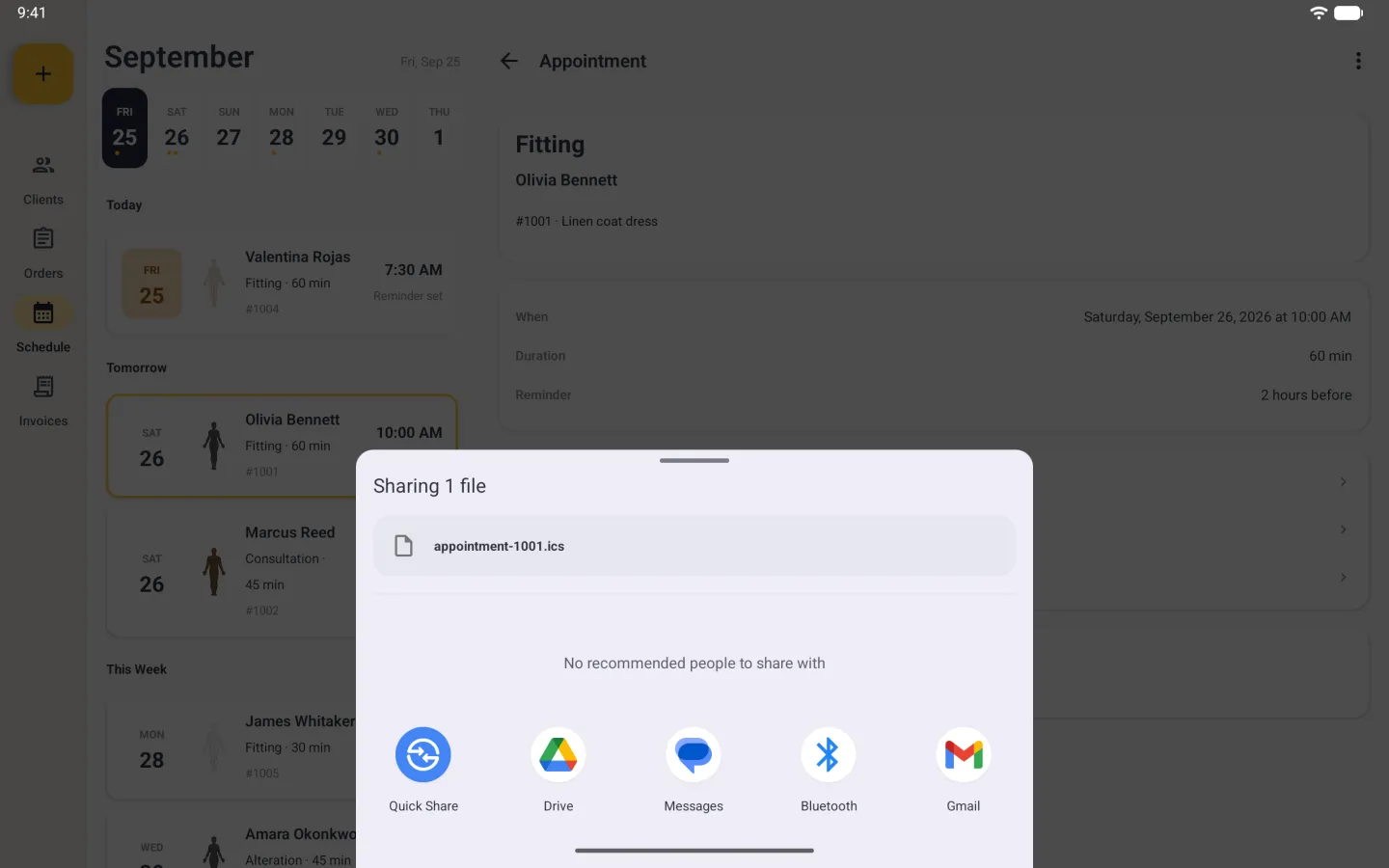
An appointment that is still ahead ends in a card of three rows, and each one hands the booking to something else. Add to my calendar puts it in the calendar you keep yourself, Send invite tells the client, and Share calendar file passes the booking on as a file. Once the appointment is in the past the card is gone, because there is nothing left to arrange.
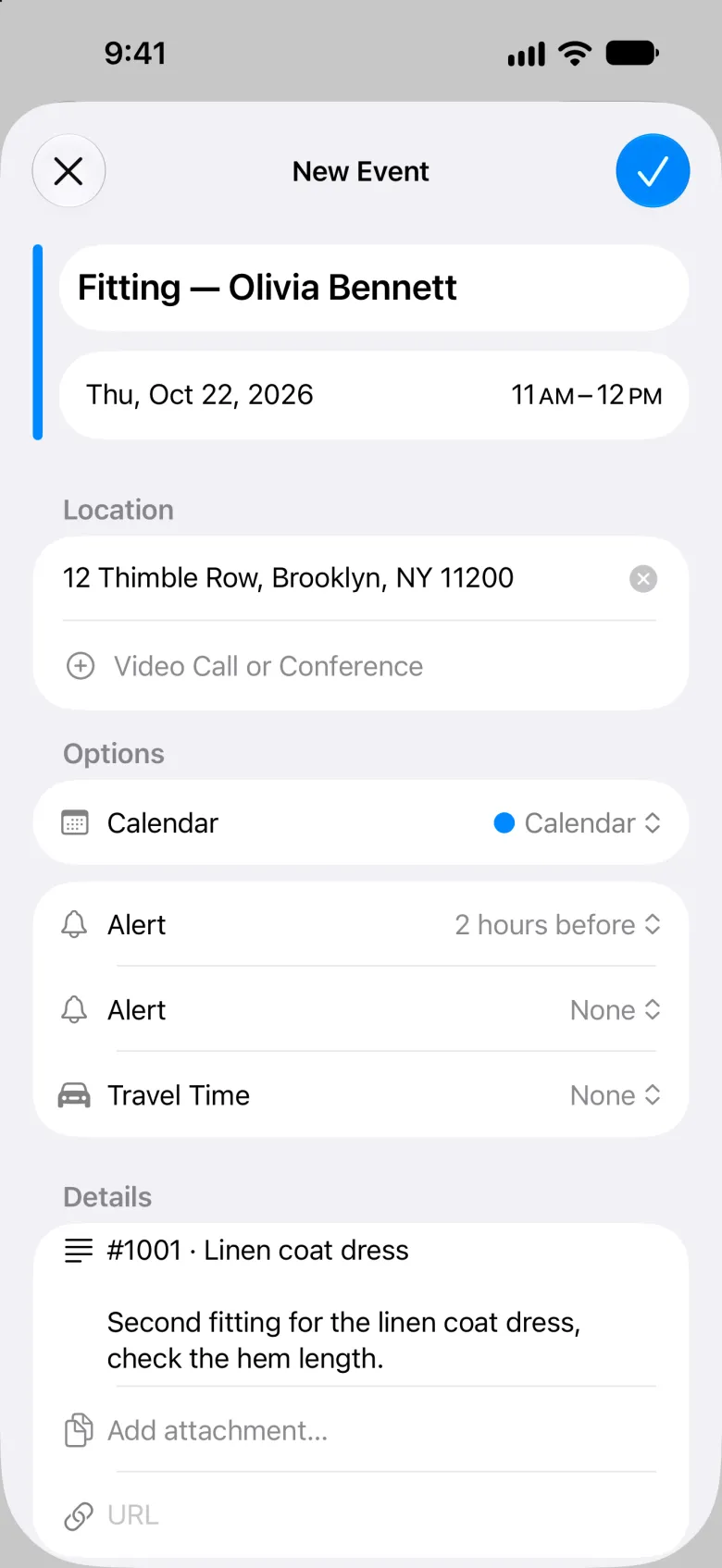
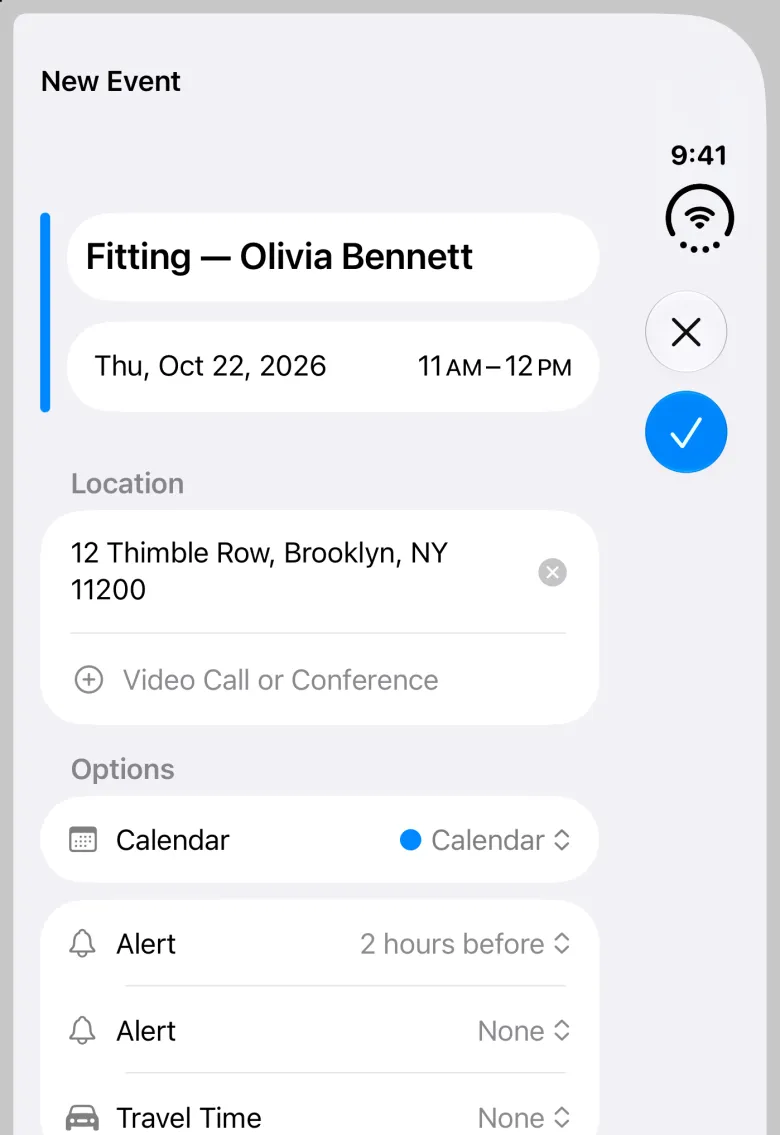
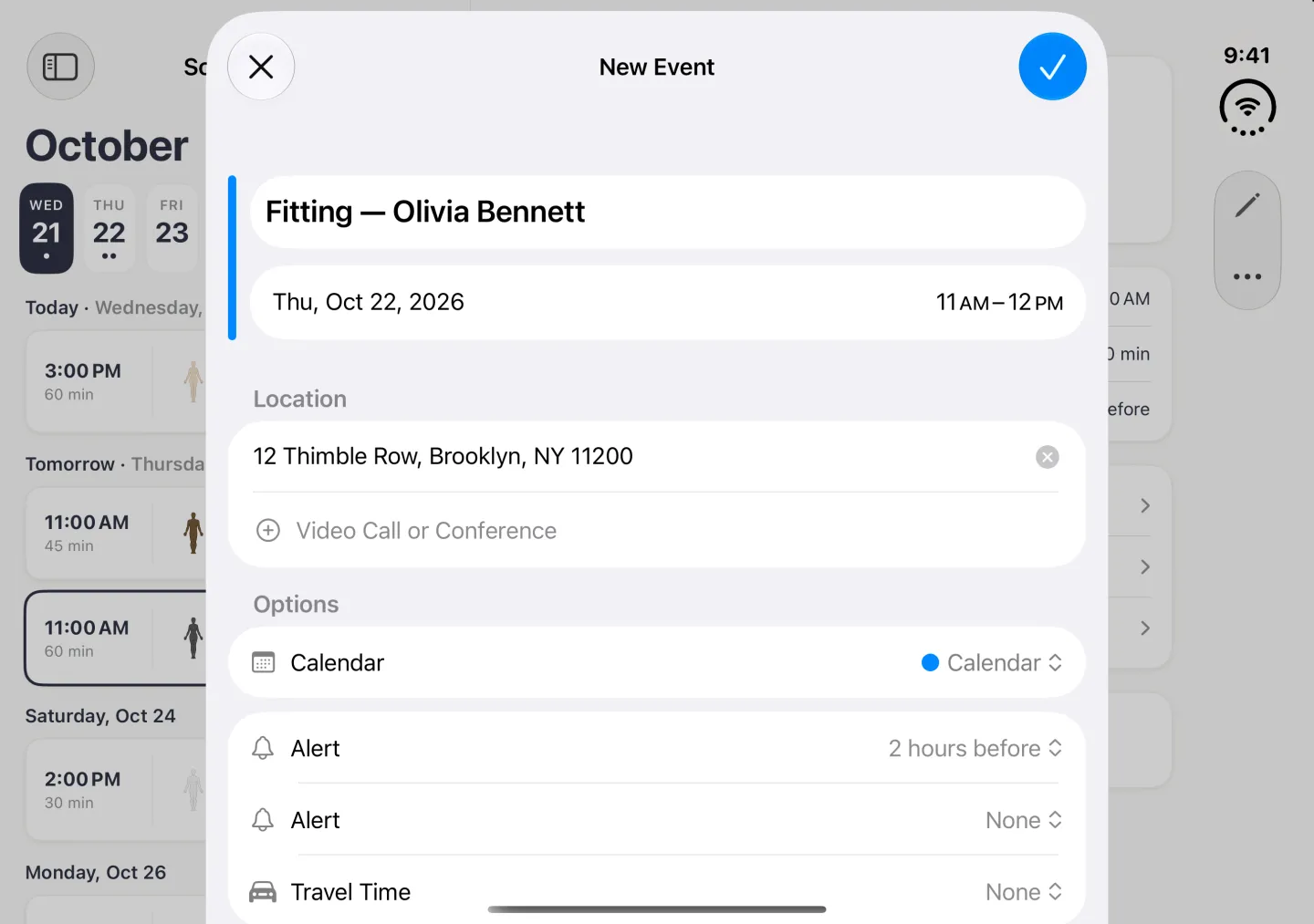
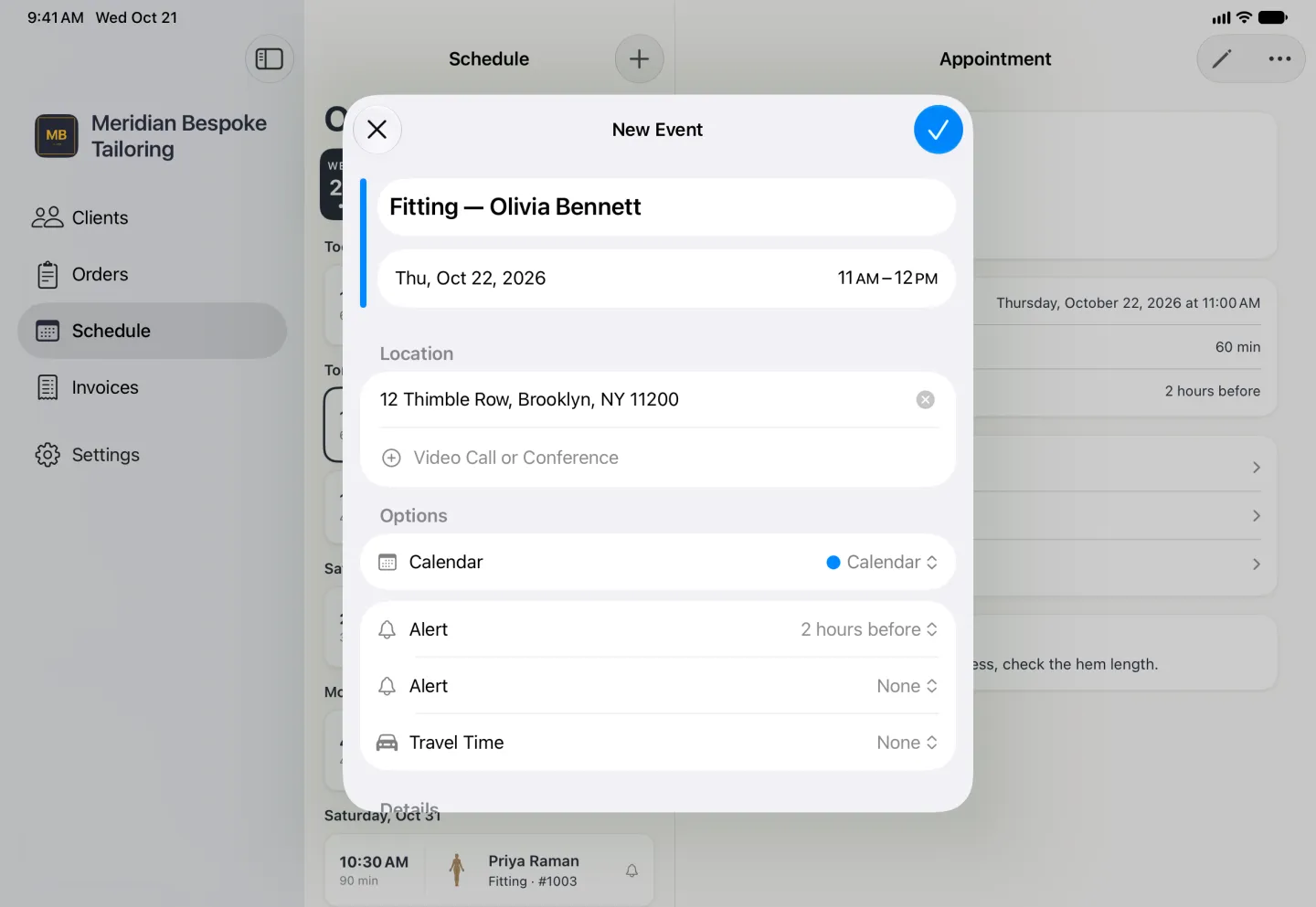
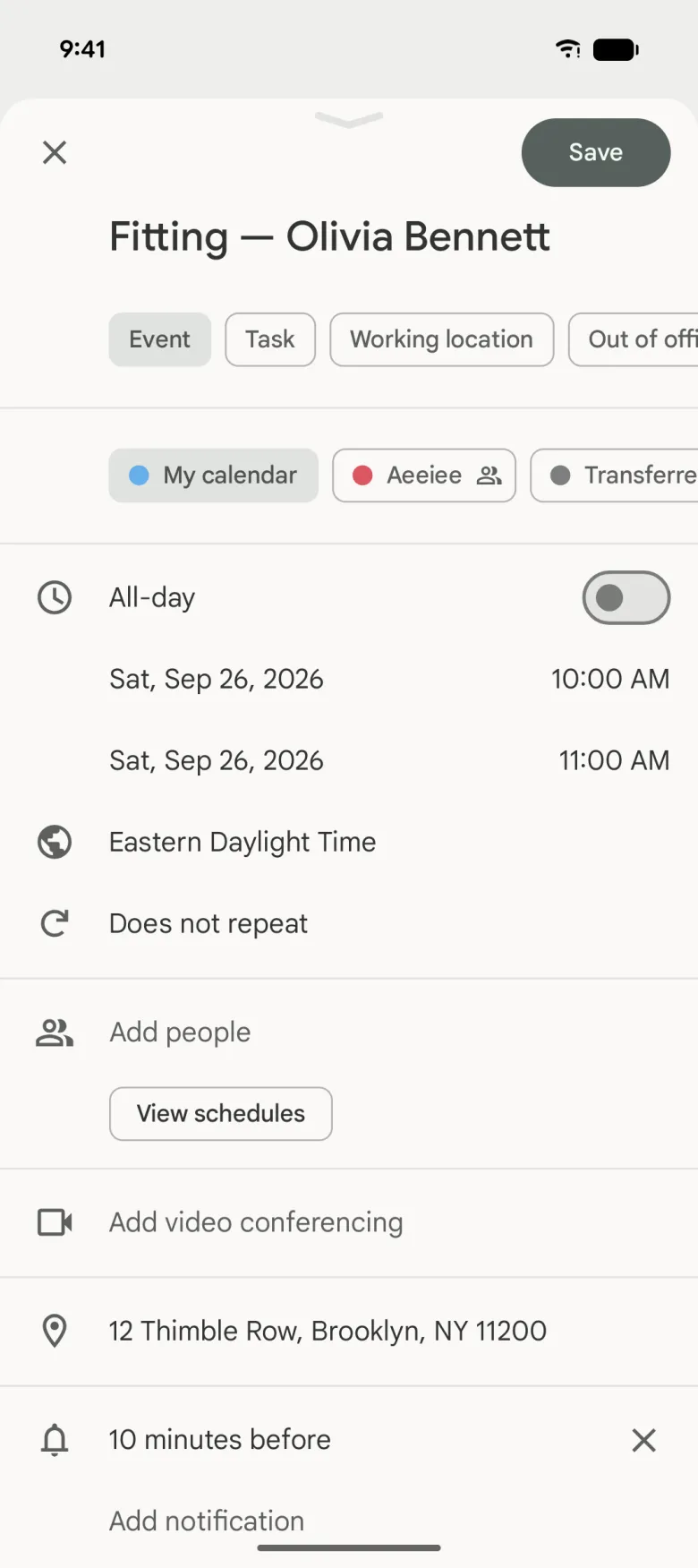
Add to my calendar opens the event editor already filled in with the client, the kind of appointment, the time, the shop address and the reminder as an alert. It asks for no permission, and it saves into whichever calendar account your device keeps. The copy is made once: editing or deleting the appointment in Dress Measurement afterwards leaves an event you already added as it was, so change it in your calendar too.
On Android, Add to my calendar opens the phone’s calendar app with a new event filled in, rather than an editor inside Dress Measurement. Nothing is added until you save it there.
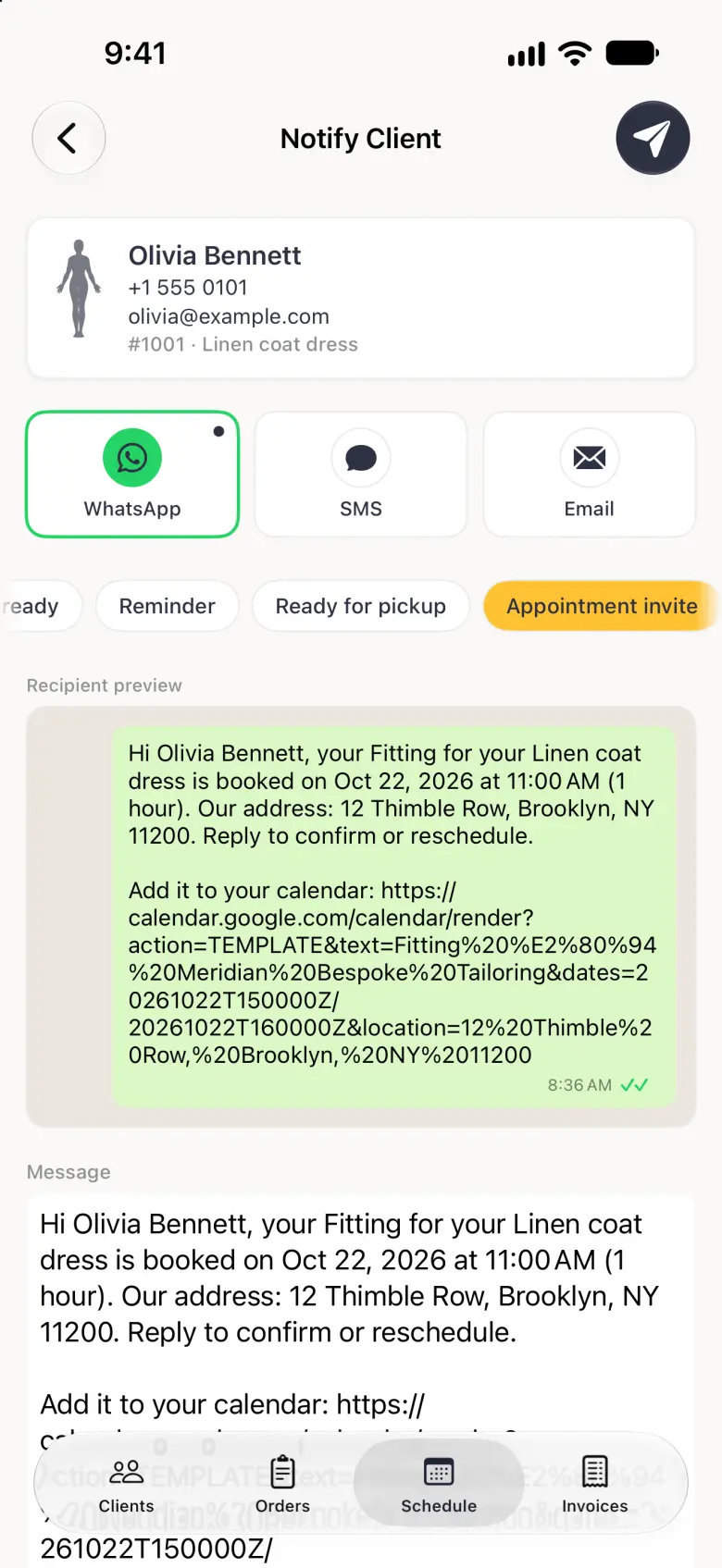
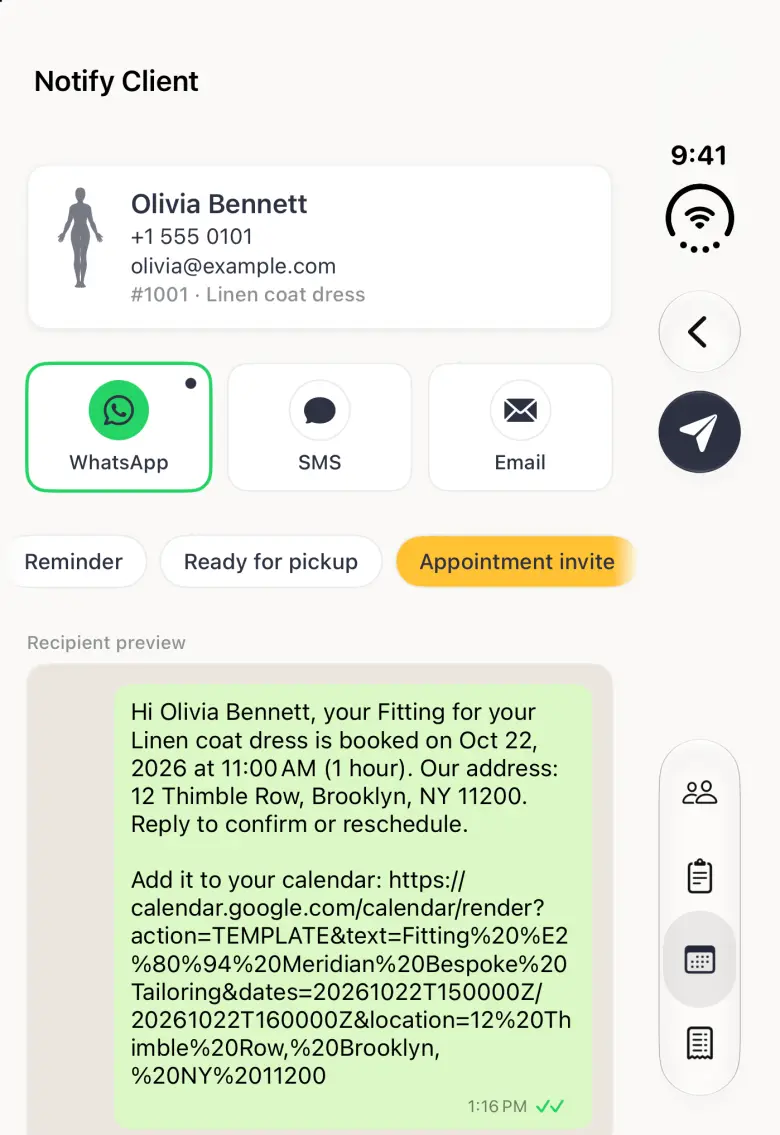
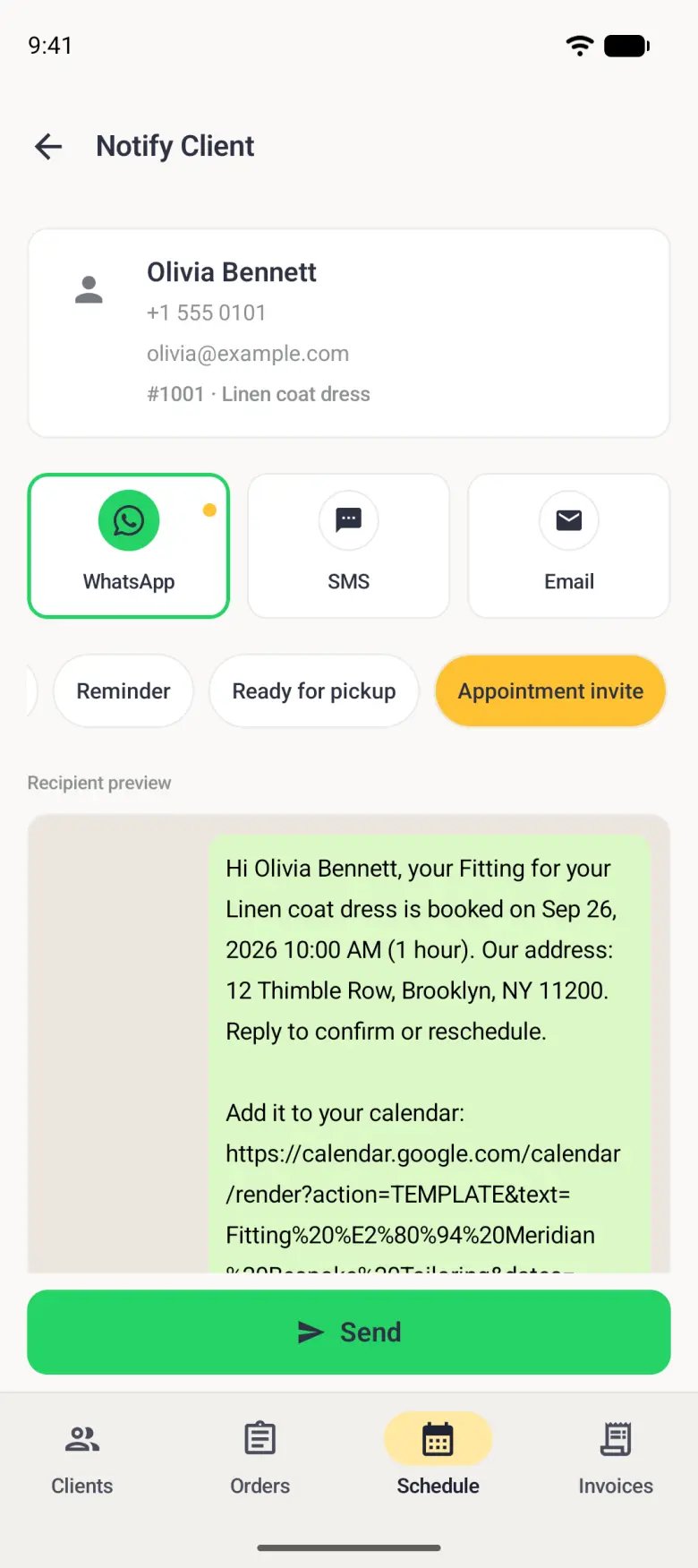
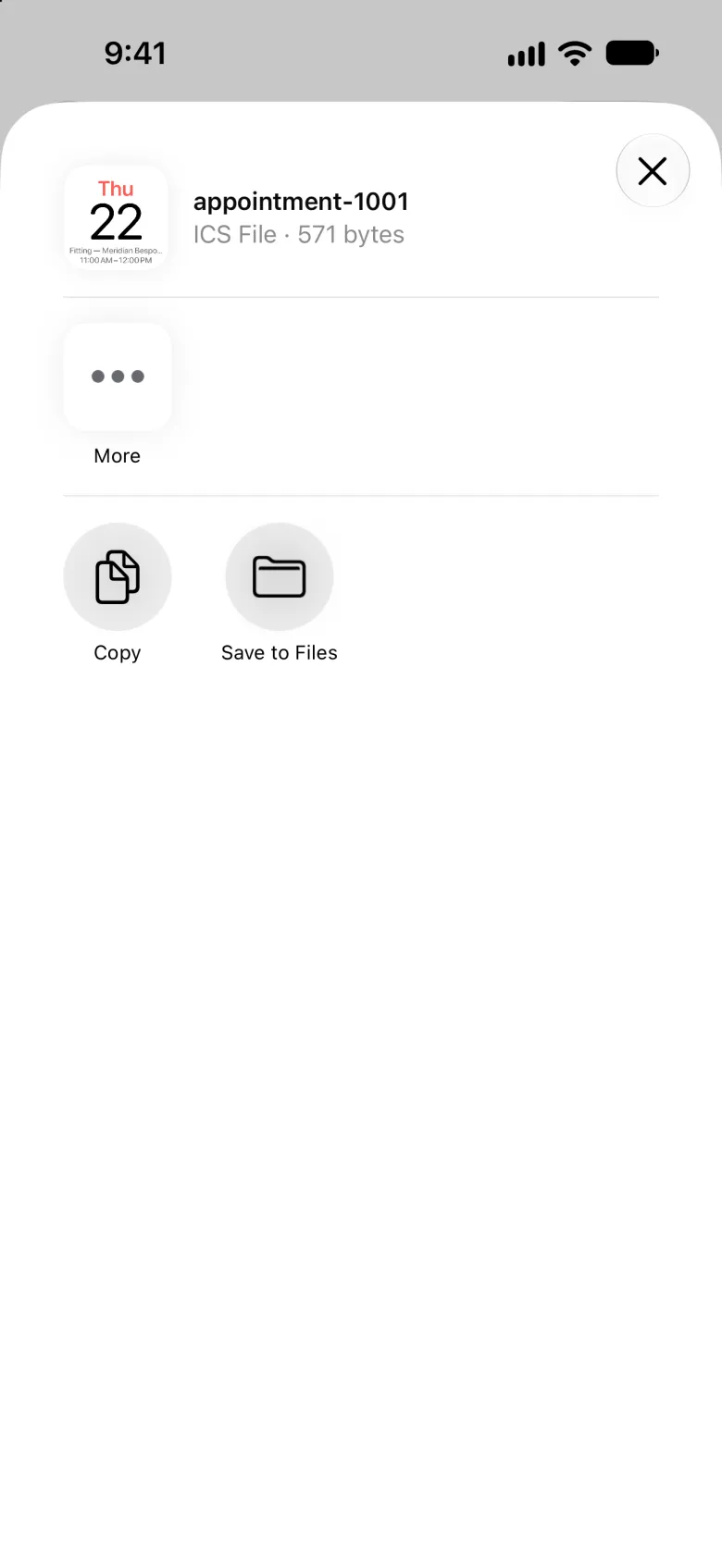
Send invite opens the Notify Client screen on the Appointment invite template, over the channel that client prefers. The message names the kind, the garment, the date and time, the duration and the shop address, and ends with a link the client can tap to put the booking in their own calendar. Nothing goes out until you tap Send, and what you send is recorded in that order’s message history. Share calendar file offers the same booking as a calendar file instead, for a client who would rather have the file than a message.
On Android, Share calendar file opens the Android share sheet, so you send the calendar file through any app on your phone rather than through AirDrop or Files.
How to book a fitting from the order itself
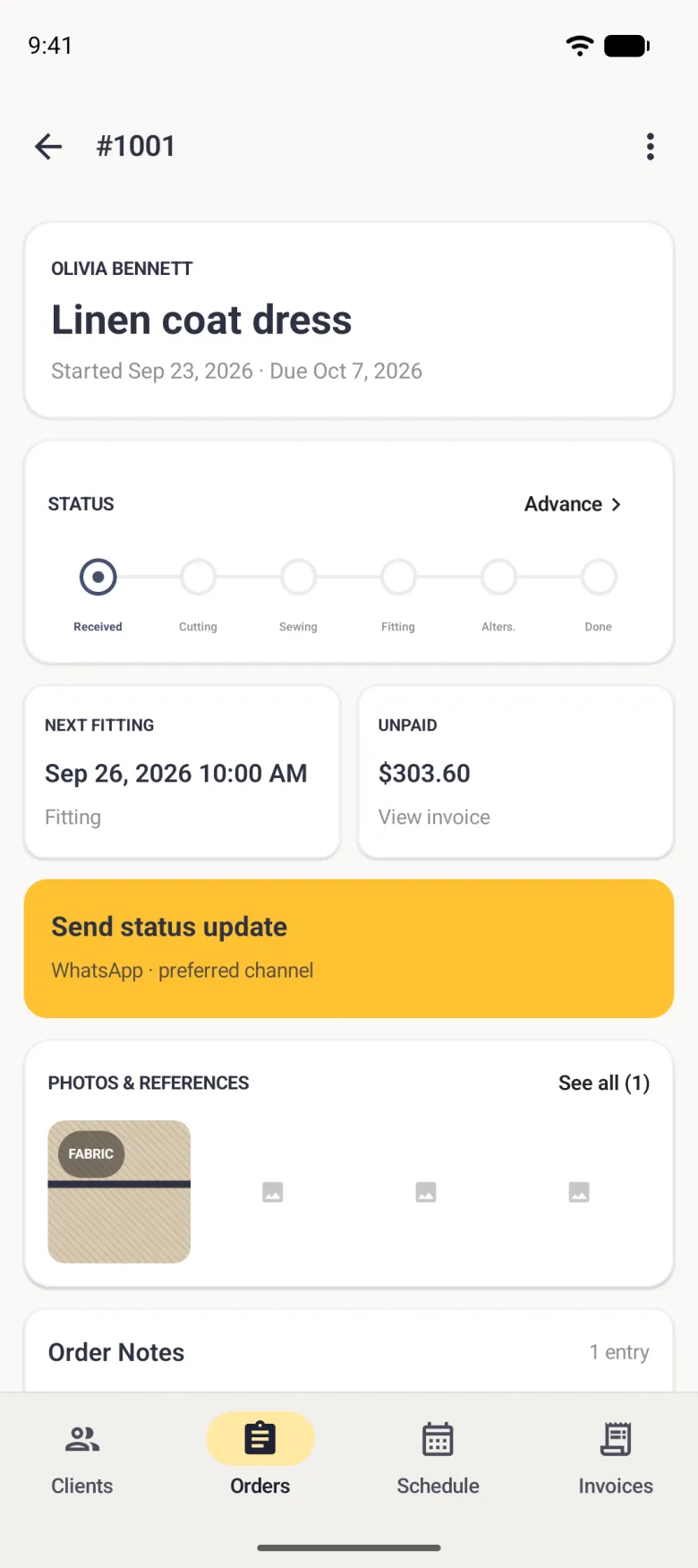
When you are already looking at an order, the next fitting card is quicker. It reads Tap to schedule while nothing is booked, and opens the same form with the order already chosen, so there is no picker to work through. Save, and you are asked whether to let the client know, then returned to the order with the card now naming the date, time and kind.
On iPhone and iPad, once a fitting is booked the card opens that appointment on the Schedule tab rather than a new form.
That is also what makes the Fitting ready message write itself: the template takes the date from the appointment attached to the order.


How to change or cancel a fitting
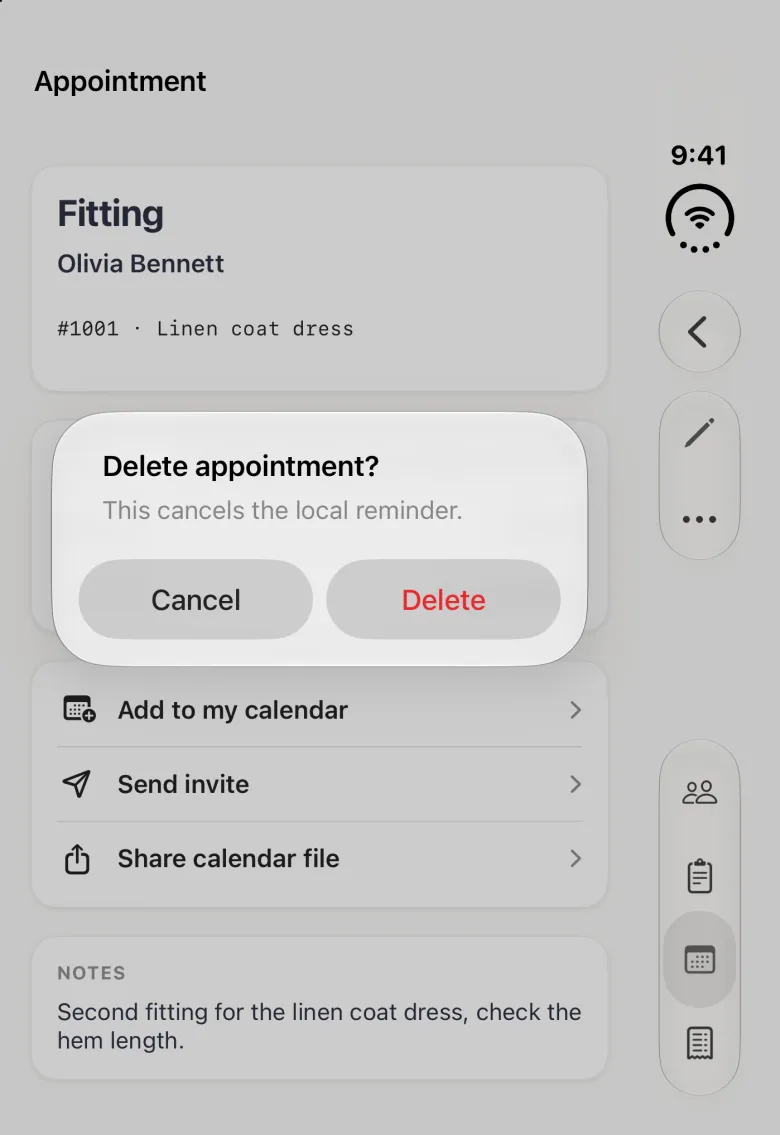
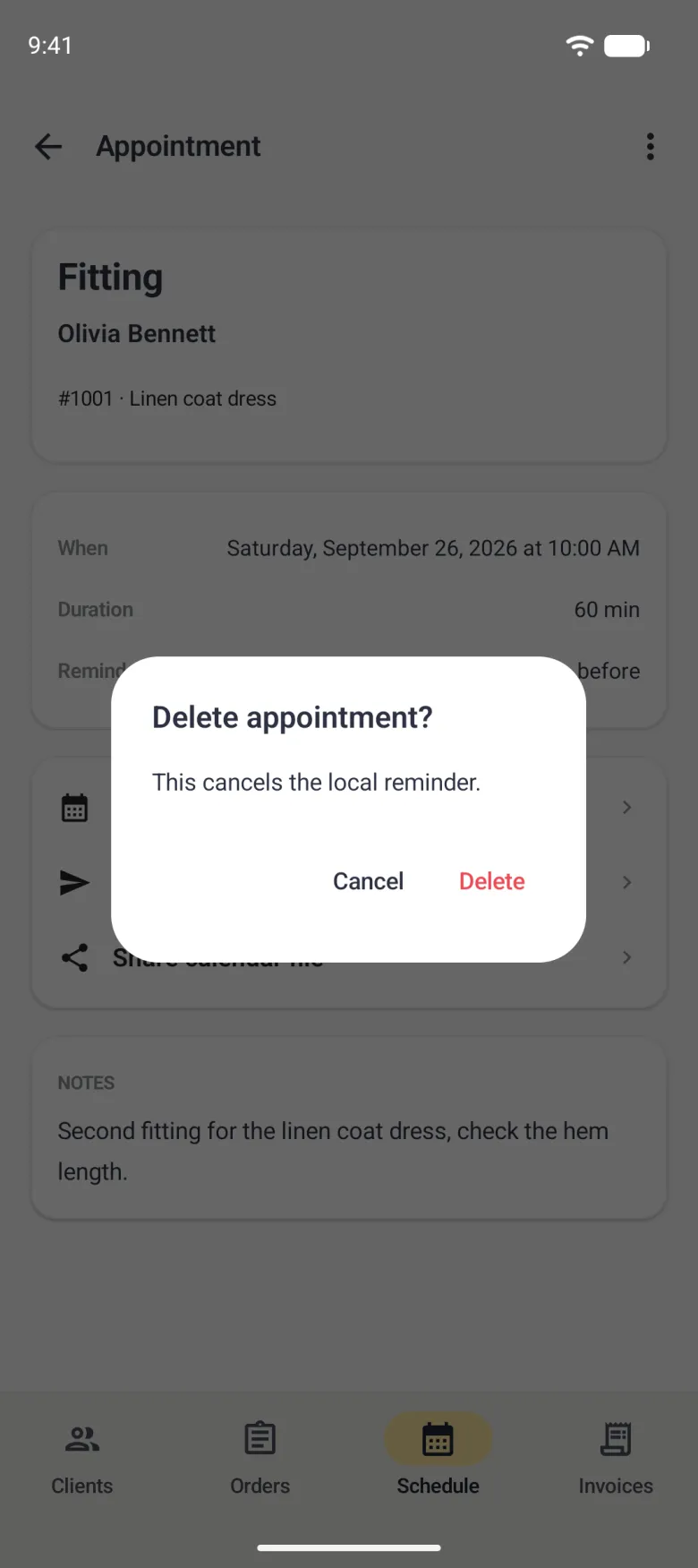
Open the appointment from the schedule. The pencil at the top right reopens the same form with everything already set, and saving with the checkmark returns you to the appointment. The three-dot button beside it holds Delete, which asks you to confirm first and warns that the reminder goes with the appointment. On Android, Edit and Delete both sit in the three-dot menu.
Neither one messages the client, so when a time moves, open the appointment again and use Send invite to send the new details.

How fitting reminders work
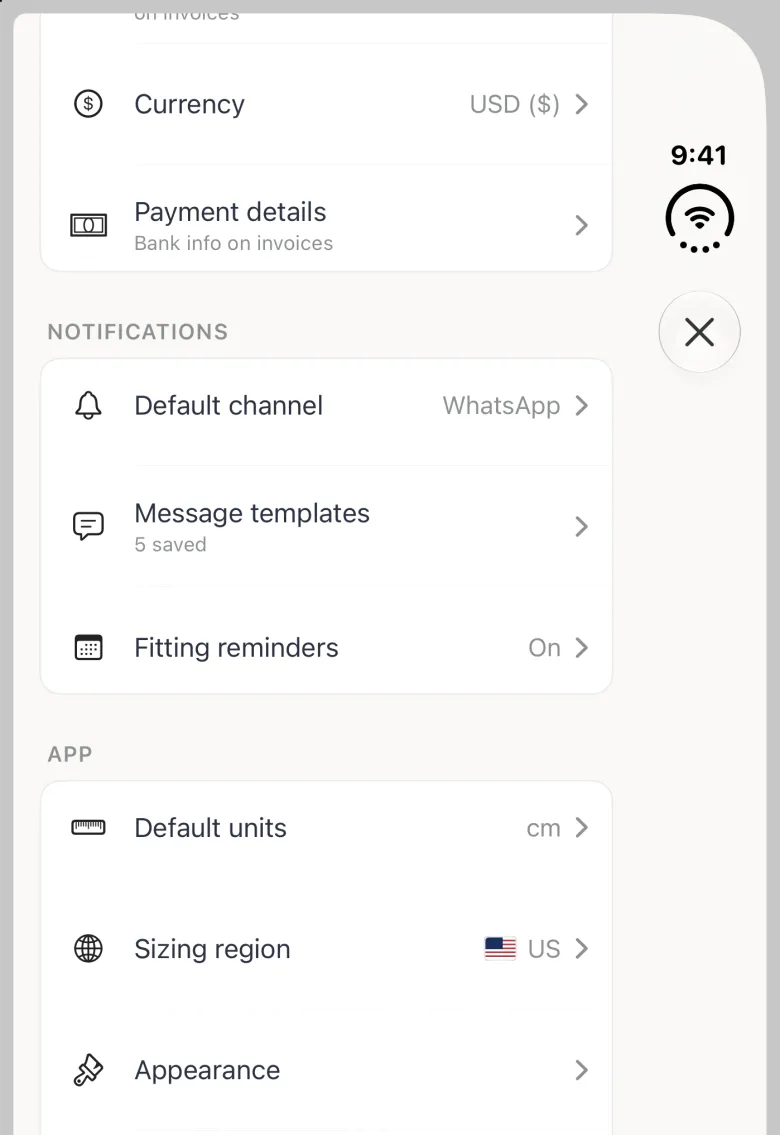
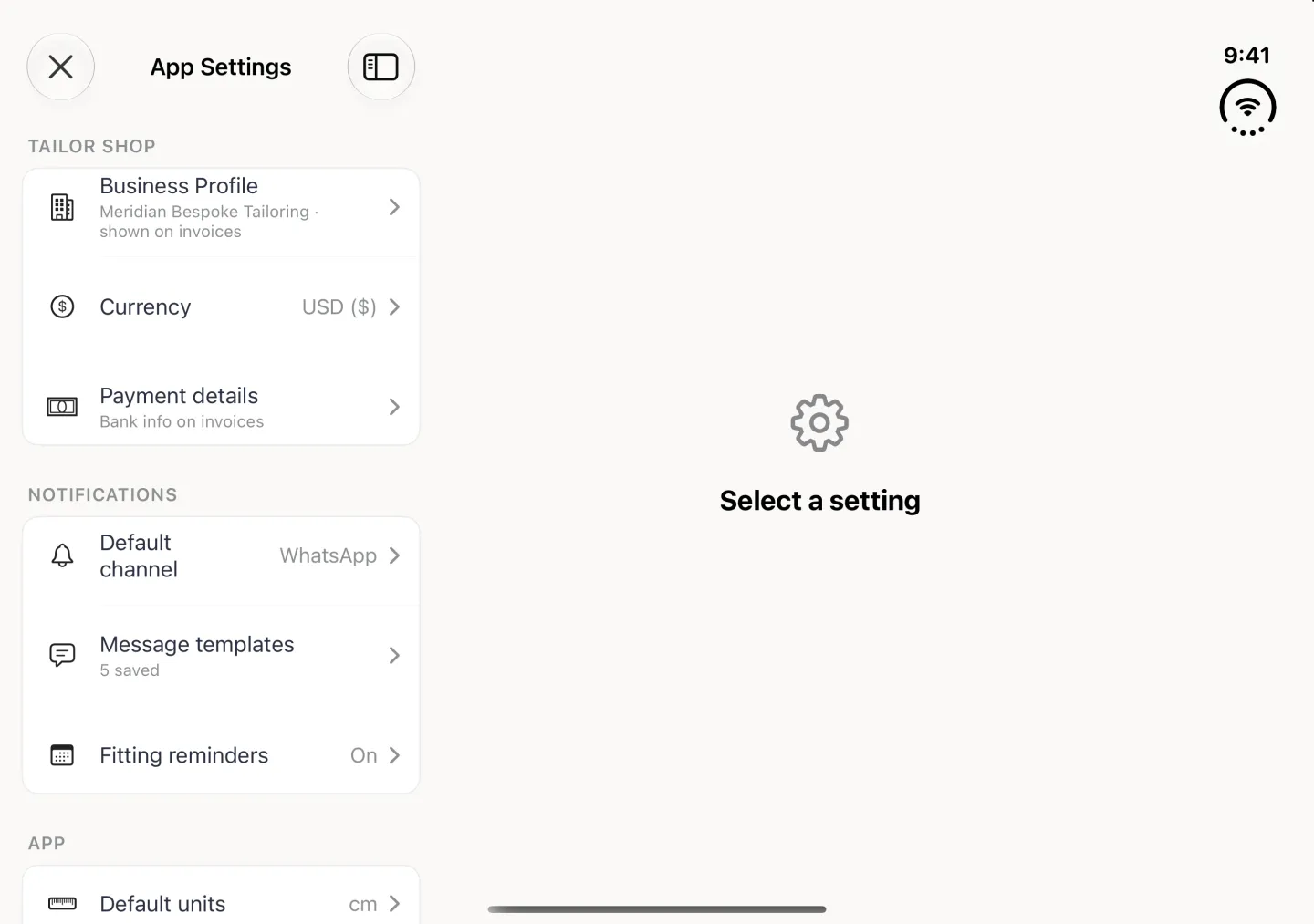
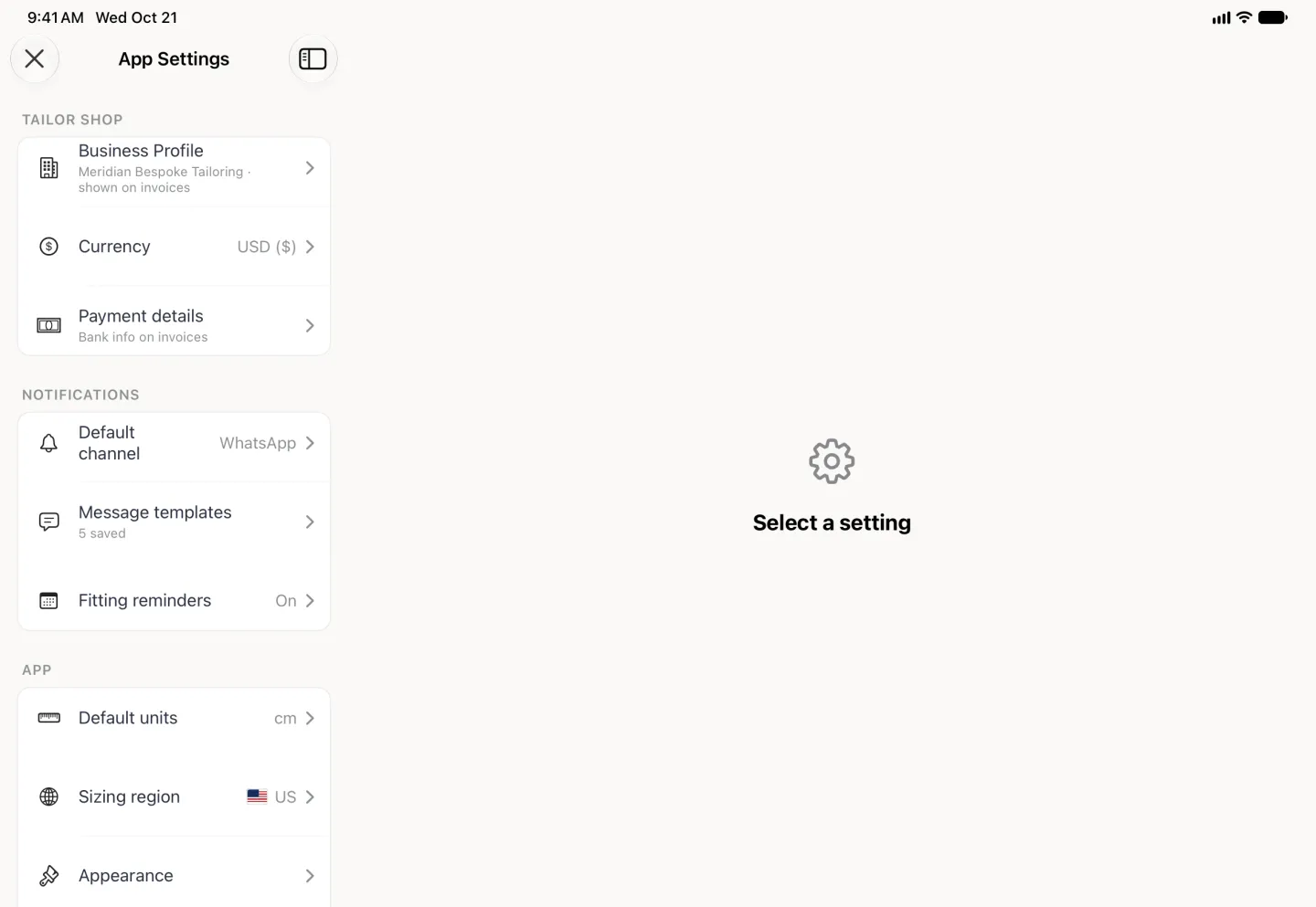
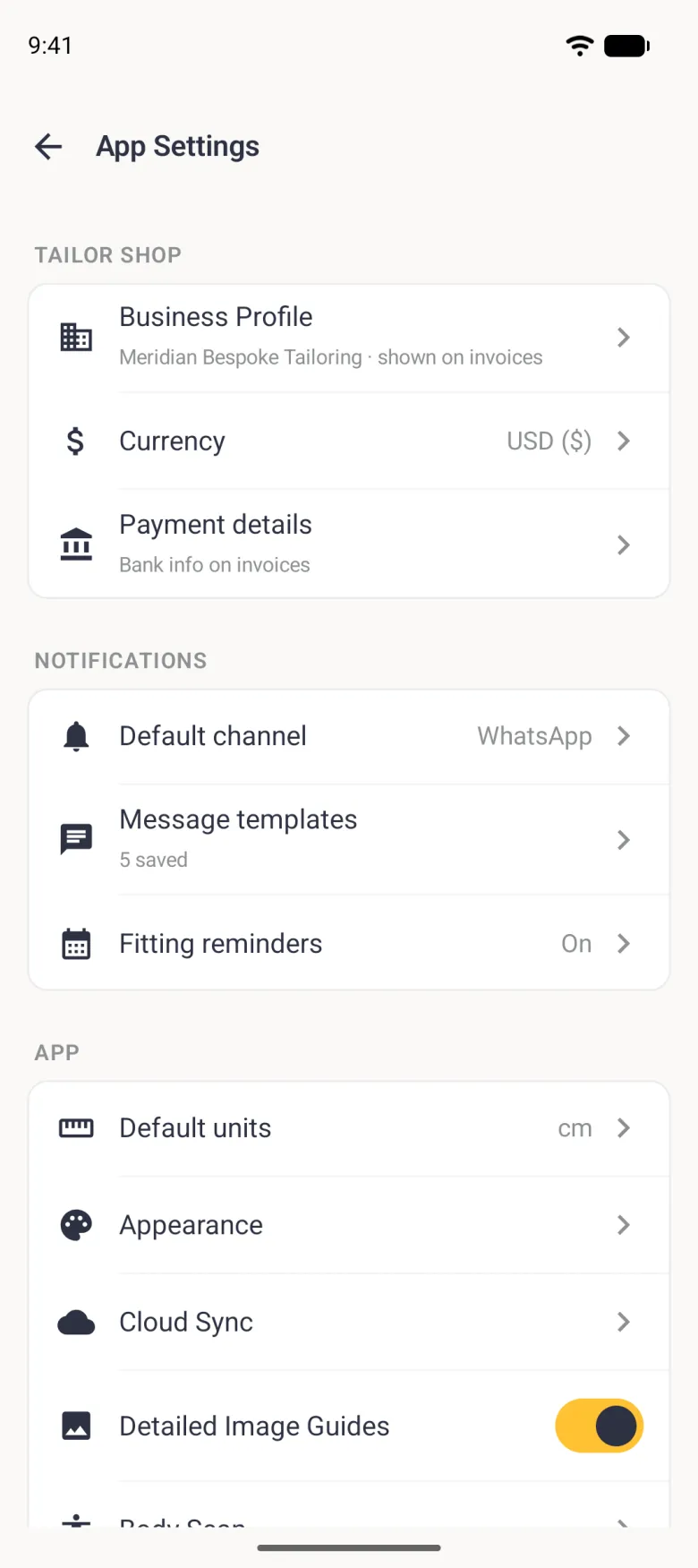
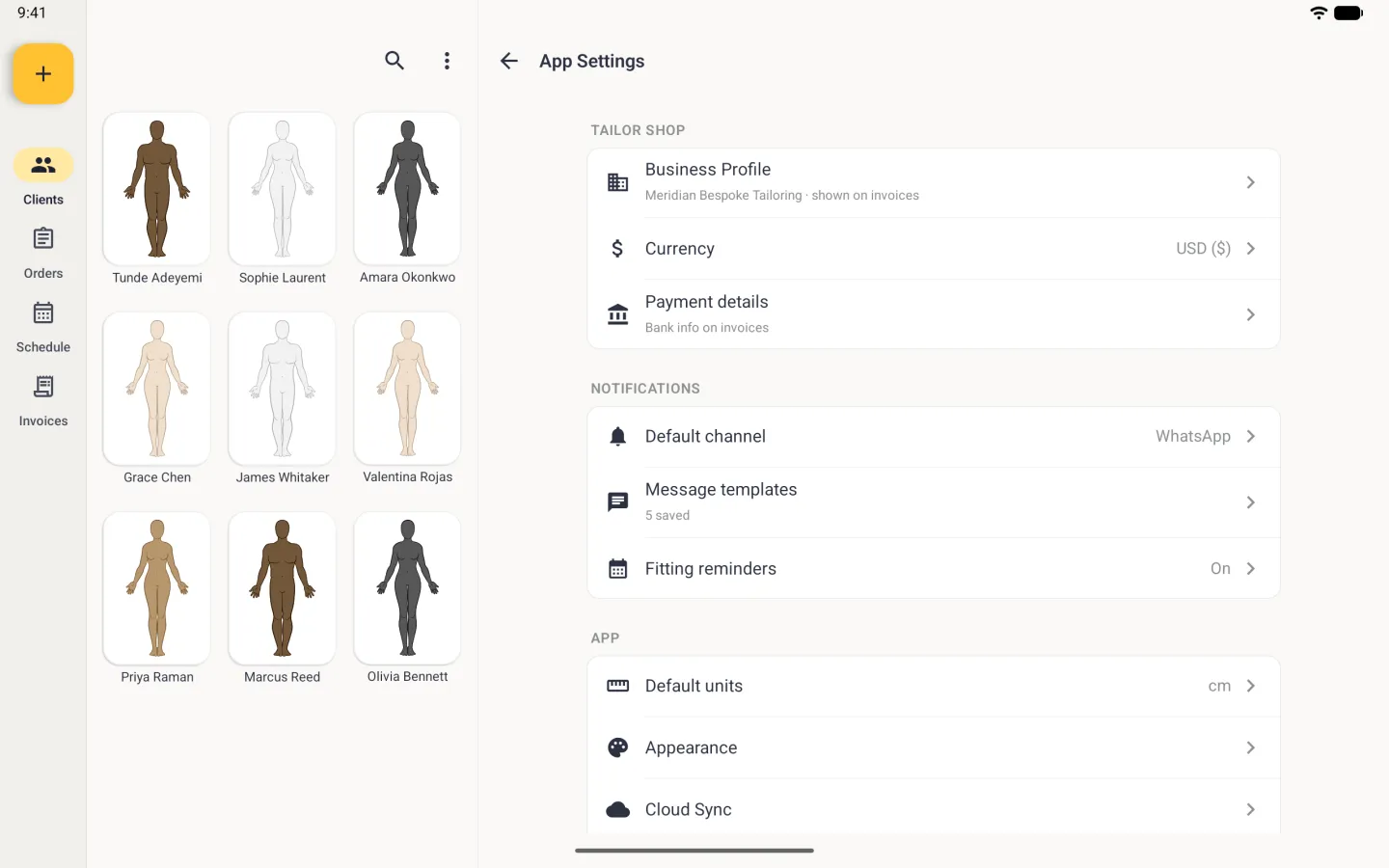
Reminders are set per appointment, with a shop-wide default behind them. Both live in the Notifications group of App Settings, alongside your default channel and your message templates. Fitting reminders holds a switch that turns reminders on or off for the whole shop, and a Remind me row that sets the lead time new appointments start with.
Reminders are notifications from your phone or tablet, so it asks for permission the first time the app needs to schedule one. If permission is granted, every appointment with a reminder waiting shows a small bell at the end of its row, or Reminder set under its time on Android. If it is refused, the schedule shows a banner saying reminders are off and the rows lose their bell, or their Reminder set line on Android. You can grant it later in your device’s Settings.