Measurement features
Reference measurements
Mark the specific area a measurement applies to with grey guide lines that highlight the right start and end points on the avatar.
The Reference Measurement feature is a complementary feature to Custom Measurement that lets you mark out a specific area of measurement. It acts as a visual guide that highlights the right areas to measure and the areas that are not to be measured. This can be useful when drawing out custom measurements for your team to follow, and prevents them from measuring the wrong areas.
Unlike the regular measurement lines, these reference lines are always grey and they don’t have labels. Notice in the picture below, the grey lines create a guide on where the main measurement started and stopped. This clearly defines the specific area the user is to measure (look at the labels NLTC, STW, and WTHB in the picture below for reference).
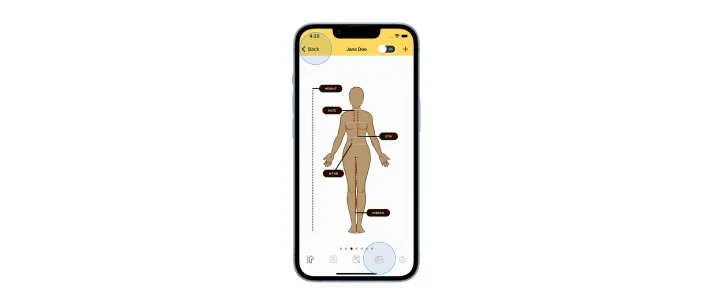
How to create a reference measurement
A reference measurement can be created on a blank page or on an existing page that has custom measurements. Note that a reference measurement cannot be created on default pages. To create your first reference measurement, follow these steps.
Try to add a custom measurement
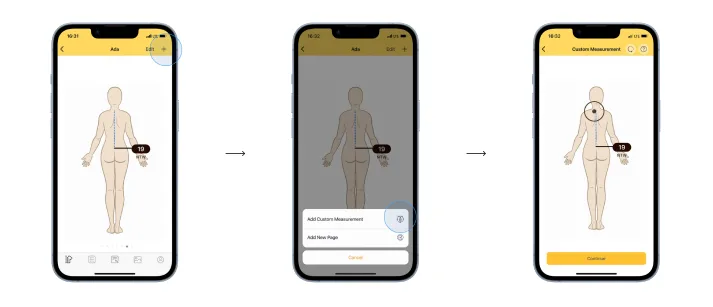
- Open a profile.
- Go to the custom page where you want to add a reference measurement. You can add a new custom page if you want.
- Tap the ”+” icon in the top-right corner of the custom page. A pop-up will appear giving you two options. Select “Add custom measurement”.
Switch to reference measurement mode
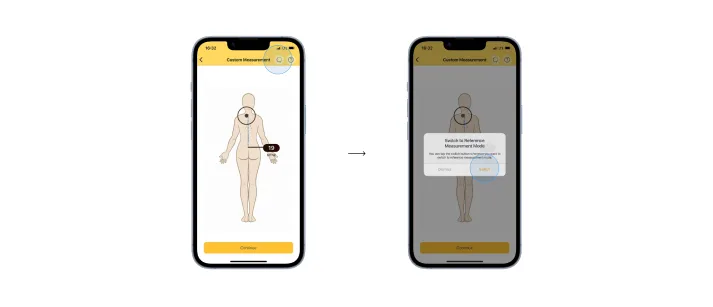
- On the first page, tap the switch button beside the helper icon in the top-right corner of the app.
- A pop-up will appear asking if you want to switch to reference measurement mode. Select switch.
- You will see a big circle on the page. Drag the big circle to where you want to start the measurement, and press continue.
Add reference lines
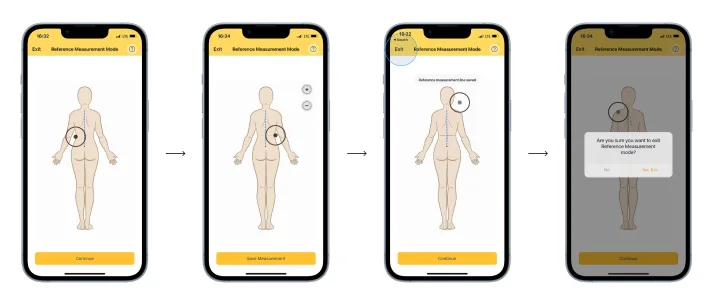
- Drag out the big circle to draw the grey line. Use the ”+” and ”-” icons to add or remove lines. When you are done, press save.
- Repeat the previous step if you want to keep drawing reference measurement lines.
Exit reference measurement mode
When you are finally done drawing, press “Exit” at the top-left corner of the app to exit reference measurement mode.
How to edit a reference measurement
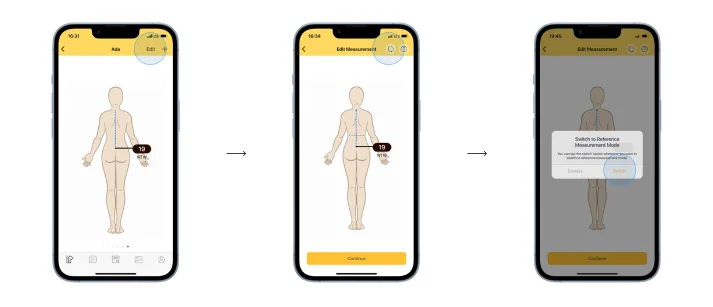
Go into edit mode
- Go to the page of the reference measurement you want to edit.
- Tap the edit button in the top-right corner of the app. This will take you to edit mode.
Switch to reference measurement mode
Switch to reference measurement mode by tapping the switch button beside the helper icon in the top-right corner of the app. Note that you can only edit reference measurement lines when in reference measurement mode.
Select the line you want to edit
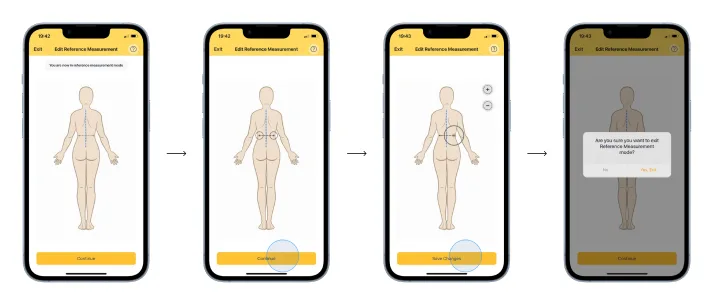
- Tap the reference measurement line you want to edit. Once tapped, the line will turn to a bright grey color with double circles at the end of each line to show that it has been activated.
- Now, press continue (the big yellow button at the bottom of the app).
- You should see a big circle at the bottom of the line; move it around. Now you can edit your measurement. To add more lines or remove a line, use the ”+” or ”-” buttons.
- When you are done, save the changes.
Exit the mode
Press “Exit” at the top-left corner of the app to exit reference measurement mode.
How to delete a reference measurement
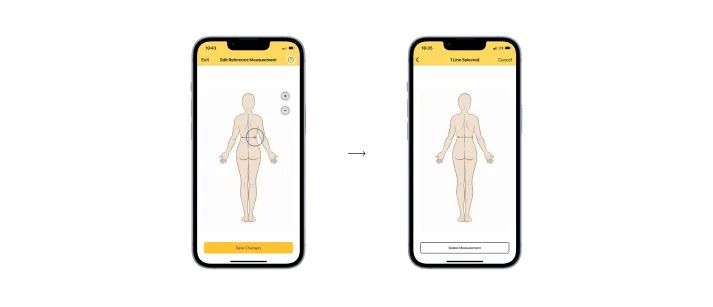
- Go into edit mode by tapping the edit button in the top-right corner of the app.
- Switch to reference measurement mode by tapping the switch button beside the helper icon in the top-right corner of the app.
- Tap on the reference measurement line to activate it, then press continue.
- Press and hold down on the line you want to delete.
- Then tap the “delete” button that appears.
- Exit reference measurement mode when you are done.
To view a detailed visual walkthrough, see the tutorials index.