Profile management
Sync and backup (iCloud)
Back up your measurements to iCloud, push and pull between devices, save a local backup, and resolve sync conflicts.
The iCloud Settings page is where you manage and keep track of your data. It also lets you back up and restore your data, both locally and on iCloud. This ensures your data syncs correctly on all devices and prevents loss of data. This feature is only available on iPhone today; Android cloud sync is on the roadmap.
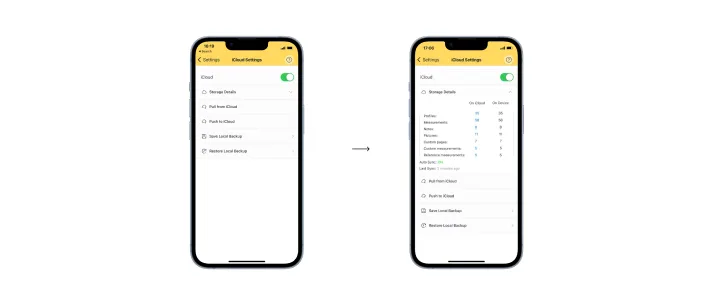
On this page, you have:
- iCloud toggle button. This controls syncing of all data to the cloud. It is present for both Free and Tailor Shop users. Make sure your iCloud sync toggle button is on when you want to back up your data on the cloud. If your app is deleted on your device and you have to redownload it, open the app once it is downloaded, turn the iCloud toggle on, and the app will restore all your files.
- Storage details. Compare the data on your device and the data on iCloud to confirm if everything is syncing properly. If you notice that it is not, use the Pull from iCloud and Push to iCloud features to resolve whatever discrepancies you find. Refresh this storage details page to get accurate information after you perform any action on the iCloud settings page.
- Pull from iCloud. Pulling your data from iCloud will erase all the data on the device you are using and replace it with your data on iCloud. Use this when you know the data on iCloud is more updated than the one on your device.
- Push to iCloud. Pushing your data to iCloud will erase all the data on iCloud and replace it with your data on this device. Use this when syncing is not done properly and the data on your device is more updated than the one on iCloud.
- Save local backup. This action backs up your data locally. Back it up as frequently as you create new data.
- Restore local backup. If you mistakenly delete data, you can restore your local backup to make up for this.
FAQs for iCloud settings
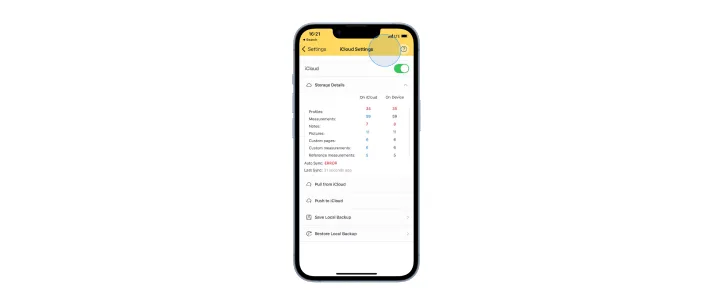
What does it mean when your data is blue?
When your data is blue, the data on iCloud matches the data on your device. It is a sign that syncing has completed successfully.
What does it mean when your data is red?
When your data is red, there is a conflict between your data on iCloud and the data on your device. This affects iCloud sync. Refresh your device or check your internet connection and try again.
How do you resolve an iCloud sync conflict?
To resolve a conflict:
- Check your internet connection and try to re-sync by toggling off and on the iCloud button.
- Compare the data on the cloud with the data on your device. Choose the one you want to keep. Then pull from iCloud or push to iCloud.
- If the problem persists, contact us via support.
What happens if you can’t push to iCloud?
If you have saved your local backup, restore that data, then try pushing to iCloud again. If you have not, save your local backup, restore it, then push it to iCloud.